
Roblox resource management tools help developers monitor, analyze, and optimize the performance of their games by tracking memory, network usage, and processing power.
Building complex games on Roblox can quickly become overwhelming, especially when dealing with numerous assets and intricate scripts. Optimizing your game’s performance is crucial for a smooth player experience, preventing lag and crashes. This is where effective roblox resource management tools become indispensable. These tools allow developers to dive deep into how their games are performing, identifying bottlenecks and areas for improvement. Knowing where resources are going is the key to a well-built game.

Roblox Resource Management Tools: Your Guide to Efficient Game Development
Making a Roblox game is like building with LEGOs, but on a computer! You get all sorts of cool parts and tools to create amazing worlds. But, just like you need to keep your LEGOs organized, you also need to keep your Roblox game resources organized. That’s where resource management tools come in! Think of these tools as your helpful assistant, making sure your game runs smoothly and doesn’t get too messy. They help you keep track of everything you use, from scripts to images to sounds. This way, you can find things quickly, avoid mistakes, and make your game the best it can be.
Understanding Game Resources in Roblox
Before we dive into the tools, let’s talk about what “resources” actually are in Roblox. Imagine them as all the building blocks you use to create your game:
- Scripts: These are like the instructions for your game. They tell characters how to move, objects how to behave, and the game how to work.
- Models: These are like pre-built LEGO creations, such as a house, a car, or a tree. You can use them directly in your game or modify them.
- Textures and Images: These are the pictures that cover your models and the world around you, like the bricks on a house or the leaves on a tree.
- Sounds: These are the audio clips that bring your game to life, like music, character voices, and sound effects.
- Animations: These are sequences of movements for characters or objects, making them look like they are walking, jumping, or doing other actions.
Managing all of these resources effectively is super important. If you have too many or you’re using them incorrectly, it can make your game slow, buggy, or hard to manage. That’s where good resource management comes into play.
Why is Resource Management Important?
You might be thinking, “Why does it matter how I organize my stuff?” Well, imagine trying to build a giant LEGO castle with all the pieces thrown in a big pile. It would take forever to find the right bricks, and you might even lose some important pieces along the way. The same is true for Roblox game resources. Here’s why managing resources is essential:
Game Performance
Poor resource management can make your game run slowly, lag, or even crash. This happens when the game is trying to load too much at once, or is searching for resources that aren’t well organized. Think about it like trying to run a race with heavy backpacks on. You will be slower than when you are running with no bag. Efficient management will reduce the heavy load on the game, making it faster and enjoyable for players.
Project Organization
Imagine having many scripts with similar names or not being sure where a texture is located. This can lead to confusion. Proper management helps you keep everything neatly organized. You will know where everything is, and you can find it when you need it, saving time and frustration. This is especially helpful when you are working with a team.
Error Reduction
Having a disorganized workspace can lead to mistakes. You may accidentally delete an important script, change the wrong texture, or use the same name for different assets, which can cause many problems. Proper management helps you avoid these types of errors by giving you a clear picture of your project and its parts.
Collaboration
If you’re working with friends on a Roblox game, it’s even more important to keep things organized. Everyone needs to know where things are and how to use them. Good management makes it easy for the whole team to work together without any confusion.
Essential Roblox Resource Management Tools
Now that we understand why management is so important, let’s look at the tools that can help us do it effectively. These tools are built right into Roblox Studio, making them easy to access and use.
The Explorer Window
The Explorer window is like the filing cabinet for your game. It shows you everything that is in your game, like places, models, scripts, and more. You can see them in a tree-like structure and navigate your project. It’s like a roadmap of your whole game.
- Hierarchy Management: You can organize your resources into folders. This lets you group related items, like all the sounds for the player in a “PlayerSounds” folder or all building blocks in the “Buildings” folder, making things easy to find.
- Renaming: You can give your resources clear, descriptive names. For example, instead of “Script1,” you could name it “PlayerMovementScript.” Good naming conventions makes it super easy to find what you need.
- Searching: If you have a lot of items in the explorer window, finding a single item could be difficult. Use search feature in explorer window to find the specific item you are looking for.
The Properties Window
The Properties window lets you view and change the properties of any selected resource. Properties are like the detailed specifications of your resource. This could be the color, size, shape, or behavior. For example, if you select a model, you can adjust its material, transparency, and more.
- Visual Customization: You can adjust the visual properties of models, images, and more in this window. For example, you can change colors, materials, and transparency of a building you have created.
- Behavior Control: You can modify how a resource behaves by changing some properties. For example, if you click on a light model, you can adjust its brightness, range, or enable/disable shadows in the properties window.
- Troubleshooting: When you have a problem in your game, check the properties of the game to debug the issue.
The Toolbox
The Toolbox is like a giant library of pre-made resources. You can find models, images, audio, and even entire scripts created by other developers and Roblox itself. This can save you a lot of time, but it is very important to manage this well.
- Organizing downloaded items: After downloading or importing an item from the toolbox, name it correctly and place in the appropriate folder in the explorer window, just like you would do with any resource.
- Be careful when importing free models: Sometimes free models may contain scripts that you didn’t know about, which may not be safe to use. Make sure you check the scripts within those models before using them in your game, to make sure your game is safe to play.
The Output Window
The Output window is the place where Roblox Studio displays messages that are related to your game. This can be errors, warnings, or even information from your scripts. It acts like a feedback window, giving you the details that happened during your coding or test process.
- Troubleshooting: When a script is not working as you expected, check the output window. It displays errors and warning, which can help you find the problem.
- Debugging: Use the
print()function in your scripts to display useful information in the output window. This helps you see the value of variables, track what your code is doing, or see which part of your script is getting executed. - Optimizing: Use the output window to track how efficiently your game is using resources. This can help you detect possible problems and improve the game’s performance.
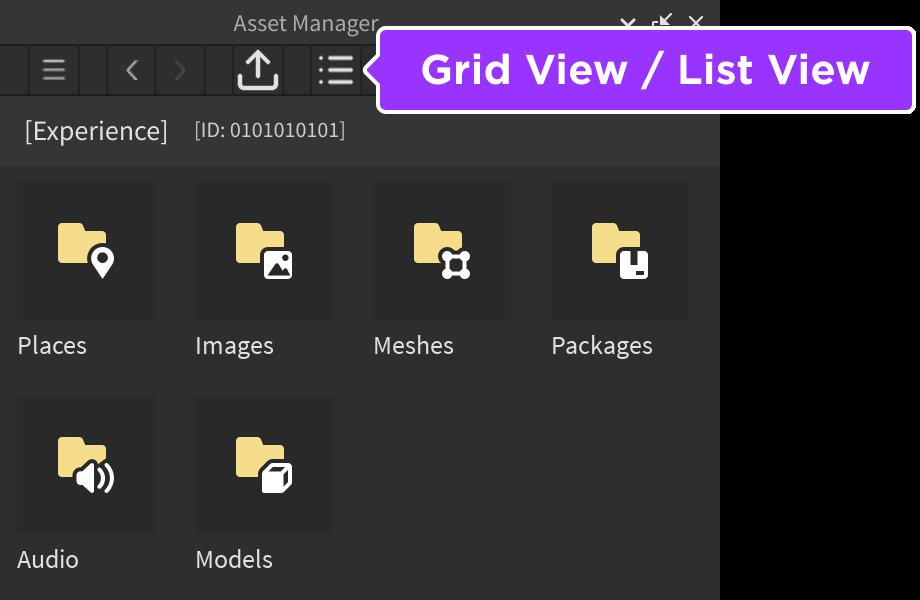
The Asset Manager
The Asset Manager is like a central hub for managing all of your uploaded assets in Roblox. It allows you to keep track of your images, models, sounds, and other items that you’ve uploaded. If you change an image in the asset manager, every place that uses this image will automatically update. You don’t need to replace them manually, which saves time and avoids errors.
- Asset Identification: The asset manager shows all the assets you have uploaded to Roblox and allows you to filter assets by type.
- Organization: You can organize your assets by creating groups, making them easy to find.
- Updating: If you modify an asset, such as an image, you only need to change it once in the Asset Manager, and it will automatically be updated anywhere else in your game.
Best Practices for Efficient Resource Management
Using the tools is only part of the story. To really manage your game resources well, you need to follow some best practices. These tips will make your workflow smoother and keep your game running great.
Consistent Naming Conventions
Pick a naming style and stick to it. For example, you might use underscores between words, like player_movement_script. Or you might start with a prefix such as mdl_house for models or snd_jump for sounds. Whatever you choose, be consistent and use that in all your resources. This will make it easier to find things.
Here is a table showing naming examples:
| Resource Type | Good Name Example | Bad Name Example |
|---|---|---|
| Script | playerMovementScript | Script1 |
| Model | house_v1 | Model2 |
| Texture | grassTexture | image3 |
| Sound | jumpSound | sound4 |
Folder Organization
Using folders is super useful. Create folders in your explorer window to group related resources together. Here are some examples of organizing your folders:
- Models: Inside the models folder you can create additional sub folders like Buildings, Character Models and Vehicles to better organize the different models you use.
- Scripts: You can have separate folders such as Player Scripts, UI Scripts and Game Scripts, to separate all your scripts.
- Audio: Create subfolders for different sound categories like sounds used for UI elements in “UI Sounds” folder, sounds for character interaction in “Player Sounds” and background music in “Music”.
Regular Cleanup
From time to time, go through your project and remove any resources that you are not using. Delete unused scripts, models, or images. Make sure to double check before you delete. This will reduce the number of resources your game has to load, which increases performance, and makes your game easier to manage.
Use Version Control
Version control is a tool that helps you save different versions of your project. Roblox studio has the Team Create feature that allows you to work with other people. Version control also allows you to revert back to an earlier version of your project if you make some mistakes. This is like having an undo button for your entire project! This is crucial for managing a big project, or working with a team.
Optimize Textures
Large image files can slow down your game. Try to keep your textures as small as possible while still looking good. You can use image editing software to compress the file size and reduce resolutions, which will help your game to load faster.
Also try using spritesheets, which combines multiple images into one file. Spritesheets reduce loading time and the amount of data transfer, which can further increase performance.
Efficient Scripting
Make sure your scripts are well written and optimized. Use loops when you can. Avoid repeating the same code over and over. Avoid long calculations, these will make your game slower and may cause lag. Try to reuse function as much as possible in your scripts, this will make your code cleaner and easier to understand.
- Avoid global variables: Using global variables make your code difficult to debug and also take up more resources.
- Comments: Add descriptive comments to your scripts. This will help you remember how your code works and help you understand it when you see the code later. This also helps other people who work with your code understand what your scripts are doing.
Regular Testing
Test your game often. This helps you catch problems early and fix them before they get too bad. Play your game on different devices to make sure that it runs smoothly for everyone. Keep checking the output window during testing to fix any potential errors.
These practices combined with the Roblox Studio resource management tools will create an efficient workflow for your Roblox development, which allows you to create bigger and better games.
By implementing these techniques, you will not only keep your Roblox projects organized but also help them run smoothly. With these techniques, you will be prepared for developing bigger and bigger projects. Remember, effective management is key to building awesome games that players will enjoy!
Best Roblox Studio Plugins! #shorts
Final Thoughts
Effective resource management is key for successful Roblox development. Utilizing tools that monitor performance helps optimize your game. These tools help identify areas that use excessive processing power. This results in smoother gameplay for all players.
Choosing the correct roblox resource management tools makes a significant difference. They empower creators to create better experiences. Ultimately, resource management means better game performance.

