
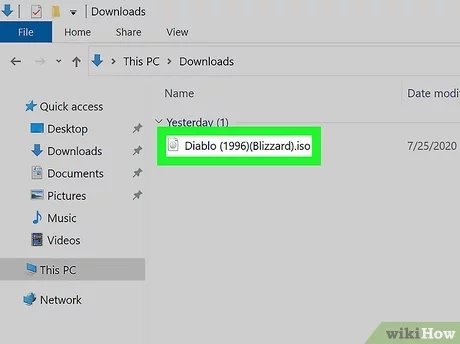
To play an ISO game on your PC, you’ll need to mount the ISO file using software like Daemon Tools or Virtual CloneDrive, then run the game setup or executable.
Ever stumbled upon a game in ISO format and wondered how to actually play it? It seems tricky, but it is quite straightforward once you know the steps. Many older titles or fan-made projects use this format, and knowing how to get them running is great for gaming options. This is where you learn how to play an iso game on pc.
This guide will walk you through the essentials to get your games going. Forget any confusing jargon, we will keep it easy for everyone. We cover basic mounting and running the games.

How to Play an ISO Game on PC
Ever wanted to play a game you found as an ISO file on your computer? It’s like having a digital copy of a game disc, but instead of a physical disc, you have a file on your computer. Don’t worry, it’s easier than it sounds! This guide will walk you through everything you need to know to get your ISO games up and running on your PC. We’ll cover what ISO files are, how to use them, and what you need to get started.
Understanding ISO Files
Before we jump into playing games, let’s understand what an ISO file actually is. Think of an ISO file like a perfect digital photograph of a game disc (like a CD, DVD, or Blu-ray). It has all the information on that disc – the game’s data, the menus, everything – all packed into one single file. This is super handy because it allows us to store and use games without needing the actual physical disc. Instead of carrying a box of game disks, you just keep these ISO files safe and sound on your computer.
Why Use ISO Files?
- Digital Convenience: No need to worry about scratched or lost game discs.
- Backups: You can create backups of your game collection.
- Easy Sharing: Sharing ISO files is simpler than mailing physical games (though be mindful of copyright!).
- Faster Loading: Games loaded from ISO files can sometimes run faster than from physical discs, since hard drives are often quicker than disc drives.
What You Need to Get Started
Before you can begin playing ISO games, you’ll need a few things. Let’s gather everything we need. Here is your checklist to make sure you’re prepared:
- An ISO File: You need the game itself in ISO format. These files often end with a ‘.iso’ extension (like, ‘mygame.iso’).
- Enough Storage Space: ISO files can be large, so make sure you have enough space on your computer’s hard drive.
- Mounting Software (or Emulator): You will need special software to make your computer think it has a physical disk drive or to run games for other consoles.
- A PC: Obviously you need a computer to run these games! The minimum requirements for your game will vary, so it is best to check your game’s specifications.
Finding ISO Files
It is important to understand that downloading or distributing copyrighted games is illegal, so you should only look for ISO files of games that you own physically. It’s good practice to always ensure that your downloaded games are from legitimate sources to prevent legal and security problems. Here is what you must know:
- Creating your own ISOs: The most legit way to get your own ISO files is by using a disc ripping program. These programs create digital images of your game disks.
- Online Game Stores: Sometimes, online game platforms provide digital versions of games in a downloadable file format or within dedicated launchers. They often are not directly ISO files, but can achieve the same results.
- Be Careful: Avoid sketchy websites that offer game downloads, as these can come with viruses or malware. Always make sure you are downloading from a source that you trust.
Mounting an ISO File: Making Your PC Think It Has a Disc
Now that you have your ISO file, you need to make your computer think it has a physical disc in the drive. This process is called “mounting.” There are a few ways you can do this.
Using Built-in Windows Mounting
Good news! Windows 8, 10, and 11 have a built-in feature for mounting ISO files. You don’t need to install extra software if you have one of these newer versions of Windows. Here’s how to do it:
- Locate the ISO File: Go to the folder where you have saved your ISO file.
- Right-Click: Right-click on the ISO file.
- Select Mount: In the menu that pops up, select “Mount.”
- Virtual Drive: Your PC will create a new virtual drive. It will appear in ‘This PC’, and you can access it as if it was a real disc drive.
After mounting the ISO, the game should start automatically. If it doesn’t, you can double-click the virtual drive to open it and then find the setup file for the game and run it.
Using Mounting Software
If you have an older version of Windows or you want more control over your mounted drives, you might want to use mounting software. There are several free and paid options available. Some common ones include:
- DAEMON Tools Lite: A popular, free software that lets you mount many types of disk images, including ISOs.
- WinCDEmu: A very simple and lightweight program that works well for mounting disk images.
- Alcohol 120%: This software includes other disk copying functionalities, but also handles ISO mounting, and can even burn disks.
The general steps for using these programs are similar:
- Install the Software: Download and install your chosen mounting software.
- Open the Software: Launch the mounting program.
- Select the Mount Option: In the software, look for an option that says ‘Mount Image,’ ‘Mount Disk,’ or something similar.
- Choose Your ISO File: Navigate to where your ISO file is located and select it.
- Confirm: The software will mount the ISO. You will find a new virtual drive in your file explorer.
From here, you should be able to install or play the game as usual. Just double click on the virtual drive and look for the game setup file to begin the installation.
Playing Console Games from ISOs
Some ISO files are not for PC games but are images of games from other platforms, like Playstation or Nintendo consoles. To play these ISOs, you’ll need something extra: an emulator.
What is an Emulator?
An emulator is a piece of software that makes your computer behave like a different machine. For example, an emulator can make your PC pretend to be a Playstation 2 or a Nintendo Switch. This allows you to play games from those consoles on your computer.
Finding Emulators
There are emulators for almost any console you can think of. Finding a good emulator involves a bit of research:
- Search Online: Google the name of the console you want to emulate with the word “emulator” (e.g., “Playstation 2 emulator”).
- Official Websites: Always try to download from the official website of the emulator or a trustworthy source.
- Read Reviews: Check forums or reviews to find which emulators have good compatibility with your games.
Using an Emulator
Here’s a general idea of what to expect when using an emulator:
- Install the Emulator: Download and install the emulator you found online.
- Configure the Emulator: Some emulators will need configuration. This could involve pointing the emulator to your game files and selecting which graphics settings work best on your machine.
- Load the Game ISO: Most emulators have a ‘Load ISO’ option. Choose your game’s ISO file.
- Play: Once you load the game, it should start running. Depending on your computer, you might need to adjust the settings for best performance.
Emulator Settings and Performance
Emulating games can take a lot of processing power. If your game is running slow or looks glitchy, you might need to tweak the settings. Here are a couple of things you can try:
- Graphics Settings: Try reducing the game resolution, filtering, or other graphical settings. These changes can reduce the load on your computer and make the game run better.
- Emulator Updates: Keep your emulator up to date, as updates often include bug fixes and performance improvements.
- Computer Upgrades: If your computer struggles with emulation, you might need to upgrade some components, like your processor or graphics card.
Troubleshooting Common Problems
Sometimes things don’t go as planned. Here are a few common problems you might face when playing ISO games and some tips to fix them:
Game Won’t Start
If the game doesn’t start after mounting or loading it, consider these fixes:
- Verify the ISO File: Make sure the ISO file is not corrupt. If possible, try downloading it again from a reliable source.
- Check Compatibility: Ensure that the game is compatible with your operating system or that your emulator is configured correctly.
- Run as Administrator: Try right-clicking on the game’s executable file and selecting “Run as administrator.” This can resolve permission problems.
- Install Required Software: Games often need additional programs to work, like DirectX or Visual C++ Redistributables. You may find this software on the virtual drive, or at the game developers’ websites.
Game is Lagging or Running Slow
If the game lags, here are some solutions:
- Close Unnecessary Programs: Having too many programs open can slow your computer down. Close any unused programs when playing your game.
- Reduce Graphics Settings: Change the graphic options of the game to lower settings.
- Update Your Drivers: Make sure your graphics card drivers are up to date.
- Upgrade Your Computer: It might be time to consider upgrading your computer’s components if you still have trouble with performance.
Error Messages
If you see an error message, this is a good starting point to solve the problem. Often, the message will tell you what is going wrong. Use the message as a prompt to search online for a solution.
- Search the Error Message: Copy and paste the entire error message into a search engine. There are many forums that are ready to help!
- Refer to Game Forums: Check the game’s official forum for answers and solutions.
- Ask For Help: Use other online communities to seek help. Provide as much information as possible about your setup.
Software Installation Error
You may encounter an error message during the installation of a game. Try the following:
- Run Installer As Administrator: Right click on the setup file and select ‘run as administrator’.
- Turn off Anti-Virus Software: Sometimes, anti-virus software can be too sensitive and may stop game installations. Turn it off temporarily during installation.
- Verify Disk Space: Check to ensure that you have enough disk space available for the game.
Legal Considerations
It’s very important to understand the legal aspects of using ISO files. Generally speaking:
- Copyright Law: Copying and distributing copyrighted games is a violation of the law. This means that you should not download or share games from sources you are not allowed to.
- Own Your Games: The best approach is to create ISO files from games that you already own legally.
- Respect Rights: Always respect the intellectual property rights of game developers and publishers.
Please always ensure that you act responsibly and respect intellectual property when using ISO files. If you have any questions, you can always consult with legal resources.
Playing ISO games on your PC can be a lot of fun, and it allows you to enjoy games from various platforms. By understanding how to mount ISO files or use emulators, you can get your games up and running. Remember to check the resources we provided and always follow legal guidelines when handling game files. Happy gaming!
How To Install and play .iso games on a Windows PC
Final Thoughts
To play an ISO game, you’ll first need to download a disc emulator like Daemon Tools. Mount the ISO file as a virtual drive. Next, simply run the game’s setup or executable file from the mounted drive.
After installation, you can play the game just like any other game. Remember, a compatible system and sufficient storage space are needed. This is how to play a iso game on pc.

