
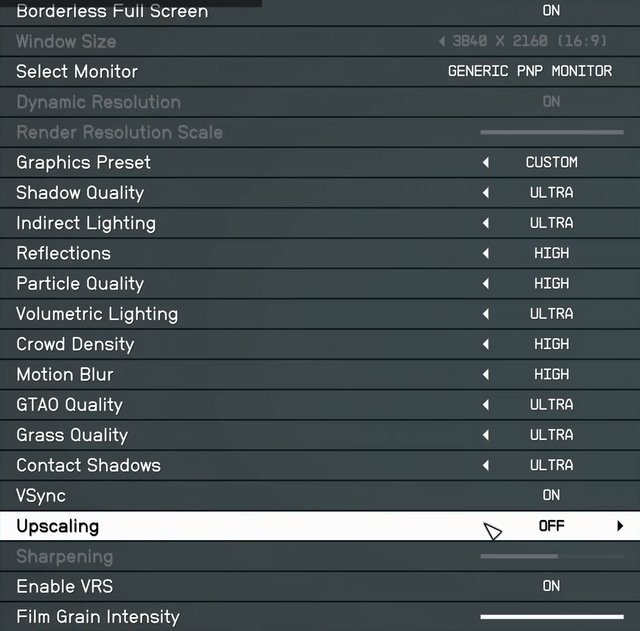
To achieve the best visuals while maintaining smooth gameplay in Starfield, prioritize lowering shadow quality, volumetric lighting, and indirect lighting, while keeping render resolution at or near your monitor’s native resolution.
Are you diving into the vast universe of Starfield and seeking the ideal balance between breathtaking graphics and fluid performance? You are not alone. Many players are tweaking settings to find that sweet spot.
Figuring out the Starfield best graphical settings can seem like a daunting task, with so many options to consider. It’s about making informed choices that benefit your system.

Starfield Best Graphical Settings: A Deep Dive
So, you’re ready to jump into the vast universe of Starfield, but you want it to look amazing, right? We all do! Getting the right graphical settings is like finding the perfect spacesuit – it can make a huge difference in your experience. This guide will walk you through all the important settings, helping you get the best possible visuals while keeping your game running smoothly. It doesn’t matter if you have a super-powered PC or a more modest one; we’ve got you covered.
Understanding the Basics
Before we dive into the nitty-gritty settings, let’s talk about what’s actually happening behind the scenes. Computer games use graphics settings to control how good the game looks. Things like shadows, textures, and special effects all play a part. When you crank up the settings, you’re asking your computer to work harder to show you all those fancy visuals. If your computer isn’t powerful enough, your game might slow down or look choppy.
What do Graphics Settings Control?
Think of it like drawing a picture. You can use simple crayons for a quick sketch, or detailed paints for a very detailed painting. Graphics settings are similar. Here’s a quick look at some of the big ones:
- Resolution: This is how many pixels are displayed on your screen. More pixels mean a sharper picture. Think of it like tiny dots that make up the image. Higher resolution uses more of your computer’s power.
- Texture Quality: This controls how detailed the surfaces in the game look. Think of it as how much information is used for the rocks, trees, and walls. Higher texture quality is more detailed.
- Shadow Quality: This deals with how shadows are cast in the game. Higher shadow quality will give you more realistic shadows, but require more processing power.
- Lighting Quality: This affects how light interacts with everything in the game. Good lighting can make a game look amazing, but it takes a good computer to handle it.
- Effects Quality: This is for things like explosions, smoke, and special magic. Turning up effects means you’ll see more details in these things.
- Anti-Aliasing: This helps smooth out jagged edges that can appear on objects. It makes the game look cleaner and less pixelated.
Finding Your PC’s Limits
It’s a good idea to check your PC’s specs, basically, its list of parts, before you start changing settings. You can find this by right-clicking on your Windows start button, and selecting System. Look for information about your processor (CPU), graphics card (GPU) and RAM (memory). If you have a powerful graphics card, you can expect to run the game at higher settings, and if you have an older computer, you might need to turn down some options. Don’t worry if your PC isn’t brand new; you can still enjoy the game by tweaking things.
Optimal Settings for Starfield
Now, let’s get to the juicy details: what settings should you actually use? The “best” settings are subjective because they depend on your preferences. Do you want the most beautiful game possible, even if it means a few frame drops? Or would you rather a smooth gameplay experience above all? We will cover both.
Prioritizing Visual Fidelity
If you’re all about making Starfield look as gorgeous as possible, here are the settings to focus on:
Resolution
Set this to the highest resolution your monitor supports. Usually, this is 1920×1080 (1080p), 2560×1440 (1440p), or 3840×2160 (4K). Higher resolutions look much sharper, but require a more powerful computer. If your monitor is 1080p then you will be playing with that resolution. If you have a 1440p monitor then you want to run it at 1440p, and the same goes for 4K.
Texture Quality
Crank this up to high or ultra. This will make the surfaces of everything in the game look as detailed as possible. This setting often has a significant effect on how beautiful a game looks. If you are getting bad performance, you can try lowering this setting to ‘medium’.
Shadow Quality
Set this to high. Shadows can really add to the atmosphere of a game, but they can be resource intensive. High is usually a good balance between quality and performance. If you have a very good PC, you can try to set this to the highest setting.
Lighting Quality
Set this to high or ultra. Good lighting can make or break how a game looks. This option makes light sources in the game look great. Start with ‘high’, and move to ‘ultra’ if your PC can handle it.
Effects Quality
Set this to high. Explosions, energy blasts, and other effects will look more impressive at higher settings. A lot of the visual awe in Starfield depends on this setting, but you may need to turn it down if you are getting performance issues.
Anti-Aliasing
Use the best option your computer can manage. In the game this could be FSR or some other option. Anti-aliasing can sometimes have a significant effect on a game’s look, especially when you are not using native resolution.
Motion Blur
Motion blur can sometimes make the game seem smoother. You will have to try this yourself and see if you like it. Many people prefer to turn this setting off, especially if they are sensitive to motion sickness.
Depth of Field
Similar to Motion Blur, Depth of Field can give you a cinematic look. Some people enjoy this, and some do not. It’s a matter of preference. If it is bothering you turn this off.
Prioritizing Performance (Smooth Gameplay)
If smooth gameplay is your top priority, here’s how to tweak your settings:
Resolution
Start at your monitor’s native resolution. If you’re getting low frame rates, try lowering your resolution one step at a time. For example if you are playing at 1080p, go down to 900p. If you have a 1440p monitor, you can try 1080p.
Texture Quality
Set this to medium. This will still allow the game to look good but you will see a significant performance boost.
Shadow Quality
Set this to medium or even low. Shadows can be very demanding for your computer, so reducing their quality can greatly help performance.
Lighting Quality
Start at medium. Again, this setting takes a good amount of computer power. Turning it down will boost performance and you will hardly notice it.
Effects Quality
Set this to medium. This will help you maintain smooth gameplay while keeping effects looking good enough.
Anti-Aliasing
Try FSR or similar settings. These help reduce the jagged lines while not using as much power as other solutions.
Motion Blur
Turn this off. Some people find that motion blur can make the game feel less responsive. It may also provide a slight increase in performance.
Depth of Field
Turn this off. Just like motion blur, this can also reduce the performance of your game.
Experimentation is Key
The “perfect” settings are a personal thing. What works well for one player might not be ideal for another. Try making small adjustments to your settings and seeing how it affects your game’s performance. Don’t be afraid to try things out.
Specific Settings and Their Impact
Upscaling
Upscaling settings like FSR and DLSS are very useful in today’s games. These options take the game at a lower resolution and then use some math tricks to make the game look like it’s playing at a higher resolution. This gives you both good looks and smooth framerates.
Ambient Occlusion
This setting adds shadows in areas where objects are close together, making the lighting look more realistic. While it makes things look better, it can also lower performance. It’s a good setting to try to optimize. If your PC is struggling, you should turn this off.
Volumetric Lighting
This is sometimes called ‘god rays’. It makes light seem to shine through the air, and really adds to the atmosphere of a game. This is another setting that can really use a lot of computer power. It is also very beautiful, so you have to decide if it’s worth the extra cost.
Tesselation
Tesselation adds detail to objects by adding more polygons. This setting can make surfaces more detailed, but might reduce performance, especially on older graphics cards. If you are having performance problems turn this off.
Advanced Tweaking
For the tech-savvy among you, there are a few extra tricks you can try.
Driver Updates
Keep your graphics card drivers updated. The companies that make the cards such as AMD and Nvidia often release driver updates that can greatly improve game performance. This is something you should check before playing any new game. Make sure you’ve got the latest driver.
Game Mode
In Windows settings, enable Game Mode. This will make your computer focus on your game.
Background Programs
Make sure there are no unnecessary programs running in the background. These programs can use valuable resources. Close your browser, and anything else that you are not using.
Overclocking
If you are comfortable, you can try overclocking your graphics card. This makes your card work faster, which can give you more performance. However, this is an advanced technique, and you should look up a guide online before attempting it. Overclocking can damage your system if not done properly.
Settings for Different PC Setups
High-End PCs
If you have a high-end computer with a very powerful CPU and GPU, you can pretty much max out all of the settings in Starfield, and still get smooth gameplay.
Mid-Range PCs
With a mid-range PC, you’ll need to make some compromises. Experiment with turning down some of the more demanding options like shadows, lighting, and effects. Find the sweet spot between performance and graphical quality.
Budget PCs
If you have a less powerful or older computer, turn down everything and use a lower resolution. With a budget PC, you may not get the full graphical experience, but you can still enjoy the game with smooth frame rates. Upscaling options will be very important.
Finding the right settings is a journey, not a destination. So, take your time, test, and get ready to enjoy Starfield at its very best, customized to your specific computer and visual tastes.
Starfield BEST Settings for FPS & Quality (In-Depth Optimization Guide)
Final Thoughts
Optimizing visuals in Starfield involves tweaking various options for a balanced gameplay experience. Adjusting shadow quality and particle effects can significantly improve framerates. Texture quality also impacts performance, so choose a level your system handles well.
Testing different combinations helps you find the sweet spot between visual fidelity and smooth gameplay. Experiment with ambient occlusion and reflection settings to see what provides best result. Remember that performance greatly depends on your specific hardware configuration.
Therefore, achieving the ideal visuals requires some trial and error. For the Starfield best graphical settings, focus on finding a compromise between performance and visual appeal. This ensures a great time exploring the game.

