
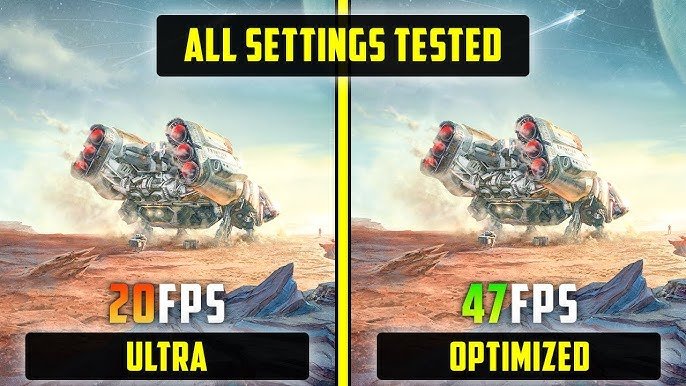
Adjusting graphics settings, updating drivers, and closing background applications significantly improves Starfield game performance.
Is your Starfield experience not as smooth as you’d hoped? Many players encounter performance issues, which can be frustrating. A few simple tweaks can drastically enhance your gameplay. This Starfield guide to improve game performance will provide practical steps.
We focus on quickly implementing changes. We target common bottlenecks that affect framerates. This lets you enjoy the vastness of space without lag. Prepare for a more responsive and enjoyable adventure.

Starfield Guide to Improve Game Performance
Let’s face it, Starfield is a massive game. With its huge worlds, tons of detail, and lots of things happening at once, it can sometimes feel like your computer is running a marathon while trying to play. If you’ve noticed your game is a bit choppy, slow, or just not as smooth as you’d like, you’re not alone! Many players are looking for ways to make Starfield run better, and that’s exactly what we’re here to help you with. This guide will walk you through simple changes and tweaks you can make, so you can enjoy exploring the galaxy without annoying lags or stutters.
Understanding Performance Bottlenecks
Before we jump into fixes, let’s talk about why your game might be struggling. Think of your computer like a team working together to run Starfield. Different parts handle different jobs. Sometimes, one part of the team might be working harder than the others, causing the game to slow down. These slowdowns are called “bottlenecks.” Let’s check out the main areas that could cause problems:
CPU (Central Processing Unit)
Your CPU is like the brain of your computer. It handles all sorts of calculations, including the game’s logic, what characters are doing, and how objects are behaving. Starfield needs a strong brain to handle everything it throws at it. If your CPU is older or not very powerful, it might struggle to keep up, resulting in a lower frame rate (how smooth the game looks) and stuttering.
GPU (Graphics Processing Unit)
Your GPU is like the artist of the computer. It creates the beautiful (and sometimes not-so-beautiful) images you see on the screen. Starfield has detailed graphics, and a weak GPU can’t render these details fast enough, resulting in low frame rates and a blurry-looking game. A good GPU is very important for a good looking and smooth gaming experience.
RAM (Random Access Memory)
RAM is like your computer’s short-term memory. It stores the game data that the CPU and GPU need right now. If you don’t have enough RAM, your computer might have to fetch this data from your hard drive, which is much slower. This will make the game take longer to load, and can cause stuttering.
Storage (Hard Drive or SSD)
This is where the game is stored. Starfield, with it’s large open world and detail rich graphics, can benefit a lot from fast storage, especially SSD (Solid State Drive). If the game is installed on a slow HDD (Hard Disk Drive), it may take a very long time to load areas and can also cause stuttering while playing, when loading in-game assets.
Optimizing Graphics Settings
Starfield allows you to customize its graphical settings. Here are some tweaks you can use to balance visual quality and good performance. Remember that every system is different so you might need to play with them a bit to find what works for you.
Overall Graphics Quality
Starfield provides some predefined graphical options like “Low”, “Medium”, “High”, and “Ultra.” These are like shortcuts to adjusting all the individual settings at once. If you are experiencing slowdowns, try starting with the “Medium” or even “Low” preset. You might be surprised that the game still looks pretty good. If you find it runs very smoothly here, you can experiment and see if you can increase some individual settings. If your game performance is very low, it’s best to try ‘low’ settings first and then increase to ‘medium’ if it plays good on ‘low’ settings.
Individual Settings
If the overall preset adjustments don’t seem to be helping much, then you can go into advanced options for deeper settings. Let’s see what those settings are and what you should adjust for better performance.
Shadow Quality
Shadows make the game look better, but they also take a lot of work for your GPU. Try lowering shadow quality, or turning them off completely to see if you notice a performance difference. You probably wont notice a huge visual difference if you reduce shadow quality from Ultra to High or Medium, but it can make the game much smoother. Try experimenting to see which settings balance game look and feel best.
Texture Quality
Texture quality controls how detailed the surfaces of objects look. High texture quality can make everything very sharp, but also requires a powerful GPU. Reduce the texture quality if you are struggling to get good performance and it is likely to help. However, it may not be best to reduce them too low because then the game might look blurry.
Particle Quality
Particle effects make things like explosions, smoke, and dust look more realistic. They use up a lot of GPU resources. If you are facing lower frames in combat, then it’s a good idea to lower this setting as it might make a big difference. Lower settings will still keep the effects intact but in lower quality to boost your performance.
Render Resolution
This is like how much detail the game is drawing. If you lower this setting, the game might look a bit blurry but will run much smoother. It is usually best to try other options first before reducing the rendering resolution, as this can often significantly degrade the game image quality. If all other settings fail to provide the performance you need, it is best to tweak this option.
Ambient Occlusion
Ambient Occlusion is a technique that adds realistic shadows to areas that are blocked by other objects. This setting can use up a lot of system resources, so turning it off or lowering the setting may give your FPS (frames per second) a boost. Some people don’t notice much difference visually by turning it off, so it’s an easy setting to experiment with.
Volumetric Lighting
This setting controls how light scatters in the environment. For example, it helps light beams from sun shine realistically. Turning this setting down can help a lot with performance.
Reflections
This setting controls how reflections look, such as off of wet surfaces. This effect can be very system resource-intensive. You can turn it off, reduce its quality, or reduce its amount of use to help boost your performance.
Motion Blur
Motion blur can sometimes cause a feeling of motion sickness for some, so its a good idea to see if turning it off helps. Additionally, it can use system resources to generate the blur effect, so turning it off may slightly increase your game performance.
Upscaling
Starfield uses upscaling techniques that can improve performance without significantly impacting image quality. If you are using FSR, you can play with different quality levels. You can often get a decent performance boost with minimal quality loss by adjusting these settings. Here is a brief breakdown:
- FSR (FidelityFX Super Resolution): This is good for most GPUs and can improve performance
Operating System and Drivers
Sometimes, problems are not in the game itself but in how your system is set up. Let’s check some things on your computer to make sure it’s helping the game run smoothly.
Keep Windows Updated
Microsoft constantly updates Windows to fix problems and improve how it works. Make sure you have the latest updates installed. They often include fixes that can improve game performance. To check for updates, go to “Settings” -> “Update & Security” -> “Windows Update” and click “Check for Updates.”
Update Graphics Drivers
Graphics drivers are like translators between your GPU and games. If you are not using the latest driver provided by Nvidia, AMD or Intel, this might be a cause of low performance. These companies release new drivers often and frequently optimize them for latest games. You can usually download the latest drivers from their official websites. Here are some direct links:
- Nvidia: Nvidia Driver Downloads
- AMD: AMD Support & Drivers
- Intel: Intel Driver & Support Assistant
Close Background Programs
If you have lots of programs running in the background, they can use up resources that Starfield needs. Close any unnecessary programs, especially things like web browsers, music players, and other games, before you launch Starfield.
Game Mode (Windows)
Windows has a feature called Game Mode, which focuses your computer’s resources on the game you are playing. Turn this on in your settings (search for “Game Mode” in the Windows search bar) for a potential performance boost. You can toggle it on by navigating to “Settings” -> “Gaming” -> “Game Mode” and turning it to “On.”
Starfield-Specific Tweaks
Here are some more specific tweaks you can do within Starfield to improve your game experience:
Adjust Resolution Scaling
Starfield offers resolution scaling options, which allows you to play the game in lower than native resolution and upscale it to your monitor resolution. This can significantly improve game performance, especially on lower-end hardware. If you have a 1080p monitor, you can also try setting the game resolution to 720p, and see if that makes a difference in the performance and then try different scaling options.
Consider Using Mods
The Starfield modding community is very active. There are many mods created to improve the game’s performance and address specific issues. Do your research, see which mods may be helpful to you, and always follow the mod installation instructions carefully. Download and install mods at your own risk.
In-Game Settings
Starfield has a few in-game settings that you may have missed which can improve your gaming performance. In settings, under ‘Display,’ ensure that these settings are set as follows:
- VSync: Turning VSync off can improve performance, but it might cause screen tearing (a visual artifact where the top and bottom parts of the screen appear misaligned). If you notice screen tearing with VSync off, try turning it back on.
- Motion Blur: As mentioned previously, this option should be turned off to reduce the strain on your GPU.
- Film Grain: If you do not like the grain effect added to the image, it is best to turn this setting off, as it may also slightly increase your performance.
Hardware Considerations
If you’ve tried all of the above steps, and the game is still not performing well, then it may be time to consider upgrading your hardware. While it’s not always easy or cheap, it can make a huge difference in the performance of Starfield and other games. Here’s a quick overview:
Upgrading Your CPU
If your CPU is several years old, it might be a major cause of low performance in Starfield. Check your computer to see if it’s possible to install a faster, more recent CPU. If you aren’t sure how to do this, you can ask a computer expert for assistance.
Upgrading Your GPU
A more powerful GPU can allow you to enjoy higher visual settings without affecting your game performance. Before you consider buying a new GPU, be sure to do some research and confirm that your computer is compatible with the new GPU and your power supply is adequate for its power requirements.
Adding More RAM
If your system is often using your hard drive as additional RAM, this means you may need to increase the RAM. A good amount of RAM is essential for smooth performance in Starfield, especially if you run multiple applications at the same time. Consider upgrading your RAM if you have 16GB or less.
Switching to SSD Storage
Solid-state drives are much faster than hard disk drives. Switching from an HDD to an SSD can greatly reduce load times and improve the responsiveness of the game. If possible, installing the game on an SSD can make a huge difference. You may consider purchasing a new SSD and moving your Steam game library to that drive.
Improving Starfield’s performance may require some time and effort, but the reward of a smooth, lag-free game is absolutely worth it. Play around with the different settings and tips given above to find the best setup for your computer.
Starfield – Massive FPS BOOST Changing This Single Setting
Final Thoughts
Adjusting graphics settings, updating drivers, and closing background apps boosts frame rates. Lowering resolution and shadow quality also helps. Experimenting with these tweaks is crucial for smoother gameplay. Following this ‘Starfield guide to improve game performance’ can significantly enhance your experience.
These actions will generally allow players to have more enjoyable time in space exploration. The game can really shine with proper settings.

