
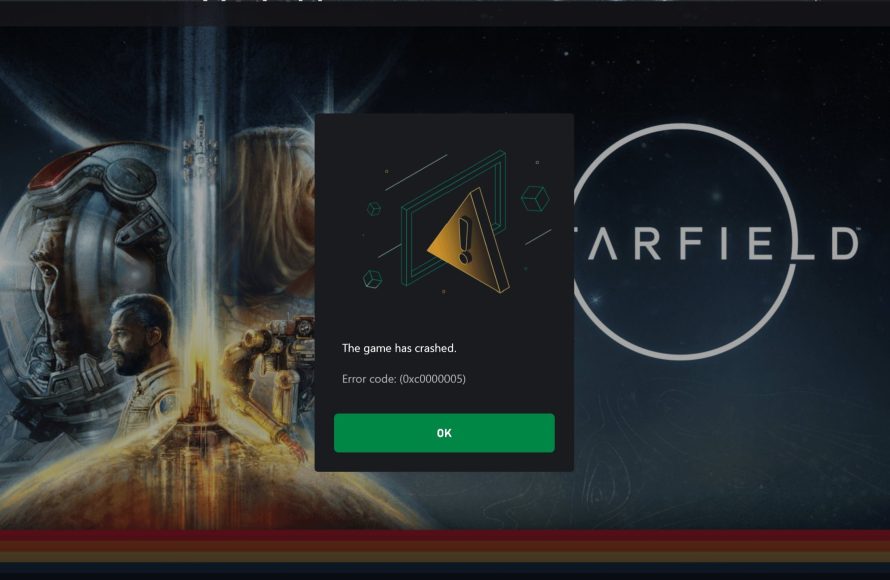
To fix common errors in Starfield, players should try updating graphics drivers, verifying game file integrity, and adjusting in-game graphics settings.
Experiencing frustrating glitches in the vast universe of Starfield? It’s a common problem, and we understand the urge to get back to exploring. You are not alone if you’re encountering issues.
Many players grapple with crashes, freezes, and graphical problems. This guide will discuss how to fix common errors in Starfield by checking key settings and troubleshooting.

Starfield: How to Fix Common Errors in Game
Okay, space explorers! Starfield is a huge, amazing game, but sometimes, like with any big adventure, things can go a little wonky. You might see your game freeze, crash, or just not act right. Don’t worry! These problems are often fixable, and we are here to help you through it. This guide will walk you through many of the common issues players encounter and give you easy steps to fix them, so you can get back to exploring the stars.
Game Crashing on Startup
One of the most frustrating problems is when Starfield crashes right when you try to start it. It’s like trying to launch a rocket that just won’t go! Here are a few things that might be the cause and what you can do about them:
Outdated Graphics Card Drivers
Your computer’s graphics card is like the engine of your game visuals. If its drivers are old, it can cause a lot of problems. Here is how to fix this:
- Find Your Graphics Card: Figure out if you have an NVIDIA or AMD graphics card. You can usually find this information by right-clicking on your desktop, selecting “Display settings,” and then clicking “Advanced display settings.” Then select “Display adapter properties”.
- Go to the Manufacturer’s Website: Visit NVIDIA or AMD’s website (depending on what you found in the step above).
- Download the Latest Drivers: Look for the driver download section and find the newest drivers for your specific card.
- Install the Drivers: Run the downloaded file and follow the steps to install the new drivers. Make sure to restart your computer when it tells you to.
System Requirements Not Met
Starfield needs a pretty good computer to run smoothly. If your computer doesn’t meet the game’s minimum requirements, it will probably crash. Here is how you can check and address it:
- Check the Game Requirements: Go to the Starfield page on Steam or wherever you bought the game, and look for the minimum and recommended system requirements.
- Compare to Your Computer: Compare those to the hardware in your own computer. You can see your computer information by typing “System Information” into the Windows search bar.
- If Your Computer is Below Minimum: Unfortunately, if your computer doesn’t meet the minimum requirements, you will most likely need to upgrade some hardware (like your graphics card or RAM) to play the game.
Below is a table with the minimum and recommended system requirements for Starfield:
| Requirement | Minimum | Recommended |
|---|---|---|
| OS | Windows 10 version 21H1 or Windows 11 | Windows 10/11 (Latest Updates) |
| Processor | AMD Ryzen 5 2600X, Intel Core i7-6800K | AMD Ryzen 5 3600X, Intel i5-10600K |
| Memory | 16 GB RAM | 16 GB RAM |
| Graphics | AMD Radeon RX 5700, NVIDIA GeForce GTX 1070 Ti | AMD Radeon RX 6800 XT, NVIDIA GeForce RTX 2080 |
| DirectX | Version 12 | Version 12 |
| Storage | 125 GB available space | 125 GB available space SSD |
Corrupted Game Files
Sometimes, the game files themselves get messed up, which can lead to crashes. This can happen during the download or install process. Here’s how to check and fix this:
- Verify Game Files: If you got the game on Steam, right-click on “Starfield” in your library, select “Properties,” then click “Installed Files”, and finally, select “Verify integrity of game files”. Steam will then check the game files and re-download any that are damaged.
- If Not on Steam: If you have the game through another platform, look for a similar feature to verify the game files. Each platform will have it in a different place.
Background Apps Interfering
Sometimes, other programs running on your computer can clash with the game and cause it to crash. Here is a simple way to deal with it:
- Close Unnecessary Programs: Before you start Starfield, close any programs that you aren’t using. This includes web browsers, music players, and other games.
- Try a Clean Boot: A “clean boot” only loads the essential programs on your computer. To do this, type “msconfig” into the Windows search bar, go to the “Services” tab, check “Hide all Microsoft services,” and then click “Disable all.” Then, restart your computer, and try starting Starfield again.
Performance Issues (Lag and Low FPS)
Okay, so you can get the game to start, but it’s running super slow and choppy! This is usually due to low frames per second (FPS), which makes the game look like it’s struggling. Here are some ways to boost performance:
Adjusting Graphics Settings
The first thing you can do is adjust your in-game settings. This is like telling the game to use less power from your computer. Here’s what to do:
- Lower the Graphics Quality: Go to the game’s settings and find the graphics options. Try turning settings like “Shadows,” “Lighting,” “Texture Quality,” and “Anti-Aliasing” to “Low” or “Medium.”
- Adjust Resolution: Lowering the screen resolution can help, too. Start by trying a lower resolution and see if it improves the FPS.
- Experiment: Play around with the different settings to find the best balance between graphics and performance.
Overheating
Your computer might be getting too hot while running the game, which can cause it to slow down. Here are things to check:
- Check Your Fans: Make sure all the fans in your computer are working and that your computer is properly ventilated. Make sure there is enough space around the computer to allow for air circulation.
- Clean Your Computer: Dust can block the airflow. Open your computer case (if you know how, or get help), and use compressed air to remove dust buildup.
- Laptop Cooling Pad: If you’re using a laptop, consider getting a cooling pad to help keep it from getting too hot.
Background Processes and Resources
Just like programs running on your computer during startup, applications and processes in the background while you are playing a game can take up processing power that is needed for Starfield.
- Task Manager: Open Task Manager (press Ctrl+Shift+Esc), and check the “Processes” tab to see what is using the most resources (CPU, Memory, Disk). Close anything that you don’t need.
- Startup Programs: Some programs might be starting when you turn on your computer and using power in the background. To manage startup programs, you can do it in the task manager in the “Startup apps” Tab. Disable any program that you don’t need to run in the background.
Game Optimization Settings
Some gamers have found that making changes to how Starfield interacts with your computer’s hardware can significantly boost performance. While these are more advanced steps, they may help you get the game running at its best:
- NVIDIA Control Panel: If you have an NVIDIA graphics card, open the NVIDIA Control Panel, go to “Manage 3D settings”, and make changes to options such as “Power Management Mode” set to “Prefer maximum performance” and “Texture filtering – Quality” set to “High performance”.
- AMD Radeon Settings: If you have an AMD graphics card, go to the Radeon Settings software and configure settings like “Texture Filtering” for performance
- Game Mode in Windows: Go to Windows Settings, click “Gaming,” then “Game Mode” and make sure it is turned “On”. This can give games a slight performance boost.
Graphics Issues (Glitches and Artifacts)
Sometimes, you might see strange visual problems in the game, like textures popping in and out, weird colors, or parts of the game looking distorted. These are called graphical glitches or artifacts. Here is what may cause it:
Driver Issues
Just like they can cause the game to crash, outdated drivers can also lead to these graphic issues. Update your graphic drivers and check if it helps:
- Update Your Graphics Drivers: Refer to the instructions in the “Game Crashing on Startup” section to update your graphics drivers to the latest version.
Game Settings Issues
Some graphics settings, if set too high, can be problematic, especially if your computer isn’t able to handle them. Try changing them to make your game look better again:
- Lower Graphics Settings: Try turning down graphics settings like “Shadows”, “Ambient Occlusion,” or “Bloom” to see if that helps. If you’ve changed the resolution in your system settings, try changing the in game resolution to match.
Hardware Problems
Sometimes, the problems aren’t the game or the software, but your computer’s hardware. This would be the worst case scenario, as it is a more expensive fix. Here is what you may want to investigate:
- Overheating: Overheating can also cause graphical errors. Check to make sure the computer isn’t overheating. Refer to the overheating section above.
- Faulty Hardware: If all else fails, your graphics card or other hardware might be starting to fail. If you’ve tried everything else, it may be time to take your computer to an expert.
Save Game Problems
Losing your progress in a game is incredibly frustrating, so saving is very important. There can be problems when it comes to saving and loading your game. Here’s what you can do:
Save File Corruption
Sometimes the game save files can become damaged, meaning the game may not load or may even corrupt future saves. Here’s what you need to try:
- Try a Different Save: If one save isn’t loading, try a different one. Go back a few saves to see if you can load a previous state of the game.
- Check the Save Folder: Go to the save game folder in your documents folder, and see if the save files look correct, and check the last modified date. If one of the files looks significantly smaller than the others it may be corrupted.
- Cloud Save Issues: If you’re using cloud saves, make sure your internet connection is stable. Cloud saves can become corrupted if the connection is not stable during a save
Saving Issues
Some of the save issues may be due to the way the game is set up to save the game, or the lack of space it has to save the game. Try these ideas:
- Check for Disk Space: If your hard drive is full, the game might not be able to save correctly. Make sure you have plenty of space on your hard drive. 125GB of disk space is required, but having more than that is better in the long run.
- Auto Save: Make sure that auto save is enabled, and that it is set to save often. This way, if you lose progress it is only going to be a short amount of lost time.
Sound Issues
If you’re having problems with sound in the game (like no sound, crackling sounds, or missing sound effects), here’s what you should investigate:
Sound Drivers
Your sound card, like your graphics card, uses drivers to communicate with your computer. If these drivers are outdated, it may be a problem.
- Update Your Audio Drivers: Similar to your graphics drivers, go to your sound card manufacturer’s website and find the latest driver.
In-Game Sound Settings
Sometimes sound issues are caused by incorrect sound settings. Try changing the in-game settings to see if that fixes the issue.
- Check Sound Levels: Make sure the sound levels in the game settings aren’t set too low or muted. Try turning up the game’s overall volume, and check the different audio channels separately.
- Change Audio Device: Go to the Audio tab in settings and switch to a different output, such as the headphones output, and then back to the one you were using to see if it helps
System Volume
Just like in game sound settings may be incorrect, system settings may cause the game to have issues with audio. Check your computer’s system volume setting and make sure the game itself is not muted.
- Check System Settings: Click on the speaker icon in your taskbar to make sure that the volume is turned up, and that the game is not muted in the “Volume Mixer” settings.
Game Bugs and Glitches
Sometimes, the problems aren’t with your computer at all, but they’re just little mistakes in the game’s code. This may include the character getting stuck on scenery, not being able to complete a quest, or parts of the game behaving strangely. These are called bugs and glitches, and here’s how to deal with them:
Restart the Game or Load a Previous Save
Often, a simple restart can fix a lot of the smaller bugs. Also, loading a previous save can help fix game bugs by going back before the bug started.
- Restart the Game: Close Starfield completely, and then start it up again.
- Load a Previous Save: If restarting doesn’t fix it, try loading an earlier save where things were working fine.
Check for Game Patches
The game developers are always working to fix bugs in games. This is done through game patches that are rolled out on a regular basis.
- Update the Game: Make sure Starfield is up to date with the latest patches. The game client, like Steam, will typically download and install game patches automatically, but there may be a small delay before they are available.
Report the Bug
If you come across a bug that you can’t fix yourself, it’s a good idea to let the game’s developers know.
- Use Game Forums: Often the game has its own forums or sections on websites like Reddit. You can report the bug, but you may find that other players have found similar bugs and possible fixes.
- Use the Support Website: Use the official support website for Bethesda or Steam to report bugs that may not have been reported yet.
We hope this guide helped you fix some of the issues you may have been facing in Starfield. Remember to try each solution one at a time and check if that works. This process can take a long time, but once you find the fix you will be enjoying Starfield in no time. Now, get back out there and explore the cosmos!
How to FIX Starfield All Errors
Final Thoughts
Addressing frequent issues, like crashing and graphical glitches, often involves updating drivers and verifying game files. Check minimum specs and lower settings to improve performance. ‘Starfield how to fix common errors in game’ relies on these fundamental steps.
Using the correct graphics card and ensuring sufficient RAM help solve many problems. Proper installation of game and patches usually makes the game more stable. Many players have fixed game related issues by these measures.
Remember to always look for developer forums for specific problems you encounter. These resources are valuable for finding solutions for errors that are unique to your setup, ‘Starfield how to fix common errors in game’ is made much easier.

