
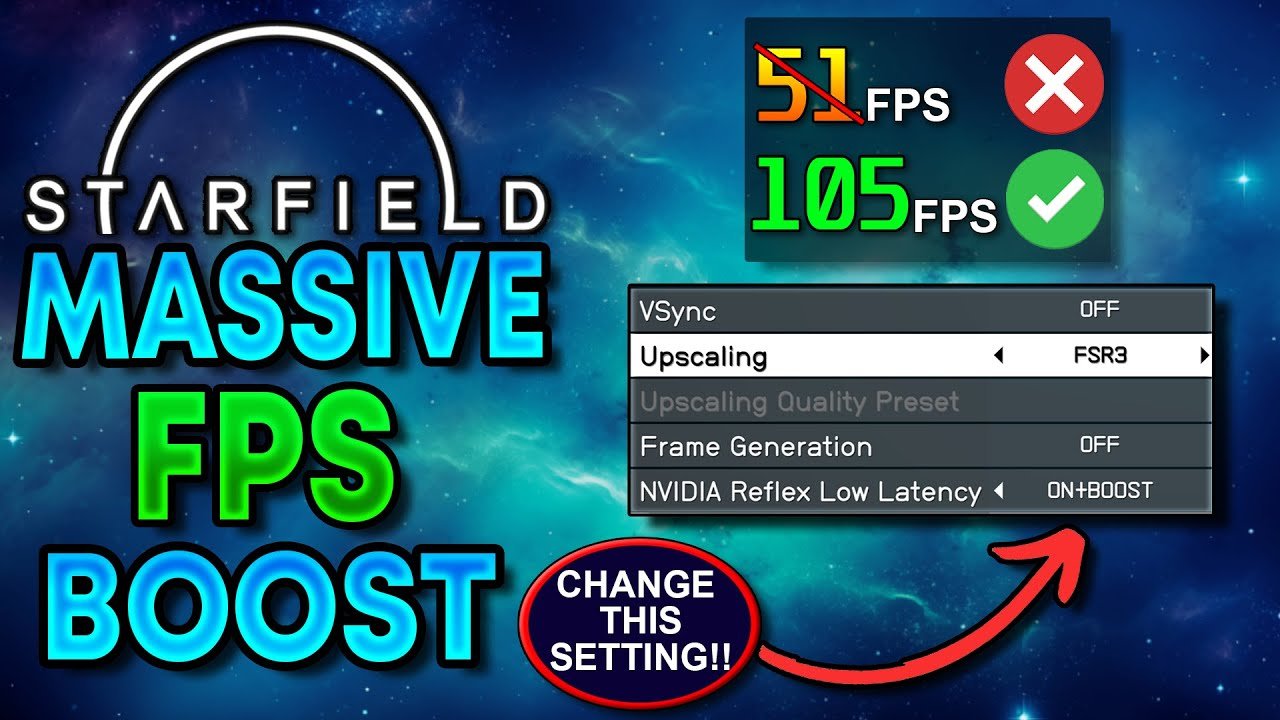
To increase frame rate in Starfield, lower graphics settings, update your drivers, and consider using upscaling techniques like FSR or DLSS.
Experiencing stuttering in the vast expanse of Starfield? Many players are searching for ways to boost performance, which leads them to ask about Starfield how to increase frame rate. It’s a common concern when exploring a game with such expansive environments and intricate detail.
Fortunately, several tweaks and adjustments can improve your in-game smoothness. The key is balancing visual fidelity with achievable frame rate goals. Let’s explore some practical steps you can take.

Starfield How to Increase Frame Rate
Starfield is a big, amazing game! But sometimes, it can feel a little slow or choppy. That means the frame rate isn’t as high as it could be. Frame rate is like how many pictures your game shows every second. More pictures mean smoother movement. When your frame rate is low, the game might look jerky and less fun. Don’t worry; we can fix that! This guide will show you simple things you can do to make Starfield run faster and look better. We’ll talk about changing settings, updating your computer stuff, and even some cool tricks that will help your game run more smoothly.
Understanding Frame Rate and Its Impact on Starfield
Before we get into the nitty-gritty of boosting your frames per second (FPS), let’s understand what it means. Think of a flipbook; the more pages you flip per second, the smoother the animation appears. A video game is similar. FPS means the number of images your screen shows each second. A lower FPS (like 20 or 30) makes the game look choppy and can make it harder to play. A higher FPS (like 60 or more) makes it look smooth and feels more responsive. In Starfield, a good frame rate is super important, especially when you’re exploring big planets or battling with spaceships! A low frame rate could make it harder to aim or react quickly, so optimizing is beneficial to enhancing the overall gameplay.
What Causes Low Frame Rates in Starfield?
Several things can cause Starfield to run slow. Let’s look at the main reasons:
- Your Computer’s Power: If your computer isn’t strong enough to run Starfield well, you’ll probably get low frame rates. Starfield needs a good video card (GPU) and a fast brain (CPU) to work its best.
- Game Settings: The settings inside the game also matter. If you have them set too high, they can make your computer work very hard, which slows things down. Things like shadows, reflections, and how many small things you see can make a difference.
- Outdated Stuff: Having old drivers for your video card or using an older version of Windows can also slow the game.
- Background Programs: Programs running in the background on your computer, like web browsers or other apps, can use up power and make Starfield run slower.
Optimizing Starfield’s Graphics Settings
The easiest way to boost your frame rate is to adjust Starfield’s graphics settings. You don’t need to be a computer whiz to do this. Let’s go through each setting, and you can learn what they do and how they impact your FPS:
Resolution
Resolution is like how many tiny dots make up the picture on your screen. Higher resolution makes things look sharper and more detailed but requires more power. Trying a lower resolution can make a big difference in FPS. If you’re playing at a 4K resolution (which is very high) try stepping down to 1920×1080 (Full HD) or even 1600×900 to see how much better it works.
Shadow Quality
Shadows make the game look more realistic, but they also need a lot of work from your computer. Lowering shadow quality can give you a noticeable FPS boost. Try switching from “High” or “Ultra” to “Medium” or even “Low.” You probably won’t notice a huge difference in looks but you will see improvement in frame rate.
Texture Quality
Textures are like the coverings on all the objects in the game, like the rock on a planet or the metal on a ship. Higher texture quality makes these things look more detailed. If your computer is struggling, lowering texture quality from “Ultra” to “High,” “Medium,” or “Low” can help your frame rate. However, lowering this too much could make the game look blurry, so find a balance you like.
Lighting Quality
Lighting effects can make the game look pretty, but they use a lot of power. If your FPS is low, lower lighting quality from “High” to “Medium” or “Low.” This setting can really improve your frame rate, especially in areas with a lot of lighting effects.
Ambient Occlusion
Ambient occlusion adds extra shadows where different objects meet, it makes things look more grounded and real. Turning this setting to a lower option like “Low” or turning it off entirely can greatly increase FPS, since it can be pretty demanding. While it does enhance the visuals, it’s one of the first options to consider changing for better performance.
Grass and Flora
The number and complexity of grass and plants can also affect how fast your game runs. Lowering the setting for grass and flora density can help, especially in big, open areas with lots of plants and other vegetation. It might make some of the plants look less detailed, but it will boost your FPS.
Motion Blur
Motion blur is an effect that adds a bit of blur to the edges of moving objects. This effect can create a more cinematic feel and can hide frame rate issues, but it does use some computing power. You can try disabling it for a slight FPS gain and see if you like the trade-off. Some people prefer the look without motion blur anyway, so this is a personal choice.
Reflections
Reflections make shiny surfaces look like they’re showing an image. Reflections can be taxing on your system. Lowering the quality of reflections can greatly increase your frame rate, especially in areas with a lot of reflective surfaces like water or metal. Turning down this setting could be a great idea.
Directx Version
Starfield uses DirectX to handle all the pretty pictures you see on screen. The game gives you the option of using either DirectX 12, or DirectX 11. DirectX 12 is the most up-to-date version, and it’s likely that using this option will get you the best performance, but it might be a good idea to try the other option, DirectX 11, if you are having issues with performance.
Upscaling
Upscaling technology can make the game look better, even if you are playing at a lower resolution. Starfield includes support for different upscaling methods, like AMD’s FSR 2 and Nvidia’s DLSS (if you have an Nvidia graphics card). These options work to make the game look sharp, even if you aren’t running the game at the highest resolution. Try these and see what works best for your system.
How to Find the Best Balance
The best settings for you will depend on your computer. Try changing one setting at a time and then play the game for a bit to see how it affects your FPS. You can use the game’s built-in performance monitor or a program like the one provided by your GPU manufacturer (e.g., AMD Adrenalin or Nvidia GeForce Experience) to see your frame rate in real time. You might have to experiment to find the settings that give you the best look and a smooth game.
Updating Your Computer’s Software and Drivers
Keeping your computer’s software and drivers up to date is important for running games smoothly. Sometimes, new updates can add features or improvements that boost your game’s performance. Check the following items regularly:
Video Card Drivers
Your video card is the part of your computer that draws the pictures on the screen, and the software that works with that piece of hardware is called a driver. The people who make these video cards also make regular updates to the drivers for better performance. Nvidia and AMD regularly release new drivers that can improve game performance for their GPUs. Be sure to update to the latest drivers. They are usually downloadable from their websites.
- Nvidia Drivers: Go to Nvidia’s website and search for the latest drivers for your video card.
- AMD Drivers: Go to AMD’s website and download the latest drivers for your graphics card.
Windows Updates
Microsoft also sends out regular updates to Windows. These updates can also improve gaming performance. Usually, Windows will automatically download updates, but you can always check to be sure you have the most recent version of Windows by going to Windows Settings.
Closing Unnecessary Background Programs
Sometimes, there are many programs running in the background that you may not even be aware of. These programs are using your computer’s power and might slow down the performance of Starfield. Close any programs you aren’t using while you are gaming. Here’s how:
- Open Task Manager: Press Ctrl+Shift+Esc at the same time. This opens Task Manager, which shows all the programs running on your computer.
- Find and Close Unnecessary Programs: Look at the list of programs and click on anything you aren’t using and then select “End Task.” Be careful not to close programs you don’t know about because some of them are important for the operation of Windows. Closing things like web browsers, music players, or other games is a good start.
Adjusting Power Settings
Your computer also has different power settings that determine how it uses energy. Setting your computer to high-performance mode can sometimes boost frame rates in games, because it allows your computer to use more power to make the game run better. Here’s how to do it:
- Go to Settings: Press the Windows key, then click the Settings icon.
- Open Power Options: Go to “System,” then “Power & Sleep.” Click “Additional Power Settings.”
- Change Power Plan: Choose “High Performance.”
Remember, this might make your laptop’s battery run out faster, so consider switching back to your usual power settings when you’re not gaming.
Using a Dedicated Graphics Card
If you have both an integrated and dedicated video card, make sure Starfield uses your dedicated card. Integrated graphics cards are usually less powerful. Your dedicated card is more powerful and will perform better.
How to force Starfield to use your dedicated GPU:
The steps may vary slightly depending on your specific setup. Here’s a general guide for both Nvidia and AMD GPUs:
For NVIDIA GPUs:
- Right-click on your desktop and select “NVIDIA Control Panel.”
- Go to “Manage 3D settings” on the left menu.
- Click on the “Program Settings” tab.
- Find and select “Starfield” in the dropdown menu. If the game is not present, you can add it by selecting “Add” and finding the game’s executable (.exe) file.
- Under “Select the preferred graphics processor for this program,” choose “High-performance NVIDIA processor.”
- Click “Apply.”
For AMD GPUs:
- Right-click on your desktop and select “AMD Radeon Settings” or “AMD Adrenalin.”
- Click on the “Gaming” tab.
- Select “Add a Game,” or similar option if it has one.
- Find and select “Starfield.”
- Click on the “Graphics” profile option for the game.
- Select “High-Performance” from the dropdown menu.
After making these changes, your game should now use your dedicated GPU, which will help improve your frame rate.
Modifications
There are many modifications (or mods for short) that you can install that will greatly improve the performance of the game.
One of the most famous is the ‘Optimized texture’ mod, it modifies the textures in the game to make them lighter and use less power. Other mods improve graphics and other elements of the game.
Keep in mind that some mods can cause instability and even break the game, so install mods at your own risk.
Keep Your Computer Cool
When your computer gets too hot, it can slow down to avoid overheating, and this is called thermal throttling. Make sure your computer has good airflow by cleaning out the dust and keeping the fans unobstructed. If you are using a laptop, consider getting a laptop cooling pad.
Upgrading Hardware
If you have tried all of the above mentioned steps, and your computer still has issues, then it might be time to upgrade your computer components. Upgrading your graphics card, your CPU, and adding more RAM will improve your frame rate dramatically.
By following these steps, you should see a nice increase in frame rate in Starfield. Remember that the best balance between quality and performance is specific to each system, so try experimenting to find the best combination for you.
Starfield – Massive FPS BOOST Changing This Single Setting
Final Thoughts
Adjusting graphics settings significantly improves frame rate. Lowering shadow quality, reflections, and crowd density will boost performance. Experiment with different combinations to find a good balance between visual fidelity and smooth gameplay.
Updating your drivers will often provide frame rate improvements, specifically for Starfield. Ensure your system meets the minimum or recommended specifications. ‘Starfield how to increase frame rate’ relies on optimizing both game and system settings.

