
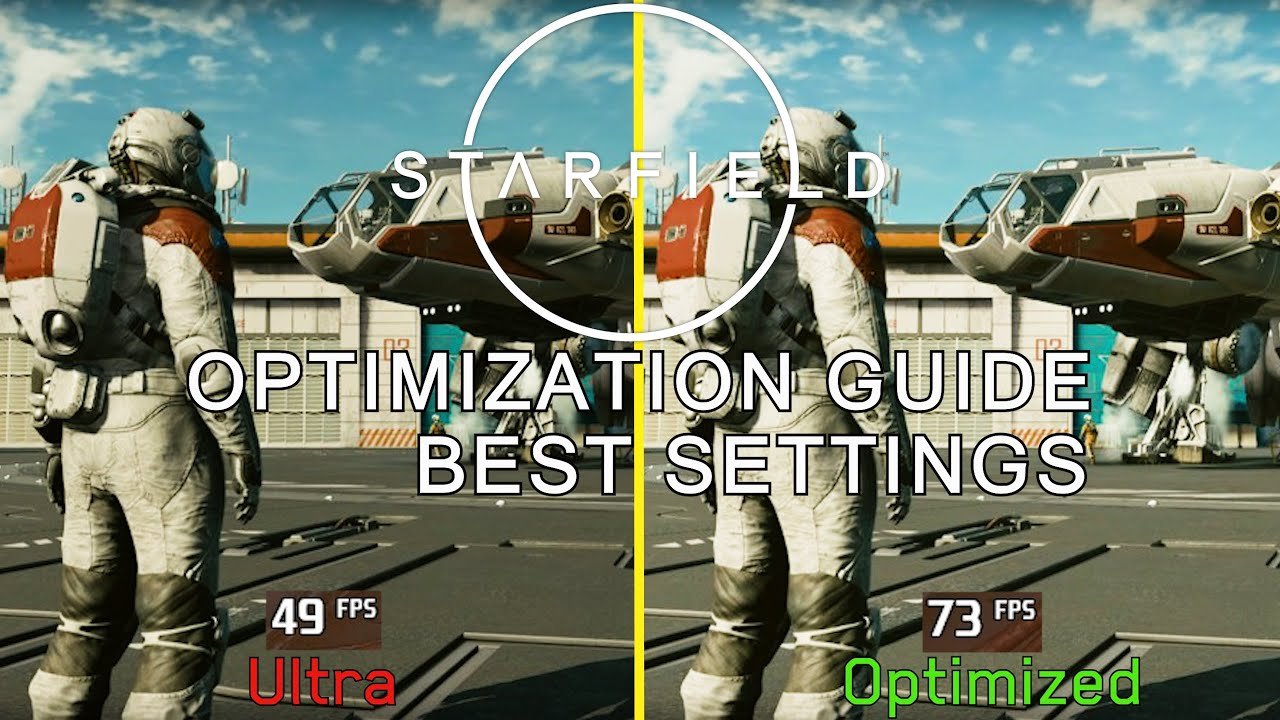
Optimizing Starfield settings involves adjusting graphics options like shadow quality, resolution, and crowd density, based on your hardware, to achieve a smoother framerate without sacrificing too much visual fidelity.
Experiencing stuttering or low frame rates in Starfield? You’re not alone. Many players are searching for ways to improve performance. Achieving the perfect balance between visual quality and smooth gameplay is key, which is why understanding “Starfield how to optimize game settings” becomes so important. This guide aims to help you adjust the game for the best possible experience on your system.

Starfield How to Optimize Game Settings
Let’s dive deep into making Starfield run its absolute best! This game can be a real beast on some computers, but don’t worry. We’re going to explore all the ways you can tweak the settings to get the smoothest, prettiest experience possible. Whether you have a high-end gaming rig or something a little older, there’s almost always something you can adjust to improve performance. We will cover various aspects of the game settings and what each of these options mean. Understanding how these settings impact your game will empower you to tailor the game to your liking and computer capabilities.
Understanding Starfield’s Graphics Settings
First, let’s talk about the graphics settings. These are the main controls for how the game looks, and they can also greatly affect how smoothly it runs. The game’s graphics settings are located under the “Display” section of the “Settings” menu. Inside this menu, you’ll find many options. Let’s break down what these mean.
Resolution
The resolution is how many pixels your game uses to create the image on your screen. More pixels mean a clearer, sharper picture. However, it also means your computer has to work harder. Lowering the resolution makes the game run faster, but it may look a bit blurry. Here’s the deal:
- Higher resolution (like 1920×1080 or 4k): Looks very sharp and detailed but can slow down the game on less powerful computers.
- Lower resolution (like 1280×720 or 1600×900): Runs faster, especially on older computers, but may look less clear.
Your monitor’s native resolution is what it is designed to show most crisply. Try starting at that, and then move to the next lower option if performance is struggling.
Render Resolution
Render resolution is different from the output resolution. Render resolution means that the game internally renders its graphics at a specific resolution and then upscales it to your selected resolution, or vice-versa. A lower render resolution can improve performance at the expense of visual fidelity. It’s essentially similar to changing your resolution, but only affects the calculations of the game’s graphics, letting you keep your interface and text crisp.
- Lower Render Resolution: Improves performance by reducing the processing load on your graphics card, but can make the image appear blurry.
- Higher Render Resolution: Preserves image clarity but requires more power from the graphics card.
Finding the right balance for your system will mean experimenting and seeing what works best.
Fullscreen or Windowed Mode
This option determines if the game takes over the whole screen or runs in a window. Usually, full screen is better for performance since your computer focuses all its resources on the game. But windowed mode makes it easy to jump back to other programs. Here’s a quick look:
- Fullscreen: Generally provides better performance because it dedicates the computer resources to the game.
- Windowed: Allows for easy switching between the game and other applications.
- Borderless Windowed: Gives a fullscreen look but allows easy alt-tabbing with no issues.
Borderless windowed is a very popular mode for many gamers. Try this if you’re having issues with traditional fullscreen.
Graphics Quality Presets
Starfield has some handy presets like “Low,” “Medium,” “High,” and “Ultra” to make it easy to adjust many settings at once. These are great starting points. But you can always fine-tune each setting by picking “Custom”. Let’s look at what presets do:
- Low: Turns off or down the quality of many effects. Provides the best performance for older computers.
- Medium: A good balance of visuals and performance. Great option for most gamers.
- High: Focuses more on visuals than performance. Great for high-mid range to higher end gaming PCs.
- Ultra: Uses the highest settings possible, providing the best visual experience but needs very powerful hardware.
Individual Graphics Settings
Let’s look at the main graphical options you can customize to tweak the visuals and performance. This is where a bit of time tinkering can be beneficial for a better experience.
Shadow Quality
Shadows can take a large toll on your computer. The higher the shadow quality, the more realistic and detailed the shadows appear. However, this can be very demanding on your GPU. Try setting the quality to “Medium” or “Low” for improved performance if you are having performance problems.
Ambient Occlusion
Ambient occlusion (AO) adds depth and realism to scenes by creating shadows in corners and other areas where light might be blocked. This can make a game look much better, but is also a very performance-intensive graphical setting. Try turning this off or down for a good performance boost.
Reflections
Reflections determine how well objects are reflected in surfaces like water and shiny floors. Higher reflection quality uses more power, but looks much better. Lowering it to ‘low’, will yield you a good fps gain without sacrificing the overall look too much.
Volumetric Lighting
Volumetric lighting creates cool lighting effects, like beams of light shining through fog or dust. This can add a lot of atmosphere to the game, but is also quite demanding. Try lowering the level or turning this setting off.
Indirect Lighting
Indirect lighting can help improve the look of areas that are not directly lit by light sources. Setting the game to ‘low’, ‘medium’ or turning this off can dramatically help with the game’s performance, whilst not impacting the looks too much.
Particle Quality
Particle quality controls how many small effects appear on the screen, like sparks and explosions. Lowering this setting can give you a boost in frame rate without greatly hurting the looks. If your computer is struggling, this is a good option to lower.
Grass Quality
Grass quality settings define how detailed and lush the grass and foliage is in the game. Setting the grass to low can free up resources and gain you a good few extra frames.
Contact Shadows
Contact shadows add additional shadowing around the edges of objects in the game, increasing the overall fidelity, but it is yet another graphical setting that can be turned off or down. If you’re having issues with the game performance, lowering this will have a good impact.
Motion Blur
Motion blur adds a blurring effect when the camera moves quickly, which can make the game appear smoother. Some people really like this, others hate it. Turning this off can give you a few extra frames, and improve the overall sharpness of the game.
Depth of Field
Depth of field (DOF) blurs the background when focusing on an object in the foreground. It gives a cinematic feel, but is something that can be turned off for improved performance.
Film Grain
Film grain adds a slight grainy effect to the image to make it look more like film. This setting comes down to personal preference. Turning it off will yield you some extra performance.
Upscaling
Upscaling techniques can render the game at a lower resolution and then upscale to your monitor’s native resolution, effectively improving performance at the expense of visual clarity. Starfield supports AMD FidelityFX Super Resolution (FSR), which is a good way to improve the fps. This should always be enabled if it’s available for your system.
- FSR: FidelityFX Super Resolution by AMD. Good to use as it greatly improves performance with very little cost.
Optimizing Gameplay Settings
Now, let’s move beyond graphics to some other game settings that can help make things smoother and more enjoyable.
Field of View (FOV)
Field of view determines how much of the game world you see on the screen at once. A wider FOV can make you feel more immersed in the game, but it can also be more taxing on your computer, especially in large open areas. While a higher FOV is usually better, try decreasing it by a small increment to see if that helps with your performance.
Motion Sensitivity and Dead Zones
Adjusting these settings can improve your movement and aiming. If you feel like your controls are too sensitive, lower the sensitivity a bit. Dead zones determine how far you need to move the stick before it starts reacting. Changing these settings will make the game feel much better to play, without affecting the overall performance.
Controller Vibration
If you are using a controller, vibration can be quite intensive. Turning it off or down can save battery life, and also reduce the tiny amounts of strain put on your processor when generating vibration effects.
Audio Settings
Sometimes, audio can affect performance. If you are having issues, try turning down the audio quality settings, or lowering how many different sounds can play at one time. While it won’t have a huge impact, every little bit can help.
Advanced Tips for Better Performance
Here are a few extra steps you can try if the standard settings aren’t giving you the performance you need.
Update Your Drivers
Make sure your graphics card drivers are up to date. New drivers are often optimized for new games like Starfield and can provide performance boosts. Visit the websites of NVIDIA, AMD, or Intel, depending on what kind of video card you have.
Close Unnecessary Programs
Before starting Starfield, close other programs running in the background. These can take up resources that the game needs. Also make sure you close the various browser windows, as these can take up a lot of RAM. Things like Discord, or other video/audio programs can have a big impact on performance.
Lower Background Processes
Try turning off some of the background processes on your computer, as these take up processing power and RAM. You can use the “Task Manager” app on Windows to see which processes are taking up the most resources. However, be careful when turning these off, as they are sometimes essential for certain Windows functions.
Adjust Power Settings
Make sure your computer is set to “High Performance” power plan. This allows the CPU and GPU to work at full power. You can find this option in the “Control Panel” settings of your computer.
If you are on a laptop and are using battery power, it’s highly recommended that you keep the laptop plugged into a power source.
Check Your System’s Temperature
Overheating can cause a performance drop. Make sure your computer’s fans are working and that it’s not getting too hot. You may need to consider cleaning out the dust from your computer to ensure proper cooling, or add better cooling solutions like additional fans, if possible.
Experiment with Settings
The perfect settings vary greatly, depending on your hardware and the game itself. Don’t be afraid to try different combinations and see what works best for you. You will find that small changes can have a huge impact on the overall performance of the game.
By making these setting adjustments, you can make Starfield more enjoyable, whether it’s making it look better, or perform smoother on your PC.
Starfield – Massive FPS BOOST Changing This Single Setting
Final Thoughts
Adjusting graphical options is key to improving Starfield’s performance. Lowering shadow quality and reflections provides a noticeable boost. Experiment with resolution scaling for the best balance of visuals and framerate.
Starfield how to optimize game settings involves tweaking specific options. Try disabling motion blur and depth of field if you see performance issues. These changes can greatly enhance your gameplay experience.
Remember, finding the right settings is personal. Test these tips to find what works best on your system.

