
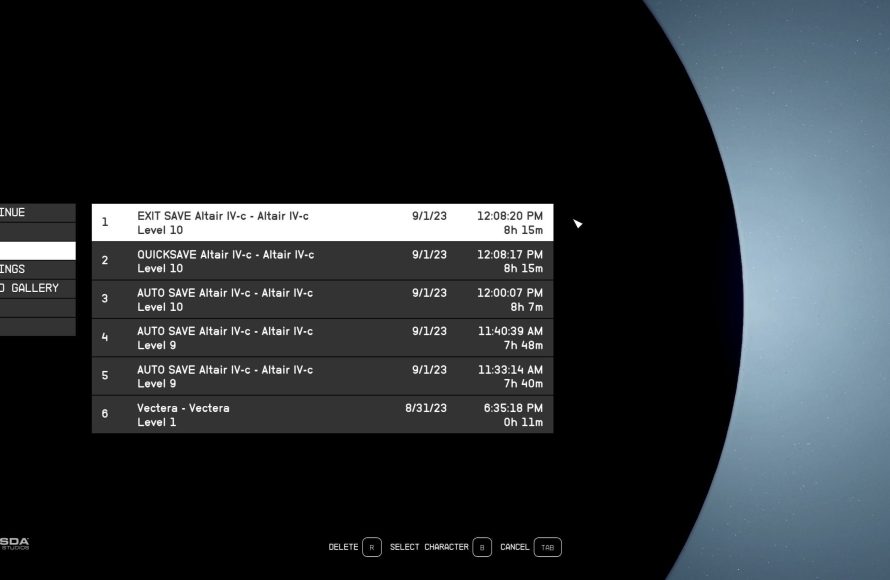
Starfield automatically saves your progress at frequent intervals, and you can also manually save from the game menu.
Lost in the vast expanse of space? Worry not, because keeping your hard-earned exploration safe is quite straightforward. This article will quickly explain Starfield how to save game progress, so you can avoid losing hours of gameplay.
The game has an automatic save function that occurs regularly. Still, it’s a good idea to manually save as well before entering risky situations. Doing so will prevent frustration from unwanted outcomes.

Starfield: How to Save Game Progress
Exploring the vast universe of Starfield is an amazing adventure, but losing your progress would be a real bummer. Nobody wants to spend hours building a fantastic spaceship or completing a tricky mission, only to have it disappear because they forgot to save. Luckily, Starfield has a pretty good system for saving your game. It’s important to understand how it works, so you can keep your progress safe and sound. Let’s dive into the different ways you can save your game and keep your interstellar journey on track.
Understanding Starfield’s Save System
Starfield has a few different ways it lets you save your game. This is great because it gives you options for different situations. Think of it like having several safety nets. If one fails, you’ve got others to fall back on. The game uses a mixture of automatic saves and manual saves. This combination gives you a solid backup in case something unexpected happens. Let’s look at each of these types of saves:
Auto-saves in Starfield
Auto-saves are like little helpers that work automatically in the background. The game creates these saves at certain points, so you don’t have to worry about remembering to save all the time. These saves happen when you complete major things in the game. You’ll see a little icon pop up in the corner of your screen when the game auto-saves. It’s a small circle in the bottom right, which spins for a moment, then disappears.
- Frequency: Auto-saves occur pretty frequently, usually after a big story moment, completing a quest, or traveling to a new location. This is a very helpful feature.
- Usefulness: These are really useful if you forget to save manually, or if the game unexpectedly crashes. The auto-save will usually get you back to a recent point without losing too much progress.
- Limitations: Don’t rely only on auto-saves! While they are good, they can be overwritten by the next auto-save. If you do a lot of stuff in between auto-saves, you might lose that work.
Manual Saves in Starfield
Manual saves are the saves you create yourself. You get to pick the exact moment to save your game. This gives you the most control over your progress and makes sure that you can go back exactly where you need to go.
- How to Save Manually: In Starfield, you can manually save your game by pressing the menu button, then going into the system menu. You’ll see an option for ‘Save.’ Pressing this will let you create a manual save.
- Flexibility: Manual saves are very flexible. You can save before entering a dangerous situation, before trying something new, or whenever you just feel like you’ve made enough progress and want to secure it.
- Multiple Saves: You can create multiple manual saves. That is a good practice, you can then have multiple save points in case you want to go back and try different choices or paths.
Quick Saves in Starfield
Quick Saves provide another option for saving the progress fast. They are very handy when you need to save the game quickly, and want to get back into the game with out going through the menu to select manual save.
- How to Quick Save: By pressing the dedicated button on your controller or keyboard, you will be able to quick save. It saves the current progress.
- Advantage of Quick Save: These are faster than going into the menu, but keep in mind that the quick save is going to overwrite the previous quick save, as it is one save slot, unlike manual saves that can be multiple.
Best Practices for Saving Your Game
Knowing how to save is one thing, but knowing when to save is just as important. Here are some tips to ensure you keep your progress secure:
- Save Before Big Decisions: If you’re about to make a major decision in the game, like which faction to join or what dialog options to select, it’s wise to create a manual save. That way, if you’re not happy with the outcome, you can always go back and try something different.
- Save Before Difficult Encounters: If you are about to enter a tough fight or a tricky situation, save your game. That way if things go badly, you don’t have to restart from too far back.
- Save Regularly: Don’t rely only on auto-saves. Make it a habit to manually save your game every so often, especially after you complete a series of important tasks or level up your character. Saving regularly ensures that you won’t lose too much progress if something goes wrong.
- Rotate Your Saves: Instead of overwriting the same save file each time, create a few different manual save files. This gives you more backup points and more flexibility to try different things. For example, if you’re experimenting with building a new spaceship, it’s good to have a save before the building process starts and another one after completing the building process.
- Pay Attention to Auto-Save Notifications: When you see the auto-save icon, take note of the game’s last auto-save. It will give you a good point to return to if needed.
Managing Your Save Files
It’s essential to understand how to manage your save files so that you don’t get confused or accidentally overwrite an important save. Starfield’s save system has a save list that is fairly easy to use.
Viewing Your Save Files
All your save files, whether auto, manual or quick, are accessible through the ‘Load Game’ option in the main menu. You will see the full list of your save files. You can then select the one you want to return to, or even delete old save files that you do not need anymore to keep the saves list clean. The saves are listed in the order from the recent ones to the oldest ones.
Deleting Save Files
If you create too many save files, you might want to delete some older ones. You can delete saves from the same ‘Load Game’ menu. Select the save file you want to delete and click the delete button. Doing so can make the list less cluttered and easier to handle.
Troubleshooting Save Issues
Even with a good saving strategy, you might run into issues sometimes. Here are some common issues and what to do about them:
- Game Crashes Before Saving: If your game crashes, the best course is to restart and check the last auto-save to see how much progress you lost. Always remember to save frequently, as this is the best practice to minimize potential loss.
- Save Files Not Loading: Sometimes save files may not load correctly. Try restarting your game. If that doesn’t work, check if the game needs an update. Sometimes updating the game fixes the load problem. You might have to also verify the integrity of the game files.
- Corrupted Save Files: Save files may occasionally get corrupted. If that happens, you will probably need to go to your last functioning save file. It is one of the reasons that you should have a number of different manual save files available.
Advanced Saving Tips
For experienced players, here are some extra strategies to ensure that your gaming experience is secure and flexible:
Using Multiple Character Slots
If you have the habit to start over, you may want to use multiple character slots. Each new character will have its own set of save files, keeping them separate and organized. This approach will allow you to experience multiple playthroughs without interfering with each other.
Cloud Saves
If you are playing Starfield on a platform with cloud saves like Steam or Xbox, make sure that the cloud saving feature is turned on. This feature creates an extra backup of your game progress to the cloud. If your computer or console fails, you can still access your saves. Cloud saves are typically enabled automatically. However, it’s worth checking the setting on your platform to be sure it is working. Cloud saves are an important safeguard, and a very helpful feature when playing the game on different platforms or computers with the same account.
Saving Before Experiments
If you plan to experiment with your ship building or different weapon configurations, create a manual save first. So that you can revert to the previous state if things go wrong. This will save you lots of time, since you do not need to start over.
Understanding Starfield’s save system is key to having a smooth and enjoyable experience. By utilizing auto-saves, manual saves and quick saves effectively, and following the tips in this guide, you will make sure that you never lose valuable progress. Keep saving regularly, and enjoy your grand journey through the stars!
Starfield: How to Save Your Game
Final Thoughts
Starfield uses autosaves frequently, so you don’t lose much progress. You can also manually save at any time through the menu. Keep in mind, these options exist to help protect your play.
Remember to save often, especially before tackling a challenging mission or exploring new areas. Understanding ‘Starfield how to save game progress’ is vital for a smooth experience. This is very important for anyone wanting to keep their progress intact.

