
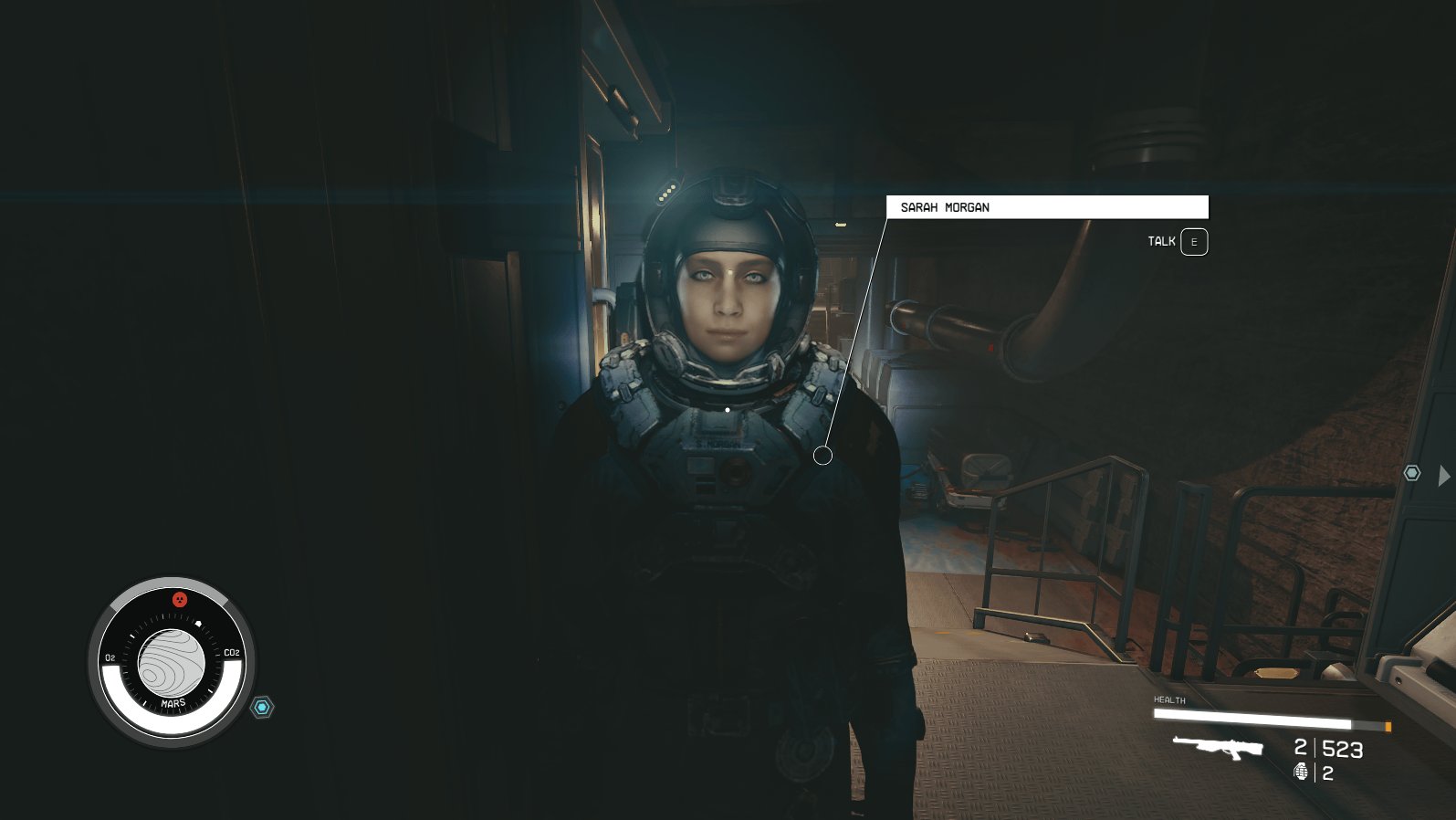
The key Starfield tips to improve game performance are adjusting graphics settings, updating drivers, and closing unnecessary background applications.
Is your Starfield experience stuttering? Are you experiencing less than ideal framerates while exploring the vast expanse of space? Many players face performance issues, even on powerful PCs. Luckily, there are some straightforward steps you can take.
These essential Starfield tips to improve game performance will make a significant difference. They range from simple in-game tweaks to basic system optimizations. Applying these will get you exploring again.

Starfield Tips to Improve Game Performance
So, you’re blasting through the cosmos in Starfield, exploring planets and building outposts, but your game is feeling a little sluggish? Don’t worry, you’re not alone! Many players are looking for ways to get a smoother experience. Starfield is a big, beautiful game, but sometimes that means it needs a little help to run at its best. This article will walk you through simple steps and advanced tweaks to help boost your game’s performance. We’ll cover everything from changing graphics settings to updating your drivers, making sure you spend more time exploring and less time staring at loading screens.
Understanding What Affects Performance
Before we jump into the fixes, let’s understand why your game might be struggling. Several things affect how Starfield runs, and knowing these will help you make smarter changes.
Your Computer’s Hardware
The most important factor is your computer’s hardware. Starfield has some pretty high requirements, and if your computer doesn’t quite meet them, you’ll probably see some performance issues. The main things to look at are:
- Graphics Card (GPU): This is like the engine for your game’s visuals. A strong GPU helps make the game look good and run smoothly. If your card is older or not powerful enough, it will struggle.
- Processor (CPU): The brain of your computer, your CPU handles the calculations needed to run the game. A slow CPU can cause stuttering and low frame rates.
- RAM (Memory): This is like short-term memory for your computer. Starfield uses a lot of RAM. Not enough RAM can cause the game to slow down or even crash. 16 GB is a decent start, but 32 GB will help smoother gameplay.
- Storage: Where you store the game also matters. Solid State Drives (SSDs) load games much faster than traditional Hard Disk Drives (HDDs). If Starfield is on a hard drive, you will probably see long loading screens and lag.
Game Settings
The settings you choose inside the game directly affect performance. Higher settings mean better visuals, but also require more processing power. Lower settings mean a less pretty game, but can lead to better performance.
Background Programs
Other programs running on your computer while you play can also eat up your resources and slow down Starfield. These could be web browsers, streaming apps, or even other games running in the background.
Driver Issues
Outdated graphics drivers or bugs in your drivers can cause problems. Think of these as the instructions your graphics card uses. Old or incorrect instructions can cause the card to do things less efficiently.
Graphics Settings: The First Place to Look
The easiest way to get a boost in performance is to adjust the graphics settings. Starfield has a lot of options, and not all of them make a huge difference visually. We’ll break down the most impactful ones:
Resolution
This is how many pixels make up the game image. Lowering the resolution can provide a huge performance boost, and it might not be noticeable on smaller screens. Try dropping from 4K to 1440p, or 1080p, and see how it runs. Start with a small adjustment and see if that is enough. If it is still sluggish you can try a lower resolution.
Graphics Quality Presets
Starfield offers several graphics presets from “Low” to “Ultra.” Starting with the “Low” or “Medium” preset is a great way to test what is an acceptable setting for performance and visual fidelity. Try Medium or Low settings first, then gradually increase your settings until your game starts to slow down. When the game slows down or starts to become choppy, this will be the line you don’t want to cross. This will let you know how high you can adjust the settings and still maintain a playable frame rate.
Shadow Quality
Shadows can be very demanding. Lowering the shadow quality can make a big difference, particularly in cities and other areas with complex lighting. You can set this to Medium or Low.
Texture Quality
Textures determine the detail of surfaces in the game. While it does make the game look nice, having it at a high setting can impact your game performance. Lowering this can help performance, especially if you have limited RAM. Try lowering it one setting at a time and see how much of a performance increase you get. This will allow you to choose between a good visual experience and a good performance experience.
Render Scale
The render scale determines the internal rendering resolution. A render scale below 100% will make the game look less sharp but will improve performance by reducing the workload on your GPU. A value of between 70%-90% might give you a better frame rate while maintaining good image quality. Experiment and see what works best for your computer and monitor.
Dynamic Resolution
This setting lets the game dynamically lower the resolution when it detects that the graphics card is working hard to maintain the frame rate. This can help to keep the game running smoothly during busy scenes, although the image quality will go down at these times.
Motion Blur
Motion blur can be visually appealing, but is not always needed. You can turn it off completely, to get a bit better frame rate. This is especially helpful if you don’t like it or find it distracting.
Anti-Aliasing
This feature smooths out jagged edges on objects. Lowering this can improve performance. However, it might make the image look slightly less refined. Try different settings to see what level works for you.
Indirect Lighting
Indirect lighting helps make the game look more realistic, but it can be very demanding on your computer. Setting this to a lower setting can improve game performance. Try turning it to medium or low.
Advanced Tweaks for Performance
If adjusting in-game settings is not enough, there are a few more advanced tricks you can try.
Updating Your Graphics Drivers
Keeping your graphics drivers up to date is important for game performance. New drivers can include optimizations for new games, bug fixes, and general performance boosts. Check the websites of your GPU manufacturer (NVIDIA, AMD, Intel) to find the latest drivers for your card.
How to update drivers:
- Visit the NVIDIA, AMD, or Intel website (depending on your GPU).
- Find the “Drivers” section.
- Search for your specific graphics card model.
- Download and install the latest driver.
- Restart your computer after installation.
Checking Game Files for Errors
Sometimes game files get corrupted, which can cause crashes and performance problems. Here’s how to verify the integrity of your game files on Steam:
- Open Steam.
- Go to your Library.
- Right-click on Starfield.
- Select “Properties.”
- Go to “Local Files” tab.
- Click “Verify integrity of game files.”
This will scan your game files for errors and download any missing or corrupted ones.
Closing Unnecessary Background Programs
Make sure to close any apps that you are not using while you play. Things like web browsers, other games or video editors can use system resources and slow down your game. This can free up RAM and CPU processing that can be used by Starfield to provide better performance.
- Right-click on the taskbar and select “Task Manager”.
- Go to the “Processes” tab.
- Look at the list and close anything you do not need.
Optimizing Your Operating System
Your operating system also plays a role in gaming performance. Here are some tips to optimize it:
- Game Mode: Turn on “Game Mode” in Windows settings. This mode helps focus your computer’s resources on the game.
- Power Plan: Set your power plan to “High Performance”. This will allow your computer to use more power to run the game.
- Visual Effects: Turning off unnecessary visual effects in Windows can also help free up a small amount of system resources.
Adjusting the .ini File
Starfield allows some additional adjustments via the configuration file. Editing the .ini file can be a little more involved, but it might provide extra performance. Remember to back up the file before you edit it.
The file you will be looking for is called “StarfieldCustom.ini” and is usually found here:
Documents\My Games\Starfield
Create the file if it doesn’t exist, and then add the following to the file:
    [Display]
    bVolumetricLightingEnable=0
    [General]
    bUseMultiThreadedRendering=1
    fPostProcessDofMaxRangeScale=2.0
    iNumWorkerThreads=8
Explanation of the settings:
- bVolumetricLightingEnable=0: Disables volumetric lighting, which can have a big impact on performance.
- bUseMultiThreadedRendering=1: Enables the game to use multiple CPU cores to render the game, which can provide better performance.
- fPostProcessDofMaxRangeScale=2.0: Adjusts the depth of field effect, improving clarity in some cases.
- iNumWorkerThreads=8: Specifies the number of CPU threads used by Starfield. Change this to the number of physical cores you have. (If you have a 6 core processor set this value to 6.)
These settings have worked for some players. Remember to test the game after each change to see what works best for your system.
Monitor Refresh Rate
Make sure your monitor’s refresh rate matches what you want to see from the game. If your game is running at 60 FPS and your monitor is set to 144hz, you may see a few issues. Setting your monitor’s refresh rate to match your target frame rate may improve performance.
Specific Performance Issues and Solutions
Stuttering and Low Frame Rates
If your game is stuttering, it can mean that the game is not getting enough resources, or that there is a software problem. Try lowering the graphics settings, updating your drivers, or closing background programs.
Long Load Times
If you have very long load times, make sure that Starfield is on an SSD. If it is, verify the game file integrity and close background programs.
Crashes
If you are getting frequent crashes, it can be due to many reasons. Check to make sure your drivers are up to date, the game files are all fine, and your system is meeting the minimum requirements. Lowering graphics settings can also help.
Overheating
If your computer is getting very hot while you are playing, it is possible that the computer is not able to handle the game. Make sure your system is well ventilated, and you can also try turning down the graphics settings to reduce the work that the game has to do.
By using these tips and tricks, you can really improve how the game runs on your system. Everyone’s computer is different, so it might take some experimenting to find what works best for you. With these guidelines, you will be in a better position to have an amazing Starfield experience. Have fun exploring the vast reaches of space, and enjoy the game.
Star Citizen vs Starfield
Final Thoughts
Lowering graphics settings, especially shadow quality and crowd density, will significantly improve frame rates. Updating your graphics drivers and ensuring you have enough RAM helps too. These tweaks boost overall performance.
Adjusting resolution and utilizing FSR can also have a positive impact. Closing background apps frees up system resources. These small changes prevent stuttering.
Therefore, using these ‘Starfield tips to improve game performance’ can provide a smoother experience. Optimizing in-game settings and your PC is key. So, get gaming!

