
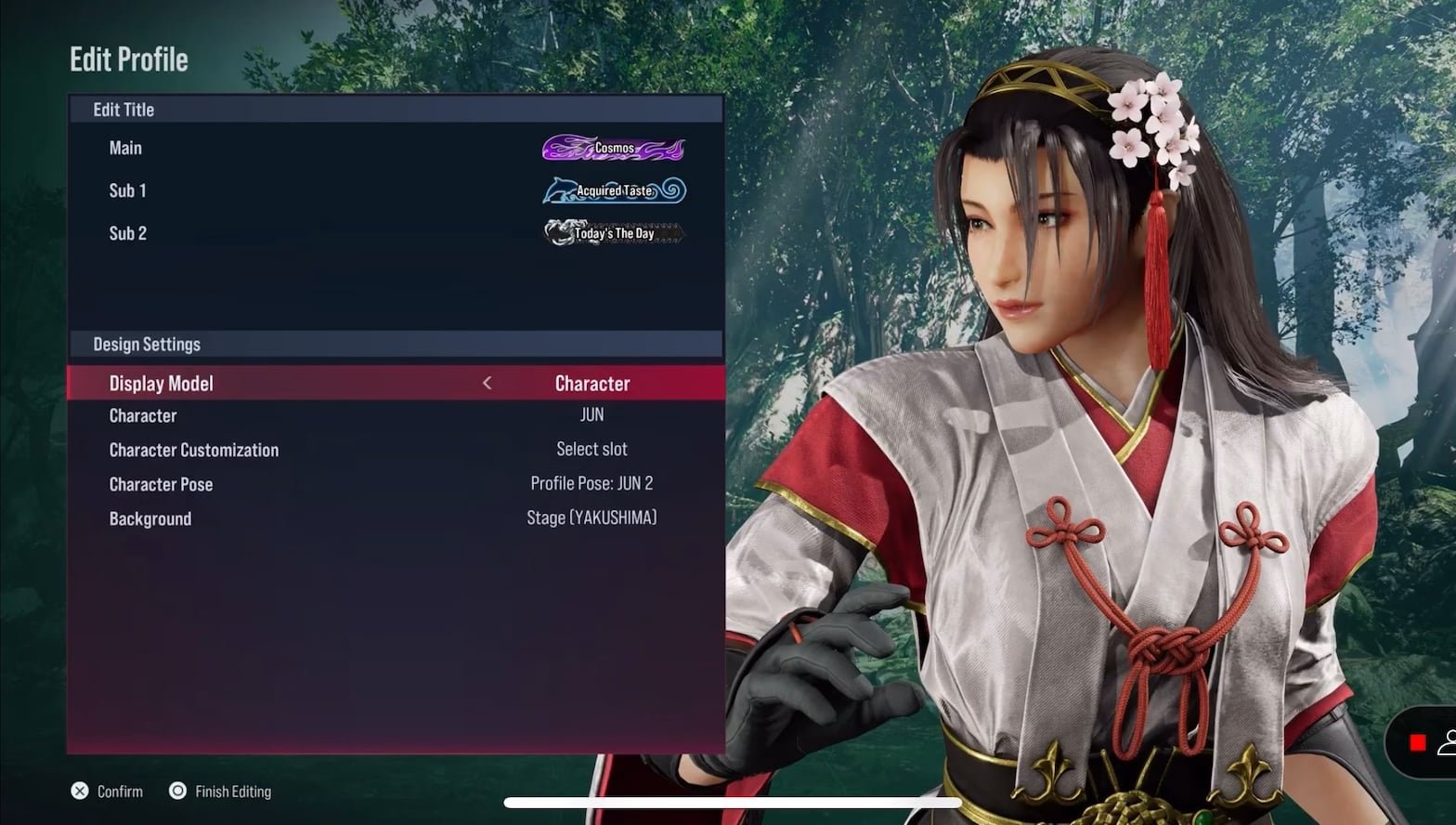
Tekken 8 customizable settings allow players to adjust various elements, including controls, graphics, and audio, for a personalized gameplay experience.
Want to fine-tune your Tekken 8 experience? The game offers a wide array of options. You can tweak various settings to match your preferences.
These Tekken 8 customizable settings give you control over how the game feels and looks. This helps you play comfortably. You can tailor the game to your specific needs. This can improve your overall gameplay.

Tekken 8 Customizable Settings: Your Path to Victory
Hey there, future King of Iron Fist! Are you ready to make Tekken 8 truly yours? This game is packed with awesome ways to tweak things to fit just how you like to play. From changing how the game looks to making your controller feel perfect, the customization options are really powerful. Let’s dive into all the cool settings you can adjust to become the best fighter you can be. We’ll break down all the details in an easy-to-understand way, so get ready to personalize your Tekken 8 experience!
Graphics Settings: Making the Game Look Just Right
First up, let’s talk about making Tekken 8 look amazing. The graphics settings are where you control how clear and smooth the game appears on your screen. These are really important because they can affect both how good the game looks and how well it runs. Let’s take a peek at some key parts:
Resolution: Sharpening the Details
Resolution is all about how many tiny dots (pixels) make up the image on your screen. A higher resolution means more dots, which means the picture looks sharper and more detailed. Think of it like looking at a really detailed drawing versus a sketch. You’ll usually see options like 1920×1080 (also known as 1080p or Full HD), 2560×1440 (1440p or QHD), and 3840×2160 (4K). If your monitor or TV is capable of it, and your computer can handle it, selecting higher resolution will definitely make the game look more beautiful. But, if you don’t have that powerful setup, don’t worry! Lower resolutions will still let you play the game smoothly, just with slightly less detail. Try out different options to find the sweet spot between visual fidelity and performance for your specific system.
- Higher Resolution: More detail, sharper image, but can be harder on your computer.
- Lower Resolution: Less detail, but easier on your computer, leading to smoother gameplay.
Graphics Quality: Balancing Detail and Speed
The graphics quality setting lets you control the overall visual punch of the game. You’ll typically see options like “Low,” “Medium,” “High,” and sometimes “Ultra.” These settings impact the detail of things like character models, the environment, and special effects. If you choose a higher setting, expect to see more fancy effects, better lighting, and more detailed textures. These look great, but they also require more processing power from your PC or console. Conversely, choosing “Low” graphics quality makes the game run quicker and more smoothly on lower-powered hardware, while minimizing graphical effects. Just like with resolution, you need to find what works best for your machine. Experiment with these settings to get a great balance between how nice the game looks and how smoothly it runs.
- Low: Fastest performance, least detail.
- Medium: Good balance of performance and detail.
- High: Great detail, might require more powerful hardware.
- Ultra: Maximum detail, needs the strongest hardware.
Motion Blur: Making Movement Look Smooth
Motion blur is a special effect that makes things look like they’re moving really fast. It’s like when you see a car zooming by and its wheels look blurred. In Tekken, motion blur makes the fights look smoother and less choppy. It can create an awesome cinematic effect. However, some players find motion blur to be distracting, or it might not work well with certain screen refresh rates. It’s really a matter of personal taste, so try turning it on and off and see what you prefer.
Anti-Aliasing: Eliminating Jagged Edges
Have you ever noticed jagged lines around the edges of things in a video game? That’s called “aliasing.” Anti-aliasing is a process that helps smooth out those edges, making everything look smoother and more refined. Different anti-aliasing techniques exist, and Tekken 8 probably offers a few options. Experiment with these to see which one works best with your system and monitor, and which looks most appealing to your eyes.
Vertical Sync (V-Sync): Preventing Screen Tearing
Screen tearing is when the top part of the screen shows one image while the bottom part shows a slightly different one, causing a “tear” in the visual. V-Sync helps prevent screen tearing by syncing your game’s frame rate with the refresh rate of your monitor. If you notice tearing, turn V-Sync on. If it causes input lag (a small delay between pressing a button and seeing it on the screen), try turning it off again. It really depends on your setup.
HDR: Bringing Colors to Life
If your display supports it, you should definitely try enabling HDR (High Dynamic Range). HDR makes the colors appear richer, deeper and more lifelike, and increases the contrast between the dark and bright areas. This can really add a new layer of depth to your Tekken 8 experience. Just remember that you need both a display and hardware capable of handling HDR content to take advantage of this. If your screen doesn’t support it, or the game runs poorly with it on, it’s better to turn it off.
Audio Settings: Getting the Right Sound
Now that we have the graphics under control, let’s focus on the sounds of Tekken 8. Getting the audio settings right can make the game much more immersive and even improve your gameplay. Let’s explore the key options.
Master Volume: Controlling the Overall Sound
The master volume setting is the big knob that controls the overall loudness of everything in the game. If the game is too loud, turn this down; if it’s too quiet, turn it up. It’s the first thing you want to adjust to get the sound at a comfortable level for your gaming setup.
Music Volume: Finding the Right Battle Beat
Tekken games have some really epic music! This setting lets you control the volume of the background music. If you want to focus more on the fight, you can turn the music down. If you like the energy it gives to the battles, turn it up. It’s all about how you like to play.
Sound Effects Volume: Hearing Every Impact
Sound effects are the sounds of punches, kicks, special moves, and everything else that happens in the game. This setting lets you adjust how loud those sounds are. Some people prefer to turn up the effects to get a better feel of the impacts. Others like to turn them down a bit so they don’t overpower the other sounds. It’s a very important setting to get right, as you need to be able to hear moves properly. If you can’t hear the distinct sounds of a punch or kick, it’s harder to block.
Voice Volume: Hearing the Fighters’ Taunts
Tekken characters are known for their unique voices and taunts. You can adjust the volume of these voices with this setting. You can choose whether you want to hear each character’s every single word loud and clear or you might prefer to keep it a little more subtle. If you’re streaming the game online, you might want to turn this down a bit to be considerate to your viewers.
Surround Sound and Headphones: Enhancing Immersion
Tekken 8 may have options for different audio outputs, including surround sound for a full home theater experience or headphone output for private gaming sessions. If you are using headphones, make sure that the sound is properly set so that you have clear stereo sound. Surround sound options can offer a deeper and more immersive experience, provided that you have a good audio setup for it.
Controller Settings: Customizing Your Control Scheme
Now, let’s get into something super important: how you control the game! The controller settings in Tekken 8 are crucial to having a comfortable and responsive gameplay experience. These settings allow you to customize button layouts, sensitivity, and more. Let’s take a closer look.
Button Mapping: Placing Your Moves Where You Want
Button mapping, or remapping, lets you change what each button on your controller does. You might not like the default button layout, and that is okay! You can change all the controls. For example, if you find it easier to perform quick kicks by using a different button, or want to use shoulder buttons for different commands, you can map those changes. The good thing is that you can save multiple button layouts. So, if you try out something new and don’t like it, you can always revert to a previous setup or save another profile.
- Custom Layouts: You can create specific layouts for your favourite characters.
- Quick Changes: You can also change the controller layout on the fly while in practice mode.
Stick Sensitivity: Making Movement Feel Natural
Stick sensitivity controls how much your character moves in response to how far you push the analog stick. If you set a low sensitivity, the movement will be slower. If you set a higher sensitivity, even small movements on the stick will produce a larger character response. Finding the right sensitivity is key. If the sensitivity is too low, you’ll feel sluggish. If the sensitivity is too high, it will be very hard to control your character.
Vibration: Feeling the Impact
Controller vibration gives you physical feedback when you hit an opponent or get hit yourself. Some players find this very useful for feeling impacts and getting into the game, and it increases the immersion. Others might find it annoying or distracting, or it drains battery on their wireless controllers. It’s a personal choice, and you can adjust the vibration settings if you like it, or turn it completely off.
Dead Zones: Fine-tuning Controller Input
Dead zones are small areas on the analog sticks where movement is ignored. If you have an older controller where the sticks are a bit worn out, this can be very helpful to avoid movement that you don’t want to do. Adjusting the size of the dead zone means you can fine-tune how the controller responds to your inputs. Setting a dead zone too large can feel unresponsive, and setting it too small can lead to unwanted movement.
Gameplay Settings: Adjusting Game Rules and Difficulty
The gameplay settings in Tekken 8 give you control over the rules of the game. These settings are great for people who are still learning or want to play against a friend with specific rules. Let’s see what is available!
Difficulty: Picking the Right Challenge
Tekken 8 has multiple difficulty levels that determine how challenging the AI opponents are. The easier difficulties are perfect for beginners who want to learn the basic moves and combo system. The harder difficulties require you to use all of your skills, and are designed for more seasoned fighting game players. It is definitely a great idea to start at the easiest level and then start increasing the difficulty as you feel more comfortable with the game and your character.
Round Time and Match Length: Setting Your Own Pace
You can customize the length of each round and the number of rounds in a match. You can select short matches that are quick and fast-paced, or longer ones that give players more room to adapt and plan. You can experiment with these different settings based on how much time you want to play. If you want to play more quickly, then you can play short matches, and if you want more time to get into the game, go for longer matches with more rounds.
Damage Scaling: Adjusting the Power of Attacks
Damage scaling settings can affect how much damage each attack inflicts. Some players might prefer to play with a lower damage scaling so that they can execute longer combos. Others might like a more punishing damage setting, where one or two hits can be very dangerous. This is another great option for fine-tuning the game for your liking.
Input Display: Visualizing Your Commands
Tekken 8 may have an input display setting, which shows you the button presses on the screen. This is very valuable for new players learning the game. You can see exactly what buttons and stick directions you need to perform to execute specific moves, so that you can learn the game’s mechanics more easily. More experienced players tend to prefer turning this setting off once they feel comfortable.
Online Settings: Getting Ready for Online Battles
When you are ready to take your skills online, Tekken 8 provides a few options to make sure you have the best experience possible when you go online to compete against players from around the globe. Here are a few key settings to consider:
Region and Connection Filtering: Finding Good Opponents
The region filter limits matches to players in your area and surrounding regions, so that you can enjoy a smoother gaming experience. You can also set filters to match against players with a certain connection strength. This can help you get more seamless games where there are no delays due to poor connection quality.
Matchmaking Preferences: Finding Players You Want to Fight
You can often set preferences for the types of matches you want to play, and you can specify that you only want to play ranked games, or unranked casual games. This lets you find matches that suit your skill level and desired level of competition.
Player Communication: Choosing How You Interact
When you play online you will usually have some sort of communication options, such as text chat, or voice chat. If you want to keep focused during the fight, you can completely turn off any kind of communication. This allows you to concentrate fully on the game, rather than focusing on chat or potential trash-talking.
Accessibility Settings: Making the Game More Inclusive
Tekken 8 also includes accessibility settings that ensure more players can enjoy the game. These settings cater to players with various needs.
Color Blindness Options: Adjusting Visuals for Different Needs
Color blindness filters help people with color vision deficiencies. They can adjust the game colors so that they can see important distinctions that would otherwise be difficult or impossible for them to see. This is a very valuable option to make sure that Tekken 8 is accessible to a wide range of players.
Text and Subtitle Options: Making Game Info Easier to Read
You might find different font options, sizes, or text colors that will allow you to read the on-screen text more comfortably. Some people need larger fonts, or might need a different font color to reduce eye strain. Being able to change these settings helps make the game accessible to anyone.
Remapping Button Options
Button remapping is an accessibility option that helps players who might have difficulties using the default controls of the game. By remapping the buttons, players can create a control configuration that is more suitable to their needs. This allows more people to enjoy the game and compete at their best.
Tekken 8 provides so many ways to tailor your experience to your preferences. Take time to explore the different settings, experiment with combinations and find what works best for you. Your perfect Tekken 8 experience is waiting just around the corner, and with some fine tuning you can make it truly your own. So, go ahead, personalize your game, and become the best fighter you can possibly be!
BEST Controller settings for Tekken 8🔥🔥#tekken8 #rtfiscool #settings
Final Thoughts
Tekken 8 offers many ways to tweak your experience. You can adjust character appearance, HUD elements, and even gameplay difficulty. The game’s extensive options allow players to tailor it to their needs.
With Tekken 8 customizable settings, players can create a truly personalized gaming session. These adjustments enhance both comfort and engagement. These options greatly contribute to the enjoyment of Tekken 8.

