
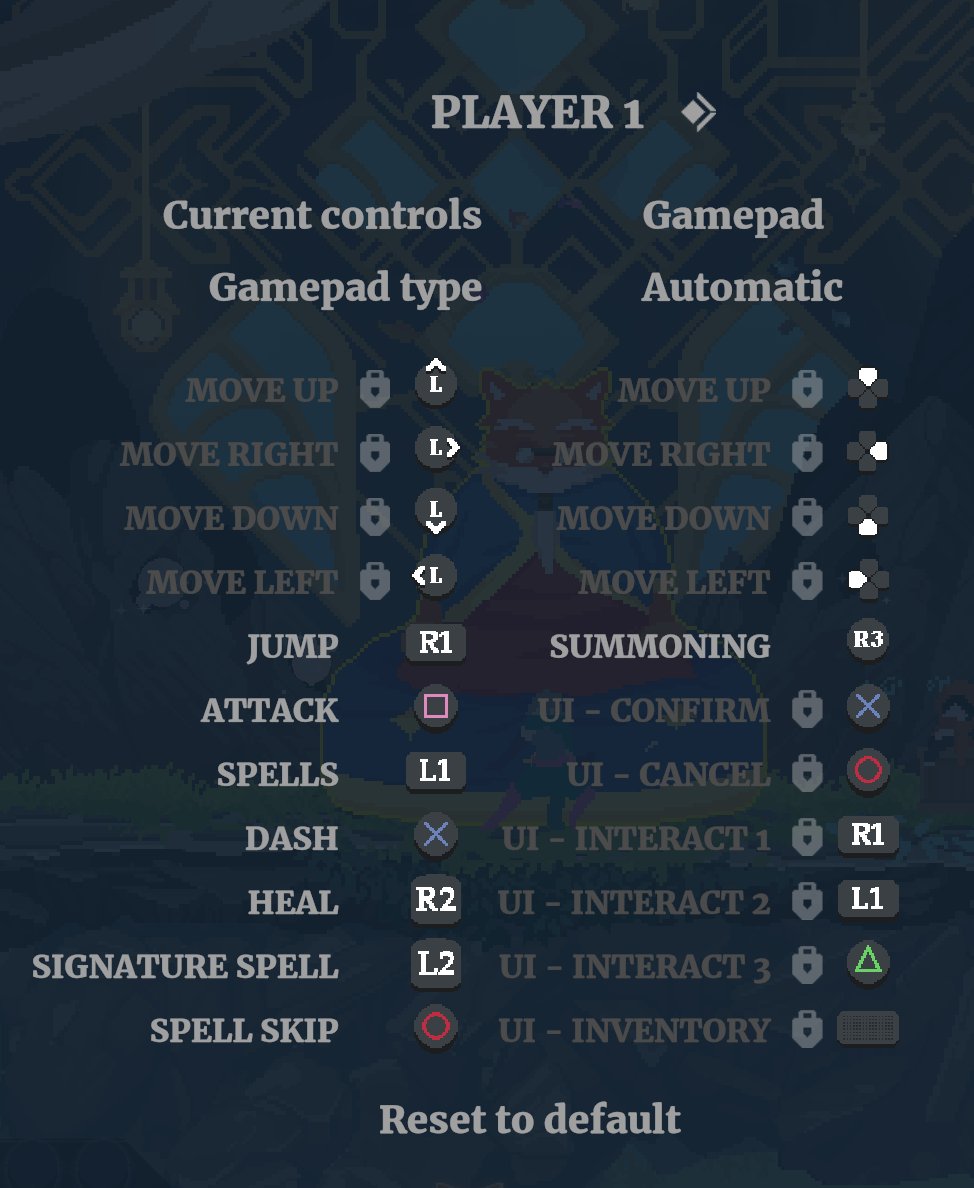
The optimal Tekken 8 ergonomic controller setup prioritizes comfort and accessibility, often featuring button remapping and specific grip styles to reduce hand strain during intense gameplay.
Finding the perfect controller setup for Tekken 8 can significantly impact your performance and enjoyment. Hours spent button mashing demand a focus on comfort. That’s why exploring a proper Tekken 8 ergonomic controller setup is so important for serious players.
We need to consider different hand sizes and preferences when finding the ideal configuration. Some might prefer a claw grip, while others will opt for a more traditional approach, remapping buttons as necessary.

Tekken 8 Ergonomic Controller Setup
Getting comfortable while playing Tekken 8 is super important, especially if you want to win! Imagine trying to do a complicated combo, but your hands are all cramped up. That’s not fun, right? This section will help you figure out how to set up your controller so it feels good and helps you play your best. We’ll talk about different controllers, how to hold them, and even some cool tricks to make playing Tekken 8 feel awesome. Whether you’re using a PlayStation controller, an Xbox controller, or even a special fight stick, we’ve got you covered.
Understanding Your Controller
Before we dive into setting things up, let’s get familiar with the different parts of a controller. Think of it like learning the different ingredients in your favorite dish! Knowing what each button and stick does will help you figure out what feels best for you.
Common Controller Layouts
Most players use either a PlayStation or an Xbox controller. Even though they look a little different, they both have the same basic parts:
- D-pad: This is the set of buttons that look like a plus sign. You often use it to move your character or navigate menus.
- Analog sticks: These are the little joysticks that you can move around. They’re great for moving your character smoothly.
- Face buttons: These are the buttons on the right side of the controller, usually shaped like a square, triangle, circle, and ‘x’. They’re used for attacking and other actions.
- Shoulder buttons: These are the buttons on the top of the controller, usually labeled L1, L2, R1, and R2 (or LB, LT, RB, RT on an Xbox controller). They’re often used for special moves or blocking.
- Start/Options button: These are the buttons in the center of the controller to pause and bring up the main menu.
PlayStation Controller (Dualsense)
The PlayStation 5’s Dualsense controller has a unique shape with the analog sticks parallel to each other at the bottom of the controller. The face buttons are located above and to the right of the right analog stick and D-pad located to the left, above the left analog stick. The shoulder buttons are L1, L2, R1, R2 and are located on the top of the controller. This layout requires a different finger placement for some players. Some players also find the handles a bit bulky to hold.
Xbox Controller
The Xbox controller has an asymmetrical layout, where the left analog stick is higher than the right one, and the D-pad is located below the left stick. The face buttons are on the right, and the shoulder buttons are on the top of the controller. Some players prefer this offset position for the analog stick. It’s a matter of preference.
Fight Sticks
Some players use a fight stick, which is like an arcade machine controller for your home. Instead of a D-pad and analog sticks, you use a joystick to move your character. Fight sticks often have bigger buttons, which some people find easier to press quickly. They are also customizable in button layouts. These are not beginner-friendly but are highly regarded for professional gameplay due to the speed and response they give you.
It’s important to try a variety of controllers to figure out which one feels comfortable. You can try different grips and finger placements on the different controllers to further customize for maximum comfort.
Finding Your Grip
How you hold your controller is just as important as the controller itself! Everyone is different, and what works for one person might not work for you. It’s a very individual thing. Let’s explore some common ways to hold your controller.
The Standard Grip
This is the most common way people hold a controller. You place your thumbs on the analog sticks or the D-pad, your index fingers on the shoulder buttons, and your middle fingers on the triggers (if you use them). Your other fingers will naturally wrap around the grips. This grip works for most situations, but some people might find it tiring after a long gaming session.
The Claw Grip
The claw grip is a more advanced way to hold a controller. You keep your thumbs on the analog sticks or D-pad, but you use your index finger to press the face buttons as well as the shoulder buttons. This allows you to press buttons much more quickly. It takes a lot of practice to get used to, and not everyone finds it comfortable, as it requires bending the hand into a claw-like shape.
Hybrid Grips
Many players develop hybrid grips where they mix parts of the standard and claw grips. For example, you might use your index finger for the shoulder buttons, but you would use your thumb for the face buttons. Experiment with this. It can lead to discovering a more comfortable and faster method of playing for you. The key is to experiment and see what feels best for you.
Thumb Placement
Thumb placement is incredibly important, as the thumbs are involved in most actions within Tekken 8. You could use the thumbs mostly for face buttons, the left stick, or right stick. Most players use the left thumb for movement and the right thumb for attacks. It’s important to make sure your thumb is relaxed and doesn’t feel strained or tense. Keeping your thumbs relaxed can help to prevent fatigue during long play sessions.
Wrist Position
Your wrists should be in a relaxed, natural position, and not bent at an awkward angle. Bending the wrist too much can result in pain and fatigue during long gaming sessions. Experiment with different seating positions to ensure your wrist position is natural and comfortable. Make sure your wrists are not resting on hard surfaces, which could exacerbate discomfort and pain.
Controller Angle
The controller angle can vary greatly from player to player. Some players hold the controller straight and parallel to their body while others slightly angle the controller to the left or right. The correct angle varies greatly and depends on the player. Experiment with small angle changes and determine which angle is the most comfortable. It’s also important to ensure you are sitting straight and the controller angle does not make you hunch over.
Experimentation
The best way to figure out your grip is to try different things. Don’t be afraid to try new things, and don’t worry if it doesn’t feel right at first. Some of the grips will feel strange at first, but as you use them you will get used to them. Be sure to pay attention to your hand and wrist. If anything starts to feel sore or painful, stop. You do not want to damage or injure your hands!
Button Mapping for Tekken 8
Tekken 8 has a lot of moves, and having the buttons set up in a way that makes sense to you can make a huge difference. Let’s talk about how to customize your controls.
Default Controls
Before we get into changing things, let’s look at the default layout in Tekken 8.
- Left Analog Stick or D-pad: Movement (forward, backward, sidestep)
- Face Buttons: Usually for punches and kicks. For example, usually ‘X’ is left punch, ‘square’ is right punch, ‘O’ is right kick, and ‘triangle’ is left kick.
- L1 or LB: Often used for blocking or other special moves.
- L2 or LT: Often used for grabbing or other special moves.
- R1 or RB: Often used for other special moves.
- R2 or RT: Often used for special moves or power crushes.
Many players find the default controls to be fine. However, some players prefer more custom controls.
Customizing Button Layouts
Most fighting games, including Tekken 8, allow you to change the button layout to fit your preferences. You could switch around the attacks, or even put other attacks on the shoulder buttons. This allows you to set up buttons in a more comfortable position.
Here are some popular customizations:
- Re-mapping L1,L2/LB,LT: Some players move blocking or the most important special moves to the shoulder buttons to make them more accessible.
- Re-mapping attack buttons: Some players change the button positions to make sure the attacks they most often use are in easily accessible positions.
- Moving multiple actions to one button: You can set up multiple actions (like throw or special moves) on one button to make them easier to activate.
Why Customize?
Customizing button layouts is crucial for comfort, and accessibility. Players can assign the attack buttons to more natural and comfortable positions for their fingers. Customization also helps with speed. Players could put special and powerful moves into locations that are easier to access which helps with response and speed of execution.
Testing and Adjusting
Once you change your buttons, you should try them out to ensure they work. Spend some time in practice mode to see how they feel. It’s often necessary to adjust them slightly multiple times before you find the perfect combination. You may not find the perfect setting right away so be prepared to adjust and experiment multiple times.
Posture and Seating
It’s not just about your controller; how you sit can affect your comfort too. A good posture can make a big difference in long play sessions.
Sitting Up Straight
Try to sit up straight with your back supported by the chair. Avoid slouching or leaning forward, as this can strain your back and neck. Sitting straight is ideal for preventing discomfort and pain. It also helps in making sure the controller angle is ideal for your posture.
Proper Chair Height
Your chair should be at a height that allows your feet to rest flat on the floor or a footrest. Make sure that you are comfortable in your chair. If you are having discomfort, try using a pillow or footrest to ensure your posture is ideal for long gaming sessions.
Screen Position
Make sure your screen is at eye level. This prevents you from having to tilt your head up or down, which can strain your neck. It’s also good to make sure you are sitting at a comfortable distance away from the screen so that you can see the action easily. A good rule of thumb is to keep the screen at least an arm’s length away.
Taking Breaks
It’s important to take breaks every so often to stretch and walk around. This will prevent discomfort and pain during long play sessions. Stand up and stretch your arms and wrists. Move your body around to get your circulation going. Even a five-minute break can do wonders and can improve your gameplay. If you start to feel discomfort, stop playing for the day. Do not cause further pain or damage to your body!
Controller Maintenance
Taking care of your controller is very important to ensure that the controller performs as well as possible for longer durations. Controllers often get exposed to a lot of use, especially for competitive fighting games. It’s important to clean your controller often to ensure they function properly.
Cleaning
Use a soft, slightly damp cloth to wipe down your controller. Pay attention to the buttons and sticks, where dirt and oils can build up. Do not use water or cleaners, which can damage the electronics within the controller. Simply using a damp cloth every so often can help keep your controller functioning well for long durations.
Storage
When you’re not using your controller, keep it in a safe place away from the sun and moisture. This helps prevent damage. Make sure you are not throwing your controller around or exposing them to damage. Proper care can extend the life of your controller significantly.
Charging and Battery Care
Always follow the manufacturer’s instructions for charging your controllers. This helps to ensure the battery doesn’t get damaged. It’s best not to keep charging controllers for long durations after they’ve fully charged. Unplug the controller once it’s charged. This will ensure the battery lasts longer.
Accessibility Options
Tekken 8 also includes accessibility options that can help players with different needs.
Adjustable Difficulty Settings
Tekken 8 has different difficulty settings, so you can start at a level that feels comfortable for you. This helps to slowly ease into the game.
Button Customization
You can remap the buttons so that they fit your hands better, as explained before.
Visual Settings
You can adjust the brightness, colors, and other visual settings to make the game easier to see. This can help if you have vision problems. Adjust these settings to maximize your comfort.
Game Audio Settings
You can also adjust game volume levels if necessary. Make sure the audio levels are set for a comfortable experience, and are not too loud.
By carefully setting up your controller, figuring out your grip, and taking care of yourself, you can make playing Tekken 8 much more fun. Remember, what works best is what feels comfortable to you!
Finding the perfect controller setup for Tekken 8 is a personal journey. It takes time to figure out your preferences and what feels comfortable. Start with the basics, experiment with the controller and button layout, and don’t be afraid to adjust as you play more. Keep in mind the importance of good posture and maintenance of your equipment for the best experience. With practice and attention to these details, you can play Tekken 8 in a comfortable and enjoyable way.
BEST Controller settings for Tekken 8🔥🔥#tekken8 #rtfiscool #settings
Final Thoughts
Finding your ideal Tekken 8 ergonomic controller setup enhances gameplay and comfort. Experiment with different button mappings, focusing on what feels natural for your hands. Consider grip style too, as it significantly impacts responsiveness.
Ultimately, a comfortable setup reduces fatigue during long sessions. A proper Tekken 8 ergonomic controller setup improves your performance and enjoyment of the game.

