
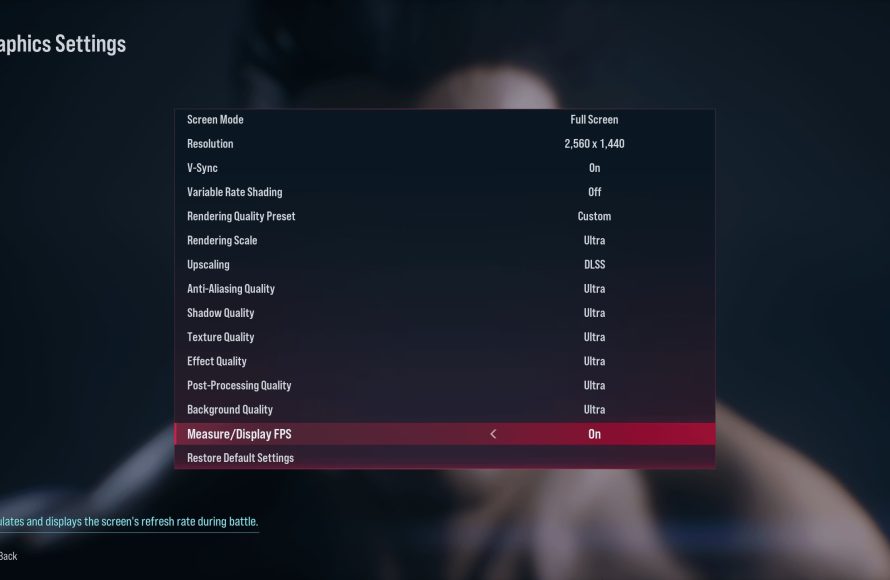
Tekken 8 in-game display options allow players to customize elements like health bars, damage numbers, and frame data, impacting the visual information presented during gameplay.
Diving into Tekken 8, you’ll quickly notice the action is intense. The visual presentation of a fighting game significantly affects your performance. Understanding the Tekken 8 in game display options is crucial for optimizing your play.
These settings let you tailor the interface to your preferences. Players can make the information visible on screen aid their reactions. They help to improve their play experience and performance.

Tekken 8 In-Game Display Options: Your Guide to a Perfect Fight
Okay, so you’re ready to rumble in Tekken 8, right? But before you jump into the heat of battle, let’s talk about something super important: how the game looks on your screen. Tekken 8 gives you a bunch of choices to make sure the game looks just the way you want it to. These choices are called “display options,” and they can change everything from how clear the picture is to how much information you see on the screen. Don’t worry if it sounds a little tricky, we’ll go through it all step-by-step.
Understanding Resolution: How Clear is Your Picture?
Think of resolution like the number of tiny squares that make up the picture on your TV or monitor. These squares are called pixels. The more pixels you have, the clearer and sharper the picture will be. In Tekken 8, you’ll have different resolution choices. Here’s a simple breakdown:
- Lower resolutions (like 720p): These resolutions have fewer pixels, so the picture might look a little blurry. It’s like looking at a picture that’s been zoomed in too much. They usually put less pressure on your computer.
- Higher resolutions (like 1080p, 1440p, and 4K): These have lots more pixels, making the picture super clear and sharp. The details will really pop! They require more power from your computer.
The best resolution for you depends on your monitor or TV and what your computer can handle. If you have a fancy 4K monitor, using the 4K resolution in Tekken 8 can make the game look incredible! But if your computer isn’t very powerful, using a lower resolution like 1080p might make the game run smoother.
Refresh Rate: Keeping Things Smooth
The refresh rate is how many times per second your screen updates the image. It’s measured in Hertz (Hz). The higher the refresh rate, the smoother the game will look, especially when there’s lots of fast action happening. When you see a low refresh rate, the movement on screen might look choppy or have noticeable lag.
- 60Hz: This is a pretty common refresh rate for most TVs and monitors. It’s okay for most games but might not be ideal for fast-paced fighting games like Tekken.
- 120Hz or 144Hz and above: These higher refresh rates make the game feel very smooth and responsive. If you’ve ever seen a game that seems to flow like water, that’s probably because of a high refresh rate. If your monitor supports it, you’ll get a much better experience playing Tekken 8 with a higher refresh rate.
Try to match the refresh rate that your monitor supports for the best experience. You don’t want your game to run at a higher rate than what your screen can actually show. Also, a higher refresh rate needs to be supported by your PC or console, so it depends on your setup.
Graphics Quality: Detail Levels
Graphics quality in Tekken 8 controls the level of detail you see in the game. You’ll get choices like:
- Low: This setting reduces many visual details to make the game run faster, even on less powerful computers. Characters and backgrounds will look simpler.
- Medium: This option provides a good balance between visual quality and performance. It’s a good starting point for most people.
- High: With this setting, Tekken 8 will look very detailed, with all the fancy effects turned on. It’s great for powerful computers and consoles, but can also demand more from your machine.
- Ultra: If you really want to see all the bells and whistles Tekken 8 has to offer, try this setting. It will push the visuals to their limits, and if your PC or console can keep up, you’ll be amazed at how good it can look.
Experiment with these settings to find the best combination of looks and smooth gameplay for your setup.
Anti-Aliasing: Smoothing Jagged Edges
Anti-aliasing helps to smooth out the jagged edges that you sometimes see on objects in a game. Imagine drawing a diagonal line on a piece of graph paper, and you can see all the tiny squares that make up the line. That’s what can happen in a video game, but anti-aliasing fixes that. Think of it like a soft focus filter for video games.
Here’s what you need to know:
- No Anti-Aliasing: The edges will look more jagged.
- Low Anti-Aliasing: Slightly smoothes out those jagged edges.
- High Anti-Aliasing: Makes the edges much smoother and less noticeable. However, it can use more power from your PC.
If your game looks a little too sharp and you can see “jaggies,” try adding some anti-aliasing. Start with low and work your way up until you find the sweet spot that looks nice without making your game lag.
V-Sync: Preventing Screen Tearing
Screen tearing happens when your screen is showing two different images at the same time. It often looks like a line is cutting through the picture. It looks like parts of the image are out of sync.
V-Sync (Vertical Synchronization) can help you avoid this. When you turn V-Sync on, it forces your game to wait until your screen is ready to display a new frame. Think of it like making sure all the parts of a train are hooked up before it moves.
Here’s a quick guide:
- V-Sync Off: You might see screen tearing. This can give you better performance, but the visual quality can suffer.
- V-Sync On: Screen tearing should go away, but it might sometimes impact performance if your game isn’t running at a frame rate that can keep up with the refresh rate of your display.
It’s generally a good idea to keep V-Sync on to avoid visual issues, but if you see performance issues, try turning it off to see if it helps. When using V-sync your game must run at or above the refresh rate of your monitor or display. So, in other words, if your screen has a refresh rate of 60Hz, your game must run at 60 fps or more with v-sync on, otherwise you’ll have stuttering issues.
Motion Blur: Adding Movement Effects
Motion blur makes fast-moving objects appear blurry. It can make the game feel more fluid, like when you’re watching a really fast action movie. Some people love it and think it makes games feel more realistic, while others find it distracting or motion sickness-inducing.
Here’s how it works:
- Motion Blur On: Fast movements will appear blurred.
- Motion Blur Off: Movements will be crisp, but can sometimes appear too sharp and unnatural.
This is a matter of personal taste. Try turning it on and off to see what you like better.
HDR: Colors That Pop
HDR (High Dynamic Range) makes the colors in a game look more vibrant and realistic. If your screen and your system support HDR, Tekken 8 can look incredible. Think of the difference between a regular photo and one that has been edited with HDR techniques. HDR allows for a wider range of colors and brightness, so shadows are darker and highlights are brighter, making the image feel more lifelike.
Here’s the gist:
- HDR Off: The game will look colorful, but not quite as dynamic or detailed.
- HDR On: The colors will be more vivid, and the contrast will be much greater, but it will work only if your monitor or TV supports HDR.
If your screen supports HDR, turning it on in Tekken 8 will offer a significant boost to the visual experience. If you have HDR, try it and see the difference. If you don’t, this setting won’t do anything, it is very hardware specific.
Screen Scaling: Getting the Right Size
Screen scaling controls how the game fits on your screen. Sometimes, the game might not take up the whole screen, or the edges might be cut off. Screen scaling can fix this.
- Full Screen: The game takes up the whole screen.
- Windowed: The game is played in a window, not full screen.
- Borderless Window: The game looks like it is full screen, but it is actually a window that is taking up the whole screen, which means you can easily move to other windows without minimizing your game.
Try these options to find what fits your personal playstyle and needs. If you have multiple monitors, the windowed or borderless window options might work best for you.
UI Scale: Adjusting the Heads-Up Display
UI stands for User Interface, this includes menus, health bars, character info, and all the visual information that the game puts on top of the action. You can often adjust the size of these items so it is easier to read.
Tekken 8 offers some customization in this area, you can adjust the size of the UI elements to your liking. If they are too small for you to see or too large, you can modify them in the options menus until you feel comfortable.
Brightness and Contrast: Setting the Right Light
Brightness and contrast are all about making the game look right for your room lighting and your screen setup. The brightness setting controls how bright or dark the image appears. If the game seems too dark, you can turn up the brightness. If the game looks washed out, try turning it down.
Contrast affects the difference between the darkest and brightest parts of the image. A higher contrast will give the game more depth, while lower contrast will look flat. Try to adjust these settings so your game looks right for you.
Color Blindness Settings
Tekken 8 also has options for people with color blindness. Color blindness makes it hard to see certain colors. Tekken 8 offers settings to help those who might have problems seeing certain colors on the screen. You can choose color palettes that are easier for you to see, making gameplay easier and more enjoyable.
Performance Considerations
When changing these display options, remember that they can affect how well your game runs. If the game starts to lag or freeze, it might be because you have your settings too high. If you have a slower computer or an older console, consider lowering your settings until you get a good balance between looks and performance. It is a good practice to monitor your system resources, if you can monitor your GPU and CPU load, you’ll get a good idea of how much your computer is working, so you can adjust the visual settings accordingly.
Here is a table to recap some key settings and how they might impact performance:
| Setting | Higher Setting Impact | Lower Setting Impact |
|---|---|---|
| Resolution | Higher demand on graphics card, sharper image | Less demand on graphics card, less clear image |
| Graphics Quality | More detailed image, higher demand on graphics card | Simpler image, less demand on graphics card |
| Anti-Aliasing | Smoother edges, moderate demand on graphics card | Jagged edges, less demand on graphics card |
| V-Sync | No screen tearing, can reduce performance in some cases | Screen tearing possible, better performance but with screen tearing |
| HDR | Vibrant, wider range of colors, can impact performance | Less vibrant colors, better performance on older hardware. |
Finding the perfect balance will allow you to enjoy Tekken 8 to the fullest.
Adjusting these display options in Tekken 8 can make a big difference in your gaming experience. Experiment with these settings, see what works best for your setup, and get ready to enjoy the fight of your life! Don’t be afraid to change things around until you find what looks and feels just right for you. Remember, there is no right or wrong answer, it all depends on your own personal taste and hardware setup.
TEKKEN 8 BEST GRAPHICS SETTINGS + FAST RESPONSE TIME
Final Thoughts
In short, Tekken 8 offers players good control over visual aspects. You can tweak things like brightness and HUD elements. These options let you customize your viewing experience to your preference, aiding focus during matches.
Ultimately, these readily available options are important for all skill levels. Tekken 8 in game display options allow you to create a setup that best suits your play style.

