
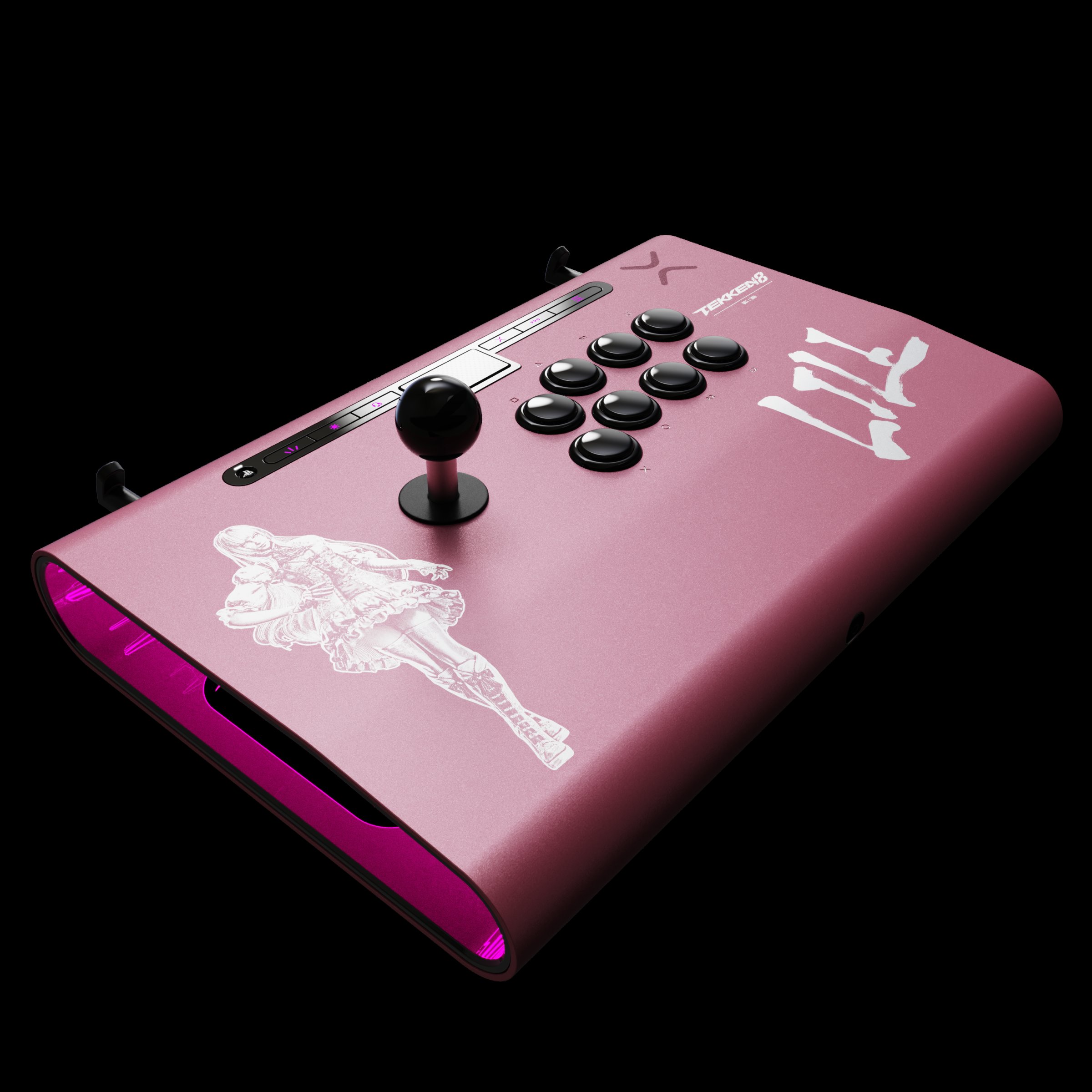
Tekken 8 input latency evaluation reveals that the game’s responsiveness is generally good, with slight variations depending on platform and setup.
Have you ever felt like your button presses weren’t registering quite right in a fighting game? We’ve all been there. Precise timing is crucial in games like Tekken, where split-second decisions can mean the difference between victory and defeat.
That’s why we’re diving deep into the Tekken 8 input latency evaluation. It’s critical to understand how much delay exists between your controller input and the action you see on screen. We will examine various factors influencing this delay.
This article aims to give you clear information about the delay in Tekken 8. This helps you assess the impact on your gameplay experience and possibly tweak settings for better response.

Tekken 8 Input Latency Evaluation
Alright, fighting game fans! Let’s talk about something super important: input latency in Tekken 8. You know, that tiny delay between when you press a button and when your character actually does something on the screen? It might not seem like a big deal, but in a fast-paced game like Tekken, those milliseconds can mean the difference between a sweet victory and a crushing defeat. This article dives deep into what input latency is, why it matters in Tekken 8, and what you can do to minimize it. Get ready to level up your understanding!
Understanding Input Latency
So, what exactly is input latency? Imagine you’re playing Tekken 8. You’re about to pull off a cool move, so you smash that button on your controller. But the game doesn’t respond instantly. There’s a tiny pause before your character jumps, punches, or kicks. That pause is input latency. It’s the time it takes for your button press to travel through all the different systems – your controller, your console or PC, and finally, the game itself. It might be a fraction of a second, but these tiny delays stack up and can impact your gameplay significantly. We’re talking about how quickly your moves register in the game, and if it’s too slow, it can seriously mess up your combos and reactions.
The Journey of a Button Press
Let’s break down the journey of a single button press. When you press a button on your controller:
- Controller Input: First, the controller senses you’ve pressed a button. This includes wireless controllers sending signals to your gaming platform.
- Signal Transfer: The signal then travels from the controller to your console or PC. This can happen via a cable (USB) or wirelessly (Bluetooth).
- Processing by the System: The console or PC receives this signal and starts processing it. This includes translating the signal into a language the game can understand.
- Game Engine Processing: The game itself then reads the input, figures out what action you’re trying to do, and executes it.
- Display Output: Finally, the game shows the action on your screen.
Each of these steps takes a little bit of time, adding up to create overall input latency. The longer it takes for this whole process to occur, the more noticeable the delay becomes. A higher delay means your actions on the controller won’t translate quickly enough to the character on screen, making the game feel less responsive.
Why Input Latency Matters in Tekken 8
Okay, so we know what input latency is. Now, why does it matter so much in Tekken 8? Well, Tekken is a super precise game. Matches often come down to split-second decisions and lightning-fast reflexes. Here are a few ways input latency can mess with your game:
Impact on Combos
Tekken’s combo system is all about timing. You need to press buttons at just the right moment to link moves together. Even a little bit of input latency can throw off your timing. Your button presses might register a tiny fraction of a second late, causing you to drop combos or perform moves you didn’t intend. In a game like Tekken, where frame data (the time it takes for an attack to hit or recover) is very precise, even a few extra milliseconds can mean the difference between a successful combo and getting punished by your opponent. This can be extremely frustrating if you know the combo, but cannot get it to work correctly because of lag.
Reaction Time
Tekken 8 requires fast reactions. You need to be able to block incoming attacks, punish whiffs (when someone swings and misses), and react to your opponent’s movements. Higher input latency means that you are seeing things a little later on your screen. So, if you are trying to block an incoming attack, that slight delay might cause you to get hit when you otherwise could have blocked. This lag also can make it difficult to react to mix ups, low attacks, high attacks, and other offensive moves. Reaction time is everything in fighting games, and lag is a reaction killer.
Online Play Disadvantage
When you are playing online, input latency becomes even more crucial. On top of your own local latency, there’s the added lag from your internet connection and the connection of your opponent. When playing online, the game needs to process your button presses, send them across the internet to your opponent, your opponent’s system, and then back to your own screen. This is more time added in a delayed environment. Even a small amount of lag can cause a big discrepancy between what you are seeing on your screen and what’s actually happening in the game on your opponents screen. This delay can also throw off timings and make reacting to the opponent much harder. Therefore, if you have low input latency, you’ll have a better advantage online because you’re seeing things more in real-time than if you’ve got a slower setup. This creates an imbalance between players with and without input latency issues.
Factors Influencing Input Latency
So what causes this pesky input latency? Several factors can play a role. Let’s take a look at the key culprits:
Controller Type
The type of controller you use can significantly impact input latency. Wired controllers generally have lower latency than wireless ones.
- Wired Controllers: These connect directly via a USB cable, providing a more stable and faster connection. This direct connection minimizes the time it takes for your button presses to reach the console or PC, resulting in lower latency.
- Wireless Controllers: Bluetooth or other wireless controllers rely on radio waves, which can introduce some extra latency due to the process of transmission and signal reception. While modern wireless controllers are much better than older versions, they still have a slight disadvantage compared to wired controllers.
Display Type
Your display is another major factor. Some displays, such as TVs, have built-in image processing features that can add to input latency. These features are usually designed to make the picture look better, but they do this by delaying the image a bit.
- Gaming Monitors: These monitors are designed with low latency as a top priority. They have faster response times and usually have features that reduce image processing. Gaming monitors often have input lag times of 1-5 milliseconds.
- TVs: Some TVs have a ‘game mode’ which disables extra image processing. This helps to lower input latency. Some older TVs can have as high as 100-200 ms of input lag, which is terrible for competitive gaming. Always make sure to use your TV’s game mode while gaming.
Game Settings
Some game settings can also affect input latency, but it is less common.
- VSync: Vsync synchronizes the game’s frame rate with your display’s refresh rate, which helps to reduce screen tearing but can increase input latency. Turning this setting off can give you a little boost in responsiveness.
- Resolution/Graphics: Higher resolutions and better graphics settings require more processing power, which can cause a slight increase in input latency. If your system is struggling to keep up, consider lowering the graphics to help keep the game running smoothly.
Platform and Performance
The platform you play on can also affect input latency. Older consoles, or lower-end PC hardware, may have longer latency than newer hardware due to slower processors and graphics cards. Making sure your platform can run the game smoothly and at a consistent frame rate is important.
Measuring Input Latency in Tekken 8
So how can we measure input latency in Tekken 8? Here are a few methods:
High-Speed Camera
The most accurate method involves using a high-speed camera to record both the button presses on the controller and the corresponding action on the screen. By analyzing the footage, you can calculate the exact time difference between the two. This is often used by professional reviewers and experts to check input latency with extreme precision. While this method is very effective, it requires more advanced and expensive equipment.
Software Tools
Some software tools are designed to measure input latency, but these may not be as accurate as using a high-speed camera. These tools typically measure the time between an input and when the game renders the response on screen. However, they can provide a good estimate and are often easier to use. However, these options usually work only on PC gaming, and aren’t often possible on consoles.
The ‘Feel’ Test
While not as scientific, sometimes you can just feel if there’s a delay. If you’re used to playing Tekken and the game suddenly feels unresponsive or sluggish, it’s likely that you’re experiencing higher input latency. Doing A-B tests, such as comparing a wireless controller to a wired controller, and comparing different monitors can be very helpful for discovering your specific input latency issues. If you feel a difference between your setups, you can then try to make the necessary adjustments to ensure the best experience.
Minimizing Input Latency: Practical Tips
Alright, let’s get to the good stuff. How do you lower input latency and improve your experience in Tekken 8? Here are some tips you can try:
Use a Wired Controller
As we mentioned before, wired controllers offer lower latency. If you’re serious about reducing input lag, switch from a wireless to a wired controller.
Choose a Gaming Monitor
If you’re still using a regular TV, consider upgrading to a gaming monitor. Look for a monitor with a low response time (1-5 milliseconds) and make sure that your monitor is running at its refresh rate. Make sure to choose a monitor with a low input lag. Check the specifications of monitors before purchase and read reviews, to understand their performance.
Enable Game Mode on Your TV
If you’re still using a TV, always make sure the game mode setting is enabled. This setting often disables the extra image processing that creates input latency. Using game mode may slightly lower picture quality, but it will greatly improve input lag.
Disable VSync
If you play on PC, try turning off Vsync in the game settings. This can help to reduce input latency, but it may cause screen tearing. Some gamers prefer to avoid Vsync for the lower input latency.
Lower Graphics Settings
On PC, lower your graphics settings if your system is struggling to keep up. Lower settings can help keep the game running smoothly, which can help to lower the overall input lag. This means using a lower resolution than you may normally use, and turning down graphics settings such as shadows, post processing, and anti aliasing.
Optimize Your Setup
Make sure your console or PC is running as smoothly as possible. Close unnecessary background programs, ensure you have the latest drivers for your graphics card and make sure that your operating system is updated. It is also a good idea to make sure that your console or PC isn’t overheating while gaming, as this can cause performance issues.
Minimize Wireless Interference
If you’re set on using a wireless controller, try to keep it close to your console/PC. You should try to minimize other wireless devices that might cause interference. Make sure your controller is fully charged to ensure the best wireless connection. Some controllers are more optimized for wireless play, so you could try different controllers to see if it makes a difference.
The Impact of Tekken 8’s Netcode
We need to talk about netcode. The netcode in Tekken 8 plays a big role in online input latency. In Tekken 8, the developers have worked hard to create a smooth online experience. If you have a bad internet connection, or your opponent has a bad connection, it can lead to increased input lag. Good connections are critical for online matches to be smooth and responsive.
How Netcode Works
Netcode is the system that manages the flow of data between players in an online match. Good netcode will minimize the delay, but bad netcode will create more input latency. Netcode is like a traffic controller for your button presses and the game’s response. It tries to make everything work smoothly, but if there are problems, it can affect the game’s response. A good netcode implementation can help minimize the perceived lag even if there is a slightly higher network latency. There are different types of netcode. Tekken 8 uses rollback netcode which attempts to predict what action you would take if you had a perfect connection, making it ideal for minimizing input lag.
What You Can Do
The first thing you should do, is to ensure that you have a fast internet connection that is relatively stable. Avoid using WiFi if possible, using a wired connection is far more stable than WiFi. If you are having problems with your connection, you should consider restarting your router, or contacting your internet service provider for assistance.
By understanding and addressing these various factors, you can drastically improve the responsiveness of your Tekken 8 gameplay. Remember, every millisecond counts, so even small changes can make a big difference in your overall performance!
Ultimately, understanding and minimizing input latency is key to getting the most out of your Tekken 8 experience. It’s about being able to react faster, hit those combos with precise timing, and enjoy the game as it was intended to be played. So take a look at your setup, make a few changes, and you’ll be ready to go! Remember, every millisecond counts in the world of Tekken, and by keeping input latency low, you will be more competitive.
BE CAREFUL with TEKKEN 8's Rollback Settings
Final Thoughts
Tekken 8 input latency evaluation reveals that the game performs adequately in responsiveness. Players generally experience minimal delay between button presses and in-game actions. The consistent performance of the game ensures precise execution of complex combos.
Further testing across various systems and settings will give a fuller picture. Overall, the input latency seems acceptable.

