
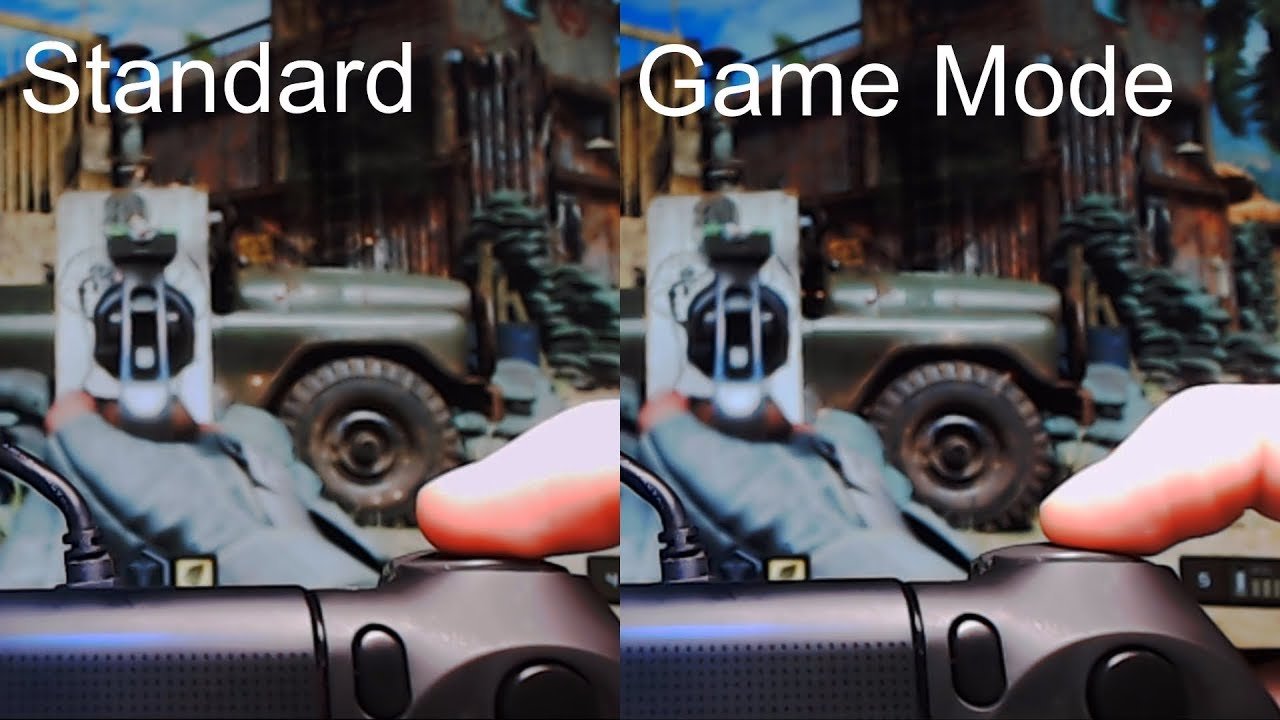
Game mode optimizes your device’s performance by prioritizing resources for gaming, reducing background activity, and improving frame rates.
Ever wondered what does game mode do? It’s a feature present on many devices. It aims to provide a smoother gaming experience.
Game mode essentially tells your computer or phone to focus on the game you’re playing. This helps minimize distractions.
By closing non-essential programs it allows the game to use all the available power. This results in more consistent and better gameplay.

What Does Game Mode Do?
Ever wondered what that “Game Mode” button on your computer or phone actually does? It’s not just a fancy label; it’s a helpful tool designed to make your gaming experience way better. Think of it like a pit crew for your device, getting everything ready for peak performance when you need it most. Let’s dive into what Game Mode does and how it makes a difference.
The Core Idea: Prioritizing Games
At its heart, Game Mode is all about focusing your device’s resources on the game you’re playing. Your computer or phone is always doing lots of things in the background – checking for emails, updating apps, and more. While these are important for everyday use, they can slow things down when you’re in the middle of an intense game. Game Mode steps in to make sure that your game gets the most attention, like giving it the biggest piece of cake at a birthday party.
Reducing Background Noise
One of the main jobs of Game Mode is to cut down on those background tasks that can cause lag or stuttering in your game. It does this in a few ways:
- Pausing Updates: It can stop automatic app updates, preventing them from using your internet connection and slowing down your game. Imagine trying to drive a race car while someone is refilling the gas tank – it’s much better to do that after the race.
- Limiting Notifications: Those pesky pop-up notifications can interrupt your gaming and cause a sudden drop in performance. Game Mode often minimizes or silences these alerts, letting you focus on the game.
- Background App Management: Game Mode also limits how much power other apps can use. By keeping these background apps quiet, it makes sure the game has all the processing power it needs.
All of these changes ensure that your game runs as smoothly as possible, without unexpected interruptions.
Boosting Game Performance
Game Mode doesn’t just reduce the bad stuff; it also actively improves game performance. It does this by making sure the game has access to the most important resources on your computer or phone. Think of it as giving your game special access to the best tools.
CPU and GPU Optimization
Your device’s CPU (Central Processing Unit) and GPU (Graphics Processing Unit) are like the brain and muscles of your device. They do the heavy lifting for games. Game Mode helps them work better together:
- CPU Priority: Game Mode tells the CPU that the game is the top priority. It helps the CPU to focus most of its energy on the game, rather than dividing it among several things.
- GPU Pushing: It also tells the GPU to work its hardest on graphics. The GPU is responsible for making games look beautiful and run smoothly, so this boost makes a big difference in performance and image quality.
- Dynamic Clock Speeds: Some game modes even tweak the clock speeds of your CPU and GPU, meaning they can work faster for short bursts when needed in demanding scenes.
This targeted resource allocation can result in higher frame rates (how many pictures per second you see), smoother animations, and more responsive gameplay. This makes a game feel much more immersive and fun.
Reducing Input Lag
Input lag is the time it takes between when you press a button and when that action happens in the game. High input lag can make a game feel clunky and unresponsive. Game Mode can help to minimize this lag by:
- Reducing Processing Delays: By prioritizing the game’s instructions to the CPU and GPU, Game Mode reduces the time it takes for your device to process your button presses.
- Optimized Communication: The operating system and the game talk to each other quicker, reducing delay between actions and visuals.
The result is a more precise and responsive experience, which is especially important in fast-paced, competitive games.
Sound Enhancement
While most game modes focus primarily on visual and performance improvements, some also include sound enhancements. Better sound can add to the experience, helping you hear crucial sounds more clearly.
Spatial Audio
Some game modes tweak spatial audio to give you better sound positioning. This means you can tell where sounds are coming from, which is vital in many games. If someone is sneaking up behind you, you need to hear it!
Sound Clarity
Game mode can make in-game sounds clearer and more distinct from each other. This helps you focus on the sounds that matter, and to improve the immersive experience. By reducing distractions and making the important sounds pop, the game’s sound is much more immersive.
Game Mode on Different Devices
Game Mode isn’t just for one type of device. It’s available on various platforms, but it might work a little differently from one to another. Here’s how Game Mode can show up in different places:
Game Mode on Windows PCs
Windows 10 and 11 have a built-in Game Mode. Here is how it works:
- Automatic Activation: Windows Game Mode can often detect when you launch a game and turn on automatically.
- Customizable Settings: You can also customize it in your settings, which allows you to choose what types of notifications it stops or what resources it prioritizes.
- Game Bar: Windows Game Bar allows you to take screenshots, record gameplay, and control Game Mode easily.
- Driver Updates: Windows Game Mode often works alongside the latest GPU drivers, providing a more optimized gaming experience.
Game Mode on Android Phones
Many Android phones now have their own Game Mode features, which vary depending on the manufacturer. Here’s how it might work:
- Game Launcher Apps: Many Android manufacturers provide a dedicated “Game Launcher” app. In this app, Game Mode settings can be customized for each game.
- Performance Options: Some Android Game Modes allow you to select from different performance modes, like “Balance” or “Performance.”
- Call and Notification Controls: You can often set it up to block notifications and calls while gaming, preventing interruptions.
- Screen Recording: Many include built-in screen recording and screenshot capabilities for the player to save epic moments in games.
Game Mode on Consoles
Consoles like Xbox and PlayStation have their own versions of Game Mode in order to improve gaming experience. Here’s what they usually involve:
- Optimized Hardware: Consoles are designed primarily for gaming, so most performance settings are automatically optimized.
- Background Processes Management: Consoles do have operating systems running in the background; however, they are primarily designed for gaming.
- Updates and Patches: Consoles often receive system updates and game patches that can further optimize game performance.
Game Mode and Game-Specific Settings
While Game Mode is great for optimizing your overall device for gaming, you’ll still want to make game-specific adjustments to get the best possible experience. Here’s how these settings work together:
In-Game Graphics Options
Within the game itself, you’ll find a ton of graphics options to change the way it looks and performs. Things to watch out for include:
- Resolution: Lowering the resolution can give you a big boost in performance, but may make the game look a bit blurry.
- Texture Quality: Lowering this option can help reduce load on the GPU, but may make the game textures look less detailed.
- Shadows and Lighting: Turning off or lowering the quality of shadows can have a major impact on performance.
- Effects: Reducing post-processing effects can also free up GPU power, resulting in more fluid gameplay.
Audio and Input Settings
Game settings aren’t just about visuals. You can usually adjust:
- Sound Options: Adjusting sound options to your preference can help you focus on important game cues.
- Sensitivity: Mouse and controller sensitivity settings can allow for fine-tuning and faster responses.
Balancing Graphics and Performance
The key is to find a balance between visual quality and performance. The game should look good and run smoothly. Game Mode sets the stage, and the in-game settings finetune the final experience. Finding the best settings will help you enjoy the game more.
When to Use Game Mode
Knowing when to use Game Mode is as important as knowing what it does. It’s not necessary for every single game you play, but it can definitely be useful in certain situations. Here are a few times when you should consider turning it on:
- Demanding Games: If you are playing a graphically intense game, that makes the device very hot, Game Mode can provide that extra boost to performance.
- Online Multiplayer: For online games, input lag and interruptions can be frustrating. Game Mode makes the experience smoother, more responsive, and competitive.
- Older Devices: If you’re playing games on an older device, Game Mode can be a useful tool to extract more performance out of the hardware.
- When experiencing Lag: When the game is running sluggishly, it’s time to turn it on, and the game can run better with less lag and stuttering.
However, Game Mode might not always be beneficial. For example, if you’re playing a very simple game or doing something besides gaming, then Game Mode might not have any positive impact on the device.
In conclusion, Game Mode is a valuable tool that prioritizes your game, reduces distractions, optimizes your system resources, and enhances the overall gaming experience. Whether you’re on a computer, a phone, or a console, understanding how it works and when to use it will definitely make your gaming sessions much better. Experiment with it, tweak your settings, and see how much better your games can run.
What Does Game Mode Do on Windows?
Final Thoughts
Game mode prioritizes gaming performance. It achieves this by allocating system resources to the game. This action results in a smoother gameplay experience with less lag.
Essentially, what does game mode do is optimize your device for better gaming. It minimizes background processes, focusing power where it is needed. Therefore, players should find improved frame rates and reduced input delays.

