
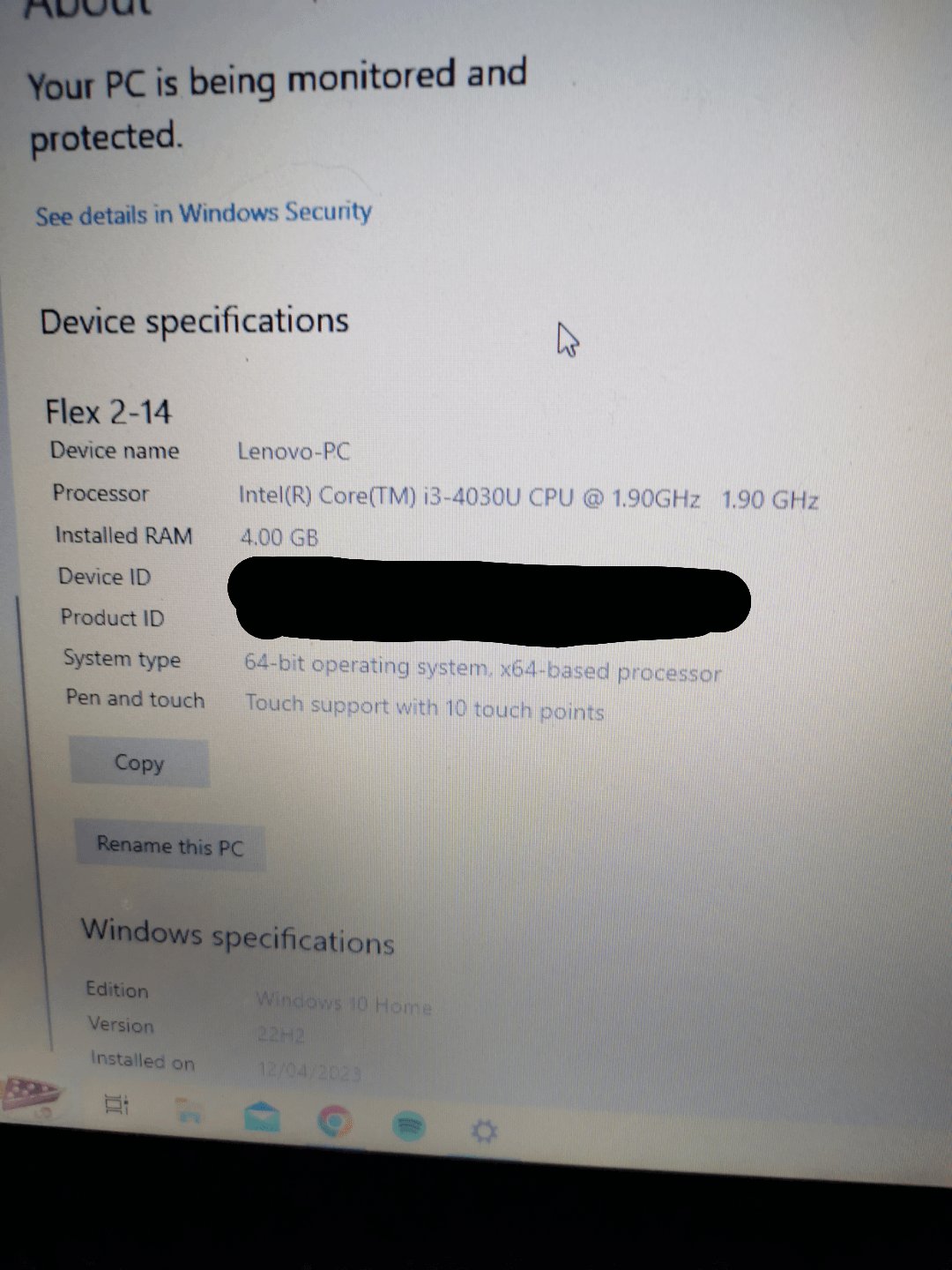
The specific games your laptop can run depend entirely on its specifications, particularly the CPU, GPU, and RAM. Check those against the minimum and recommended system requirements listed for each game you’re interested in.
Ever wondered, “what games can my laptop run?” It’s a common question for many, whether you’re a seasoned gamer or just getting started. Finding compatible games can feel overwhelming with so many titles.
The wide variety of hardware makes it challenging to know what is possible without diving into specifications. We’re here to help guide you. We’ll cover the important factors that determine what games will work well on your computer.

What Games Can My Laptop Run?
Figuring out what games your laptop can handle is like being a detective! You have to gather clues – like what’s inside your laptop – to find out which games will play smoothly and which might make your computer groan. It’s not as scary as it sounds, though. We’re going to break down all the important things to look at, so you can become a pro at knowing what games your laptop can run.
Understanding Your Laptop’s Specs
The first step in our detective work is to look at your laptop’s “specs.” These are like the ingredients in a recipe, telling you what powers your computer. The main ones to know about are:
The CPU: Your Laptop’s Brain
The Central Processing Unit, or CPU, is like your laptop’s brain. It does most of the thinking for the computer, including running games. A faster CPU means your computer can process more information quickly, leading to better game performance. CPUs come in different “flavors,” the most common being Intel and AMD. When checking your CPU, you’ll see the manufacturer name (like “Intel Core i5” or “AMD Ryzen 7”), the model number (like “1135G7”), and the clock speed (like “2.4 GHz”). For gaming, higher model numbers and clock speeds are generally better. You don’t need to understand every number, but you should get a feel for it.
Think of it like this, a faster CPU can juggle more balls at the same time, making your game run without lag.
The GPU: The Graphics Wizard
The Graphics Processing Unit, or GPU, is the part of your laptop that creates the pictures on the screen. For games, this is super important! A powerful GPU will make games look beautiful and run smoothly. Some laptops have “integrated” GPUs, which are built into the CPU, while others have “dedicated” GPUs, which are separate pieces of hardware. Dedicated GPUs are usually much stronger and better for playing games. Just like CPUs, GPUs are made by different companies, primarily NVIDIA (GeForce) and AMD (Radeon). Look for model names like “NVIDIA GeForce RTX 3050” or “AMD Radeon RX 6600M.” The higher the numbers after “RTX” or “RX”, the better the card for gaming.
Imagine the GPU is the artist who draws the game world; a good GPU can make a beautiful painting that moves smoothly.
RAM: Your Laptop’s Short-Term Memory
Random Access Memory, or RAM, is like your laptop’s short-term memory. When you’re playing a game, the computer needs to quickly access a lot of information. RAM is where this information is temporarily stored. More RAM means your laptop can handle more tasks at the same time without slowing down. For gaming, 8GB of RAM is okay for most lighter games, but 16GB is recommended for smoother performance with modern and more demanding games. If your game requires more than that, you will need to consider upgrading if possible.
RAM is like the desk where you keep your current homework; more desk space means you can work on more things without getting disorganized.
Storage: Where Games Live
Your hard drive or Solid State Drive (SSD) is where your games and other files are stored. The size of the drive tells you how many games you can install. It’s measured in Gigabytes (GB) or Terabytes (TB). SSDs are much faster than traditional hard drives (HDDs), meaning that games will load faster, and the whole computer will feel more responsive. This doesn’t impact game performance during gameplay, but it makes a difference when you’re starting or switching games. This matters when considering how long you will wait in a loading screen.
Think of it like this, this is where you keep all your video games. A big shelf means more games and a faster shelf is quicker at bringing it to you.
How to Find Your Specs
Don’t worry, you don’t need to be a computer expert to find your specs! Here’s how to do it on Windows:
- Click the Windows button (usually in the bottom-left corner).
- Type “System Information” and press Enter.
- A window will open with all sorts of details about your laptop.
- Look for the following sections:
- Processor: This is your CPU information.
- Installed Physical Memory (RAM): This tells you how much RAM you have.
- Under Components on the left, look for Display. You will see the information about your GPU here.
On a Mac:
- Click the Apple logo in the top-left corner.
- Select “About This Mac”.
- You will see basic information here, for more details click “System Report”.
- Under Hardware you can see RAM and CPU, and under Graphics/Displays you will see your GPU.
What Games Can You Play? Different Categories
Now that you know how to find your laptop’s specs, let’s talk about the types of games you can expect to play. Games fall into different categories based on how much power they need:
Lightweight Games
Lightweight games are like the easy puzzle in your box of games. They don’t require a lot of power to run smoothly. These games often feature simpler graphics and gameplay, making them perfect for laptops with integrated GPUs and limited RAM. These types of games will run very well on pretty much any computer, even older ones.
Examples include:
- Indie Games: Many indie games have simpler graphics and minimal system requirements, which makes them accessible to a wide range of computers. These types of games are normally 2D or pixelated in style.
- Puzzle Games: Games that are built around puzzles are perfect for any computer to run. You won’t need the newest GPU to make the puzzles work.
- Old School Games: These games come from a past generation and are very simple to run on modern computers, even if it was high-end at the time. These are often games before the year 2000.
- Web Games: These are very accessible and run on your internet browser, as a result they are very lightweight.
If your laptop has a basic Intel or AMD processor with integrated graphics and 8 GB of RAM, you can comfortably play lightweight games, and you probably won’t have to worry too much about if your computer can run these games.
Mid-Range Games
Mid-range games are like the puzzle in your box that is a little bit harder and more complicated. They require a bit more power to run smoothly compared to lightweight games. These games usually feature more detailed graphics and gameplay, making them a good fit for laptops with dedicated GPUs and more RAM. They are in the middle ground, so they still don’t require a top-end gaming laptop, but are not the easiest games to run.
Examples include:
- Simulation Games: Games where you have to build and manage something that runs on a schedule, where a medium amount of processing power is needed.
- Fighting Games: This type of game usually has good-looking characters and animations, which may require a dedicated GPU for better performance.
- Action Platformers: Games that feature both action and platforming elements where the GPU is used for detailed graphics.
- Some Popular Esports Games: These games do not require the highest graphics and can run pretty well even on basic graphics cards.
If your laptop has an Intel Core i5 or AMD Ryzen 5 processor, a dedicated GPU such as an NVIDIA GeForce GTX or AMD Radeon RX card, and 16 GB of RAM, you should be able to play most mid-range games comfortably at reasonable settings. You might need to turn down some graphic details on new games, but you should still have a great time.
High-End Games
High-end games are the most complex puzzles in your box of games. They are like the puzzles that take up a lot of space and time to put together. These games feature the most advanced graphics and complex gameplay, and they need powerful hardware to run well. High-end games might feature photorealistic graphics, advanced physics, and massive game worlds.
Examples include:
- AAA Games: These games are the most graphically demanding and feature the biggest budgets. They are typically made by big-name companies.
- VR Games: Virtual reality games need a lot of processing power and great graphics to run smoothly, so these games will require a high-end graphics card.
- Some Competitive FPS Games: These games are known for their fast action and detailed environments, and therefore they often need a good graphics card.
For high-end games, you will typically need an Intel Core i7 or AMD Ryzen 7 or better processor, a high-end dedicated GPU such as an NVIDIA GeForce RTX or AMD Radeon RX series card with the most recent technology, and 16 GB or more of RAM. If you don’t meet these requirements, it doesn’t necessarily mean you can’t play these games at all, but you might need to play at low settings and with low resolutions.
Checking Game Requirements
Each game will have its own system requirements, and you can usually find these on the game’s store page. Let’s use Steam as an example.
Steam Game Requirements
If you are buying a game on steam, all of the requirements are listed there. You have to scroll to the bottom of the page and you will see a section called “System Requirements”. In this section, you will see two columns. “Minimum” and “Recommended”. Let’s break them down.
- Minimum: These are the minimum specifications required to play the game at low settings and potentially a low resolution. It is not guaranteed that you will have a great experience with these requirements, but you will be able to play the game at a playable state.
- Recommended: These are the specs that the game developers recommend that you use to play the game at good settings and at a good framerate.
Let’s see an example of a system requirement list:
| Minimum | Recommended | |
|---|---|---|
| Processor: | Intel Core i5-4460 or AMD FX-6300 | Intel Core i7-4770 or AMD Ryzen 5 1600X |
| Memory: | 8GB RAM | 16GB RAM |
| Graphics: | NVIDIA GeForce GTX 760 or AMD Radeon R7 260X | NVIDIA GeForce GTX 1060 or AMD Radeon RX 590 |
| Storage: | 50GB available space | 50GB available space |
By comparing these numbers to your laptop’s specifications, you can get a good idea of whether a game will run well. It’s always best to try to meet the recommended specifications for a smoother gaming experience.
Other Places to Check Game Requirements
Game requirements aren’t only on steam, they can be found on other stores and websites. For example, the Epic Games store will have a system requirement list, just like Steam, on the game’s store page. You can also search the game on google and you will usually find system requirements on the developer’s website or a third-party gaming site.
Tips for Improving Gaming Performance
If your laptop is struggling to run a game, here are some tips that might help:
Lowering Graphics Settings
In most games, you can adjust the graphics settings. Reducing settings like resolution, texture quality, and shadows can help a game run smoother. Don’t feel like you always have to play at the highest graphics setting!
Closing Unnecessary Programs
Make sure to close other programs while you are playing a game. Other programs running in the background take up RAM and CPU resources, which will slow your game down. Only have the game running while playing.
Updating Drivers
Graphics card drivers are like the instructions that tell your graphics card how to work with games. Outdated drivers can cause performance problems. Make sure you keep these updated.
Cooling Your Laptop
When your laptop is playing games, it can get hot, especially if the game requires a lot of resources. Overheating can cause your computer to slow down. You can buy external laptop coolers to prevent this or try to have a space where your laptop can get plenty of air circulation. Also, try to avoid placing your computer on a soft surface such as a blanket or pillow, which could cause the computer to trap the heat.
Upgrading Components
If you really want to play specific games that your laptop can’t run, you could consider upgrading some of your laptop’s components. However, it should be noted that you can only upgrade the RAM and storage. Typically, it is not possible to change the GPU or CPU in a laptop, unless you have a specialized modular one. You should see if this is possible with your specific laptop. Always do more research about what you are doing before you actually try to upgrade anything.
Using Online Tools
There are also online tools that you can use to find out if your computer can run a certain game. These websites usually ask for your computer specs and compare them to the game requirements to determine if your laptop can handle it.
Can You Run It
One of the most popular websites is “Can You Run It”. This website takes the guesswork out of it by providing a comparison tool to see if you can run a specific game. You download a program and it scans your computer, which takes only a few seconds, then you can find the game you are looking to play to see if your computer meets the minimum or recommended specs.
Other System Check Websites
There are also other websites that offer similar tools that will let you know if a game is compatible with your laptop. Each tool might work differently so it is always good to use multiple tools and see what each of them say.
Knowing what games your laptop can run is about understanding your computer and how it stacks up against game requirements. By taking a little time to check your laptop’s specs and comparing them to the games you want to play, you can set yourself up for a good time playing games on your computer.
Best Laptop-Friendly Games [Gaming On The Go]
Final Thoughts
Ultimately, knowing your laptop’s specifications is key. Check your CPU, GPU, and RAM to understand performance limits. Many older and indie titles, along with less demanding popular games, will likely run well.
Experiment with lower settings to improve performance. ‘what games can my laptop run’ really depends on these factors. Do some research to check compatibility.

