
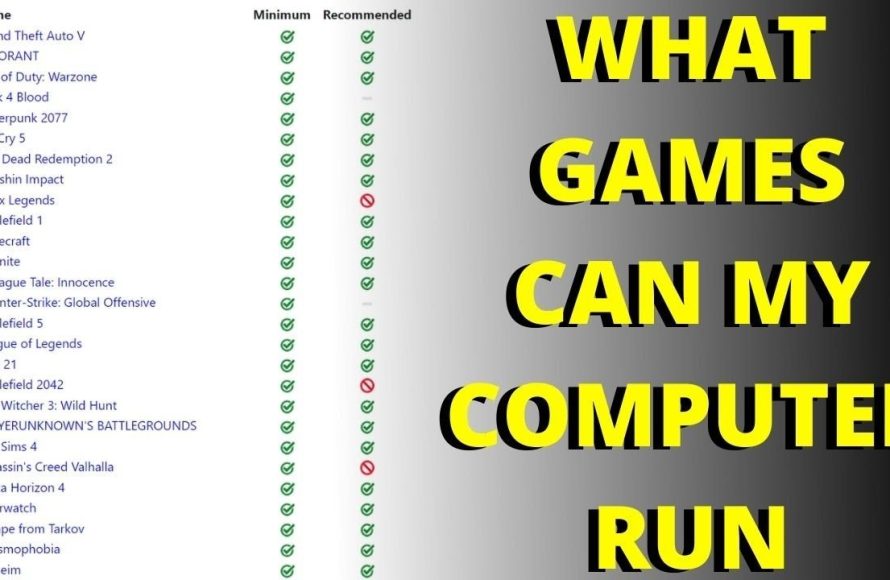
Your PC can run games depending on its hardware; check your specifications against game requirements to see what games can your PC run.
Ever wondered, “what games can my pc run”? It’s a common question for gamers, especially when considering new releases. Knowing your computer’s capabilities is the first step to gaming enjoyment.
The types of games your computer will handle depend on components like the graphics card, processor, and RAM. Each game has specific system requirements which help to answer ‘what games can my pc run’.

What Games Can My PC Run?
Ever wondered if your computer can handle that awesome new game everyone’s talking about? It’s a question every PC gamer faces. Figuring out what games your PC can play can feel a bit like solving a puzzle. But don’t worry, it’s not as hard as it seems! This guide will help you understand how to find out exactly what your computer is capable of, and how to choose games that will run smoothly. We’ll explore the important parts of your computer, learn how to read game requirements, and even talk about some tricks to help your PC perform better. Let’s jump in and see what gaming adventures await!
Understanding Your PC’s Power: The Key Players
Before you can figure out what games your PC can run, you need to know what’s inside. Think of your PC like a car. Some cars are fast and powerful, while others are better for driving around town. Your computer is similar. It has different parts that work together to play games. The main parts we need to look at are:
The Central Processing Unit (CPU): The Brain of the Operation
The CPU is like the brain of your computer. It does most of the thinking and handles the instructions needed to run a game. When looking at CPUs, you’ll usually see things like brand (Intel or AMD) and model numbers (like Intel Core i5 or AMD Ryzen 7). These names and numbers tell you how powerful the CPU is. A faster CPU can handle more game calculations at once, making your games run smoother.
- Clock Speed: This is measured in GHz (gigahertz) and shows how fast the CPU can process information. Higher clock speeds generally mean faster processing. Think of it like the speed of a person’s footsteps – faster footsteps mean faster movement.
- Cores: Modern CPUs have multiple cores. Think of it like multiple brains working together. More cores can help with games, especially those that require a lot of processing.
The Graphics Processing Unit (GPU): The Visual Artist
The GPU, or graphics card, is responsible for the visuals you see on your screen. It’s what makes your games look amazing (or not!). A good GPU is super important for playing games, especially more recent games with advanced graphics. Just like with CPUs, GPUs come from brands like NVIDIA (GeForce) and AMD (Radeon). They have model numbers as well (like NVIDIA GeForce RTX 3060 or AMD Radeon RX 6700 XT), and higher numbers generally mean better performance. GPUs also have their own dedicated video memory, called VRAM, that helps the gpu process graphics quickly.
- VRAM (Video RAM): This is like a GPU’s short term memory, where it stores information needed to render graphics on screen. More VRAM is better.
- Model and Series: The specific model and series indicate the performance capabilities. Newer GPUs often have better features and can run newer games with higher settings.
Random Access Memory (RAM): The Short-Term Memory
RAM is like your computer’s short-term memory. It’s used to store information that the CPU and GPU need to access quickly while the game is running. Games need enough RAM to run smoothly. If you don’t have enough, your game might freeze, stutter, or even crash. RAM is measured in gigabytes (GB), and a higher amount is generally better for gaming.
- Capacity: Usually 8GB is the bare minimum these days for gaming, but 16GB is very common and is preferred for smoother gameplay.
- Speed: RAM speed is measured in MHz (megahertz). Faster RAM can make a slight difference in some games.
Storage: Where Games Live
Storage is where your games and files are saved. You typically have two types of storage: Hard Disk Drives (HDDs) and Solid State Drives (SSDs). Both store your game files but operate quite differently.
- HDD (Hard Disk Drive): These are older style storage devices. They are cheaper and available in larger sizes but are slower. Loading games from a HDD will take more time.
- SSD (Solid State Drive): SSDs are much faster than HDDs and make games load much faster. This will reduce loading time and make gameplay smoother.
Operating System (OS): The Foundation
The operating system is the main software that runs your computer. Most computers use Windows, but there are others. Many PC games are specifically made to run on specific versions of windows, and you must ensure you have the appropriate system required.
- Windows Version: Most games will specify what Windows version they need (e.g., Windows 10 or Windows 11). Make sure your OS is up-to-date and compatible.
Finding Your PC’s Specifications: A Quick Check-Up
Now that you know the important parts, let’s find out what’s in your PC. It’s not hard, and you don’t need to open it up. Here are some simple ways:
Using System Information on Windows
- Press the Windows Key + R: This will open the Run dialog box.
- Type “msinfo32” and press Enter: This will open the System Information window.
- Look for Key Details: Under “System Summary,” you’ll find information about your CPU (Processor), RAM (Installed Physical Memory), and the version of Windows you’re using.
- To find GPU Details: Expand “Components,” then click “Display.” You’ll see your graphics card information listed there.
Using the DirectX Diagnostic Tool
- Press the Windows Key + R: This will open the Run dialog box.
- Type “dxdiag” and press Enter: This will open the DirectX Diagnostic Tool.
- Check system tab for CPU, RAM and OS: you will find information about your operating system, CPU, and RAM.
- Check display tab for GPU: Find the display tab which will list the name of your GPU and the amount of VRAM.
Using Task Manager
- Press Ctrl + Shift + Esc: This opens Task Manager.
- Click on the “Performance” Tab: Here you can find real-time stats and specs for your CPU, RAM, GPU and hard drives.
Game System Requirements: Understanding the Fine Print
Every game lists “system requirements” that tell you what kind of PC you need to play the game. Game requirements usually come in two forms:
Minimum Requirements
These are the bare minimum specs you need to even start the game. If your PC barely meets these, the game will likely run, but it might not run very well. You might experience low framerates, lag, and low graphics settings. This is the “playable but not pretty” zone.
Recommended Requirements
These are the specs you need to have a good experience with the game. If your PC meets these requirements, the game will likely run smoothly with better graphics settings. This means higher framerates, better visuals, and fewer problems. Think of this as the “ideal” setup.
Decoding the Jargon
Game requirements usually list the same kinds of information we discussed earlier: CPU, GPU, RAM, storage, and OS. When looking at game requirements, pay close attention to the model numbers, series numbers and version numbers. For example, a game may ask for a “NVIDIA GeForce GTX 1060” or better GPU. If you have an RTX 3060, that’s a more powerful and newer GPU, so it can most likely run the game with no problems. Here’s a example:
Example Game Requirements
| Component | Minimum Requirements | Recommended Requirements |
|---|---|---|
| CPU | Intel Core i5-4460 or AMD FX-6300 | Intel Core i7-4770 or AMD Ryzen 5 1600 |
| GPU | NVIDIA GeForce GTX 960 2GB or AMD Radeon R7 370 2GB | NVIDIA GeForce GTX 1060 6GB or AMD Radeon RX 580 8GB |
| RAM | 8 GB RAM | 16 GB RAM |
| Storage | 40 GB available space | 40 GB available space on SSD |
| OS | Windows 7/8.1/10 64-bit | Windows 10 64-bit |
How To Check if your PC can Run a Game
Now that you know how to find your PC specs and how to read game requirements, here’s how to put it all together. We need to compare your system’s specifications with the game’s minimum and recommended requirements.
- Check the CPU: Is your CPU at least as good as the minimum requirement? If not, the game may struggle to run smoothly. If it meets the recommended requirement you can expect good results.
- Check the GPU: Is your GPU at least as good as the minimum requirement? If it’s lower, the game might not run, or the graphics might look bad and have performance issues. If it meets the recommended requirement you can expect good results.
- Check the RAM: Do you have enough RAM? If you have less than the minimum, you might see crashes or freezes.
- Check the Storage: Make sure that you have the specified amount of space on your hard drive to download and install the game. And keep in mind that a SSD is preferable for loading times.
- Check the OS: Ensure your operating system meets the specified requirement.
If your PC meets all the minimum requirements, the game should run, but it may not be the best experience. If your PC meets or exceeds the recommended requirements, you’re likely to have a much smoother and better looking experience.
Dealing with Underpowered PCs: Improving Performance
If you find that your PC barely meets the minimum requirements or doesn’t quite meet them, don’t worry. Here are a few things you can try to boost performance and potentially make a game more playable:
Lowering Graphics Settings
Most games allow you to adjust graphics settings. Lowering things like texture quality, shadow quality, and anti-aliasing can help a game run smoother on older PCs. Lowering resolution is also a very effective method to increasing performance, however the game will appear less sharp.
Closing Unnecessary Programs
Before you start a game, close any programs or apps that you don’t need. These programs can use up resources, taking away power needed by the game. Your web browser, other applications and background processes can all cause performance issues if running simultaneously with your game.
Updating Drivers
Make sure your graphics card drivers are up to date. Newer drivers often include performance improvements and bug fixes for specific games. You can usually get the latest drivers from the GPU manufacturer’s website (NVIDIA or AMD).
Overclocking Your Hardware
If you know what you are doing, you may be able to overclock your GPU or CPU to get more performance. This process essentially forces your computer to operate at a higher frequency but can come with its risks like overheating. It is generally recommended you avoid this step if you do not have sufficient expertise or hardware.
Upgrading Your PC Components
Sometimes, the only way to play new games smoothly is to add new or improved components to your pc. Consider things like more RAM, a new graphics card, or switching to a SSD, depending on what is holding you back. However, replacing components of your PC can be an expensive option and should be done as a last resort.
Using “Can You Run It” Websites
If all of this feels overwhelming, don’t worry! There are websites that can do the checking for you. These sites will scan your computer and compare your specs to a game’s requirements. One of the more well known sites is: “Can You Run It”.
- System Scanner: These websites usually have a system scanner that detects your PCs hardware and specs.
- Game Database: They have a huge database of games.
- Compatibility Reports: They give you a report showing if you meet the minimum or recommended requirements of the games.
These tools can help you quickly check if your PC is compatible with certain games.
Understanding what your PC can run doesn’t have to be a mystery. By looking at your CPU, GPU, RAM, and knowing how to read game requirements, you can choose games that will run smoothly. Remember, even if your PC isn’t super powerful, there are often ways to adjust settings to make games playable. So, go explore the world of PC gaming, and have fun!
Check which games are compatible with your pc Can my PC run it What games can I play on my computer
Final Thoughts
In essence, determining what games can my pc run depends greatly on its specific components. Older systems will play older titles well, while modern machines can handle newer, graphically demanding games. Check your processor, graphics card, and RAM; compare them to a game’s minimum and recommended specs to estimate performance.
You can use tools that scan your system and suggest playable games based on your hardware. Many websites offer compatibility checks, providing easy guides for your specific setup. This helps give a clearer picture of what games can my pc run.

