
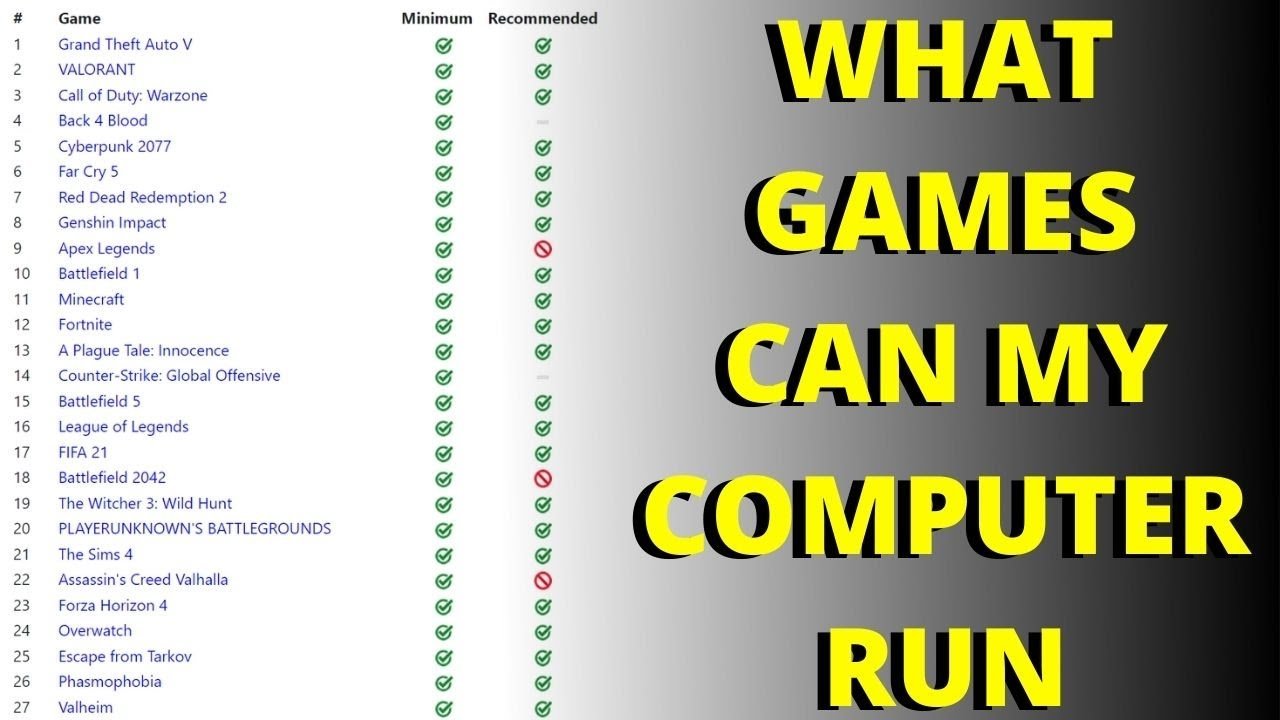
The specific games your laptop can run depend on its specific hardware, particularly the graphics card and processor, and you can often find this information by using websites or tools that analyze your system and recommend compatible titles.
Ever wonder what games can run on my laptop? It’s a common question for many, and the answer isn’t always straightforward. Finding great games for your machine depends greatly on what’s inside it.
We often assume that if we see a game we like, it will run smoothly. But this can lead to disappointment when the game lags badly or even refuses to start. Knowing your hardware is key.
There are resources available to easily check the compatibility of games with your laptop. This can save you time and frustration when choosing the best games to enjoy.

What Games Can Run On My Laptop?
Figuring out which games will work on your laptop can feel like a big puzzle. You have a laptop, you want to play games, but will they actually run? Don’t worry, it’s not as complicated as it seems! This guide will help you understand what to look for and how to find games that will play nicely on your machine. We’ll cover different types of laptops, what their parts mean for gaming, and how to find out which games you can play.
Understanding Your Laptop’s Specs
Before we dive into specific games, let’s talk about what makes your laptop tick. The ‘specs’ are like a report card for your computer. They tell us what it’s good at and what it might struggle with. Here are the key parts you should know about:
The Central Processing Unit (CPU)
Think of the CPU as the brain of your laptop. It handles all the calculations. For games, you want a CPU that’s fast and can handle many tasks at once. Common brands are Intel and AMD. Look for CPUs that have a good ‘clock speed’ (measured in GHz) and a decent number of ‘cores’ (like having multiple brains working together). For example, an Intel Core i5 or AMD Ryzen 5 is typically better for gaming than an Intel Core i3 or AMD Ryzen 3. Keep in mind that higher numbers are generally better, though generation matters too, with newer generations usually offering improved performance. Generally speaking, a CPU with a “K” designation, such as an Intel i7-12700K, usually means that it can be overclocked, but not all laptops have the proper cooling needed for this.
Graphics Processing Unit (GPU)
The GPU is all about images and graphics. It’s what makes games look beautiful. Some laptops have a ‘dedicated’ GPU, which is a separate chip just for graphics. These are usually much better for games. Other laptops have an ‘integrated’ GPU, which shares its power with the CPU. These are less powerful. Look for GPUs from Nvidia (GeForce series) or AMD (Radeon series). The higher the number in the GPU’s name, the more powerful it generally is, e.g. an RTX 3060 is more powerful than an RTX 3050. If you have an integrated graphics solution (Intel HD Graphics, Intel UHD Graphics, or AMD Radeon Graphics), you’ll generally only be able to run older or less graphically intense games. Dedicated GPUs, such as NVIDIA GeForce GTX or RTX cards or AMD Radeon RX cards, are needed for running newer, more demanding titles.
Random Access Memory (RAM)
RAM is like your laptop’s short-term memory. It helps keep things running smoothly. For gaming, 8 GB of RAM is often considered the minimum nowadays, while 16 GB is recommended for better performance and ability to run other applications simultaneously. If you have less than 8 GB, you might see slowdowns or the game might not even run at all.
Storage
Storage is where your game and computer programs are stored. You need space for the game files and for the operating system. Solid State Drives (SSDs) are usually much faster than traditional hard drives (HDDs). Having an SSD will help games load faster and feel more responsive. While your games will run on an HDD, the load times will be substantially longer than with an SSD. If you are trying to run modern game titles, having an SSD is highly recommended. Some people have both, an SSD for the system and games and an HDD for other types of storage.
How to Check Your Laptop’s Specs
It is quite simple to check your laptop’s specifications. Here’s how to find this information on Windows and macOS:
Windows:
- Click the Start button.
- Type “System Information” and press Enter.
- Look for “Processor” (for CPU), “Installed Physical Memory (RAM),” and “BaseBoard Product” (which can sometimes give a clue to your integrated graphics).
- To see your GPU, search “Device Manager” in the Start menu, press enter, then click on “Display adapters”.
macOS:
- Click the Apple logo in the top left corner.
- Select “About This Mac.”
- You’ll see information about your CPU (Processor) and RAM (Memory).
- To see your GPU, go to the “System Report” and then select “Graphics/Displays.”
Types of Games and Laptop Performance
Not all games are created equal when it comes to how much power they need. Some games are simple and lightweight, while others are heavy and demanding. Here’s a breakdown:
Lightweight Games
These are often games with simple graphics and gameplay. They do not need a powerful computer to run smoothly. Think of games like 2D platformers, puzzle games, and classic titles. These will often run on laptops with integrated graphics. Examples include:
- Stardew Valley
- Minecraft (runs on some integrated graphics, but better with dedicated)
- Among Us
- Hades
- Indie games
- Older games released in the early 2000s or before
Mid-Range Games
Mid-range games have better graphics and more complex gameplay, requiring more power to play. A laptop with dedicated graphics is often needed to run them effectively. If you try to run these games on integrated graphics, you may see very low framerates, or the game may not run at all. Examples include:
- Rocket League
- Fortnite
- Grand Theft Auto V
- Some sports games (FIFA, NBA2K)
- Overwatch
Demanding Games
These are the big, AAA games with cutting-edge graphics and very detailed worlds. They require a powerful computer with a high-end dedicated GPU and plenty of RAM. These games also often require more hard drive space. Examples include:
- Cyberpunk 2077
- Red Dead Redemption 2
- Assassin’s Creed Valhalla
- Elden Ring
- Call of Duty titles
Trying to run these demanding games on a lower powered laptop is very unlikely, and it may damage your laptop. If your laptop does not meet the “minimum” specifications, it should not be run. If it meets the minimum specifications, it might run with low framerates or may require you to lower the graphics settings, such as texture quality, rendering distance, shadows, and other options.
Using Game Requirement Websites
How do you know what your system is capable of playing? Luckily, there are websites that can help! These websites allow you to enter your laptop’s specs and then check if you can run a particular game.
Can You RUN It
This website is a great resource. You can search for a game you’re interested in, and it will tell you if your system meets the minimum and recommended requirements.
- Go to Can You RUN It website.
- Search for the game you want to play.
- The website will then ask you to install an application on your computer, which will then analyze your PC specs automatically, and let you know if you can run it.
- If you do not want to install the application, you can also manually enter all of your computer’s specs to get the same information.
Steam
Steam is a very popular digital game store. Most games available there have their system requirements listed on the store page. Check these specs against your computer’s specs before buying a game!
- Go to the Steam website or the Steam application.
- Search for the game you’re interested in.
- Scroll down to find the “System Requirements” section.
- Compare the listed requirements to your laptop’s specs.
Optimizing Your Laptop for Gaming
Even if your laptop isn’t a high-end gaming rig, there are some things you can do to make games run a little better. These things might make games playable even if your specs are a little below the requirements for a game.
Lowering Graphics Settings
Most games allow you to adjust the graphics settings. Lowering these settings can make the game run more smoothly. Here are a few common settings that make the biggest difference:
- Resolution: Lowering this makes the game look less sharp, but it requires less power.
- Texture Quality: Lowering this reduces the detail of objects in the game.
- Shadows: Turning off or lowering shadows can improve performance quite a bit.
- Anti-Aliasing: This can smooth out jagged edges, but takes power to do. Turning it down or off can help.
- V-Sync: This synchronizes the game framerate to the monitor’s refresh rate, but can be demanding on the system. Turn it off if needed to improve performance.
Closing Unnecessary Programs
Make sure you close other applications that are running in the background before playing the game. This will free up RAM and CPU power for the game.
- Close all browser windows.
- Close any music or video players.
- Close any applications you don’t need.
Updating Graphics Drivers
Make sure your graphics drivers are up to date. These can be found on the Nvidia or AMD website for dedicated cards, or on the website for your laptop brand if you have integrated graphics. Outdated drivers can cause performance issues, so always try to keep them updated. Most driver websites will automatically detect your graphics card and provide you with the correct drivers.
Laptop Cooling
Gaming can make your laptop hot. Use a laptop cooler or make sure your laptop has good ventilation, to prevent overheating, which can slow down the game.
Cloud Gaming
Cloud gaming is a new way to play games, where you don’t need a very powerful computer. The games are actually running on servers somewhere else, and they’re streamed to your device through the internet. This is a great option for playing demanding games on laptops that would normally struggle.
How it Works
- You need a good internet connection.
- You use a subscription service to stream the games to your laptop.
- The game runs on a remote server and sends a video stream to your laptop.
Popular Cloud Gaming Services
Here are some of the popular platforms for cloud gaming:
- NVIDIA GeForce NOW
- Xbox Game Pass Cloud
- Google Stadia (now discontinued, but still important to mention to show how the technology is changing)
- Playstation Plus Premium (includes cloud streaming)
Finding Games for Your Laptop
Now that you understand a bit more, here’s how to find the games that are perfect for your laptop. Here are some of the options:
Start with Lightweight Games
If your laptop is not very powerful, start with less demanding games to get some gaming in. Explore the options mentioned in the lightweight games section above.
Check Minimum Requirements
Always look at the minimum and recommended requirements before buying a game to ensure it will run well on your laptop.
Use Game Requirement Websites
Utilize websites like “Can You RUN It” to check if you can run a specific game.
Explore Cloud Gaming
If you have a good internet connection, try cloud gaming services to access more demanding titles.
Read Reviews
Look for user reviews and forum discussions about game performance on similar systems. This can give you an idea of the actual performance of a game, rather than just looking at requirements.
Finding out what games you can play on your laptop might seem like a challenge, but with a little bit of knowledge and the right tools, it’s definitely possible. Remember to check your specs, understand game requirements, and don’t be afraid to adjust settings. There are plenty of great games out there for every type of laptop. Happy gaming!
Best Laptop-Friendly Games [Gaming On The Go]
Final Thoughts
The games your laptop can handle depend on its specifications. Older or less powerful laptops will likely run simpler indie titles or older AAA games. Modern gaming laptops, with dedicated graphics cards, can play the latest releases.
Therefore, carefully check the system requirements of games against your laptop’s specs. Don’t assume anything; compare the details. Knowing this helps you determine precisely ‘what games can run on my laptop’.

