
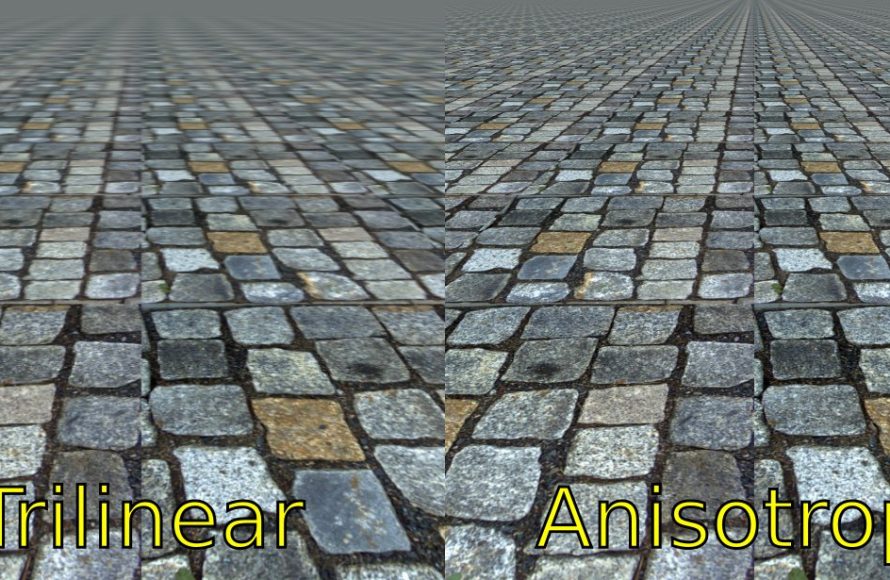
Anisotropic filtering in games is a texture filtering technique that improves the sharpness of textures viewed at oblique angles, reducing blurriness and aliasing.
Have you ever noticed how distant textures in video games sometimes appear blurry or indistinct? This occurs because of how 3D rendering works. What is anisotropic filtering in games, then? It’s a clever method developers use to correct this visual problem.
It essentially sharpens textures, particularly those viewed at an angle, leading to much clearer graphics and improved overall visual quality. You’ll notice the difference when surfaces aren’t turning into a mushy mess the farther you move away.

What is Anisotropic Filtering in Games?
Ever noticed how some textures in games look blurry when viewed from an angle? That’s where anisotropic filtering comes in! It’s a special technique used by your computer to make sure that textures, like the ground or walls, look sharp and clear, even when they are far away or seen at an angle. Think of it like making sure your picture doesn’t get fuzzy just because you’re not looking at it straight on. It’s a crucial part of making games look as good as possible, and understanding it can help you get the best visual quality from your favorite titles.
Understanding Texture Mapping and Mipmapping
Before diving deeper into anisotropic filtering, it’s helpful to understand texture mapping and mipmapping. Texture mapping is like putting a sticker (the texture) onto a 3D object in a game. Imagine taking a picture of a brick wall and sticking it onto a box to make it look like a brick box. That’s essentially what texture mapping does. Mipmapping is a clever trick to improve performance. Instead of loading one huge texture, mipmapping creates multiple smaller versions of that texture, called mipmaps. These smaller versions are used when the object is far away or small on your screen. This way, the computer doesn’t have to render the entire huge texture, which would take a lot of processing power, and your game can run smoothly.
How Mipmapping Can Cause Blurring
While mipmapping helps with performance, it also has a drawback. When a texture is viewed from an angle, the game has to use a mipmap that might not be a perfect match, which causes that blurry look which is what we mentioned earlier. The game will pick the closest mipmap, but this can result in a texture that is not as detailed as it could be. When we see a floor or a wall from a steep angle, the texture is squished. Mipmapping alone can’t fix that squish because it only has smaller versions of the entire texture, not squished ones, which leads to noticeable blurriness.
The Role of Anisotropic Filtering
This is where anisotropic filtering comes to the rescue! Anisotropic filtering is an enhanced method of sampling textures that can solve the blurriness caused by mipmapping. Instead of just picking the nearest mipmap, anisotropic filtering carefully selects the right texture samples, taking into account the angle at which the surface is viewed. It essentially tells the computer, “Hey, this part of the texture is squished, so let’s get the pixels that match that shape.” Think of it as making sure a carpet always looks detailed and defined, even when you’re looking down on it at an angle. It smooths out texture transitions and maintains clarity, especially when looking at the floor or any angled surfaces in game. It makes the view much sharper.
Anisotropic vs. Isotropic Filtering
To understand anisotropic filtering even better, let’s compare it to its simpler counterpart, isotropic filtering. Isotropic filtering treats all directions equally, using the same blur for horizontal and vertical surfaces. It’s like if you are using a regular camera to take photos. Anisotropic filtering is very different. Anisotropic filtering is more smart. It treats different directions differently, using different degrees of blurring for different directions. Anisotropic filtering uses a non-uniform filtering approach that gives a clear texture on angled surface that is why it is very important. Isotropic filtering only uses the same level of blur for all surfaces, and it does not take into account the viewing angle like anisotropic filtering does. This means that isotropic filtering will always look blurrier on angled surfaces compared to anisotropic filtering.
Here is a simple analogy, consider a loaf of bread. Isotropic filtering would make the bread look a bit smudged or blurred all over, while anisotropic filtering would keep the details of the crust and texture sharp and clear, even at an angle, that is why anisotropic filtering is a must in gaming. Isotropic filtering is faster to perform, so it is not as resource intensive. Anisotropic filtering requires more work and so is more resource intensive for the computer.
In short, anisotropic filtering improves the details, clarity, and crispness of surfaces seen from different angles, isotropic filtering does not.
How Anisotropic Filtering Works: The Technical Bits
Let’s explore the technical details a little bit. When your video game renders a surface, it calculates how each pixel of the surface should look by grabbing colors from a texture. The computer uses texture coordinates, which tells the game what area of texture to map to the screen. Without filtering, the game would have to look at the original texture for all pixel colors. But this process is too slow so this is where mipmapping and filtering come into play. Anisotropic filtering works by taking multiple samples from textures across a given area and blending the sampled pixel colors together to produce a pixel color value. In short, anisotropic filtering is all about taking various samples from the texture rather than taking only a single sample.
Sampling the Texture: Going Beyond a Single Pixel
Instead of just taking one single sample from the texture, anisotropic filtering takes multiple samples. Think of it like gathering a bunch of opinions before you make a decision. By taking multiple samples, it can get a better idea of how the texture should look when it is seen from an angle. The number of samples it takes, and the way it takes these samples helps to generate a more clearer and sharp image.
Weighted Sampling: Prioritizing the Right Samples
Anisotropic filtering doesn’t just take random samples; it uses weighted sampling. This means it gives more importance to the texture samples that are more relevant to the viewing angle. For example, if the surface is at a steep angle, the samples along the longer axis are given more weight. This helps make the textures look consistent even when viewed at angles.
Levels of Anisotropic Filtering: 2x, 4x, 8x, 16x
You’ll often see anisotropic filtering settings listed as 2x, 4x, 8x, or 16x in game graphics options. These numbers represent the number of samples the filter will take. A higher number means more samples, resulting in even sharper and clearer textures and a more detailed image quality. However, more samples mean more work for your computer’s graphics processing unit (GPU), so there’s a trade-off between quality and performance. Typically, the higher the number, the better the results, but this can also have a negative impact on frame rates, especially on older hardware. The effect of this setting is more prominent at wider viewing angles.
- 2x Anisotropic Filtering: This is the least intensive level, offering a subtle improvement over no filtering or isotropic filtering. Good for lower-end systems.
- 4x Anisotropic Filtering: A moderate step up, it provides a noticeable improvement in texture clarity with little performance cost. It’s a good balance for many gamers.
- 8x Anisotropic Filtering: This level offers a significant boost in texture sharpness, especially on angled surfaces. Most modern graphics cards can handle this without much performance impact.
- 16x Anisotropic Filtering: The highest level of filtering, this ensures the best possible texture clarity but comes at the cost of some extra GPU work. Recommended for high-end systems with powerful GPUs.
Benefits of Using Anisotropic Filtering
So, why should you care about anisotropic filtering? Here are the key benefits:
- Improved Texture Sharpness: Anisotropic filtering makes textures look much sharper and clearer, especially when viewed from an angle.
- Reduced Blurriness: It minimizes blurring on angled surfaces, creating a more realistic and visually pleasing gaming experience.
- Enhanced Image Quality: It gives games a higher-quality appearance overall, making details more pronounced and less fuzzy.
- Better Visual Clarity: Textures remain sharp and detailed even at a distance or at an angle.
- Less Eye Strain: Less blurriness means less visual discomfort and eye strain during extended gaming sessions.
Anisotropic Filtering and Performance Impact
While anisotropic filtering greatly enhances visual quality, it does come at a cost. It requires more work for your GPU, which can lead to lower frame rates, especially on older or less powerful graphics cards. However, modern GPUs are generally very capable of handling anisotropic filtering with minimal performance impact. Here’s what you need to know:
- Minimal Impact on Modern GPUs: Most modern GPUs can handle anisotropic filtering, even at 16x, with little or no impact on performance.
- Older GPUs May Struggle: On older GPUs, especially those in older laptops, using a higher level of anisotropic filtering may result in lower frame rates.
- Experiment with Settings: It’s always good to experiment with different levels of anisotropic filtering in your games to find a good balance between visual quality and performance. Start with a lower setting and increase it until you notice a drop in frame rates.
- Game-Specific Performance: The performance impact can vary from game to game. Some games may be better optimized than others, so you’ll need to tweak the settings to find what works best for you.
Generally, if you have a decent GPU, you can use anisotropic filtering at 8x or 16x without any major problems, resulting in a better gaming experience without sacrificing a smooth framerate. Keep in mind that it can have a different impact on different systems. So, it is important that you test it on your system.
How to Enable Anisotropic Filtering
Enabling anisotropic filtering is usually quite straightforward. Here’s how to do it in most games:
- In-Game Settings: Most games have their graphics settings, where you’ll find an option for anisotropic filtering. Look for settings usually labelled as texture filtering or anisotropic filtering. You’ll often find options like 2x, 4x, 8x, and 16x.
- Graphics Driver Control Panel: You can also control anisotropic filtering at a driver level. NVIDIA and AMD provide control panels where you can set the anisotropic filtering level that will apply to all of the games. This can be particularly useful if a game does not have an anisotropic filtering option or if you want consistent filtering across all titles. You can typically override the application setting with your desired level of filtering.
- Testing and Tweaking: Enable different levels of anisotropic filtering while playing your game, and look at how your textures change. This is a quick and easy way to see the visual effect and performance hit. Also remember that if you enable anisotropic filtering in a graphics driver panel, then this setting will override that in-game setting.
Real-World Examples
To fully appreciate the impact of anisotropic filtering, let’s look at some real-world examples.
Scenario 1: The Floor Texture
Imagine a first person shooter. When you look at the floor, it is made of tiles. Without anisotropic filtering, the tiles might appear blurry and muddled, especially further away from the player. Enabling anisotropic filtering will make the tile textures sharp and clear, with defined edges and better clarity. This helps a lot to make the gaming experience better and the visuals more detailed.
Scenario 2: Wall Textures
In other games such as open world games and role-playing games, walls are typically made of stone, brick or wood. Without anisotropic filtering, the textures of these walls might lack details and look blurred from a far distance and from steep angles. With anisotropic filtering, these walls retain their texture detail and look great.
Scenario 3: Road Surfaces
In driving games, the road texture will appear muddy and blurry without anisotropic filtering, and this blurriness will be more prominent when looking at the road from different angles. With anisotropic filtering enabled, the road surface will have better detail and sharper lines, especially at a distance, making your driving game more immersive.
Scenario 4: Foliage and Grass
In many adventure games, foliage and grass textures can get easily blurred without anisotropic filtering. Enabling it will give more clarity to the grass and foliage, thereby giving better detail to the environment and making it look more detailed and immersive.
When to Use Anisotropic Filtering
Should you always turn on anisotropic filtering? Here are a few things to consider:
- Modern Hardware: If you have a modern GPU, you should almost always use anisotropic filtering, at least at 8x or 16x. The performance impact is likely to be minimal, and the improvement in visual quality is worth it.
- Older Hardware: If you have older hardware, you can test anisotropic filtering by first enabling it at 4x and see if it has a noticeable impact on performance. If there is no performance hit, then test it at 8x. If there is a performance impact, then keep it at 4x.
- Visual Preference: Anisotropic filtering is one of the most noticeable upgrades in visual quality, so if you want to have better image quality in games and you have a modern system, then you should definitely turn it on.
- Performance: If you are playing online games, it is important to maximize your framerate as much as possible, if you see that your game is having a low framerate, and your anisotropic filtering settings are high, try turning it down to see if that fixes the issue.
Anisotropic Filtering in Different Scenarios
Anisotropic filtering has a place in many different scenarios in video games. It works to greatly enhance the visual quality across different game genres and situations. Here are some of the cases.
- First-Person Shooters (FPS): Anisotropic filtering greatly enhances the game experience in FPS games. It makes the textures of the floor, walls, and the environment much sharper, leading to a more immersive and detailed visual.
- Open-World Games: Open-world games have very large environments, and anisotropic filtering will help make the overall quality of visuals much better, by making sure the distant textures also look detailed and clear, allowing the player to be immersed into the world and its environment.
- Driving Games: In driving games, it is important for the road surfaces and other visual details of the environment to be rendered properly. Anisotropic filtering will greatly enhance the visual details in a driving game by making the road look detailed and clear.
- Strategy Games: Even in strategy games where the game is usually viewed from a top down perspective, anisotropic filtering enhances the clarity of textures, which helps make the different environment and map look very detailed.
- Role Playing Games (RPG): Anisotropic filtering will make the textures of the environments and characters in RPG games more clearer, thereby enhancing the gameplay experience and visuals.
No matter what game you are playing, if you have the option to enable anisotropic filtering and your system is powerful enough to run it, then you should definitely enable it to ensure your game has the best visual quality.
In conclusion, anisotropic filtering is a very important setting to make sure that textures look clear even at angles. If your PC is capable, it is always a good idea to turn on the anisotropic filtering. The increased clarity and detail help your game look better and more immersive.
What Is Anisotropic Filtering? – PC Graphics Settings Explainer
Final Thoughts
Anisotropic filtering enhances texture quality in games by reducing blur on surfaces angled away from the viewer. It particularly improves textures on the ground, walls, and other flat surfaces that appear at an angle.
This technique provides clearer and sharper visuals compared to basic bilinear or trilinear filtering. It tackles the common problem of textures appearing muddy or smeared.
Essentially, what is anisotropic filtering in games? It’s a vital method for increasing texture detail and overall visual clarity, making games appear more refined. Gamers generally consider this a crucial setting for a better gaming experience.

