
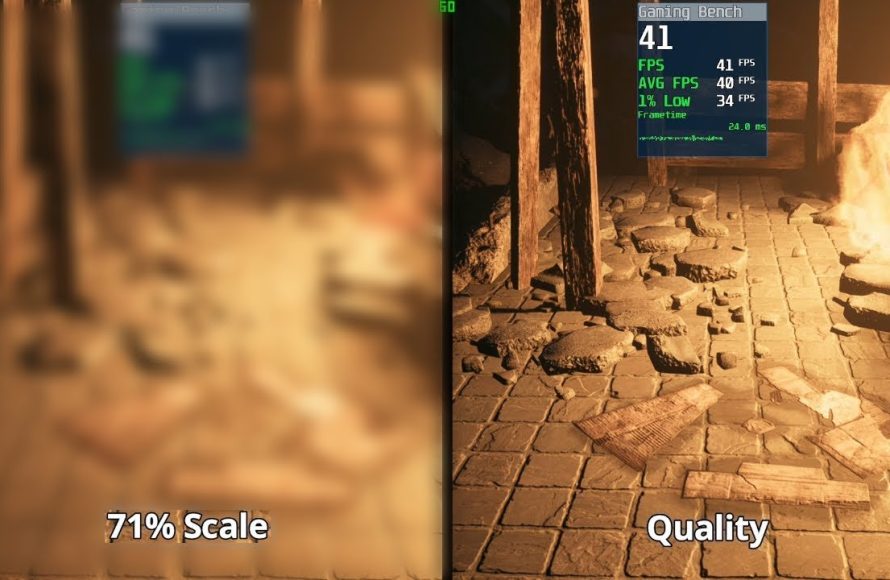
In games, resolution scale is a setting that adjusts the internal rendering resolution relative to your monitor’s native resolution.
Ever wondered why some games appear sharper than others, or why performance varies so much? What is resolution scale in games, exactly? It’s a graphics option that allows you to render the game at a resolution lower or higher than your screen’s native display resolution.
By adjusting resolution scale, you can either improve your framerate by rendering at a lower resolution or enhance image quality, rendering at a higher resolution. This setting offers a flexibility balance between visual fidelity and game performance.

What is Resolution Scale in Games?
Have you ever wondered why some games look super sharp and clear, while others might seem a bit blurry or jagged? One of the big reasons is a setting called “resolution scale.” It’s like a special zoom lens for your game, but instead of making things bigger or smaller on your screen, it changes how much detail the game shows.
Understanding Resolution: The Building Blocks of Game Images
Before we dive into resolution scale, let’s quickly recap what “resolution” itself means. Imagine your TV or monitor as a giant grid of tiny squares called pixels. Each pixel is like a little light that can show a specific color. The resolution of your screen (or of a game) tells you how many of these pixels are used to make up the picture. For instance, a common resolution, 1920×1080, means there are 1920 pixels across and 1080 pixels down the screen. More pixels generally mean a sharper and more detailed picture.
Common Resolutions Explained
You might have heard of terms like “720p,” “1080p,” or “4K.” These are just shorthand ways of talking about resolution:
- 720p (1280×720): This is a lower resolution and is often called “HD.” It doesn’t have as many pixels as higher resolutions, so images can appear a bit less detailed.
- 1080p (1920×1080): This is a very common resolution and is known as “Full HD.” It provides a good balance of detail and performance.
- 1440p (2560×1440): Often called “QHD” or “2K,” this has more pixels than 1080p, resulting in sharper images. It’s a great option for gaming if your hardware is capable.
- 4K (3840×2160): This is an extremely high resolution and also called “Ultra HD.” It shows a lot of detail, but it needs a powerful computer to run games well at this setting.
Think of it like building with LEGOs. A lower resolution is like building with fewer LEGO bricks, so you have a simpler picture. A higher resolution means you’re using lots more LEGO bricks, making a very intricate and detailed picture.
What Exactly is Resolution Scale?
Okay, now that we know about resolution, let’s talk about “resolution scale.” This setting is like a multiplier. It lets you change the resolution that the game renders internally before it’s shown on your screen.
Here’s how it works in simple terms: Suppose your monitor is running at 1920×1080 (1080p). If you set the resolution scale to 100%, the game renders at 1920×1080 and displays that directly on your screen. But here’s where the magic happens. If you decrease resolution scale, say to 50%, the game renders the images at a lower resolution like 960×540 and then stretches it or upscale it to fit your 1080p screen. Likewise, if you set resolution scale to 200%, the game renders at 3840×2160 which is 4K then downscales it to fit your 1080p monitor.
Resolution Scale as a Percentage
- 100% Resolution Scale: The game renders at your monitor’s set resolution (no change).
- Below 100% Resolution Scale: The game renders at a lower resolution than your monitor. It’s then upscaled (stretched) to fit. This improves performance but makes the image less sharp.
- Above 100% Resolution Scale: The game renders at a higher resolution than your monitor. It’s then downscaled to fit. This makes the image look sharper, but it can impact performance.
Think of it like taking a picture with your phone. If you zoom in too much (like lowering resolution scale), the image gets blurry. If you take a picture with a lot of pixels and then shrink it (like increasing resolution scale) it can become sharper.
Why Use Resolution Scale?
Now, you might be thinking, “Why would anyone want to change the resolution scale?” Well, there are two main reasons: performance and visual clarity.
Improving Game Performance with Lower Resolution Scale
The primary reason players change resolution scale is to improve their game performance, specifically the frames per second (FPS). When your computer has to render fewer pixels, it requires less power and resources. If you have an older computer or you’re playing a very graphically intense game, you can significantly improve your FPS by lowering the resolution scale. This makes your game run smoother and less choppy, even if the picture is not as sharp as you would like. It’s like asking your computer to draw a simpler, less detailed picture so it can finish it faster.
For Example: If your computer struggles to run a game at 1080p, you might drop the resolution scale to 75%, which effectively makes the game render at something like 1440×810 internally. This reduced load can lead to a noticeable performance boost, allowing the game to run at a playable frame rate.
Improving Visual Quality with Higher Resolution Scale
Alternatively, if you have a powerful computer, you can increase the resolution scale to make your games look even better. By rendering the game at a higher resolution than your monitor’s native resolution and then downscaling it, you can achieve a sharper image with fewer jagged edges. This technique is called supersampling and results in a cleaner picture quality. It’s like telling your computer to draw an extremely detailed picture and then shrink it down slightly to fit your screen which makes the edges smoother and the overall image look sharper.
For Example: if your monitor is 1080p, increasing the resolution scale to 150% will force your computer to render the game at a higher resolution than 1080p then downscale it to fit your screen. This increases the detail, removes jagged edges, and makes the image crisp. However, keep in mind that this needs more processing power.
How to Find and Adjust Resolution Scale in Games
The good news is that many modern games offer resolution scale as a graphic setting. However, not all games use the same terminology. Sometimes you might see it as “Render Scale,” “Resolution Scaling,” “Upscaling,” or even just a “Percentage Scale.”
Here’s a general idea of where you can find it:
- Game Settings/Options: Start by opening the game and looking for the settings menu.
- Graphics or Video Settings: Within the settings, find the graphics or video settings.
- Resolution Scale/Render Scale: Look for a setting that uses any of the terms we just mentioned. It will often show as a slider or a drop-down box with percentages.
- Adjust and Experiment: Adjust the setting and see how it affects performance and visual quality. Remember to apply your settings and restart the game if needed.
It is important to experiment with the setting, because the optimal setting depends on your computer hardware and the game you are playing.
Impact on Image Quality
Let’s go a little deeper into how resolution scale impacts the look of your game.
Lowering Resolution Scale: The Trade-offs
When you lower resolution scale (for example, below 100%) you gain a big boost in performance but the trade off is image quality. The game is rendering at a lower resolution, so everything becomes a little blurry, jagged, and lacks detail. It’s similar to taking a picture with your digital camera then zooming in too much, it gets blurry. Text can be more difficult to read and fine details in your game world may become less clear.
- Blurriness: The image will look less sharp.
- Jaggies: Straight lines might look a bit stair-stepped rather than smooth.
- Loss of Detail: Small details can disappear or become difficult to see.
However, a smoother running game may be worth it when your game is performing poorly.
Increasing Resolution Scale: The Benefits
When you increase the resolution scale (for example above 100%), your game gets rendered at a higher resolution then downsampled to your monitor’s resolution. This is the equivalent of taking a picture with a high-resolution camera and shrinking it slightly, which results in a very sharp picture. The image will be more refined, with less jaggedness, sharper details, and text that looks clear. The only drawback is that it needs more processing power to accomplish this, so you could get lower FPS if your computer isn’t powerful enough.
- Sharper Text and UI: Text in game menus and the User interface will be much sharper and easier to read.
- Less Jaggies: Edges of objects and characters will appear smoother.
- More Detail: Fine details will be more visible and clearer.
Resolution Scale vs. In-Game Resolution
It is important to understand that resolution scale isn’t quite the same as the actual in-game resolution setting. Changing the in-game resolution makes the game render at that resolution and displays it directly on your monitor. Resolution scale, on the other hand, changes the resolution of the rendering, and then upscales or downscales to your monitor resolution. The result is that they often look similar when you change each setting, but there are a few differences:
- Performance: Changing your in-game resolution directly will almost always have a larger impact on performance. Reducing the render resolution with resolution scale, allows the game to be rendered at a lower resolution than your monitor, and that can be the main benefit over just changing the in-game resolution.
- Visual Quality: When you upscale from a lower resolution to the native resolution, by using resolution scale, it will not look as sharp as rendering at the native resolution directly. The opposite is true as well, when downsampling it can be sharper compared to natively rendering at the desired resolution. This is because some games use algorithms when upscaling and downsampling, while other games might not use the best possible algorithms at the native resolution.
Resolution Scale and Dynamic Resolution
Some games feature something called “dynamic resolution” which will automatically change the resolution scale during gameplay, based on how demanding the game is on your system. When things get intense and your FPS drops, the dynamic resolution will lower the resolution scale to help keep your frame rate smooth. As soon as things are not as demanding, it will try to increase the resolution scale again, to provide the best image quality possible. Dynamic resolution is a good way for getting the best balance between visual quality and game performance.
Advanced Upscaling and Downscaling Techniques
In the past, just simply upscaling the image was a simple process, but today game developers have introduced some advanced techniques such as Temporal Anti-Aliasing (TAA) to achieve the best image quality. Other newer techniques include:
- DLSS (Deep Learning Super Sampling): Developed by NVIDIA, this technique uses artificial intelligence to upscale lower-resolution images to a higher resolution with exceptional clarity and performance.
- FSR (FidelityFX Super Resolution): Developed by AMD, this technique offers similar upscaling capabilities but works across a wider range of graphics cards.
- XeSS (Xe Super Sampling): Developed by Intel, this technique is also very similar to DLSS and FSR and aims to give good upscaling across different graphic cards.
These technologies do an impressive job of improving image quality when resolution scale is reduced or sometimes even improving the image quality even when downscaling from a higher resolution. These are quite different from the old simple scaling techniques and can significantly reduce the blur that results from lowering resolution scale.
Wrapping Up
Resolution scale is a powerful tool that allows you to adjust the balance between game performance and visual quality. By understanding how it works, you can make your games run smoother, look sharper, or both! Always remember to experiment with the settings to find what works best for your computer setup and your game preferences. Now, you can confidently tweak your settings and enjoy your games at their best.
How Resolution Scale ACTUALLY Works
Final Thoughts
Resolution scale in games adjusts the rendering resolution relative to your monitor’s native resolution. This setting impacts visual clarity and performance. A lower scale improves frame rates, while a higher scale offers sharper images.
Ultimately, understanding what is resolution scale in games allows you to fine-tune the balance between graphical fidelity and game responsiveness. Choose the scale that best suits your hardware and preferred gaming experience.

