
Resolution scaling in games refers to the process of rendering a game at a different resolution than the display’s native resolution, and then scaling it up or down to fit the screen.
Ever wondered how games can run smoothly on different hardware? A key technique developers use is resolution scaling. You’ve probably noticed graphics settings in games offering choices like 720p, 1080p, or even 4K. This is directly related to what is resolution scaling in games.
Essentially, it’s about adjusting the rendering resolution independent of your monitor’s settings. This allows you to prioritize performance over visual clarity, or vice-versa. So, if you have a less powerful machine, lowering the resolution can make games run better.

What is Resolution Scaling in Games?
Have you ever played a video game and wondered why it looks different on your friend’s computer than on yours? Or maybe you’ve noticed the graphics settings mentioning “resolution scaling” and felt a bit lost? Don’t worry; it’s not as complicated as it sounds! Resolution scaling is a clever trick that games use to make sure they run smoothly, even if your computer isn’t super powerful. Let’s break down what this all means.
Understanding Resolution Basics
First, let’s talk about resolution itself. Think of your TV or computer screen as a giant grid made up of tiny squares called pixels. Each pixel displays a tiny dot of color, and when these dots come together, they form the pictures you see. The resolution tells you how many of these pixels there are on your screen. Usually, it’s written as a pair of numbers, like 1920×1080. This means there are 1920 pixels across the screen and 1080 pixels down. The higher the resolution, the more pixels you have, and the sharper and clearer the images look.
Here’s an easy way to picture it:
- Imagine drawing a picture on a tiny grid with only a few squares. It might look a bit blocky and not very detailed.
- Now imagine drawing the same picture on a much bigger grid with lots of small squares. The picture would look much smoother and more detailed.
That’s kind of how resolution works. Higher resolution means more detail, but it also means your computer has to work harder.
The Challenge of High Resolution
Making games look great at high resolutions like 4K (3840×2160) puts a lot of stress on your computer’s graphics card. It needs to calculate and render a lot of pixels every second. If your graphics card isn’t strong enough, the game might start to slow down and become choppy. This can make it difficult to play and very annoying.
Here’s where resolution scaling comes in. It’s like having a magic trick up your sleeve to balance the game’s looks with its performance.
How Resolution Scaling Works
Resolution scaling means the game doesn’t always render the visuals at your screen’s native resolution. Instead, it renders the game at a lower resolution and then uses clever techniques to “stretch” the image to fit your screen. This means your computer doesn’t have to work as hard, and you can still enjoy smoother gameplay, even with less powerful hardware. The game then “upscales” the image, attempting to make it look as good as possible on your display.
Think of it like taking a photo on your phone, then enlarging it on a computer. You can still see the picture, but it might not be as sharp as if you had taken the photo at a higher resolution. But, if you didn’t have the ability to take a photo with high res, this method would at least give you a usable image.
Types of Resolution Scaling
There are different kinds of resolution scaling, each with its own pros and cons:
Upscaling
Upscaling is the most common form of resolution scaling. Here, the game renders at a lower resolution than what your monitor can display. For example, if you have a 4K monitor but set the game to 1080p, the game renders at 1080p and then stretches it to fit your 4K screen. This will cause a slight blur, but generally allows for smoother gameplay if your GPU struggles at a higher resolution.
Downsampling or Supersampling
Downsampling, or supersampling, is the opposite of upscaling. It renders the game at a resolution that is higher than your monitor’s native resolution and then scales it down to fit your screen. This can make the game look much sharper and more detailed, as you’re essentially getting the benefit of higher resolution without actually having to display it. However, it’s much more demanding on your computer’s graphics card.
Dynamic Resolution Scaling
Dynamic resolution scaling is a smart system where the game automatically adjusts the rendering resolution as you play. If things get intense and your frame rate is dropping, the game will lower the resolution to maintain smooth gameplay. If you’re in a calmer area, it might boost the resolution back up for better visuals. This allows the game to maintain a consistent framerate by scaling the rendering resolution based on the computational load.
This method is pretty clever and useful, as most of the time the change is so subtle you may not even notice it.
Why Use Resolution Scaling?
There are a few main reasons why game developers use resolution scaling:
- Better Performance: It helps games run smoothly on a wider range of computers. Not everyone has the latest and greatest graphics card, and resolution scaling makes it possible for them to play games without major slowdowns.
- More Playable Frame Rates: By lowering the rendering resolution, you can get higher frame rates. Higher frame rates make the game feel more responsive and enjoyable, making a big difference in your playing experience.
- Wider Accessibility: It makes games more accessible to players who may not have high-end gaming rigs. More people get to play the game, which is good for the players and the developers.
- Flexibility: Resolution scaling options let players tweak game settings to find the perfect balance between visual quality and game performance. You get to adjust what matters to you.
The Trade-off: Visual Quality
It’s important to remember that resolution scaling isn’t a perfect solution. When a game renders at a lower resolution and then is scaled up, the images can sometimes look a little blurry or less sharp. This can be especially noticeable on bigger screens or when looking at small details.
If you use upscaling, you trade some visual clarity for better performance. Similarly, when you use downsampling, the opposite happens. Your image might be sharper, but it comes at the expense of performance.
Resolution Scaling Options in Game Menus
Most modern games offer a resolution scaling option in the graphics settings. This may be labeled as “resolution scale”, “render scale” or just as “resolution”. It lets you adjust what percentage of your display’s native resolution the game renders at.
For example, if your monitor runs at 1920×1080, you might see options like:
- 100% (renders at 1920×1080)
- 75% (renders at roughly 1440×810)
- 50% (renders at 960×540)
Many games also include presets, like “High,” “Medium,” and “Low” that adjust a combination of settings including resolution scaling.
Examples of Resolution Scaling in Action
Let’s look at some common scenarios where you might use resolution scaling.
Scenario 1: An Old PC
If you have a computer that is a few years old or a laptop that isn’t specifically designed for gaming, you might not be able to run new games at your monitor’s native resolution. In this case, lowering the resolution scale might be essential to play smoothly. For example, if you’re trying to play a new graphically intense game, but it’s really choppy, try reducing the scaling to 75% or 50%. You’ll get a performance boost.
Scenario 2: Demanding Games
Even on a modern PC, a graphically demanding game might cause your system to strain at a high resolution. In that case, it might still make sense to use resolution scaling to prioritize smooth frame rates, rather than graphical fidelity. If you want the best performance, try downscaling the image by 10 – 20%, to see if it gives you a significant increase in frame rate, without a big visual change.
Scenario 3: Competitive Games
Competitive games often benefit from high frame rates. If you’re playing an online first-person shooter or racing game, for instance, you probably want to prioritize smooth performance over the absolute best graphics. In these situations, you might want to reduce your scaling quite a lot to prioritize framerate and responsiveness of the game.
On the other hand, if you’re playing a single player game that’s focused on story and visuals, you might want to set your scale at 100% or slightly downsample, to get the most out of the graphics.
Specific Technologies and Techniques
Over the years, many companies have created their own resolution scaling techniques. These methods don’t just stretch the image to fit, but also add extra data and effects to make the scaled images look a lot better. Some well-known examples include:
NVIDIA DLSS (Deep Learning Super Sampling)
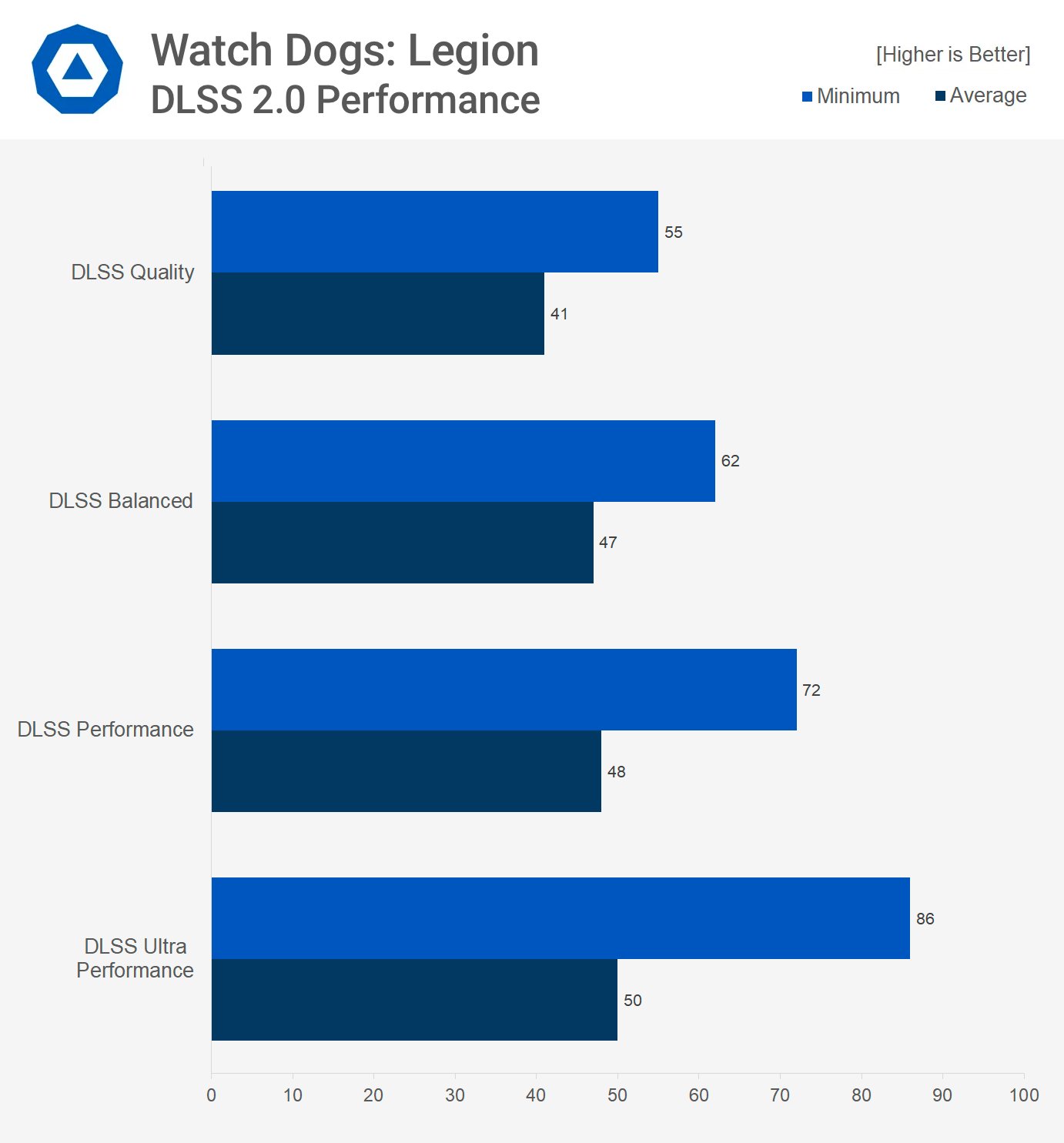
NVIDIA’s DLSS uses artificial intelligence (AI) and deep learning to upscale images. It renders the game at a lower resolution and uses AI to predict and recreate the details at higher resolution. The result is an image that looks much sharper than a traditional upscaled image, often at similar frame rates to a downscaled resolution. DLSS is particularly useful for gaming at 4K.
AMD FSR (FidelityFX Super Resolution)
AMD’s FSR is an alternative to DLSS, using a different algorithm to upscale images. FSR is open source and works on a wider range of graphics cards. The latest version, FSR 3, includes frame generation. It makes the scaled images look really good and boosts performance significantly. Like DLSS, FSR lets gamers achieve a better balance between game performance and visual fidelity.
Intel XeSS (Xe Super Sampling)
Intel XeSS is another upscaling technology, developed by Intel. It works in a similar way to DLSS and FSR, using AI to produce sharper, higher-resolution images than traditional upscaling. XeSS works on many different GPUs. XeSS works on other graphics cards, making it more accessible to gamers. It also enables higher resolutions to render more effectively.
Choosing the Right Resolution Scaling
So, how do you pick the right resolution scaling setting for your game?
Here’s a simple guide to follow:
- Start with Your Native Resolution: Try running the game at your monitor’s native resolution and maximum graphics settings at first. If it runs smoothly, you’re all set!
- Lower Scaling if needed: If you’re experiencing low framerates, choppy gameplay, or lag, try lowering your resolution scale a little at a time. A small drop in scaling can often make a big difference to your experience.
- Experiment: Play around with different resolution scale percentages to find the best balance between graphics and performance. It’s often a trade-off, so see what matters most to you.
- Check for Upscaling Technology: See if your game supports DLSS, FSR, or XeSS. These can provide much better results than simple scaling, allowing you to keep graphics quality high.
- Consider Dynamic Scaling: If available, enabling dynamic resolution scaling will take some guesswork out of the process, allowing the game to make the changes for you as needed.
It’s all about finding what works best for your setup and your gaming preferences. There’s no magic number – the best setting for your is personal!
With resolution scaling, you can have the best of both worlds: great-looking graphics and smooth gameplay. By understanding how it works, you can enjoy your games more and make the most of your hardware.
How Resolution Scale ACTUALLY Works
Final Thoughts
Resolution scaling in games adjusts the rendering resolution before displaying it on your monitor. This process upscales a lower resolution or downscales a higher one to fit the target display. It greatly impacts visual clarity and performance.
Ultimately, what is resolution scaling in games relates to how the graphics processor handles image output. Players can tweak it to balance sharper visuals with smoother frame rates, tailoring performance to their hardware. It is a crucial setting to understand.

