
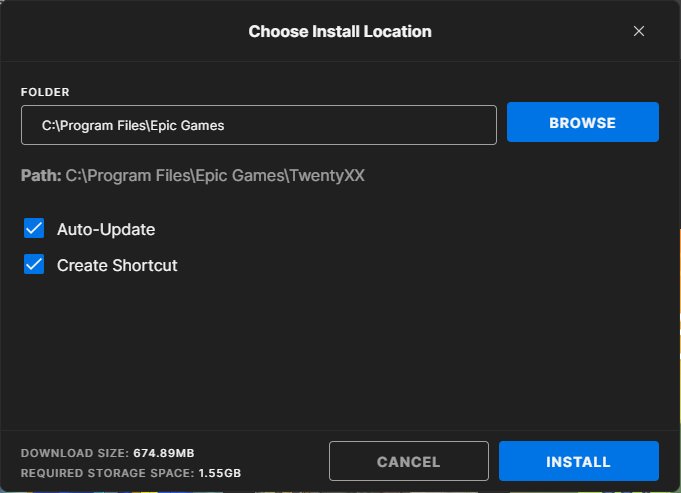
Epic Games are installed by default in the following location: C:\Program Files\Epic Games. However, you can choose a different installation path during setup.
Ever wondered where those exciting games you download from the Epic Games Store actually end up on your computer? It’s a common question, especially as your library grows. People often ask, “where are epic games installed” because they want to manage their storage space.
Knowing the default location or where you picked during install makes it simpler to find game files. This can help if you need to modify files, or move game folders.

Where Are Epic Games Installed?
Ever wondered where your awesome Epic Games adventures are hiding on your computer? It’s like finding the secret location of your favorite toys! Knowing where Epic Games installs its games and the Epic Games Launcher itself is important for many things. Maybe you want to move the games to a new hard drive, free up some space, or even back them up. Let’s take a fun tour and explore where these digital treasures are usually kept.
The Default Installation Location: The Usual Suspect
When you first install the Epic Games Launcher, it picks a default place to live. This is the spot where it will also put your games, unless you tell it otherwise. Think of it like your house’s address. It’s usually on the main hard drive where your operating system is installed. For most of us using Windows, this means the C: drive. Let’s break this down a bit further:
Windows Users: The C Drive Connection
If you have a Windows computer, here’s the typical path where the Epic Games Launcher and your games like Fortnite or Rocket League like to hang out:
Epic Games Launcher: Usually, you will find the Epic Games Launcher installed under: C:\Program Files\Epic Games\Launcher. This folder contains the launcher files that you use to access your games and the store.
Games: By default, the games you download will reside in: C:\Program Files\Epic Games\. Inside this directory, you’ll see a folder for each game you’ve installed. For example, Fortnite will have a folder named ‘Fortnite’, and Rocket League would have one named ‘RocketLeague’.
Let’s look at an example of what the folders would look like for the games. Imagine you have downloaded Fortnite and Rocket League. Here is how the directory would look:
C:\Program Files\Epic Games\Fortnite(This folder contains the Fortnite game files.)RocketLeague(This folder contains the Rocket League game files.)
It’s good to remember that your main drive (usually the C: drive) is where Windows operates. It’s like the brain of your computer. Keeping this in mind can help you understand why the default location is what it is.
macOS Users: The Application Folders
If you’re using a Mac, the situation is a bit different, but equally straightforward. Epic Games plays nicely with the standard ways macOS handles applications.
Epic Games Launcher: You’ll generally find the Epic Games Launcher inside your main Applications folder: /Applications/Epic Games Launcher.app.
Games: The games you download through the Epic Games Launcher are typically placed in the same directory as the launcher: ~/Library/Application Support/Epic/EpicGamesLauncher/, where ~ is your home folder. This location is often tucked away, but its easy to find once you know where to look.
Here’s a simplified example:
~/Library/Application Support/Epic/EpicGamesLauncher/Installed(This folder contains the game installations)Fortnite(This folder contains the Fortnite game files.)RocketLeague(This folder contains the Rocket League game files.)
The Library folder on macOS is usually hidden. You can access this folder by pressing Command + Shift + . (dot) while in Finder, or by holding down the Option key while clicking “Go” in the Finder menu and choosing “Library”.
Changing the Installation Path: Taking Control
Sometimes, the default location isn’t the best for you. Maybe your C: drive is getting full, or you have a faster hard drive where you want your games to live. The Epic Games Launcher makes it easy to change where your games are installed. Here’s how you can do this:
During Installation: The First Choice
The very first time you install a game through the Epic Games Launcher, you’ll get the chance to pick a different installation folder. Here’s how it looks:
- Start installing a new game.
- Before the download starts, the launcher will show you the default installation path.
- Click the “Browse” button next to the location.
- Select a new folder where you’d like your game to be installed. It can be on a different hard drive, or a new folder you create on your main drive.
- Finish the installation.
Remember, you need to do this for every new game you install through the launcher, if you want them to go to a different location other than the default path.
Moving Installed Games: A Little More Work
What if you’ve already installed a game and now want to move it? The Epic Games Launcher doesn’t have a simple “move” button. Instead, you need to do a bit of a dance. Don’t worry; it’s not too tricky!
Here’s a way to do it that is often successful:
- Locate the Game Folder: First, find the current installation folder of the game you want to move, using the instructions mentioned above.
- Copy the Game Folder: Copy the entire game folder to a new location on your computer. You can use the classic copy/paste method or drag and drop the folder. For instance, if your game is on the C: drive in
C:\Program Files\Epic Games\Fortnite, copy the entire “Fortnite” folder to, say, your D: driveD:\Games\Epic Games\Fortnite. - Uninstall Through the Launcher: After you have copied the game folder to its new location, go to your Epic Games Launcher and uninstall the game. This doesn’t actually delete the game files you just copied. It simply removes the launcher’s knowledge of where the game was originally installed.
- Re-Install, Pointing to the New Location: Now, start to install the game again, but when the launcher asks you where you want to install the game, browse to the new location you made earlier. The launcher will check the new location to see if the game is there, and if it sees it, it skips the download. This way, you tell the Epic Games Launcher where the new location of the game is, without downloading the whole game again.
Why Location Matters: The Benefits of Knowing
Knowing where your Epic Games are installed isn’t just a tech trick; it’s actually quite useful. Here’s a few reasons why it matters:
Hard Drive Management: Space is Precious
Games can be large! Knowing where they are lets you see how much space they’re using on your hard drives. This can help you move them to a drive with more space, or clear up space in a full one. It also helps you see what is consuming the space on your computer.
Backups: Safe Keeping Your Games
If you ever need to reinstall your operating system, having a backup of your game installation folders can save you a lot of download time. Copying these folders to an external hard drive or another safe location means you won’t have to re-download the whole game again when you re-install the OS. If you do want to reinstall, just follow the steps for Moving Installed Games above.
Modding and Customization: Peeking Inside
For those who love to mod (modify) games, knowing where the game files live is super important. It’s often in these folders that you’ll find the game assets that you can tweak. The location lets you find the exact files to use when you mod games, using mods from the web.
Troubleshooting: Solving Game Problems
Sometimes things go wrong, and games can have problems. Knowing where the games are installed lets you find crash reports, configuration files and other things which can help you solve your issue. When you reach out to the game’s support staff, knowing the install location is helpful, and makes sure you are giving them the correct information.
Understanding File Structures: Beyond the Basics
Let’s dive a bit deeper into what you might find inside those game folders. It’s like exploring a mini-city within your computer:
Game Executables: The Starting Point
Inside the game folders, you’ll find files with extensions like .exe (on Windows) or .app (on macOS). These are the game’s executables – the files that launch the game. For example, Fortnite.exe starts Fortnite, and RocketLeague.exe starts Rocket League.
Data Files: Game Assets
Games aren’t just code; they are filled with lots of images, sounds, 3D models, levels, and more! All of these files, called ‘assets’ are stored within the game folders as well. They are usually placed inside subfolders within the game folder, and you’ll see names like “Content,” “Assets,” or “Data.”
Configuration Files: Settings and Options
Game settings, like graphics, sound, or controls, are often saved in separate configuration files. These files are usually in text format, which means you could actually open them with a text editor (like Notepad) and even change things (though it’s best to know what you’re doing before you change settings manually)!
Temporary Files: What the Game is Currently Using
Games may also create temporary files in the installation folder, that the game uses when you are playing the game. These can be things like current gameplay, replays, or other temporary data. They are not often meant to be modified and are handled by the game itself.
Exploring these folders, if you feel confident, will help you see that games aren’t just big files, but instead, complex collections of folders and files that work together to give you that gaming experience.
A Quick Tip: Creating a “Games” Folder
If you find yourself installing lots of games, a great trick is to create a dedicated “Games” folder on a separate hard drive. For example, you could have a folder called ‘Games’ on your D: drive. Then, create a folder inside this Games folder named ‘Epic Games’ so you are organized. This makes your game locations much easier to remember and manage.
Here is how the layout would look:
D:\Games\Epic GamesFortniteRocketLeague
Using this method, all games from the Epic Games Store, will always be located inside the “Epic Games” folder on D Drive.
The places where Epic Games installs its launcher and games are typically within your computer’s Program Files directory on Windows and Applications folder on macOS, but you have the option to change this location at the time of installation. Understanding where these files are stored helps with managing hard drive space, creating backups, troubleshooting issues, and also allows access to game files for things like modding or customization. Knowing where your games are installed gives you more control over your gaming environment, and helps you enjoy your games more by being prepared if the game has problems.
How To Download Epic Games Launcher On Windows 11/10 | Install Epic Games Launcher On PC
Final Thoughts
The Epic Games Launcher defaults installation locations, usually a folder on your primary drive. You can select custom paths during the setup process, meaning the installation location varies. Knowing the precise path helps with troubleshooting or managing storage space efficiently.
So, where are epic games installed? Typically, you will find them within a designated folder named “Epic Games” in the program files directory or a custom directory if specified during the installation. Check these areas on your computer to find installed games and related data.

