
The exact location of save files for Unity games varies, but they are commonly found within the user’s local app data folder, often in a subfolder named after the game or its developer.
Ever wondered where your precious game progress resides? It’s a common question, especially when you’re switching computers or backing up data. Many players ask, “where are save files saved on unity games?” The answer isn’t always straightforward.
Unity games, unlike some others, don’t often have a unified save location. Instead, they usually utilize the operating system’s designated areas for application data. This means save files hide in locations like AppData on Windows or similar directories on other operating systems.

Where Are Save Files Saved On Unity Games?
Understanding where Unity games store your precious game progress can sometimes feel like a treasure hunt. You’ve poured hours into building your character, conquering challenges, and collecting items, and naturally, you want to make sure that progress is safe and sound. The good news is, while it might seem mysterious, there’s a method to this digital storage madness. Let’s take a deep dive into the locations where Unity games typically stash their save files, exploring the different operating systems and the reasons behind these choices. We will explore this with examples, and help you become an expert at finding your game saves.
Different Operating Systems, Different Save Locations
The first thing to understand is that the exact spot where a game saves its data depends heavily on the operating system your computer or device is using. Think of it like how different countries have different rules for keeping important documents. Each system has its own preferred way of organizing files, and Unity games follow those rules. Let’s look at the most common operating systems:
Windows
On Windows, save files are commonly found in a few key locations. The most frequent spot is within the user’s “Appdata” folder. This is a hidden folder, meaning you might need to change your folder options to see it. Here’s the typical pathway you’ll follow:
C:\Users\[YourUserName]\AppData
Inside the “AppData” folder, there are three subfolders: “Local,” “LocalLow,” and “Roaming.”
Most Unity games will save their data in either “LocalLow” or “Roaming.”
Within “LocalLow” and “Roaming”, you’ll often find a folder named after the game’s publisher or the name of the game itself.
For instance, if you were looking for the save files of a game named “AdventureQuest” made by “Wonder Games”, you might find it within C:\Users\[YourUserName]\AppData\LocalLow\Wonder Games\AdventureQuest.
Another common location, particularly for games that need access by all user accounts on the machine, is in the “ProgramData” folder which might be located here C:\ProgramData.
Just like in the user’s “AppData,” you’ll find folders for the game’s developer or game.
Let’s break this down even further:
Appdata Folder
The “AppData” folder is a special place where programs store their settings and data. Windows hides it by default to prevent accidental modifications that might cause problems. Here’s a simple breakdown of what you’ll find inside:
Local: This folder holds data that is specific to the current computer. It’s often used for things like cache files and user preferences that don’t need to follow you to another computer.
LocalLow: This is very similar to “Local” but is designed for applications that have lower integrity levels, like certain web plugins. It’s a common place for games to keep save data.
Roaming: This folder is used for data that should follow you between computers on a network. Think of it like your internet browser’s saved settings. While less common for game saves, some Unity games use it.
ProgramData Folder
The “ProgramData” folder ( which is also typically hidden by default), stores information that is accessed by all the user accounts on your computer. Some applications uses this folder to store save data that are accessible to other users, especially useful in scenarios where multiple users share the same machine.
MacOS
On a Mac, the save file locations are structured a bit differently, but the general idea remains the same. The primary location you’ll want to explore is the user’s “Library” folder, which like Windows’ “AppData” is also hidden.
/Users/[YourUserName]/Library
Inside the “Library” folder, you’ll find several folders, but the most relevant ones for Unity game saves are “Application Support” and “Preferences.”
Games often store their save files in the “Application Support” folder and sometimes also save preference and settings files in the “Preferences” folder.
You’ll typically find a subfolder named after the game’s publisher or the game itself.
For example, with “AdventureQuest” (made by “Wonder Games”) that we used previously, you might find the save files here: /Users/[YourUserName]/Library/Application Support/Wonder Games/AdventureQuest.
Library Folder
Similar to Windows, the Library folder in macOS is a hidden place where programs keep their settings and data. It’s very important, but hidden to prevent you from making unintended changes. Here’s a closer look:
Application Support: This folder stores data specific to applications, such as game saves, user settings, and other files. It is the most common place where games keeps your save data.
Preferences: This folder primarily stores preference settings for applications. It’s less frequently used for save data, but some games may save configuration files here.
Linux
Linux systems have a variety of places where save data might live, but they usually follow the XDG Base Directory specification. This specification aims to standardize how applications organize their data. The two primary locations you’ll want to check are:
~/.config
This folder is typically located in your home directory, which is often represented by “~”. This is like the “AppData” folder on Windows or “Library” on macOS.
Inside .config, you’ll often find a folder named after the game’s publisher or the game itself.
For “AdventureQuest” (by “Wonder Games”), you may find the save data at ~/.config/WonderGames/AdventureQuest.
~/.local/share
This is another commonly used folder for application specific data, similar to the application support folder in macOS.
Just like in the .config, you may find folders that are game specific.
“AdventureQuest” might store its data in ~/.local/share/WonderGames/AdventureQuest.
Understanding the Linux Structure
Linux file system organization might seem more complicated but it is mostly logical once you understand the underlying principle.
~: The home directory is where your personal files are stored, and it is the go-to starting point for user-specific configurations and data.
.config: This directory is primarily for storing configuration files and data related to user-specific applications. Many programs, games included, often keep their save data in this location, or under a subfolder inside the .config folder.
.local/share: This directory holds application specific data that the applications use during execution. Save data for your games will likely be found here too.
Mobile Devices (Android and iOS)
Mobile platforms, Android and iOS, handle save files a little differently than desktop systems. They tend to be more compartmentalized due to the way mobile apps are designed to work, providing sandboxing that isolates their data. For these systems, the actual save locations are often not easily accessible to the average user without using additional software, like a file explorer or a rooted system.
Android
Android typically stores application data, including save files, within the app’s private directory. These are usually found under the /data/data/ directory which is not easily accessible.
The actual location will look something like /data/data/com.wondergames.adventurequest/files/ for “AdventureQuest” made by “Wonder Games”, although you will likely need a file explorer app to see this, and it will only be accessible on a non-rooted device.
Some Android games might use shared storage, like the “Documents” directory, though this is less common for save files.
iOS
iOS also uses sandboxing. The data is stored within the app’s own private container.
Like Android, accessing this folder without an external file explorer or a jailbroken device is not possible for the average user.
The save location could be somewhere like /var/mobile/Containers/Data/Application/GameUUID/Documents/, but again, it will not be easily accessible unless you have external software to explore this folder.
How Unity Games Handle Save Data
Unity games often use a combination of methods for storing save files. The most common approach involves serializing game data into a file, which is then saved to one of the locations we’ve discussed. Here’s a breakdown of the common methods:
PlayerPrefs
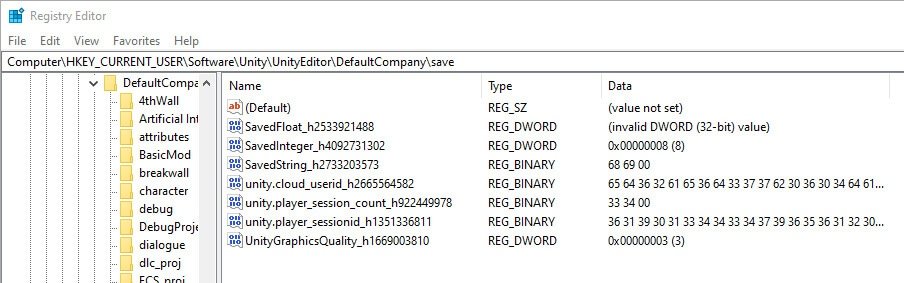
PlayerPrefs is a built-in Unity feature that allows developers to store simple game data, like settings, high scores, and basic progress markers. It’s a handy tool, but it’s generally not used for complex game state data. The PlayerPrefs data is stored in a platform specific way.
Windows: Stored in the Windows registry.
macOS: Stored in a plist file located within the preferences folder.
Linux: Stored as XML files in the .config folder.
Advantages and Limitations of PlayerPrefs
Advantages:
Simple to use for basic data.
Platform independent API.
Limitations:
Not suitable for complex data.
Limited in the data size it can store.
Data can be changed or deleted easily, particularly on desktop platforms.
Custom Save Files
For more complex game data, most developers create their own save file formats. These files usually contain all the important information about your game state, like player positions, inventory, quest progress, and more.
These custom save files are stored in the standard locations of the respective operating system, such as the “AppData” on Windows and the “Application Support” on macOS or Linux’s .config folder.
Often these save files are serialised using popular formats such as XML, JSON, or binary.
Advantages of Custom Save Files
Advantages:
Flexible to store almost any game data.
Better suited for complex game states.
Can provide robust save and load functionality.
Limitations:
Requires more work to implement properly by the developer.
File format needs to be managed effectively.
Why Does Unity Save Files in These Specific Locations?
The location of game save files isn’t arbitrary. There are reasons why each operating system prefers certain directories for storing game data:
User-Specific Data: The “AppData” folder in Windows, the “Library” folder in macOS, and the ~/.config in Linux are all designed to store application settings and user specific data. This separation allows multiple users to play the same game on the same machine without interfering with each other’s progress.
Protection: Hiding these directories helps protect the data from accidental modification. This also reduces the likelihood of unauthorized tampering or deletion of important data.
Standardization: By following platform-specific guidelines, Unity games adhere to operating system standards. It makes application data organization consistent across all programs and it allows the operating system to manage resources efficiently.
Finding Your Save Files: A Step-by-Step Guide
Now that you understand where save files typically reside, here’s a straightforward guide on how to find them on various operating systems.
Finding Save Files on Windows
1. Show Hidden Folders: Open File Explorer, click the “View” tab, and check the “Hidden Items” box. This will reveal the “AppData” and “ProgramData” folders.
2. Navigate to the AppData Folder: Go to C:\Users\[YourUserName]\AppData.
3. Look in LocalLow or Roaming: Explore the “LocalLow” and “Roaming” folders.
4. Find the Game Folder: Look for a folder with the game’s name or its publisher’s name, and open it.
5. Find your Saves: You’ll find the game’s save files in that folder.
6. If not in AppData, check ProgramData: Follow step 1 and locate the “ProgramData” folder and follow steps 3-5.
Finding Save Files on MacOS
1. Open Finder: Open any Finder window.
2. Go to the Library Folder: Click “Go” in the top menu bar, hold down the “Option” (or “Alt”) key, and click on “Library.” This will reveal the hidden Library folder.
3. Navigate to Application Support: Inside the “Library,” find and open the “Application Support” folder.
4. Find the Game Folder: Look for a folder with the game’s name or its publisher’s name.
5. Find Your Saves: Inside that folder, you’ll see the game’s save files.
Finding Save Files on Linux
1. Open Your Home Folder: Open your file browser and navigate to your home directory (often represented by ~).
2. View Hidden Files: Press Ctrl + H to show hidden files and directories.
3. Look in .config or .local/share: Go to the .config folder or the .local/share folder.
4. Find the Game Folder: Locate a folder named after the game or the game’s developer.
5. Find Your Saves: You will find the save files in that folder.
Finding Save Files on Mobile Devices (General Note)
As explained earlier, save data on mobile devices is usually kept in private sandboxed areas and are not readily available for direct manipulation unless you have tools like a file explorer.
You might have to use a file explorer or root/jailbreak your device to access these folders.
If you are planning on doing that, make sure you have enough knowledge of how it works before you perform those actions, because improper handling of those actions can cause issues with your device.
Backing Up Your Save Files
Now that you know where your save files are, it’s a good idea to back them up. This will protect you from data loss if your computer fails or if you accidentally delete your saves.
Manual Backup: The easiest way to back up your saves is to manually copy the save files to a safe location, such as an external hard drive, a USB stick, or cloud storage.
Cloud Saves: Some Unity games support cloud saves, which automatically back up your progress. Check your game’s settings to see if this is an option.
Understanding where your Unity game save files are stored is essential for managing your game progress, ensuring you don’t lose hours of work. By following this article, you should now have the required knowledge on how to navigate through your system’s folders to find them. Knowing this information will allow you to properly manage your save data, as well as back them up in case of any issues.
SAVE & LOAD SYSTEM in Unity
Final Thoughts
Ultimately, the save file location for Unity games varies by platform. Typically, you’ll find them in user-specific folders such as AppData on Windows or similar directories on macOS and Linux.
Finding the correct folder often requires a little digging. Knowing where are save files saved on unity games helps greatly for backups or when you move save data between devices.
Therefore, always check the operating system’s specific user data locations if you wish to access or modify your game saves.

