
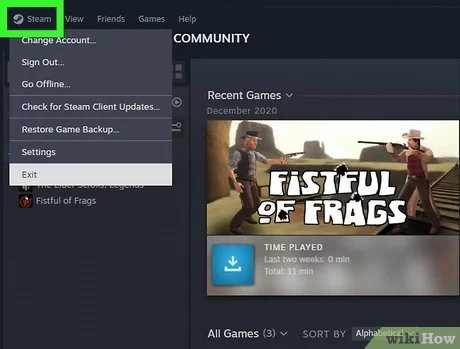
To restart a Steam game, simply close the game application completely, and then launch it again through your Steam library.
Have you ever been stuck in a glitch or needed a fresh start during a gaming session? Knowing how to restart a Steam game is a key skill for any PC gamer. It’s a simple process, but sometimes you just need that reminder, right?
Many players find themselves searching for guidance on how to restart a Steam game, especially when things go sideways in their favorite titles. Fortunately, it doesn’t require a tech wizard or any complex operation. Let’s get you back in the game!

How to Restart a Steam Game
Okay, so you’re playing your favorite Steam game, and something goes a bit wonky. Maybe the game froze, or maybe you just want to start a level over. Whatever the reason, knowing how to restart a Steam game is a super useful skill. It’s not always as simple as just closing the window, and sometimes, a quick restart can fix a lot of problems. Let’s dive into all the ways you can get your game back up and running smoothly.
The Basics: Closing and Reopening
The most straightforward way to restart a game is to close it and then open it again. This is often the first thing you should try because it’s usually the quickest fix. Think of it like turning a light switch off and then back on – sometimes, that’s all you need.
How to Close a Steam Game Properly
Before you go clicking that big X, it’s good to know the proper way to close a game. Improperly closing a game might sometimes cause saved game data corruption, so follow these steps to close your game smoothly:
- In-Game Menu: Most games have an in-game menu. Look for an option that says “Quit,” “Exit,” or something similar. This is usually the safest way to close a game because it lets the game save your progress correctly.
- Press the Alt + F4 Keys: If the game is not responding properly, pressing these keys (Alt key and F4 key together) on your keyboard will usually close the game immediately. This is a bit like a hard stop, so try to use it only if you can’t exit normally.
- Steam Overlay: When you are inside a game, pressing Shift + Tab will bring up the Steam Overlay. From there, you can choose to close the game you are currently playing.
- Task Manager: If all else fails, you can use the Task Manager. Press Ctrl + Shift + Esc keys on your keyboard to open it. Find the game’s process in the list (usually the name of the game), right-click on it, and then choose “End task.” Be careful with this one, because if the game has not saved your progress yet, it may not save. This method can be useful if the game has completely frozen, though.
After closing the game, give it a few seconds before reopening it. This gives your computer time to process everything and clear out any temporary files the game was using.
Reopening the Game
After you have closed your game, you can now restart it. Here are the steps to do so:
- Through Steam Library: Open your Steam client, go to your Library, and find the game you want to play. Click the “Play” button.
- Desktop Shortcut: If you have a desktop shortcut for the game, you can double-click it to open.
- Start Menu: You can also try finding the game in your Windows start menu and opening it from there.
Restarting Within the Game
Sometimes, you don’t need to completely close the game to restart. Many games offer options for restarting specific parts of the game, like levels, missions, or races. This can be a real time-saver and can get you back into the action very quickly.
Restarting a Level or Mission
Almost all single player games have a way to restart a level or mission without exiting the game. The exact steps vary by game, but often you can find this option in the following places:
- Pause Menu: Press the Esc key or the button you use to pause the game. Look for an option that says “Restart Level,” “Restart Mission,” or something similar. This is often the easiest way to restart a level.
- In-Game Interface: Some games have a way to restart a level via the in-game interface directly. You may see the restart option in the pause menu, game screen or after completing (or failing) a mission, level etc.
- After Failure: Many games offer you the option to restart after you die or fail a mission. Look for prompts after a failure that gives you the option to retry.
Restarting within the game usually keeps the progress you made before beginning the mission, which means that you will not lose game progress. This is ideal for getting a quick replay without any hassle.
When Simply Restarting Doesn’t Work
Sometimes, the simple close-and-reopen or in-game restart isn’t enough to fix the problem. When you run into a more serious problem, you will need to try other solutions. Let’s look at some more advanced troubleshooting steps.
Verifying Game Files
If your game is crashing, freezing, or acting strangely, there might be an issue with the game’s files. Steam has a built-in tool that can check the game files and make sure everything is in order. Here’s how to do that:
- Open the Steam client.
- Go to your Library and find the game that’s giving you trouble.
- Right-click on the game and select “Properties.”
- Go to the “Local Files” tab.
- Click the “Verify integrity of game files…” button.
Steam will now check to make sure all game files are in place and are working properly. This process may take some time, depending on the size of the game. Once it is done, it will download any missing or corrupted game files. Then, try restarting the game again and see if the problem is solved.
Updating the Game
Outdated games can sometimes cause problems. Make sure your game is up to date. Here is how to do that:
- Steam Automatic Updates: Steam normally downloads and installs updates for your games automatically. However, sometimes there might be a delay. You can ensure that your game is updated by checking the game properties for new updates.
- Game Launchers: Some games have their own launchers, and these launchers may have their own update options. Make sure to check for updates using this option too.
Updating Your Graphics Drivers
Outdated graphics drivers can cause many problems with games, including crashes, graphical glitches, or low performance. Keeping your drivers up to date is very important for a smooth gaming experience. Here’s how to update them:
- Manufacturer’s Website: Visit the websites for your graphics card manufacturer (NVIDIA, AMD, Intel) to download and install the latest drivers.
- Device Manager: On Windows, you can use Device Manager to update your drivers. Search for “Device Manager” in the Start menu, expand the “Display Adapters” section, and right-click your graphics card. Then select “Update Driver.”
- NVIDIA GeForce Experience or AMD Radeon Software: These are programs that come with your video cards and will automatically notify you of new driver updates and allow you to install them.
Restarting Your Computer
Sometimes, your computer might have a glitch that is causing the game problems. A quick reboot can sometimes clear up these minor issues. It is very similar to turning the light switch off and on. Save any important information and restart your computer, then try launching the game again.
Dealing With Persistent Issues
Sometimes, even after trying all the above steps, a game might still be giving you problems. At this point, it may be time to take a deeper look and try more advanced troubleshooting techniques.
Checking the Game’s Forums
If you’re still having problems with a game after trying all the basic troubleshooting steps, it’s a good idea to check the game’s forums or community pages. Other players may have already had the same issues and found solutions. Here’s how to do it:
- Steam Community: Go to your Steam Library, find the game, and click “Community Hub.” From there, you can go to the game’s forums and see if anyone else has had the same issue, or start a new discussion and ask for help.
- Game-Specific Forums: Some games also have official forums on their own website. This can be a great place to find help.
- Reddit: Reddit is a great place to find solutions to problems. Search for the game’s subreddits, and look through to see if others are having the same issue, or start a new thread to ask for help from the community.
Game forums and online communities can often be a goldmine of information and help from other players or developers. Don’t hesitate to check it out if you are having problems.
Reinstalling the Game
If nothing else seems to be working, you may need to reinstall the game completely. This can solve issues related to corrupted files and other installation problems. Here’s how to do it:
- Go to your Steam Library.
- Right-click on the game and choose “Manage” > “Uninstall.”
- Once the game is uninstalled, go back to your Steam Library and click “Install.”
Reinstalling a game may take some time, depending on your internet speed and the size of the game. After the reinstallation, try to run the game again to see if that helps.
Checking Your Computer’s Specifications
Sometimes, problems can be caused by your computer not meeting the game’s requirements. Check the game’s minimum system requirements on the Steam page. You should check if your computer meets these requirements, which will be needed to run the game properly.
If you are still having problems after trying all of these steps, consider contacting the game’s support team. They may be able to provide more specialized support.
Restarting a Steam game is a basic but important part of gaming. If you know how to restart games properly and are aware of possible issues and solutions, you can improve your game playing experience significantly. With all of the steps covered here, you will be well equipped to handle any game issues you may face.
How To Reset Games On Steam (2023)
Final Thoughts
To quickly restart a Steam game, simply close the game window. Then, re-launch it from your Steam library. This is the primary method for a fresh start.
Alternatively, some games offer in-game restart options within their menus. These vary greatly per title, so explore each game’s settings.
Therefore, the method on how to restart a steam game is straightforward. Either close and re-launch from Steam or use the game’s internal option if available.

