
Game files on Linux typically go in directories within your user’s home folder, often in subfolders of ~/.local/share, or in specific locations within /opt if installed system-wide.
Figuring out where to put game files on Linux can feel a bit like navigating a maze. Many new users to Linux struggle with understanding the file system. This is especially true when dealing with game installations which are sometimes more involved than regular software.
The good news is, it’s not as confusing as it initially seems. We’ll explain the standard locations and which approach works best depending on if you installed through a package manager, or by extracting an archive. Knowing this will allow you to keep your games organised.

Where Do You Put Game Files on Linux?
Okay, so you’ve decided to game on Linux! Awesome choice. But now you’re looking at your screen, maybe a game download is finished, and you’re thinking: “Where do I put all of these files?” It’s a valid question, and thankfully, Linux has a fairly straightforward way of handling this. Unlike Windows, where you’re often pushed to install everything in a Program Files folder, Linux offers more flexibility. Let’s explore the common places for your game files.
Understanding Linux File System Basics
Before diving into specific locations, let’s quickly talk about how Linux organizes files. Think of it like a tree, where the root directory (represented by ‘/’) is the base, and all other folders branch out from there. This is different from Windows, where you have drive letters like ‘C:’ or ‘D:’. Understanding this “tree structure” makes it easier to find things on Linux.
The Home Directory: Your Personal Space
The most important place for you, the user, is your home directory. You can find this with a simple shortcut in most file managers, typically represented by a little house icon or a name like your username. For example, if your username is “gamer,” your home directory would likely be located at /home/gamer. This is where you’ll put personal files and configurations, including, very often, game files.
The home directory is the perfect space to keep your own game-related things, such as:
- Game saves
- Configuration files (settings)
- Modifications (mods)
- Custom game data
Many games will automatically put their save files and configurations in hidden directories inside your home folder. These hidden directories start with a dot (.). For instance, you might find a folder named ‘.config’ that holds configuration data. Or, you might see ‘.local/share’ containing game data and saves. Don’t worry, these hidden folders are there for a reason, and they keep things organized and out of your main view when you are browsing your normal files in your home folder.
So, while you might not directly install the entire game in your home folder, you will definitely interact with it because many games store their files there automatically.
The /opt Directory: For Optional Software
The /opt directory is a standard location for installing software, including games that don’t use the typical package manager system. Think of it as a space for programs that aren’t “officially” part of your Linux distribution. If you download a game from a website as a standalone executable, you will likely create a folder for it in /opt.
Installing Games in /opt
Let’s say you download an archive for a game called “AwesomeGame”. You’d typically do the following to put it in the /opt directory:
- Create a folder for the game, such as /opt/awesomegame.
- Move or extract the game’s files and folders into /opt/awesomegame.
- Create a shortcut to run the game (explained later).
Using /opt is very convenient because it keeps your game files in a dedicated place, apart from your personal files in the home directory. However, it is essential to remember that /opt typically requires administrative (root) permissions to write in, so it needs to be done with the sudo command, meaning you’d use sudo before commands such as creating a folder or moving files. We will discuss the sudo command in detail later.
/usr/local: Another Spot for Programs
The directory /usr/local is another place you might encounter game files, especially if they’ve been compiled from source code. This location is also frequently used for installing programs manually rather than through a package manager. If you are not familiar with compiling code this is unlikely to be where you will install your games. Like /opt, /usr/local often requires root permissions to modify. It is different from /opt because /usr/local is typically for programs you compile yourself, or install manually into a standard file structure.
Package Managers and Game Installs
One of the easiest ways to install games on Linux is through package managers like apt (Debian/Ubuntu), dnf (Fedora), or pacman (Arch). These tools handle installation details for you, so you don’t have to worry about where exactly game files go.
How Package Managers Work
Package managers are like app stores, but for Linux. They download and install software from official sources. When you install a game using a package manager:
- The game’s main files are typically placed in system directories like /usr/bin, /usr/lib, or /usr/share. You don’t typically need to worry about finding these because your package manager will handle it for you.
- Configuration files and game saves might still end up in your home directory, as explained earlier.
The package manager will typically keep all your applications up-to-date and it will also keep track of all the dependencies, meaning you don’t have to download all the libraries your application needs, the package manager will handle it automatically for you.
Steam, Lutris, and other game launchers:
These are special tools that make it even easier to install and manage games. Steam is a hugely popular example, letting you access a vast library of games. Lutris is more of an all-in-one game launcher for linux and it makes it easy to install windows games through Wine as well as games from other platforms and stores. They help you manage your game library and also manage installation of the games and the libraries required by the games. Here is how they work:
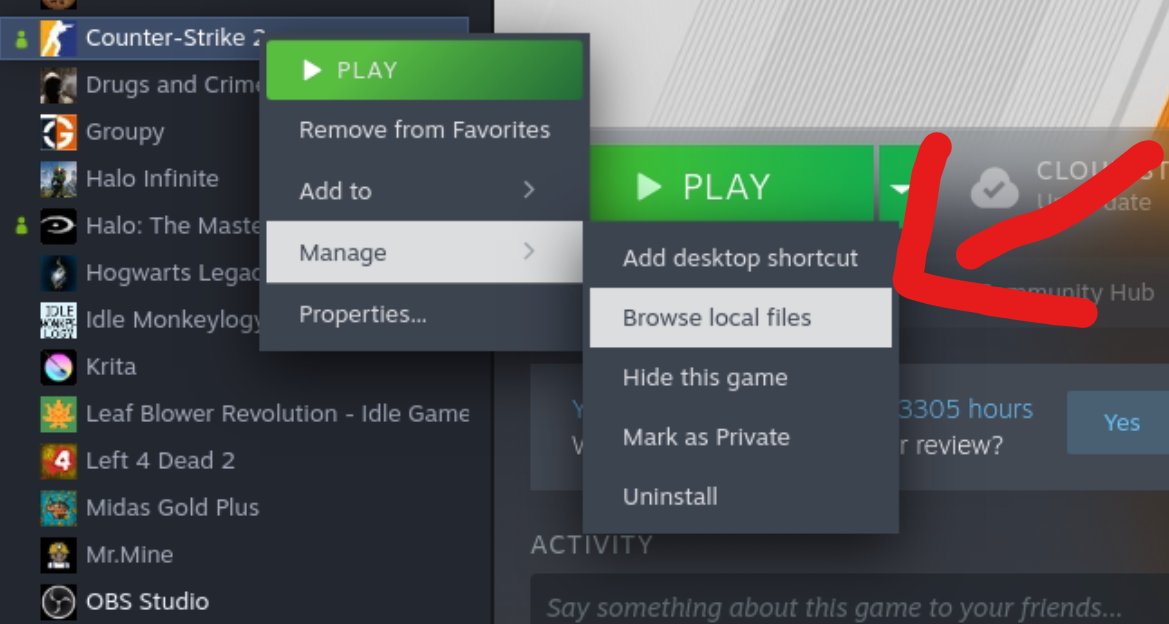
- Steam: The most popular place for PC gamers. Steam handles game downloads and installations in its own library. It keeps things organized in its directory, often located in .steam or .local/share/Steam inside your home directory. It will put your games in a folder like SteamApps.
- Lutris: Lutris manages all your games through scripts, allowing you to play a vast library of games. You can install games from Steam, GOG, or even from the Windows platform. It will ask you where to install your game, so you can install the games into different places, such as /opt.
What About Game Saves and Config Files?
We have talked about it earlier, but it is worth reiterating that regardless of where your game files are installed, your saved games, configuration files, and other personal data often get stored in hidden folders inside your home directory.
Common Locations for Saved Games and Configurations
These are just some common locations. The actual location varies from game to game, but these are some good places to start looking:
- .config : often stores game configuration and settings files.
- .local/share: Stores game data and files in this folder.
- .steam/steam/userdata: Steam stores user data here.
- Directly inside your home folder: Sometimes, game files are also saved directly in your home folder
Understanding Permissions: Why ‘sudo’ is Sometimes Needed
On Linux, permissions decide who can access and modify certain files. Most of the time, you can do anything in your home directory, because you own that. However, you need special “super user” permissions to modify files in places like /opt and /usr/local. That’s why you might see the sudo command used before commands.
What is sudo?
The sudo command stands for “superuser do.” It lets you temporarily gain super user permissions to run commands that usually require admin rights. You should be careful when you use sudo, and make sure that you understand the command before you run it.
Examples of using sudo
Here’s how you would use sudo when installing game files in /opt:
- Creating a folder: sudo mkdir /opt/mygame
- Moving game files: sudo mv /path/to/downloaded/game/files /opt/mygame
- Running installation script: sudo sh /opt/mygame/install.sh
As you can see you need to use the sudo command when modifying files outside of your home folder. It might ask for your password, and when it is done it will revert to the normal user permissions. If you are not the super user you won’t be able to use the sudo command.
Creating Game Shortcuts
Once you’ve installed a game, you will need to create a shortcut to easily run it. There are multiple ways to create shortcuts, here are the most common ways:
Desktop shortcuts
Creating a desktop shortcut is a great way to quickly access your game:
- Find the game’s executable file, often named the same as the game.
- Right-click the executable, and select “Create Shortcut”.
- You can then drag the created shortcut to your desktop.
- You can also rename the shortcut.
Using application launchers
Most Linux desktop environments allow you to add applications to the application launcher. This is a good way to organize your game shortcuts.
- Open your application launcher and find the option to add new shortcuts.
- Click on ‘add’ or ‘new’ shortcut.
- You will then have to browse to the executable for your game.
- Choose a name and icon for the shortcut and click ‘OK’ or ‘Add’.
Command Line shortcut
You can create aliases (short nicknames) for long commands in the command line. Let’s say your game’s executable is located at /opt/mygame/game.sh. You can add an alias by editing your shell configuration file, like ~/.bashrc for Bash, and add a line such as:
alias mygame='/opt/mygame/game.sh'Then, type mygame in the command line and the game will run. You will have to type source ~/.bashrc in order to apply the alias, or restart your terminal.
These shortcuts let you quickly start your game.
Tips for Keeping Your Games Organized
Here are a few extra tips to keep your gaming experience smooth and organized on Linux:
- Use Separate Folders: If you install games manually, use separate folders for each game to avoid confusion.
- Back Up Saves: Game save files are precious, back them up frequently. You can often find them in your home folder in those hidden folders.
- Use a Dedicated Hard Drive: Consider installing games on a separate hard drive or partition for better organization.
- Use symbolic links: You can create symbolic links to move game files. This is an advanced technique that needs to be used carefully because a faulty symbolic link could lead to broken programs.
Choosing where to put your game files comes down to your preference and how you installed the game. Remember, your home folder is your personal space, /opt is for optional software, and package managers take care of a lot of the file management behind the scenes. Enjoy gaming on Linux!
Linux offers many ways to keep your games organized, and understanding where the files are located gives you more control over your setup. You also now understand the sudo command and the reasons for when you need to use it. Linux might be a little different than Windows, but it’s a very powerful platform for gaming.
Ultimate Linux Gaming Guide: How to Install Games on Linux using Lutris
Final Thoughts
Game files on Linux generally go into specific locations. For Steam, they reside in ~/.steam/steam/steamapps/common. Lutris games often get installed under ~/Games.
Non-Steam games can live anywhere, but ~/Games is a good default. You can also organize them within your home directory.
The question of ‘where do you put game files on linux’ boils down to following conventions and your preferences. It is usually within your personal folder.

