
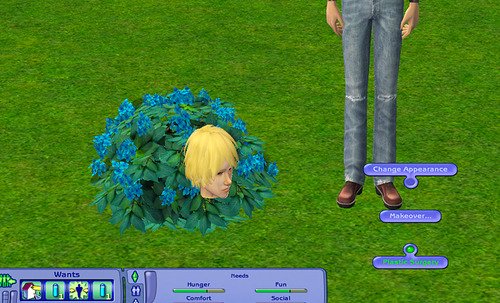
The Sim Blender is not a standard object found in the game’s build or buy modes; instead, you need to download it as a custom mod from a fan site.
Ever felt like your Sims 2 game needed a little extra something? Maybe you wanted more control over your sims or wished for specific interactions not available in the base game. Many players ask, “where is the sim blender in game sims 2” because they hear about it but can’t find it.
The Sim Blender is a popular mod, and it greatly enhances gameplay by introducing many features. This tool, though not a part of the original game, can give you far more options for managing your virtual families. If you haven’t used it before, you should download it from a reliable site to experience its benefits.

Where is the Sim Blender in Game Sims 2?
Okay, Simmers! Let’s talk about a super handy tool in The Sims 2: the Sim Blender. If you’ve ever felt like your Sims’ lives need a little… tweaking, this is your go-to object. But where do you find this magical device? It’s not exactly sitting out in the furniture catalog like a new couch. The Sim Blender is what we call a “mod,” which means it’s not part of the basic game. It’s something created by fans to add extra features. Let’s get into exactly how you can bring this powerful object into your Sims 2 world.
Understanding Mods in The Sims 2
Before we pinpoint the exact location of the Sim Blender, it’s important to understand what mods are and how they work in The Sims 2. Think of mods as extra pieces of code created by players to add, change, or fix things in the game. They can range from simple tweaks to entire new game systems. The Sim Blender falls into the category of a more complex object mod. These aren’t official from the game developers, but they can add a lot of fun to your gameplay.
Why Use Mods?
Mods can give you more control over your Sims lives. For example, you might want to change a Sim’s needs, or relationship, or even bring back Sims who have passed away. That’s where the Sim Blender shines! It lets you manipulate lots of aspects of your Sims’ world that the regular game doesn’t allow.
Here’s a quick list of some cool reasons why people use mods:
- Fix glitches or bugs that might be in the game.
- Add new objects, clothes, or hair styles.
- Make gameplay more customized to your preferences.
- Have more control over how Sims interact.
- Change how the game behaves.
The Sim Blender: Your Power Tool
Now, back to the main star of the show: the Sim Blender! This object is so useful because it offers a menu of options to change pretty much anything about your Sims. We’re not talking about just changing their hair color; we’re talking about everything from their skill levels to their very existence!
What Can the Sim Blender Do?
Let’s explore some of the cool things the Sim Blender can do:
- Change Sims’ Needs: Make your Sims instantly happy by filling all their needs bars.
- Adjust Skills: Level up your Sim’s cooking, cleaning, painting, or any skill instantly.
- Modify Relationships: Make Sims friends, enemies, or soulmates right away.
- Age Up/Down Sims: Make a Sim an adult or child on the spot.
- Bring Back Dead Sims: Bring ghosts back to life (with some caveats).
- Teleport Sims: Move Sims to different places on the lot instantly.
- Change Aspiration: Pick what your Sim desires in life.
- Adjust Lifetime Wishes: Modify what your Sims dream to achieve.
And so much more! The Sim Blender really is a tool box for your Sims. It lets you experiment and get things exactly how you want them.
Finding the Sim Blender: The Download Process
So, the big question: where do you get this magical object? You won’t find it in the standard game, as we mentioned earlier. You have to download it from a website that shares mods. This can feel a little tricky for new players, but don’t worry, we’ll walk you through the steps.
Step-by-Step Guide to Downloading
Here’s a general idea of how it usually goes:
- Find a Reliable Source: Search online for “Sims 2 Sim Blender download.” Look for well-known Sims 2 mod websites that others recommend. Popular forums, blogs and websites are generally safe.
- Download the File: You’ll usually download a file ending in .package. This is the file that contains the Sim Blender mod.
- Locate Your Downloads Folder: The Sims 2 game has a specific folder in your computer where mods need to go. This folder is generally located under Documents>EA Games>The Sims 2>Downloads. If you cannot locate the Downloads folder you can create one. But it is important that you name it exactly “Downloads” otherwise, the game won’t recognize it.
- Copy the Package File: Move the .package file you downloaded into this Downloads folder.
Important Notes Before Downloading
- Always scan downloads with your antivirus software: It’s always good to be safe when downloading from the internet.
- Read the installation instructions carefully: Every mod author might have slightly different ways of installing, so be sure to read the instructions.
- Check for compatibility: Make sure the mod is compatible with your version of The Sims 2. Some older mods may not work on newer versions of the game, especially if you have a lot of expansion packs installed.
- Backup your game files: Before adding any mods, it’s always a good idea to create a backup copy of your game files. This means if anything goes wrong, you can get back to where you started.
After completing these steps, your Sim Blender should be available in your game when you start up the game.
Placing the Sim Blender in Your Game
Once you’ve downloaded the Sim Blender, it’s time to place it in your game. Luckily, finding it is the easiest part. The mod is treated like a normal object.
Steps to Finding the Sim Blender:
After downloading, you won’t find the Sim Blender immediately when you start up your game. Here’s how you can find it:
- Start The Sims 2 and enter any neighborhood.
- Go into Build Mode on a lot.
- Look under the Miscellaneous section of the catalog.
- The Sim Blender will likely show up as a small, usually blue, object.
- Click on it and place it somewhere on your lot.
Using The Sim Blender
To use it, just click on the Sim Blender in live mode. You will see a big list of menus appear with all the options we talked about earlier. From there, you can navigate to the various options to tweak your Sims as you like. Just remember, like any powerful tool, the Sim Blender should be used with consideration.
Troubleshooting Common Issues
Sometimes, things might not go as planned. Here are some common problems and their solutions:
Sim Blender Not Appearing in Game
- Check the Downloads folder: Make sure the .package file is in the correct folder.
- Game version: Ensure the mod is compatible with your version of the game.
- Check if the game has recognized it: Sometimes you have to go to the settings of the game and see if the “custom content” option is enabled.
- Re-download: Try downloading the mod again from a different source if it is still not working.
Sim Blender Causing Game Issues
- Remove other mods: Sometimes, mods conflict with each other. Try removing any other new mods.
- Update the mod: If there is an update for the Sim Blender, make sure to download and install it.
- Disable custom content: Go into the game settings and disable custom content to see if the game works better.
- Update DirectX and graphics drivers: Older DirectX version or graphic driver sometimes can cause issues.
- Use an old version of the game: Sometimes using an old version of the game is more compatible with certain mods.
Sim Blender Options Not Working
- Read the instructions: Some options might have specific requirements or steps.
- Try a different sim: Some features might only work in different sim.
- Check if other features are working: If the Sim Blender works, only some options may be bugged.
If all else fails, try uninstalling and re-installing the mod.
Additional Tips
- Experiment with Caution: The Sim Blender is powerful, but be mindful of how you use it to avoid unexpected results in your game.
- Keep your game updated: Make sure your game has all the latest patches installed.
- Always Read Reviews and comments: If you download the mod from a website, read comments of other users to be sure of its security and functionality.
Remember, modding can make your Sims 2 game more enjoyable, but proceed with caution and backup your saves!
In summary, finding the Sim Blender in The Sims 2 involves downloading the mod from a safe source, placing the package file in the right folder and finally locating the object in game build mode under Miscellaneous tab. With a little patience and some caution, you will have the Sim Blender added to your game in no time. Enjoy the enhanced game play!
Will It Blend? The Sims 2 | The Sims 2 to Blender Tutorial for Renders | Bruised-Pixels
Final Thoughts
The Sim Blender is not a purchasable item, you will not find it in build or buy mode. The Sim Blender arrives through specific downloads. Players must find custom content websites to get this essential tool.
Where is the sim blender in game sims 2? It appears as an in-game object after players add it to their game files. This powerful tool offers control over various aspects of sim life. The sim blender greatly enhances your gameplay experience.

