
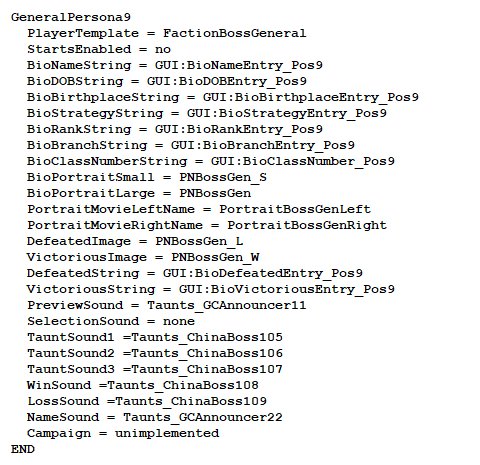
The boss general is activated within the ‘INI.big’ file, specifically by modifying the [General] section to enable the boss general option.
Ever wondered where to activate boss general in zero hour game data? Many players find themselves scratching their heads about this. The process involves digging into the game’s files. It’s not accessible through the standard game interface. You will need a file editor.
Modifying the ‘INI.big’ file is the key. Locate the [General] section. Change the relevant option to activate this mode. After that, the boss general becomes available during gameplay.

Where to Activate Boss General in Zero Hour Game Data
Okay, let’s talk about something really cool in Command & Conquer: Generals Zero Hour – playing as the super powerful Boss Generals! These aren’t your regular generals; they’re unique and seriously strong. But how do you actually get to use them? It’s not something you can do right away in the game itself. You need to tinker a little with the game’s data files. Don’t worry, it’s easier than it sounds, and we’ll walk you through it step-by-step.
Understanding the Game Data
First, let’s get a little bit familiar with where the magic happens. Zero Hour, like many games, stores its information in specific files. The file we care about is called “ini.big”. This file is where information about the generals, their powers, and even the buildings you can construct are kept. Think of it like a giant instruction manual for the game. It’s inside this “ini.big” file that we’ll need to make a few changes.
Locating the ‘ini.big’ File
The first thing you need to do is find this file. Its location depends on where you installed Zero Hour. Usually, it’s in the game’s installation folder. Here’s how to typically find it:
- Go to your “My Computer” or “This PC”.
- Navigate to the drive where you installed Command & Conquer Generals Zero Hour, Usually its “C” Drive.
- Look for the “Program Files” or “Program Files (x86)” folder.
- Open the “Electronic Arts” folder.
- Then find the folder “Command & Conquer Generals Zero Hour”.
- Inside that folder there should be a folder named “Data”. Go inside that folder.
- Inside the “Data” folder you’ll see the “ini.big” file, we’ll be using this file.
Sometimes, the file might also be inside a subfolder called “English” within the “Data” folder, so check that as well.
Preparing to Modify ‘ini.big’
Before you start changing things, it’s really important to make a backup of the “ini.big” file. This way, if anything goes wrong or you want to go back to the original game, you’ll have the original data to use. Simply copy the “ini.big” file and paste it somewhere safe, like on your desktop or in a separate folder. Name the backup file something like “ini.big_backup” or “original_ini.big”. It’s better to be safe than sorry!
Using a BIG File Editor
To make changes inside the “ini.big” file, you cannot use something like Notepad directly. You’ll need a special tool called a BIG file editor. These editors let you open the “ini.big” file and access its contents. Many free options are available on the internet. One of the popular editor you can use is called “FinalBIG”. You can easily search on the internet to find different download sources for “FinalBIG”. Download any working file, this tool will help you with the process.
Here’s how to use “FinalBIG” for this purpose:
- Open the “FinalBIG” program.
- Click on “File” and then select “Open”.
- Navigate to where your “ini.big” file is located.
- Select the “ini.big” file and click “Open”. This will load the content of the “ini.big” file.
Now you are ready to make some changes.
Locating the Specific Data for Boss Generals
Okay, so we have “ini.big” file open, and now comes the part where you need to find the specific data for the boss generals. Here is a step by step procedure to do that:
- Once you have opened the “ini.big” file, in the “FinalBIG” tool there is a search bar located in the right side of the tool.
- In the search bar type “CommandSet”
- You will see a bunch of files containing “commandset” name.
- Look for a file called “commandset.ini”. It is present in the folder name “Data” inside the archive.
- Double-click on the file “commandset.ini”. This will open the file in “FinalBIG” tool.
- Now inside the file, scroll down till you find a section starting from “[CommandSet_GLABossGeneral]”. This is the section which contains the command set data for boss general.
- You will find similar sections for each boss general. These sections will contain the actual code that controls the boss general, what the general can build and do.
Identifying the Boss General Code
Inside the “commandset.ini” file, you will see a lot of text. Don’t be scared by it; it’s just a list of commands and what each general can do. You need to find the specific entries for the Boss Generals. They’re usually labeled quite clearly:
- [CommandSet_GLABossGeneral] – For the GLA Boss General
- [CommandSet_USABossGeneral] – For the USA Boss General
- [CommandSet_ChinaBossGeneral] – For the China Boss General
These sections contain the command sets for each boss general that is not normally available.
How to Activate the Boss Generals
Now that you’ve found the right sections, here’s how you actually make these generals playable:
- First go inside “[CommandSet_GLABossGeneral]” section and find the line “BuildLimit=3”. This means only 3 of the default generals are available to choose from. Change this value to 4.
- Now go inside “[CommandSet_USABossGeneral]” section and find the line “BuildLimit=3”. Change this value to 4.
- Now go inside “[CommandSet_ChinaBossGeneral]” section and find the line “BuildLimit=3”. Change this value to 4.
- Also go inside the section named “[CommandSet_Challenge]”.
- Here, find the line “BuildLimit=3”. Change this value to 4.
- Now go to “File” and click “Save” button to save the changes to ini.big file.
By making these changes you will be able to select 4 generals instead of 3 in the game.
The Logic Behind The Changes
The BuildLimit line controls how many generals you can choose in the game. By changing this value from 3 to 4, you’re making the hidden Boss General available for each faction. The game still shows the 3 regular general icons, however, if you scroll to the right using arrows, you will be able to see the additional fourth general. This means that each side now has 4 playable generals.
Verifying the Change
After you have changed the ini.big file, now is time to check if the changes are applied to the game. So, let’s launch the game and check the changes we made in ini.big file:
- First launch the game “Command & Conquer Generals Zero Hour”.
- Go to skirmish mode.
- Select the faction.
- Now, when you are selecting the general, instead of 3 now you should see 4 generals to select.
- Click the scroll arrow to view the additional fourth boss general.
- Select the boss general and start the game and enjoy!
Important Considerations
While playing with the Boss Generals is super fun, there are a few things you should keep in mind:
Balance Issues
The Boss Generals are often much more powerful than the regular generals. This means that if you’re playing against other people, using these generals might make the game unbalanced. The game developers never planned these to be playable. They are specifically designed to be boss fights. If you’re playing multiplayer, it’s a good idea to let everyone know beforehand that you are using boss generals. Using them in single player and challenge mode is generally a fair option.
Potential for Game Crashes
While this modification is generally safe, sometimes, making changes to game files can lead to unexpected issues, like game crashes. Always remember to back up your files before modifying them. It’s important to take precautions and make backup of the files. This will prevent any loss of game files, just in case something goes wrong. In most cases, game crashes are rare, but it’s better to be careful.
Further Customization
The fun doesn’t have to stop with just activating the Boss Generals! Once you’re comfortable with editing the “ini.big” file, you can experiment further:
Modifying General Powers
Inside those “CommandSet” sections, you’ll notice that each general has various powers. You can adjust how strong these powers are. For example, you can increase the damage or range of a certain attack or make the ability cooldown faster. Modifying these abilities can really change how each general plays.
Editing Building Properties
You can also change the properties of the buildings. You can change their health, damage and costs. This gives you another layer of modification to try. You can make the game easy or hard as you wish by editing these files.
Advanced Techniques
For those looking for an even deeper dive, there are even more advanced ways to modify and add content:
Adding New Units
Using a modding tool, you can add custom units to your game. This involves editing not just the “ini.big” file but also other game files to create completely new units with unique abilities.
Creating Custom Maps
With map editor tools, you can create completely custom maps for your battles. This adds a lot of fun and variations to the game. By mixing different terrains and game objectives, you can create some really cool maps.
These types of modifications require a bit more knowledge and patience but can totally revamp your game experience. Remember, the game is like a big playground, and you can use these modifications to customize the gameplay to your personal preference.
So, there you have it! Activating the Boss Generals in Zero Hour isn’t too tough once you know where to look and what to change. Have fun experimenting with different generals and powers, and enjoy your customized Command & Conquer experience! Remember to play fair and respect the rules of multiplayer, and most importantly, have fun!
Generals Zero Hour Modding Tutorial – Skirmish Team Colors, Starting Cash & Enable a secret General!
Final Thoughts
To activate boss generals, you must modify the game’s data files directly. These files determine which units and abilities appear during gameplay. Specifically, you need to find the appropriate general’s data within the INI files.
Carefully editing these files allows you to enable the boss general, adding new gameplay elements. Remember to backup original files before any modifications. This is how you address where to activate boss general in zero hour game data.

