
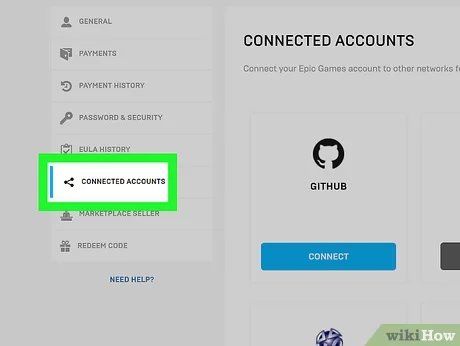
To change your Epic Games account on your Switch, you must unlink the current account through the Epic Games website and then link a new one on your Switch console.
Ever found yourself wanting to switch your Epic Games account on your Nintendo Switch? Maybe you have a different account you’d rather use or want to give someone else access. The process isn’t always clear, but it’s definitely doable. This article will guide you on how to change epic games account on switch. It’s a bit of a process, but once you understand the steps, you can easily manage your linked accounts.
Don’t worry if you’re not tech-savvy, the steps are straightforward, and we’ll walk you through each of them carefully. Getting your Epic account sorted on your Switch becomes easy. Let’s get started!

How to Change Epic Games Account on Switch
Changing your Epic Games account on your Nintendo Switch might seem tricky, but it’s actually quite doable! Maybe you want to use a different account with all your favorite skins or perhaps you just need to switch over to a family member’s profile. No matter the reason, it’s important to know how to do it smoothly. This guide will walk you through all the steps and help you get everything set up just the way you want.
Why Would You Change Your Epic Games Account?
Before we jump into the how-to, let’s think about why someone might want to do this. There are several reasons. For example:
- Using a different account: You have another account with more progress or cool stuff you want to use on your Switch.
- Family Sharing: You need to switch between different family members’ Epic Games accounts.
- Account Issues: Your current Epic Games account has problems, and you need to use a new one.
- Starting Fresh: You want to begin a new gaming experience with a clean slate.
Whatever your reason, knowing how to change the account is key. Don’t worry; it’s easier than you think! Let’s get started.
The Basics: Understanding Epic Games Account Linking
When you first play a game like Fortnite on your Nintendo Switch, it usually asks you to link it to an Epic Games account. This linking is what allows you to keep your game progress, skins, and other cool items. So, changing your account on the Switch isn’t just about logging out; it’s about breaking that link and then creating a new one. It’s like unhooking one toy from a chain and hooking a different one on. Once we understand that process, it’s much simpler to manage.
It is also important to be aware of the potential for data loss or issues if you do not carefully follow the proper steps, so please, pay attention and do each step carefully.
Step-by-Step Guide: Changing Your Epic Games Account on Switch
Now, let’s dive into the detailed steps you’ll need to follow. We’ll go through the process carefully so you don’t miss anything. There might be some slight differences depending on the specific game you are playing, but these steps should work for the most popular games like Fortnite.
Step 1: Unlinking the Current Epic Games Account
This is the first and very crucial step. We have to break the current link with the Nintendo account.
- Go to the Epic Games Website: Using a computer, phone, or tablet, go to the official Epic Games website.
- Sign In to Your Current Account: Log in to the Epic Games account that is currently linked to your Nintendo Switch. Be sure you are using the account you want to unlink from the Switch.
- Go to Account Settings: Find the “Account” settings, typically in your profile section.
- Look for “Connections”: Find an option that mentions “Connections” or “Linked Accounts.” It should be easy to spot.
- Find the Nintendo Switch: In the list of connections, you will see the Nintendo Switch logo. Click on it or choose the option to disconnect the account.
- Confirm the Unlinking: Epic Games will ask you to confirm. Make sure to click “Yes,” or “Confirm” to break the link.
Once you have completed these steps, your Epic games account will be disconnected from your Nintendo Switch. Now it is safe to move to the next step which is to link a new Epic Games account.
Step 2: Linking a New Epic Games Account on Your Switch
Now that your old account is disconnected, it’s time to hook up a new one.
- Start Your Game: Open the game you want to play on your Nintendo Switch. This would be Fortnite, Rocket League, or any other Epic Games title.
- The Login Screen: The game will now ask you to log in with an Epic Games account. This is because the previous account was unlinked.
- Sign In or Create New Account: You have two choices, Sign In with your existing Epic Games account that you want to use, or click “Create New Account” if you don’t have one yet.
- Enter Your Details: Carefully enter the email address and password for your chosen account. If you created a new one, you will need to fill in all the required information.
- Confirmation: The game will confirm that your Nintendo Switch account is now linked to your new Epic Games account.
Congratulations! You have successfully linked your new account. Now you will have access to all of your previously purchased items, skins, etc from the new account.
Important Considerations Before Changing
Before making this switch, there are some key things you should keep in mind:
Data Transfer: What Happens to Your Game Progress?
This is a big question for most players. The important thing to remember is that your game progress, purchases, and unlocked items are tied to your Epic Games account, not your Nintendo Switch. So when you link to a new account your game progress will go away, unless the new account has an associated progress. If you are switching to a brand new account, it will be like starting fresh.
- Progress is Saved to the Epic Account: Your game data is stored on Epic’s servers. This is why you can play on different platforms with the same stuff.
- Switching Accounts Means Switching Data: When you change to a new Epic Games account, you will be loading in the data for the new account.
- Start From Scratch with a New Account: If you link to a brand-new Epic Games account, your progress will start over, but you will have an empty slate.
Potential Issues and How to Avoid Them
While the process is usually smooth, here are some common issues you could face and how to avoid them:
- Incorrect Logins: Double check that you’re using the correct email address and password for your Epic Games account to prevent errors.
- Not Unlinking Properly: Make sure you unlink your previous account fully before linking to the new one to avoid conflicts.
- Multiple Accounts Confusion: Have all of your account information ready before you start the process, to help you avoid confusion.
- Account security: Be very careful when logging into your Epic Account, as phishing is very common on these platforms. Do not click on suspicious links.
What to do if you have Trouble
If you run into problems, here are some steps to take:
- Double-Check Your Steps: Go back and make sure you followed each step exactly. Sometimes a small mistake can cause problems.
- Restart Your Switch and Game: Sometimes simply restarting the game and/or console can fix temporary glitches.
- Check your Internet Connection: Sometimes a poor connection can interfere with these processes. Try to use a stable Wifi connection.
- Contact Epic Games Support: If the issues persist, contact Epic Games’ support team. They can help you with account-related issues.
Tips for a Smooth Switch
Here are a few more tips to make the process even easier:
- Prepare Everything Beforehand: Have all your email addresses and passwords ready before you start.
- Use a Computer or Phone: It is easiest to unlink your accounts from the Epic Games website, using a computer, phone, or tablet.
- Be Patient: Sometimes things take a minute. Don’t rush and follow each step carefully.
- Keep Notes: If you are switching between multiple family accounts, it might be helpful to make a note of which account is for which person.
The Advantages of Managing Multiple Epic Games Accounts
While switching accounts might seem like a hassle, it can actually be very useful. Here’s how:
- Personalized Experiences: Different family members can have their own accounts, with their own unique items and progress.
- Account Safety: Having separate accounts for different uses can help keep your personal data safe.
- Game Management: You can more easily manage multiple different game accounts this way.
A Note about Nintendo Accounts
Remember that your Epic Games account is different from your Nintendo account. The Nintendo account manages your profile on the Switch, while your Epic Games account manages your game data and purchases in games like Fortnite and Rocket League. You can link several Epic Games accounts to the same Nintendo profile, but you can only use one Epic Games Account at a time.
Frequently Asked Questions About Changing Epic Games Accounts on Switch
Here are some more questions that people commonly ask:
Will I lose my progress if I switch accounts?
No, all your game progress and purchases are linked to your Epic Games account, not your Nintendo Switch profile. So you will keep them on the new Epic Account, but will lose your old account progress.
Can I link multiple Epic Games accounts to the same Nintendo Switch?
Yes, you can link multiple Epic Games accounts to the same Nintendo Switch profile, but only one at a time.
How often can I change my Epic Games account on Switch?
You can change your Epic Games account as many times as you want, but make sure to carefully follow the steps and wait for each login/logout to complete before trying the next step.
What if I do not know my Epic Account information?
If you are having trouble logging in, you can click on the forgot password link, and follow the Epic Account recovery steps. You can also contact Epic Games Customer Service for assistance.
Can I use the same Epic Account on multiple devices?
Yes, you can use the same Epic Account on your Switch, computer, phone, or other consoles. Your game data will remain the same.
Changing your Epic Games account on your Nintendo Switch is straightforward once you know the steps. Remember to unlink your old account first and link the new one carefully. This gives you flexibility and helps you manage your gaming the way you want. With a little patience, you can change between different accounts with no hassle. Happy gaming!
How To UNLINK FORTNITE Account on PS5, PS4, Xbox, PC, Switch (LOGOUT From Fortnite & SWITCH Account)
Final Thoughts
Changing your Epic Games account on Switch requires disconnecting your current account through the Epic Games website. After disconnection, you can link a new Epic Games account when you next launch a game on your Switch. This process, while simple, is a must to remember to correctly switch accounts.
Remember to check the Epic Games site for the most current steps. This method is necessary for ‘how to change epic games account on switch’. This ensures your game progress is associated with the right profile.

