
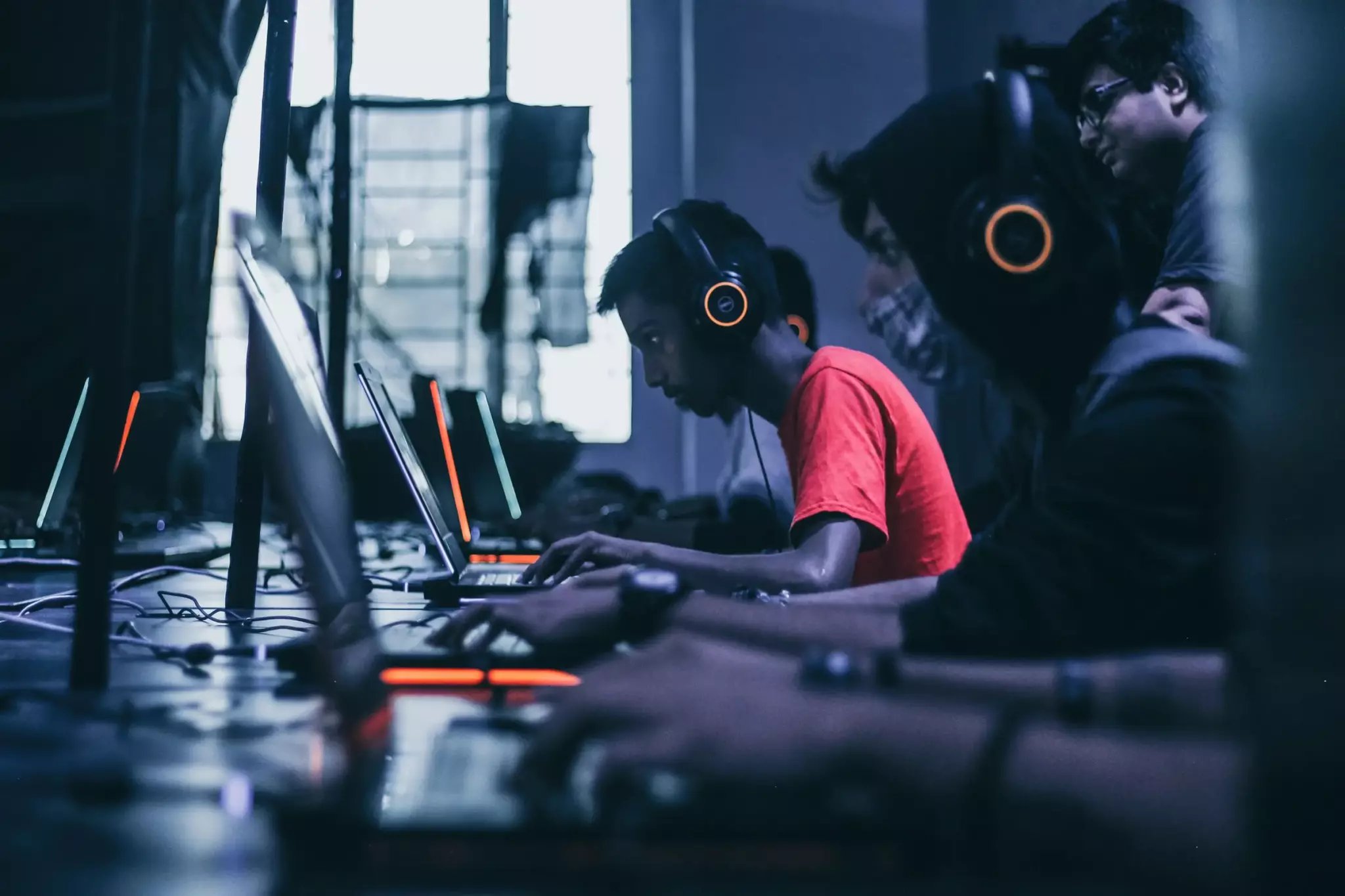
Your games are lagging on PC because your hardware struggles to keep up with the game’s demands, either due to outdated components, insufficient resources, or background processes consuming power.
It’s incredibly frustrating when your favorite games suddenly start stuttering and freezing. You ask yourself, “Why are my games lagging on PC?” It could be a range of issues causing the performance drop. From your graphics card struggling to keep up, to your RAM getting overloaded, several factors play a part in poor gaming experiences.
Sometimes it is as simple as having too many other applications running, or even outdated drivers can cause problems. Identifying the root cause will help in fixing this issue effectively and improve your gameplay.

Why Are My Games Lagging on PC?
Have you ever been right in the middle of an awesome game, ready to win, and then… BAM! The game starts to stutter, slow down, or even freeze? That’s what we call lag, and it can be super annoying. Lots of things can cause game lag on your PC. It’s like when your bike chain gets stuck – lots of little problems can add up to a big slowdown. Let’s dive into what might be happening and how to fix it so you can get back to gaming without the frustration.
Understanding the Basics of Game Lag
Before we start fixing things, it helps to know why lag happens in the first place. Think of your computer as a busy restaurant. It has lots of customers (your game, other apps, etc.) all wanting its attention. If the restaurant (your PC) can’t handle all the requests at once, things get slow. Here are some key concepts:
Frame Rate (FPS)
Frame rate, or FPS (frames per second), tells you how many images your computer draws on the screen every second. A higher FPS means smoother gameplay. Imagine a flipbook: the more pages you flip quickly, the smoother the animation appears. Lower FPS means the images change slowly and you see stuttering and choppy movement. If your FPS drops too low you will experience lag. A very low FPS makes your game feel unplayable.
For example:
- 30 FPS: Usually considered the minimum for playable games, but not very smooth.
- 60 FPS: A good target for smooth gaming, most people see the game as nice and fluid.
- 120+ FPS: Ideal for fast-paced games and high-refresh-rate monitors, everything looks exceptionally smooth.
Latency (Ping)
Latency is the time it takes for information to travel from your computer to the game server and back. We usually measure it in milliseconds (ms). High latency is like trying to talk to someone on a bad phone connection – there’s a delay between what you say and when they hear it. This delay causes lag in online games. High latency makes games feel unresponsive, like your actions are delayed.
Generally:
- Below 50 ms: Excellent, you likely won’t notice any lag.
- 50-100 ms: Good, but you might notice some slight delays.
- Over 100 ms: Noticeable lag; the higher the number, the worse the lag.
Common Culprits Behind Game Lag
Okay, now that we know a bit about FPS and ping, let’s look at the common reasons your games might be lagging. It’s often a combination of factors, so we’ll explore each one.
Hardware Issues
Your computer’s parts play a big role in gaming performance. If your hardware isn’t powerful enough, your game will struggle to run smoothly. It’s like trying to drive a race car with a small, old engine. It just won’t be able to keep up!
Graphics Card (GPU)
The graphics card is like the artist of your computer. It’s responsible for creating all the visuals you see in games. If your GPU is old, weak or damaged it cannot handle the graphic demands of the game. This results in low FPS and makes game feel sluggish.
CPU (Processor)
The CPU is like the brain of your computer. It handles calculations, tells the different parts what to do, and manages the game’s logic. A weak CPU or one working very hard can cause game lag, especially in games with lots of things happening at the same time.
RAM (Memory)
RAM is like your computer’s short-term memory. It holds the information that the CPU needs right away. When your RAM is full, your computer has to use your hard drive instead, which is much slower. Not enough RAM can also lead to slowdowns and stutters. Try to use adequate amount of RAM to avoid slowdowns.
Storage (Hard Drive or SSD)
Where your game is installed also matters. Traditional hard drives (HDDs) are slower than solid-state drives (SSDs). If your game is installed on a slow HDD, it can take longer to load game data, which causes game lag.
Software and Settings
It’s not always about hardware. Sometimes, your software or game settings can be the problem. Think of it like having too many decorations in a room – it makes it crowded and slow.
Outdated Drivers
Drivers are like instructions that tell your hardware how to work with your operating system and games. Outdated drivers can cause conflicts and make the game slower, as it might not be getting instructions that it needs. Think of it like giving a wrong address to your pizza delivery guy – they will get delayed and won’t find your house fast. Always make sure that you have the latest drivers installed on your computer to get optimum performance.
Background Apps
Just like too many people in the same restaurant can make it slow, having too many apps running in the background will use your computer’s resources (CPU, RAM, etc.). This slows down your game if your computer isn’t powerful enough and can make game feel laggy.
Game Graphics Settings
Games usually have different graphics options that affect how they look and how well they run. High graphic settings like shadows and textures can look nice, but they can also put a lot of stress on your computer. If your settings are too high, your game might struggle to keep up and can cause lag.
Overheating
Your computer creates heat when it’s working hard. If your computer is not cooled properly, it will overheat. Overheating causes your computer to slow down to prevent damage. If your components are overheating they might cause game lag and stutters. Keep an eye on your temperature and clean the dust inside your computer to keep it running at optimum performance.
Network Issues
If you are playing an online game, your internet connection can also cause lag.
Internet Speed
Your internet speed is the rate at which data is transferred from the internet to your computer. If your internet connection is slow, your game will have a hard time getting the information it needs to run smoothly.
Wi-Fi Problems
Wi-Fi connections can be less reliable than wired connections. If your Wi-Fi signal is weak or inconsistent, you may get packet loss. Packet loss means that some data doesn’t reach your computer, causing a lag. This makes the game inconsistent and you will face regular stuttering and lag. Sometimes your neighbors also use your WiFi causing slowdown, as a result it increases your Ping, which directly affects your online game experience.
Server Issues
Sometimes, the problem isn’t on your end. If the game’s server is having problems, everyone playing the game might experience lag, as data is not being sent and received properly on server end. If the server has low bandwidth, it will cause lag too.
Troubleshooting Game Lag: A Step-by-Step Guide
Now, let’s get to fixing things! Here’s a step-by-step approach to try and get rid of your game lag. Remember to try each step and see if it helps before moving to the next. Don’t be afraid to try things; you won’t break your PC!
Check Your Computer’s Specifications
First, make sure your computer meets the minimum requirements for the game. If it doesn’t, you may need to upgrade your hardware.
Here’s how you can check your PC specifications:
- Press the Windows key, then type “System Information” and press enter.
- Look for the following details:
- Operating System.
- Processor (CPU).
- Installed Physical Memory (RAM).
- BaseBoard Product or Motherboard information.
- Graphic card information
- Compare these to the game’s minimum and recommended specs.
Typically game’s official site, steam and game cover displays the minimum and recommended settings. So make sure you check it before spending a lot of money on the game.
Update Your Graphics Drivers
Old drivers are a common reason for lag. It’s like using an old map to find a new place. The new map is updated and has a clear route. New drivers include optimizations, bug fixes, and compatibility that can greatly increase your game’s performance.
Here’s how to update your drivers:
- Visit the website of your graphics card maker (NVIDIA, AMD, or Intel).
- Find and download the latest drivers for your card model.
- Follow the installation instructions.
Close Background Applications
Having too many programs open can slow down your PC. It’s like having too many people talking in the same room. So, close unneeded programs when you’re playing games.
Here’s how you can do it:
- Press Ctrl + Shift + Esc to open the Task Manager.
- Look at the Processes tab and close the applications which are using most of the resources. Usually close unnecessary apps first.
- Close any apps that you don’t need while playing your game.
Adjust Game Graphics Settings
Lowering your graphics settings can significantly improve performance, especially on older machines. Lowering graphics means reducing the game details and turning off resource hungry effects such as shadows and anti-aliasing.
Follow these steps:
- Go into the game’s settings menu.
- Look for the graphics options.
- Try turning settings like shadows, textures, and anti-aliasing down to medium or low.
- Apply the settings and see if it runs smoother.
Check Your Internet Connection
Make sure your internet connection is stable. If you play online games this is very important. A slow and unstable internet connection creates lag.
Here’s how to test your connection:
- Use an online speed test tool to check your download and upload speeds.
- Use a ping test to check your latency.
- Try using a wired (Ethernet) connection instead of Wi-Fi. Wired connection is usually stable and faster.
- Restart your router/modem.
Monitor Your PC’s Temperature
If your PC gets too hot it starts to run slow in order to prevent hardware damage. Monitor the CPU and GPU temperatures. If the temperature is high, try to improve the airflow.
Here’s how you can check temperatures:
- Download and install temperature monitoring software like “HWMonitor”.
- Run the software while you play your game.
- Check for any high temperatures of GPU and CPU.
Defragment Your Hard Drive
If your games are installed on a hard drive (HDD), defragmenting it can improve performance. This is less important for SSD, but might help a bit on older SSDs.
Here’s how to do it:
- Search for “Defragment and Optimize Drives” in the Windows search bar.
- Select your hard drive and click “Optimize.”
Upgrade Your Hardware
If all the troubleshooting steps fail, it might be time to consider upgrading your hardware, like your GPU, CPU, or RAM. Buying more powerful hardware is the most expensive option, but it will make the games run great.
Additional Tips
Here are some more things you can try to improve your gaming experience:
- Make sure your operating system is up to date. Windows updates also sometimes include hardware fixes.
- Scan your computer for malware. Malware can secretly use your resources and cause slowdowns.
- Keep your game installation folder clean. Clean temporary files and unwanted files from the directory.
- Check if the game has any known bugs or issues. Sometimes it’s not your system that’s the culprit and the game itself has issues. The game might have a known bug that is causing the slowdown and the game developers might be working on a fix for it.
Lag can be frustrating, but by checking all these things, you can usually get your game running smoothly again. Remember, it’s often a combination of things, so don’t give up if one fix doesn’t do the trick! Take it step by step, and before you know it, you’ll be back in the game without the annoying lag.
Fix Games Stuttering In 15 Seconds
Final Thoughts
Game lag stems from several issues. Your computer’s hardware might struggle with game requirements. Outdated drivers or excessive background programs also hinder performance. Internet connection problems can cause lag in online games.
‘Why are my games lagging on pc’ can often be answered by checking these key areas. Make sure your system meets game needs. Close unnecessary programs and update drivers to reduce lag.

