
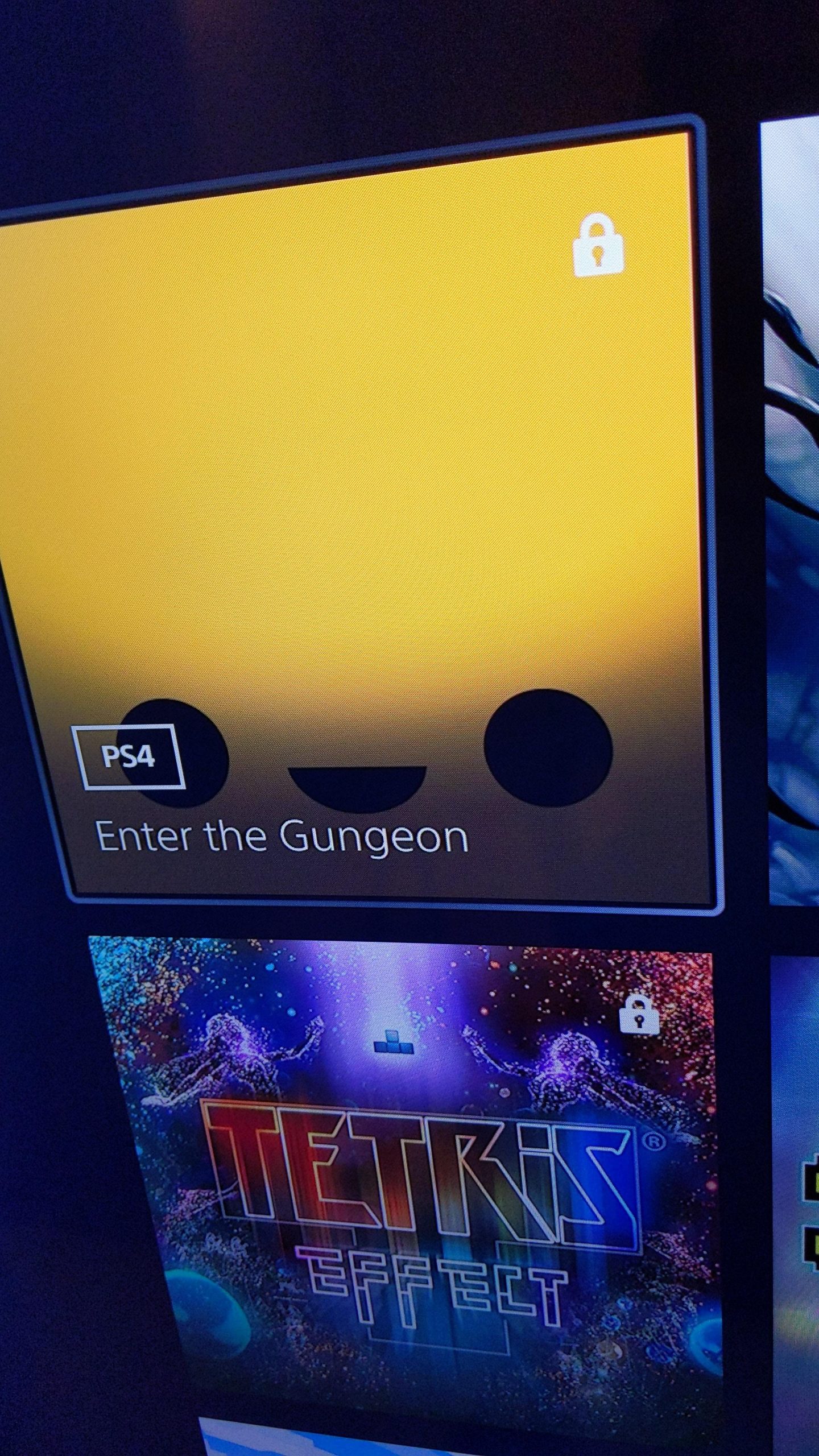
Games lock on your PS5 after game sharing because the primary console setting for the shared account has changed, or the internet connection to the PlayStation Network is lost for the account sharing the games.
Why are my games locked on ps5 after game sharing? It’s a frustrating situation, right? You were happily playing a game shared by a friend, and suddenly, it’s locked, leaving you unable to continue your progress.
This issue often stems from changes in account settings or problems with the console. This can be confusing if you are unaware of the nuances of PlayStation’s game-sharing system.

Why Are My Games Locked on PS5 After Game Sharing?
So, you’ve decided to share your awesome game collection with a friend or family member on your PlayStation 5? That’s fantastic! Game sharing can be a really great way to enjoy your games with others without having to buy multiple copies. But sometimes, things don’t go as planned, and you might find that your games are suddenly locked. This can be super frustrating, so let’s get to the bottom of why this happens and how you can fix it. We will walk through common reasons why your games get locked after you’ve shared them and provide you with ways to get back into your gaming world.
Understanding How Game Sharing Works on PS5
Before we dive into the reasons why games get locked, let’s quickly recap how game sharing on the PS5 actually works. PlayStation uses a system called “Console Sharing and Offline Play.” This system allows one account to share its digital game library with another account on a specific console. Think of it like lending a physical game to a friend, but instead of a disc, it’s a digital license. There are two main settings involved:
- Primary Console: This is the PS5 console that you have designated as your “main” console. Your account needs to be active on this console, and you can play your games whether you’re online or offline.
- Secondary Console: This is a different PS5 where another player wants to use your games. To play your games on the secondary console, the other player must be online, and your account that owns the games should not be active on any other console at the same time.
It is essential to understand that PlayStation accounts are tied to a user, and games are bought by the user through their own account. It’s not possible to share game licenses with any user unless you have a console as primary console for that user or account. When everything works correctly, the other user’s account is able to play any games that you have downloaded and installed to your console, and which that user doesn’t own. Now that we have established the basics of game sharing, let’s delve into the common reasons why you might experience locked games.
Common Reasons for Locked Games After Game Sharing
Several things could cause your games to be locked after game sharing. It is not always obvious why, and it can even depend on what has happened previously, so let’s go through the main issues and explore what may be causing your game lock problems:
Incorrect Primary Console Settings
One of the most frequent culprits is an incorrect setting for your primary console. If you want to share games effectively, making sure you have your account properly set as the primary account on one machine, and your friend’s account is accessing the games on a secondary console is very important. Here’s how that can cause issues:
- Your Account is Not the Primary: If your account that owns the games is not set as the primary user account on the friend’s console, the games will likely be locked. Your account needs to be set to have ‘Console Sharing and Offline Play’ enabled on the other console, for your friend’s account to play them.
- You Switched Primary Consoles Recently: If you’ve recently designated a different console as your primary, this can also create problems. The console your friend uses will then have the user account on it no longer set as the primary, so the games will become locked. You can only have one primary console at a time, so if you changed it, your games on the previous primary will get locked for other user profiles.
- Game License Syncing: Sometimes, the system doesn’t sync your licenses quickly after changing the primary console. A license may be stuck between consoles. This can lock your games temporarily, until the license has transferred properly.
Online Connection Problems
The online status plays a significant role in game sharing. Here’s how internet problems can mess with your games:
- Interrupted Connection: If the secondary console loses its internet connection, the game licenses can’t be verified. This can lead to the games being temporarily locked until the console gets back online.
- PlayStation Network (PSN) Outages: If PSN is down, the secondary console can’t verify game licenses, and the games will not be playable for the other user. This will also be the case if there is any kind of maintenance on the PlayStation Network servers. This is because the game is being played on a console where the owner’s user profile is not the primary.
Account-Related Issues
Problems with your PlayStation account itself can also lead to locked games. These issues could be related to passwords, licensing problems, or access restrictions.
- Password Changes: If you change your password, the secondary console using your shared games might get locked out until they re-enter your account information again. This will disconnect the account and require login to verify game licenses again.
- Account Restrictions: If there are restrictions on the primary account for some reason (for example, a temporary ban), the games on the secondary console might be locked too. This may be from a terms and conditions breach, or a payment error or failure, leading to games becoming locked until the issue is resolved with the account.
- Two-Step Verification: Sometimes, two-step verification settings cause problems when you are trying to share games. The other console needs to be logged in with your details and correctly set up. It might need verification codes from your phone, which is inconvenient if the other user doesn’t have access. If the two step verification isn’t successfully completed, games can become locked.
Software and System Issues
Occasionally, the issues aren’t on the account side, but related to system software problems.
- System Software Bugs: There could be bugs in the system software that affect game sharing. Keeping the system software updated will ensure any known issues are fixed.
- Game File Corruption: Corrupted game files can also sometimes cause locks. Even though your friend doesn’t own the games, if they have a bad install file on their console, it can affect the games’ access.
Simultaneous Play Attempts
Game sharing on PlayStation has a very important limitation. If you have shared your account, you will need to remember the following:
- You are playing at the same time: It’s crucial to understand that the account that owns the game cannot play the game simultaneously with the person on the secondary console. If you start playing a shared game while the other person is playing a game from your account library, their game will become locked. The PlayStation only allows one user to play at a time from one account’s library.
Troubleshooting Locked Games: A Step-by-Step Guide
Alright, so you’ve got some locked games. Don’t worry; here’s what you can do to troubleshoot and get back to playing:
Verify Primary Console Settings
This is the first step, and often the easiest to fix. Ensure that the correct account is set as the primary console on your friend’s PS5 console:
- On the Owner’s Account’s Console (the one where the games were purchased):
- Go to “Settings”.
- Select “Users and Accounts”.
- Go to “Other”.
- Select “Console Sharing and Offline Play”.
- If the status shows “Enabled” the user is already set as the primary account on the system, move to step 2. If the status says ‘Disabled’, then select Enable, and the console you are on will now be set as the primary account, and will enable offline play. If you intend to share your game licenses with another account on another console, you need to disable this.
- On the Other User’s Console (the one where games are locked):
- Log in to your PlayStation user account (the one that owns the games) on their console.
- Go to “Settings”.
- Select “Users and Accounts”.
- Go to “Other”.
- Select “Console Sharing and Offline Play”.
- Choose “Enable”. This will set the account on the console as the primary account for the games. Note, this will make the account on the primary console a secondary console, so the owner account will need to be online in order to play games on that console.
- Restart the Console: After you’ve changed the settings, restarting the console is a good idea so that the change is applied.
Check Your Internet Connection
A stable internet connection is needed for game sharing to work correctly, check that you are properly connected to the internet:
- Test Your Connection: Use the PlayStation’s network test option under network settings. This can help you diagnose issues with your connection.
- Restart Router: Try restarting your router and the PS5 to fix any internet connection issues you may have.
- Move Closer To Router: The PlayStation network connection might be weak if the distance to the router is too great, try moving the PlayStation closer to your router, or buy a better router which provides a signal over a greater distance.
Account Re-Login and Verification
Often, re-logging in to the account will solve the problem, to re-establish a connection with the game licences:
- Log out and Log back in: Have the user who owns the games log out of their account on the secondary console, then log back in.
- Check Password: Make sure the password is correct. If you changed it recently, the other user needs the updated one.
- Re-Authenticate: In some instances, you may be required to do two-step verification again. Make sure the other user has access to your phone or backup codes, to enable the re-authentication of the PlayStation account.
Update Software and Reinstall Games
Keeping your system and games up to date will resolve many common issues:
- Check for Updates: Make sure both PS5 consoles have the most recent software updates. Go to ‘Settings’, ‘System’, ‘System Software’, then ‘System Software Update’ to check for updates, and apply the update if you find that there is an update available.
- Update Games: Check for updates of the game which is causing problems. In your game library, you can select the game and choose ‘check for update’ to apply any available updates, and resolve possible issues.
- Reinstall Games: If the problem persists, uninstall the game from the secondary console and reinstall it. This will ensure that there is no file corruption that may be causing the issue.
Avoid Simultaneous Gameplay
It is important to remember that only one console can play games at the same time from one user account. You cannot play a game from an account library, if the primary user of that account is playing a game on another console.
- Coordinate Playtimes: If you are sharing game access with another person, it might be helpful to agree on when you will play games from the account. This helps you to avoid conflicts and locked games.
Contact PlayStation Support
If all the above steps fail to fix the problem, contact PlayStation support. There may be a problem with licensing or the PSN accounts themselves. You might require professional assistance to resolve it. You can contact PlayStation support via the official Playstation website or social media.
Tips for Successful Game Sharing on PS5
Here are some great tips to make game sharing a smoother experience:
- Communicate: Keep your game sharing partners informed of any changes you make to your account, like password or primary console switches.
- Regular License Checks: Check licenses on both consoles by logging in regularly. This helps to make sure everything is working fine.
- Primary account stays online: Remember that to play games when another console has the game license active, your primary console needs to stay online, to be able to verify your game licenses.
- Secondary account needs an internet connection: When playing games on a secondary console, there must be an internet connection, in order to be able to verify the game licenses.
Game sharing on PS5 can be an awesome way to share games with friends and family. However, you do need to understand how the system works and take steps to ensure that everything is set up correctly. Understanding how the primary console and sharing works is key, and avoiding simultaneous gameplay is essential. If you encounter problems, you can use the troubleshooting steps described in the guide. By following these steps, you can ensure that you and your friends have a great gaming experience. However, if nothing else works, don’t hesitate to contact PlayStation support.
How to UNLOCK Games on PS5 (EASY) (2022) | SCG
Final Thoughts
Game sharing on PS5 requires both accounts to be active on the console. If your games are locked, it means the primary account is not correctly designated or is not online. Account status and internet connectivity are must checks for smooth game sharing.
Another reason is that PlayStation’s system might have detected changes. These changes trigger lockouts. Check settings and console configurations to ensure your games remain accessible.
Therefore, why are my games locked on PS5 after game sharing? It is usually a primary account issue, temporary internet problem, or configuration error, thus requiring quick review.

