
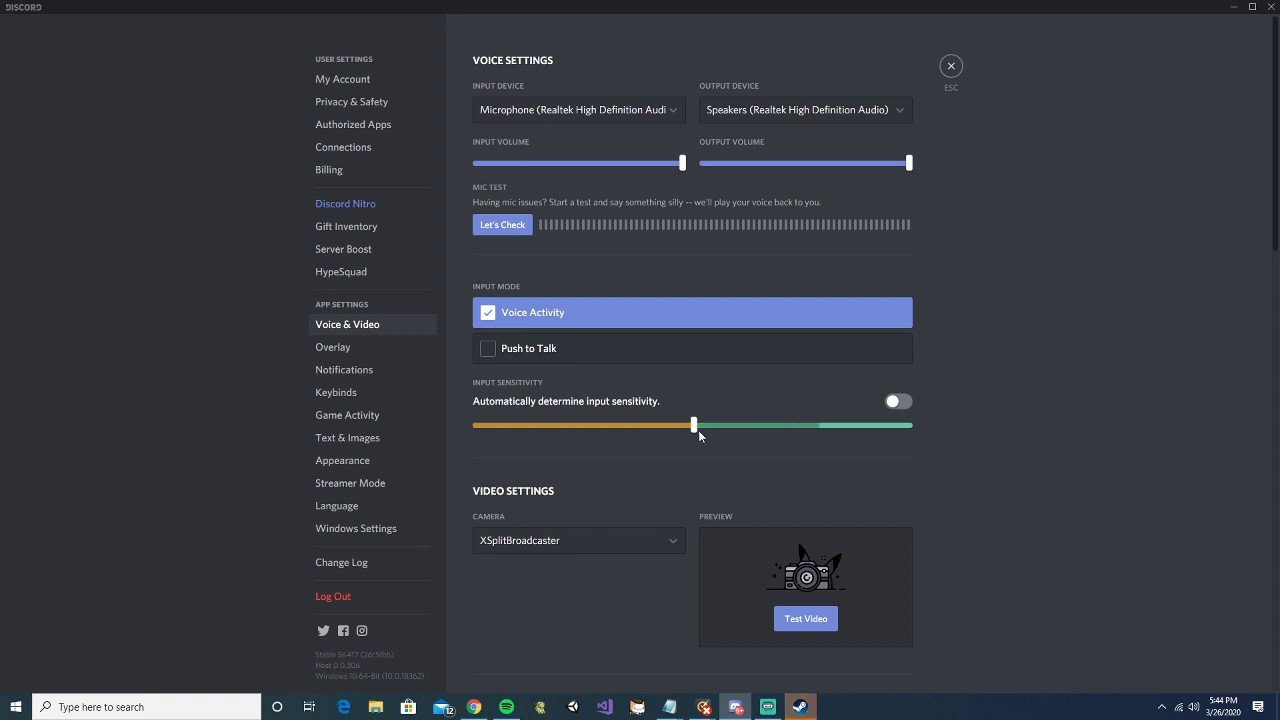
Your microphone is likely picking up the game audio as well as your voice. Adjust your mic’s sensitivity or use push-to-talk to prevent this.
Ever been chatting on Discord, then someone asks “Wait, is that your game I hear?” It’s a common frustration, and the question of why can people hear my game through discord is more easily addressed than it might seem. The issue often stems from how your microphone is capturing sound.
It’s grabbing not only your voice, but also any other sound in your room, including game audio from your speakers or headphones. A simple tweak of settings can fix this quickly.

Why Can People Hear My Game Through Discord?
Ever been chatting with your friends on Discord, and suddenly they can hear all the explosions, car chases, or magical spells from your game? It can be a little annoying, or sometimes even embarrassing! You might be wondering, “Why is this happening? It’s like my game audio has a mind of its own and decides to join the party.” Don’t worry, you’re not alone. This is a pretty common issue, and thankfully, there are some simple reasons behind it and even easier solutions. Let’s take a closer look at what’s going on.
Understanding the Basics: How Discord Captures Audio
To understand why your game audio is leaking into Discord, it’s helpful to know how Discord picks up sounds in the first place. Discord relies on your computer’s sound system to capture what it needs. It’s kind of like a very attentive microphone that’s always listening. When you use voice chat, Discord usually has two key sources of sound:
- Your Microphone: This is the most obvious one. Discord uses your microphone to pick up your voice so you can chat with your friends.
- Your System Audio: This includes all the sounds that your computer is playing, such as music, videos, and yes, your game!
The problem isn’t that Discord is trying to broadcast your game sound. It’s just that it’s capturing all the sounds your computer is making, and sometimes, it doesn’t do the best job of separating your voice from everything else. Imagine a really big bucket trying to catch everything coming from a water tap. Sometimes, too much water spills outside, and that’s kind of like what’s happening with your game sounds.
The Main Culprit: Input Device Settings
One of the most frequent reasons why your game sound ends up on your Discord voice channel has to do with your input device settings, which is basically your microphone settings. Here’s how this works:
Default Input Device Issues
Your computer has a default input device, which it uses if you don’t tell it to use something different. This is frequently your main microphone, but sometimes it’s set to be a “stereo mix” or “what you hear” option. These settings are specifically designed to capture all sounds coming out of your computer.
When Discord uses the same default as this setting, it will record your game’s audio, along with your microphone. It’s like your microphone is placed next to your speakers, so it’s picking up all the sounds you are hearing as well as your voice. This results in your friends hearing the game sounds and your voice together.
Microphone Sensitivity
Another thing that affects how easily your game audio ends up on Discord is your microphone sensitivity. If your microphone is set to pick up even very quiet sounds, it will also pick up your game audio, even if you think it’s not very loud. This is especially true if you’re using your speakers rather than headphones.
Advanced Audio Settings: Delving Deeper
Beyond the basics, there are a few more advanced settings that might contribute to this issue. These settings control how your computer handles audio signals, and they can sometimes cause your game audio to leak into Discord if not set properly.
Voice Activity vs. Push to Talk
Discord gives you two main ways to transmit your voice: Voice Activity and Push to Talk. Voice Activity tries to determine when you are talking based on the sound it picks up. When it thinks you’re talking, it transmits your audio. If your game is loud, or if your microphone is too sensitive, it could mistake the game sounds for you talking and broadcast them.
Push to Talk is usually the better option if your game audio is being picked up, as it transmits only when you press a button. This way, you control exactly when your microphone sends sound, and you’re less likely to send audio unintentionally. It won’t solve the issue itself, but it gives you direct control.
Automatic Gain Control (AGC)
AGC is a feature that automatically adjusts the volume of your microphone, making quiet sounds louder and loud sounds quieter. While it can be useful, AGC can sometimes cause problems because it might try to amplify your game audio as if it were your voice, sending it to your friends. If you are having problems with your game audio, you should check if this is activated and try turning it off.
Echo Cancellation
Echo cancellation tries to stop your voice from echoing when others hear it. But sometimes, if it is not working correctly, it can make sound a bit weird or it can even cause problems with how your game sounds in discord. It may try to suppress the game sound, but sometimes it will not work as it should.
Noise Suppression
Similar to echo cancellation, noise suppression tries to reduce the background noise. While it is helpful for removing the unwanted noise, sometimes it can interfere with game sounds. Although, this is not often a reason why your game sounds are being transmitted, it’s important to know.
Hardware and Software Conflicts: External Factors
Sometimes the issue might not be directly within Discord or your audio settings. There could be external hardware or software issues interfering with your audio. Let’s investigate these external reasons that sometimes causes this issue:
Driver Issues
Your computer uses software called “drivers” to communicate with your audio hardware, such as your microphone and sound card. Outdated or corrupt audio drivers can cause all sorts of issues. If your drivers are outdated, they might not be working correctly with Discord, causing the audio problems.
It’s a good practice to ensure that your audio drivers are up to date. You can usually download the most current drivers from your sound card manufacturer’s website, such as Realtek, or the maker of your computer.
Conflicting Audio Software
If you have other audio applications running in the background, they might also be messing with your audio settings, causing interference with Discord. Some programs like audio recorders or equalizers might take control of your audio settings and cause the issue with Discord.
Make sure to close these programs when you play games with Discord to make sure they are not interfering with your settings.
Virtual Audio Devices
Virtual audio devices are used by programs to record or output audio by creating a new audio input and output. These devices, while useful, may sometimes be the reason your friends are hearing your game in Discord. If you’ve used something like VoiceMeeter or other virtual audio cables, they can route audio signals in unexpected ways. Check these programs to make sure that the audio is routed correctly and that you are not sending your game sounds to Discord through these virtual cables.
Specific Game Audio Considerations
Certain games can also be more likely to have audio leakage problems. Here’s why:
Loud Game Sound
Games with lots of loud sounds will naturally be more likely to be picked up by your microphone. Even if your sensitivity is low, if the game is blaring loud, the microphone will still pick it up. It’s important to balance your game sound with your voice volume to avoid this problem.
Spatial Audio Features
Some games use spatial audio which can make sounds appear to be coming from different directions. This, although cool for gameplay, can also make your game sound more noticeable to your microphone, making it more likely to be picked up.
How To Fix: Step-by-Step Solutions
Now that we’ve covered why this happens, let’s go through steps on how to stop your game from leaking into your friends’ ears on Discord. These steps will help make sure only your voice is being heard.
Step 1: Checking your Default Input Device
The first thing you should always do is to ensure you’re using the correct microphone in Discord and Windows settings:
- Right-click on the speaker icon in your system tray (usually in the bottom right corner of your screen).
- Select “Open Sound settings”.
- Under the “Input” section, see what device is chosen as your input device. Select your microphone here.
- Check your Discord input device setting which should be set to the same as your system setting.
If your input is set to “Stereo Mix” or “What U Hear”, you are telling your computer to record all the sounds coming out of it. Make sure your main microphone is selected as the default input device on your computer.
Step 2: Adjusting Microphone Sensitivity
A highly sensitive microphone will pick up almost all sounds. Here’s how to adjust sensitivity:
- In Windows Settings, go to Sound and then “Input”.
- Click on your microphone.
- Adjust your microphone “Input volume” level, reducing the volume will usually solve the problem.
- Now in Discord go to User Settings, then click on “Voice & Video”.
- Under “Input Sensitivity”, try turning the setting “Automatically determine input sensitivity” off, then adjust the slider until you see a reasonable level.
Step 3: Using Push to Talk
Push to talk gives you complete control over when your microphone is sending sound. This can easily help with your problem.
- In Discord settings, go to “Voice & Video”.
- Under “Input Mode”, select “Push to Talk.”
- Assign a key to be your push to talk key.
Step 4: Turning Off Automatic Gain Control and Noise Suppression
These settings can sometimes interfere with game audio. It’s worth turning them off to see if it solves your issue.
- In Discord Settings, go to “Voice & Video”.
- Look for “Automatic Gain Control” and “Noise Suppression” and turn these off.
Step 5: Updating Audio Drivers
Outdated drivers are a frequent cause of audio problems. Here’s how to update them:
- Search “Device Manager” in the start menu.
- Expand the “Sound, video and game controllers” section.
- Right-click on your audio device.
- Select “Update driver”.
- Click “Search automatically for drivers”.
Step 6: Closing Conflicting Software
Make sure to close all other audio applications when using Discord.
Step 7: Checking Virtual Audio Devices
If you have virtual devices running, you can disable them to make sure they are not causing issues with your audio.
Step 8: Using Headphones
Using headphones can make a massive difference. They will prevent game audio from leaking back into your microphone, giving you a much better experience on Discord.
By going through these steps, you’ll be well on your way to stop your game sound leaking into Discord. It might take a little experimentation to find the right settings, but with patience and a little bit of troubleshooting, you’ll soon be chatting with your friends without them hearing all the extra sounds from your games.
FIX!!!! Others can hear my game sounds discord
Final Thoughts
Essentially, the issue of why can people hear my game through discord stems from incorrect audio input settings. Discord might be picking up your game sounds as microphone input, causing others to hear what you hear.
This usually occurs when the microphone input is set to a device that also captures desktop audio. Muting the mic will stop this, but adjusting your input device in Discord is essential. Ensure only your microphone is selected as the input device.

