
You cannot play games on Roblox because of internet connection issues, device incompatibility, Roblox server problems, or outdated app versions.
It’s frustrating, isn’t it? You’re ready to jump into your favorite Roblox world, but you can’t. You ask yourself, “why cant i play games on roblox?” There are a few reasons why this might happen.
Sometimes, it’s simply your internet acting up or the device you use not meeting Roblox’s requirements. Maybe the game server is experiencing a glitch. It could also be time to update your app.

Why Can’t I Play Games on Roblox?
Hey Roblox fans! Ever been super excited to jump into your favorite game, only to find yourself stuck on the loading screen? It’s like getting ready for a big race, and your shoes suddenly disappear! Frustrating, right? Not being able to play Roblox games can stem from a bunch of different things. Don’t worry, we’re going to take a look at some of the most common reasons why you might be facing this problem, and what you can do to fix them. We’ll explore everything from your internet connection to the settings on your device. Let’s get started and get you back into the Roblox world!
Internet Connection Issues
A shaky internet connection is often the number one culprit when it comes to Roblox game issues. Think of it like trying to send a message through a tiny, clogged pipe. The message (your game data) just can’t flow through smoothly! If your connection is slow, unstable, or completely offline, Roblox will have a tough time loading games.
Checking Your Internet Speed
First things first, let’s see how fast your internet really is. You can do this with a simple speed test. Go to a website like speedtest.net and run the test. Here’s what you should look for:
- Ping: This measures how long it takes for data to travel between your computer and the server. Lower ping is better. High ping can cause lag and disconnects.
- Download Speed: This is how quickly you can get information from the internet. Roblox games need a decent download speed to work well.
- Upload Speed: This is how quickly you send data to the internet. While less critical for playing, a decent upload speed is still important.
If your speeds are much lower than what your internet provider promised, it’s time to investigate further. Try restarting your modem and router. This is often the simplest solution and can often solve connectivity issues.
Wifi or Wired Connection?
A wired connection (using an Ethernet cable) is generally more stable and faster than a Wi-Fi connection. If you’re experiencing persistent problems playing Roblox, try connecting your device directly to your router with an Ethernet cable. This can make a huge difference, especially if other people in your household are using the Wi-Fi at the same time. Think of it as having a private road for your internet traffic!
Other Devices on the Network
Too many devices using your internet connection at once can slow things down considerably. If your mom is watching a movie, your brother is playing an online game, and your sister is streaming music all at the same time, your Roblox experience can suffer. Try asking others to reduce their internet usage while you play, or see if your router allows you to prioritize certain devices.
Roblox Server Problems
Sometimes, the issue isn’t on your end at all! Roblox servers, like any big system, can sometimes have problems. If the servers are down or overloaded, you might not be able to play games, no matter how good your internet is. Think of it like a giant amusement park that’s suddenly closed – nobody can get in!
Checking the Roblox Status Page
Before tearing your hair out, check the official Roblox Status page. You can usually find a link to it on the Roblox website or by searching “Roblox Status” on the internet. This page will tell you if there are any known issues with the Roblox servers. If they’re having problems, all you can do is wait for them to fix it. Be patient, and try again later.
Social Media Updates
Roblox also often posts updates about server issues on their social media accounts, like Twitter (now X). Keep an eye on these for the latest information. Sometimes, they even announce planned maintenance so you can be prepared for any brief downtime.
Device-Specific Issues
The device you’re using to play Roblox can also be the reason you’re struggling to get into a game. Whether it’s a computer, phone, or tablet, each device has its own set of things that could go wrong.
Outdated Operating Systems
Using an old version of Windows, macOS, Android, or iOS can sometimes cause problems with Roblox. Games need the latest software updates to work well. Make sure your operating system is up to date. This helps keep your device secure, too!
To update, follow these general steps (specific steps may vary based on your device):
- Windows: Go to Settings > Update & Security > Windows Update, then click “Check for Updates.”
- macOS: Go to System Preferences > Software Update.
- Android: Go to Settings > System > System update.
- iOS (iPhone/iPad): Go to Settings > General > Software Update.
Insufficient Device Resources
Roblox, while not the most demanding game, still requires a certain amount of processing power (CPU), memory (RAM), and graphics capabilities. If your device is old or has limited resources, it might struggle to run Roblox games properly. Imagine trying to carry a huge box when you’re very small – it just wouldn’t work too well.
- RAM (Memory): This is where the game’s temporary data is stored. If you have too little, the game might lag or even crash. Having at least 4GB of RAM is advisable.
- CPU (Processor): The “brain” of your computer. A slow CPU will make everything, including Roblox, run slowly.
- Graphics Card (GPU): This handles the visual elements of the game. A weak graphics card could lead to low frame rates and choppy graphics.
If your device meets the minimum requirements for Roblox but still struggles, try closing other applications that are running in the background. These could be taking up valuable resources. If nothing seems to help, you might consider getting a device with better specs.
Full Storage
If your phone or computer is running out of storage space, Roblox might not have enough room to save game files. This can lead to problems with loading games. Check the storage space on your device and clear out anything you don’t need. Uninstall unused applications, delete unwanted photos and videos. Try moving files to a cloud service like Google Drive if possible.
Roblox Application Issues
Sometimes, the Roblox app itself can have issues that prevent you from playing games. It could be a corrupted file, an outdated version, or a problem with your installation.
Outdated Roblox Application
Just like your operating system, the Roblox app needs to be kept up to date. Older versions may have bugs or incompatibility issues that prevent games from loading properly. The Roblox app usually updates itself automatically but if you don’t have automatic updates enabled, you might need to check for updates yourself.
To update the Roblox app, follow these general steps:
- Desktop (PC/Mac): The app should update automatically when you launch it. If not, try reinstalling the application.
- Mobile (Android/iOS): Go to the app store (Google Play Store or Apple App Store) and check for updates.
Corrupted Game Files or Installation
Sometimes the Roblox app might not work properly because some of its files got damaged. This can happen if your device turns off suddenly while Roblox is running or if a file gets accidentally deleted. You can usually fix this by uninstalling the app and then reinstalling it. This gives you a fresh start with a new copy of the files.
Reinstalling Roblox
Reinstalling the Roblox app is a good way to resolve most of the Roblox app related issues, To reinstall the app, simply:
- Uninstall the Roblox app from your device.
- Go to the Roblox website and download the latest version.
- Install the app on your device again.
Account-Related Problems
In some cases, the issues might be related to your Roblox account itself. This can include problems with your account settings, restrictions, or temporary suspensions.
Account Restrictions and Parental Controls
If you’re playing on an account that has parental controls enabled, your parents might have restricted access to certain games or features. These settings might be limiting your gameplay without you realizing it. Check with your parents or the person who manages your Roblox account to make sure everything is set up correctly.
Temporary Account Suspension
If you’ve violated the Roblox terms of service, your account could be temporarily suspended. This means you won’t be able to play any games until the suspension is lifted. Check your email for messages from Roblox, which will explain why your account was suspended and how long it will last. Make sure you follow Roblox community rules and guidelines so you don’t have these kinds of problems!
Age Restrictions
Some games on Roblox have age restrictions. If a game has a minimum age requirement that is higher than the age associated with your account, you may not be able to play it. Make sure your Roblox account age is accurate. If there is an issue with it, try contacting Roblox support.
Browser Issues
If you prefer to play Roblox through a web browser rather than the app, the browser itself can sometimes be the cause of trouble.
Outdated Browser
Just like operating systems and apps, web browsers need to be updated regularly. Older versions might not support all of the features that Roblox needs to function smoothly. Make sure you are using the latest version of your browser like Chrome, Firefox, Safari, or Edge.
To update your browser:
- Open your browser’s settings or menu.
- Look for an “About” or “Help” section.
- Click on the option to check for updates.
Browser Extensions
Browser extensions are small add-ons that can change the way your browser works. Sometimes these extensions can conflict with Roblox and prevent it from loading properly. Try disabling any unnecessary browser extensions to see if this fixes the issue.
Browser Cache and Cookies
Web browsers store temporary information called “cache” and “cookies.” Sometimes, this stored data can get corrupted and cause problems. Clearing your browser’s cache and cookies might help resolve Roblox issues. You can usually find this option in your browser’s settings under “Privacy” or “History”.
Firewall and Antivirus Software
Firewall and Antivirus software is like a security guard for your computer. It is designed to protect you from unwanted threats, but sometimes, they can mistakenly block Roblox. Make sure your firewall and antivirus software aren’t blocking Roblox.
Temporarily Disabling Firewall/Antivirus
As a test, try temporarily turning off your firewall or antivirus software (remember to turn it back on afterwards). If Roblox works correctly after doing this, it means the firewall/antivirus was the issue. You then need to add Roblox to the exceptions list in your firewall or antivirus settings, so that it does not block Roblox in the future.
Other Potential Issues
There can be other less common issues. We have covered the majority of the problems but there could be a variety of reasons why you can’t get into a Roblox game. If nothing so far has worked, consider these less frequent causes.
VPN or Proxy Issues
If you’re using a VPN (Virtual Private Network) or a proxy server, it might interfere with Roblox’s ability to connect to its servers. Try disconnecting from your VPN or proxy and try playing Roblox again. Some VPNs can be more problematic than others, so you might need to try different server locations or use a different VPN service, or in some instances you should consider not using a VPN.
Location or Region Based Issues
In rare cases, some Roblox games might have region restrictions. If you’re in a location that is not officially supported, you may find that some games are not available. Try playing a variety of Roblox games and see if it is specific to particular games. This might help you diagnose whether the game itself is an issue, or your location.
Graphics Driver Issues
Outdated or corrupted graphics drivers can cause problems for games. Make sure that the graphics drivers on your device are up to date, by checking your devices’s manufacturer’s support website. Once you have updated the graphics driver, reboot your system, and launch Roblox again.
Contacting Roblox Support
If you’ve tried all of these steps and you are still unable to play Roblox games, then it’s time to reach out to Roblox support. They have teams that specialize in helping players with these problems, they can provide further assistance specific to your issues.
Getting stuck on the loading screen while trying to play Roblox games can be super annoying, but usually, it’s an easy problem to fix. By checking your internet connection, keeping your software updated, and addressing device or account-related problems, you can get back to playing your favorite games in no time. Remember to check the Roblox status page for server issues too. With a little bit of troubleshooting, you’ll be jumping into Roblox adventures again soon!
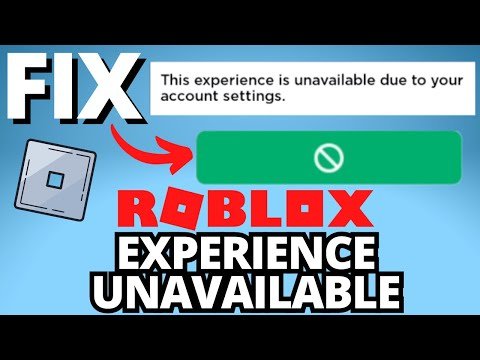
Fix Roblox "This Experience is Unavailable Due to Your Account Settings" Error
Final Thoughts
Ultimately, varied issues cause the inability to play Roblox games. Connection problems, outdated software, or even server issues can hinder your gameplay. Sometimes, firewall settings or browser extensions interfere, stopping you from joining games.
Therefore, carefully check your internet, update Roblox, and disable extensions. These simple steps often fix the frustrating “why cant i play games on roblox” problem. Troubleshooting each possibility can get you back into playing quickly.

