
Your games likely keep freezing due to insufficient system resources, outdated drivers, overheating hardware, or corrupted game files.
Frustration mounts when gameplay abruptly halts, doesn’t it? You’re in the middle of an intense battle or exploring a new world, and then suddenly, why do my games keep freezing? It’s a common issue, and understanding the culprits is the first step towards smoother gaming.
Several factors can cause these irritating freezes. From your computer’s hardware struggling to keep up, to software issues, identifying the specific problem can feel overwhelming. Don’t worry though; this article will point you in the right direction.

Why Do My Games Keep Freezing?
It’s super frustrating when you’re in the middle of an awesome game and suddenly, everything stops. The screen freezes, the sound glitches, and your character is just stuck there. Why does this happen? Well, there are many reasons why your games might freeze. Let’s explore these reasons together, so you can get back to gaming!
Your Computer’s Hardware Might Be Struggling
Think of your computer like a team of workers, and each worker has a specific job. When your game needs to do a lot of things at once, like showing lots of characters, special effects, and sounds, those workers have to work hard. If they aren’t strong enough or fast enough, things can slow down or even stop, causing a freeze. Here are some of the main hardware issues that cause game freezing:
Not Enough RAM (Memory)
RAM, or Random Access Memory, is like a short-term workspace for your computer. When you play a game, the computer loads parts of the game into RAM so it can quickly get to them. If you don’t have enough RAM, your computer has to keep swapping information between RAM and the slower storage drive, which takes time and can cause freezes.
- What to look for: Check your game’s minimum and recommended system requirements. If your computer has less RAM than the recommended amount, that could be the issue.
- Solution: Adding more RAM to your computer can often solve this problem.
Weak Graphics Card (GPU)
The graphics card, or GPU, is like the artist of your computer. It’s responsible for drawing all the pictures you see on the screen. If your GPU isn’t powerful enough for a game, or if it’s old, it’ll struggle. This can lead to low frame rates, choppy gameplay, and, of course, freezes.
- What to look for: Like RAM, compare your GPU to the game’s system requirements.
- Solution: You might need to upgrade to a more powerful graphics card. Also, make sure your graphics drivers are up to date.
Overheating
When your computer works hard, it gets hot. Think of it like running a race; you get hot when you run fast. If your computer gets too hot, it can slow down to cool itself, or even shut off to prevent damage. This is called thermal throttling, and it can cause games to freeze or crash.
- What to look for: If your computer feels very hot to the touch, especially after gaming, overheating might be the problem.
- Solution: Clean the dust out of your computer’s fans. Consider buying a laptop cooling pad or adding extra cooling to your desktop computer.
Old or Slow Hard Drive or SSD
Your hard drive or SSD is where your games are stored. If it’s old and slow, it can take a long time for the game to load information. This delay can cause freezing, especially during loading screens or when moving between different areas in the game. SSDs are faster than traditional hard drives, so upgrading to an SSD can improve loading times and reduce freezes.
- What to look for: Long loading times or slow performance in general.
- Solution: Consider upgrading to a faster SSD.
Software Problems Can Cause Freezing
Sometimes the problem isn’t with the hardware but with the software – the instructions that tell your computer what to do. Here are some common software issues that can lead to freezing games:
Outdated Graphics Drivers
Graphics drivers are like the translator for your graphics card. They allow your computer and your game to speak the same language. If your drivers are old, they may not understand the newest games, leading to performance problems and freezes.
- What to look for: Check the website of your graphics card’s manufacturer (like NVIDIA or AMD) to see if there are new drivers.
- Solution: Update your graphics drivers regularly to keep them working at their best.
Operating System Issues
Your computer’s operating system (like Windows or macOS) also needs to be up to date. Outdated operating systems might have bugs or might not work correctly with new games.
- What to look for: Check for updates in your operating system’s settings.
- Solution: Install any updates available for your operating system.
Conflicting Software
Sometimes, other programs running in the background can interfere with your games. This might be antivirus software, chat apps, or other utilities that use up your computer’s resources.
- What to look for: Close unnecessary programs before launching your game.
- Solution: Try running the game after closing as many other programs as possible. If the problem goes away, you’ll know that one of those other programs was the culprit.
Game Bugs
Sometimes, it’s not your computer; it’s the game itself! Games can have bugs or glitches that can cause them to freeze or crash. If many people are reporting the same issue online, the game itself could be the problem.
- What to look for: Check the game’s forums or community pages to see if others are experiencing the same issue.
- Solution: Check for game updates, patches, or hotfixes from the developer, which may fix the problem.
Corrupted Game Files
Sometimes, game files can become damaged. If a game file is corrupted, it can cause your game to freeze or crash. This can happen due to a bad download, computer issues, or even during an update.
- What to look for: Repeated freezes or crashes only in one specific game.
- Solution: Use your game platform’s tool to verify game files or try reinstalling the game completely.
Internet Connection Problems
For online games, a bad internet connection can also cause freezes. If your internet is slow or unstable, your game may pause or freeze while it waits for data to arrive.
- What to look for: Ping spikes or high latency during gameplay.
- Solution: Check your internet speed, make sure your Wi-Fi connection is stable, or switch to an ethernet cable. If the problem persists, contact your internet provider.
How to Troubleshoot Game Freezes
Okay, now that we know the common causes for game freezes, let’s talk about how you can try to fix them. Here’s a step-by-step approach to troubleshoot game freezing issues.
Step 1: Check Your System Requirements
Before you start troubleshooting further, make sure your computer meets the minimum and recommended requirements for the game. This is a very important first step. The requirements will often include the version of Windows, CPU (processor) RAM, GPU (graphics card), and hard drive/SSD space.
Step 2: Update Your Drivers
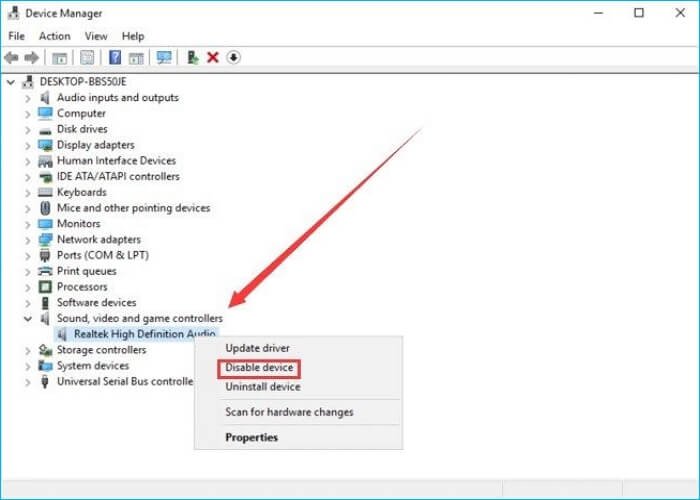
Outdated drivers can cause many problems. Visit the website of your graphics card manufacturer (NVIDIA, AMD, or Intel) and download the latest driver software. Also check for driver updates for any other critical hardware like your sound card or network adapter.
Step 3: Update Your Operating System
Make sure your operating system (like Windows or macOS) is updated with the latest patches. These updates often include performance fixes and security enhancements that can help prevent game freezing.
Step 4: Close Unnecessary Programs
Before starting your game, close any other programs that are running, especially resource-heavy applications like web browsers, media players, or chat programs. This helps to free up RAM and CPU resources.
Step 5: Check for Overheating
If your computer is hot after gaming, it could be overheating. Clean the vents and fan areas of dust with compressed air. You can also consider investing in cooling solutions like laptop cooling pads or extra fans. Use monitoring software to check your CPU and GPU temperatures. They should be within acceptable limits.
Step 6: Lower Your Graphics Settings
Many games have adjustable graphics settings. Try turning down the graphics detail, resolution, and other effects to reduce the load on your graphics card. This can significantly improve game performance. Experiment with different graphics settings until you find a balance between visuals and smoothness.
Step 7: Check Your Internet Connection
If you’re playing an online game, check that your internet connection is working correctly. Use an online speed test to make sure your speeds are good, and try restarting your router. If possible, switch from Wi-Fi to a wired connection to improve your internet stability.
Step 8: Check Game Files and Reinstall
Use the built-in tool in the game launcher (like Steam or Epic Games Store) to check for corrupted or missing game files. If there is a problem the game launcher will often offer to fix it. If the problem remains, try reinstalling the game. This can help replace corrupted files and restore the game to a good state.
Step 9: Test Your RAM
RAM problems can be hard to spot. There are RAM diagnostic tools available for Windows that you can use to run tests and confirm that there is no RAM fault, that could cause your games to freeze. If the test indicates a RAM problem you may have to replace the faulty RAM module/s
Step 10: Seek Professional Help
If all of the steps above fail to fix your game freezing, then you may have a more serious hardware problem that needs a professional diagnosis, such as a faulty component that needs replacing.
Freezing games can be incredibly frustrating, but hopefully, this guide has helped you to better understand the reasons why your games might freeze. By systematically working through the troubleshooting steps we have detailed, you can hopefully fix the problem and get back to enjoying your games.
PC Keeps Freezing In Game?! 😤 #pc #freezing #pcrepair #techvideo #gamingpc #pcgaming
Final Thoughts
So, if you still face stuttering gameplay, the problem likely stems from your system’s resource limitations. Updating drivers or lowering game settings are key troubleshooting steps. It is a must to investigate possible hardware problems.
Often, overheating components cause sudden freezes. A clogged fan or insufficient ventilation is a common culprit. The question “why do my games keep freezing?” frequently comes back to these thermal issues.

