
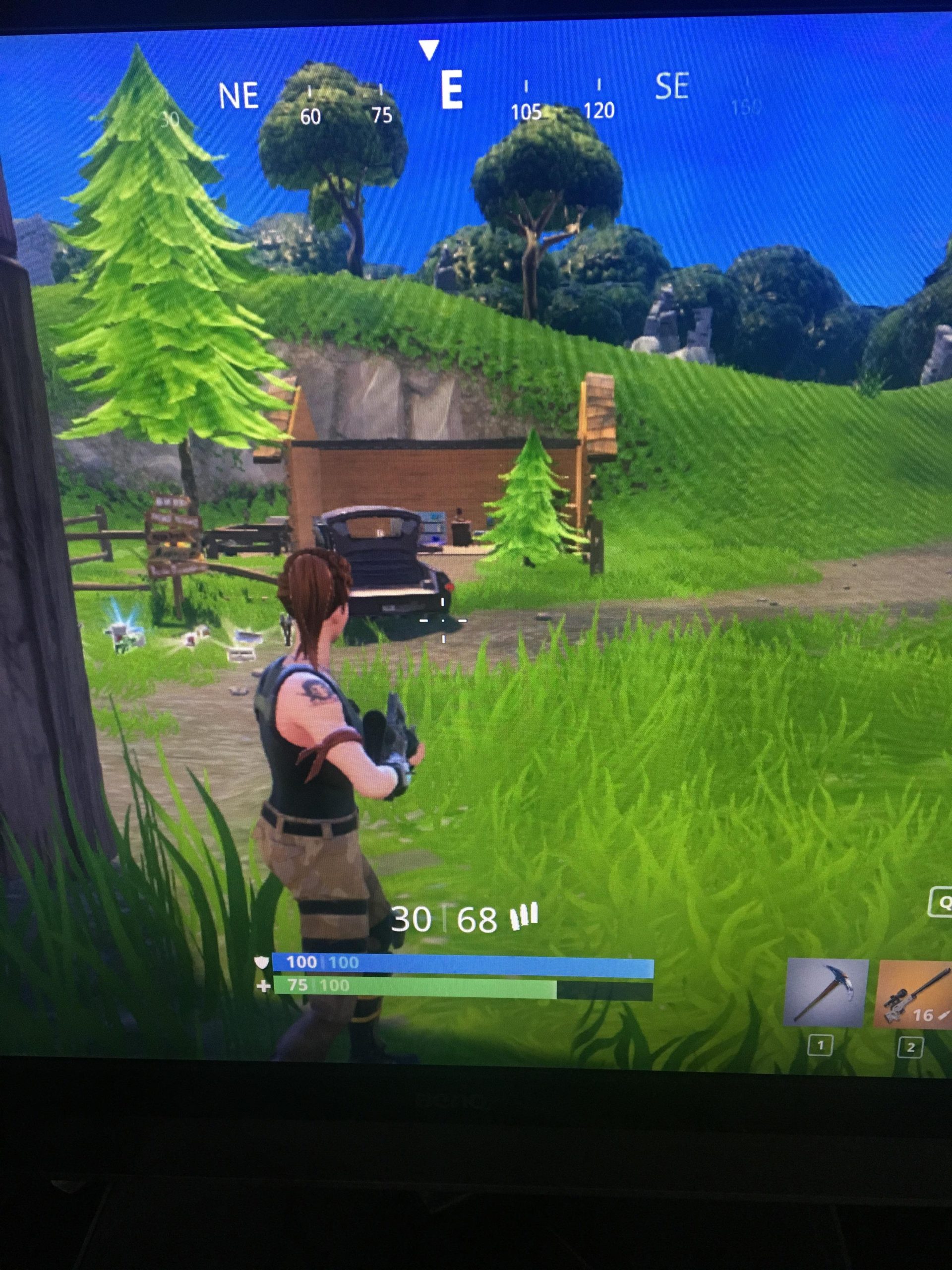
Your Fortnite game keeps freezing likely due to insufficient system resources, outdated drivers, or network issues.
Is your Fortnite match suddenly turning into a slideshow? It’s incredibly frustrating when your game freezes mid-battle, right? Many players face this issue, and you’re not alone if you’re wondering why does my fortnite game keep freezing.
Several factors can contribute to this problem. It can range from your computer struggling with the game’s demands to internet problems. We will explore common culprits and ways to address them.

Why Does My Fortnite Game Keep Freezing?
Okay, so your Fortnite game is freezing up, and it’s super annoying, right? You’re in the middle of an awesome build battle, or about to land that perfect headshot, and then… BAM! The game just stops, leaving you staring at a frozen screen. It’s frustrating, but don’t worry, you’re not alone. Lots of players deal with this, and there are actually many reasons why it happens. Let’s dive into the common causes and what you can do about them. We will explore everything from the power of your computer or console to your internet connection and even some in-game settings that could be the culprit.
Is Your Gaming Rig Up to the Task?
Sometimes, the reason your game is freezing is simply that your computer or console is struggling to keep up. Fortnite, like any modern game, has certain requirements. If your hardware isn’t meeting these requirements, it can cause the game to freeze. Let’s break down what to look at:
Computer Specifications
If you’re playing on a PC, it’s important to check if your computer meets at least the minimum requirements for Fortnite. Here’s what you should check:
Processor (CPU): This is like the brain of your computer. If it’s too old or slow, it can cause problems. For smooth gameplay, you need at least an Intel Core i5 or an AMD Ryzen 3 processor. Look at the specific generation if you need to go more deep into your processor.
Graphics Card (GPU): The GPU is responsible for displaying the game on your screen. If it’s not powerful enough, the game might freeze or become very choppy. You’ll want at least an NVIDIA GeForce GTX 960 or an AMD Radeon R7 260X, but ideally something more current like a GTX 1060 or better.
Memory (RAM): RAM is where your computer stores information that it’s actively using. For Fortnite, you need at least 8GB of RAM. If your computer doesn’t have enough, it can slow things down significantly and cause freezes. 16 GB is recommended for a more stable experience.
Operating System (OS): Make sure your Windows version is up to date. Ideally you would be using Windows 10 or 11 as Epic will eventually stop supporting older operating systems. Windows 7 and 8 are no longer supported by most games and software.
Storage Space: Ensure that you have adequate free space on your hard drive. Fortnite and its updates take up significant storage, and low disk space can cause freezing, and the game to slow down. SSD(Solid State Drive) is recommended for faster loading time, if your game is installed on HDD, try moving to SSD and see the performance difference.
If any of your computer’s specs are below these minimums, that’s likely a big reason for your freezing issues.
Console Considerations
If you’re playing on a console (like a PlayStation, Xbox, or Nintendo Switch), the hardware is generally not the problem. However, there are still some things to consider:
Age of Console: Older consoles might struggle to run the latest updates of Fortnite.
Overheating: Consoles can overheat if they don’t have enough ventilation. Make sure your console is not in a confined space and that the vents are not blocked.
Storage Space: Like on PCs, running out of storage space can cause issues on consoles as well.
If your console is old, or if it’s overheating, it might be causing those annoying freezes. Also keep in mind that even if your console is new, it can still face some issues, so keep it properly ventilated.
Internet Woes: Is Your Connection the Problem?
Another very common reason for freezing is your internet connection. Fortnite is an online game, which means it needs a stable internet connection to work well. If your internet is shaky, it can cause your game to freeze. Lets investigate what to look for in your internet connection.
Slow Internet Speeds
If your internet speed is too slow, the game might struggle to keep up with the action. Here are some speed benchmarks to keep in mind:
Download Speed: This is how fast you can receive information from the internet. For a smooth experience you should have minimum download speeds of 10-15Mbps.
Upload Speed: This is how fast you can send information to the internet. A minimum upload speed of 1-3 Mbps should be enough, but faster is always better.
Latency (Ping): This is the delay between when you perform an action and when the game registers it. Higher ping means more lag. Ideally, your ping should be below 50ms.
You can run an internet speed test online to check your current speeds. If your speeds are below the requirements, that may be a cause of your freezes.
Unstable Connection
Even if your internet is fast, an unstable connection can cause freezing. This means your internet signal goes up and down, rather than staying steady. These are the things you should watch out for:
Wi-Fi Signal: Wi-Fi is often less stable than a wired connection. Try moving closer to your router, or consider using an ethernet cable for a more stable connection.
Interference: Electronic devices and even walls can interfere with your Wi-Fi signal. Try to avoid any devices that may interfere. Also keep your router in an open space.
Other Devices Using the Internet: If lots of people in your house are using the internet at the same time, it can slow things down for everyone. Try playing when fewer people are using the network.
Router Issues: Sometimes, the problem lies with your router itself. Try restarting it. If the issue continues, you may want to contact your internet service provider.
ISP Outages: Sometimes, there is a problem on your Internet service provider’s side and there is nothing you can do, except waiting for it to get fixed. You can check your ISP’s website if there are any known outages.
In-Game Settings: Are They the Culprit?
Sometimes the reason for your game freezing is not your computer or internet connection, it can be because of your in-game settings. Some settings can be too demanding for your system. Let’s look at the settings:
Graphics Settings
The graphic settings are especially important when it comes to stability. If your graphics settings are set too high, it can cause freezing. These are the settings to keep an eye on:
Resolution: High resolution looks better, but it takes more power to display. Try lowering the resolution to see if it helps with freezing.
Visual Effects: High visual effects can put a strain on your system. Lower the quality of effects like shadows, textures, and post-processing.
Draw Distance: This setting determines how far away objects are rendered. Lowering the draw distance can help with performance.
Frame Rate Limit: Frame rate limit is very important for game stability. If your game is trying to push too many frames it can cause a lot of stress on your system, and ultimately end up freezing the game. Try limiting the framerate to a stable number.
Experiment with these settings to find a balance between good visuals and smooth gameplay. You don’t need the most fancy settings to enjoy the game, smooth gameplay is more important.
Other Settings to Consider
Apart from graphics, other settings can also impact performance:
Matchmaking Region: Connecting to a server that’s far away from you can cause higher ping and instability. Make sure you’re in the correct region.
Background Applications: Too many background applications can take up your system’s resources. Close unnecessary applications to free up system resources. Check your Task Manager (Control+Shift+Esc) and close applications that you are not using.
Driver and Software Updates: Keeping Everything Current
Outdated drivers and software can also be a reason for freezes. Make sure everything is updated to its latest version.
Graphics Card Drivers
Graphics card drivers are the software that allows your computer to communicate with your GPU. Outdated or faulty drivers can lead to freezing.
How to Update: Go to the website of your GPU manufacturer (NVIDIA or AMD) and download the latest drivers. Install the latest driver, and restart your computer after the installation.
Clean Install: Sometimes, a simple update isn’t enough. A clean installation of drivers can resolve issues.
Operating System Updates
Make sure your Windows or console operating system is up to date. These updates often include bug fixes and performance improvements that can help with gaming.
How to Update Windows: Go to “Settings,” then “Update & Security,” and click “Check for Updates.” Install all updates, and restart your computer after the installation.
Console Updates: Consoles usually update automatically, but you can always check for updates in settings.
Game Updates
Keep your game updated, as well. Fortnite updates often include performance fixes that might resolve the freezing issues.
How to Update: Fortnite updates are usually automatic, but you can check for updates in the Epic Games Launcher or your console’s game library.
Hardware Issues: Checking the Physical Components
Sometimes, the freezing can be a sign of a problem with your hardware itself. If your hardware has issues, then no matter what you do, it will still keep freezing. Let’s look at some possible issues:
Overheating
Overheating can make your game freeze. Make sure your computer or console has good ventilation.
Computer Fans: Clean the fans in your computer to ensure they are working properly.
Console Placement: Don’t put your console in an enclosed space.
Failing Hardware
Sometimes, your hardware might be starting to fail.
RAM Issues: You can test your RAM with a tool like Windows Memory Diagnostic.
Hard Drive Issues: Check your hard drive with a disk check tool.
GPU Issues: If all else fails, your GPU could be the culprit and may need to be replaced.
If you suspect your hardware might be failing, consider consulting a professional to have it checked.
Fortnite Server Problems: Is It Them, Not You?
Sometimes, the freezing might not be your fault. Fortnite servers can sometimes have problems that cause the game to freeze for everyone.
Check Server Status
Before troubleshooting anything on your end, check if there are any known issues with the Fortnite servers.
Epic Games Status Page: Epic Games has a website that shows the status of their servers. Check to see if there are any issues reported.
Social Media: Check the official Fortnite social media for any announcements about server problems.
If there is a server issue, you’ll have to wait for Epic to fix the problem.
Troubleshooting Steps: Putting It All Together
Okay, now let’s go through some troubleshooting steps based on everything that we discussed. Here is a simple procedure you can follow:
- Restart your Device: Start with the most basic step. Restart your computer or console, this can fix many temporary issues.
- Check Minimum Requirements: Make sure your system meets the minimum specifications for the game.
- Check Your Internet Connection: Run an internet speed test to check your speeds and stability, check for possible interference with your wifi router.
- Adjust in-game graphics Settings: Lower the graphics settings in the game to reduce the load on your hardware.
- Update Drivers and Software: Make sure your graphics drivers, operating system and game are up to date.
- Close Background Applications: Close any programs that are running in the background to free up resources.
- Monitor Temperature: Check that your system is not overheating and is getting good airflow.
- Check for Server Issues: Verify that Epic Games servers are functioning properly.
- Reinstall the Game: If all else fails, try reinstalling the game. This can fix corrupted files that are causing the freezes.
- Contact Support: If you have tried all the steps and it is still freezing, contact Epic Games support for further assistance.
By going through these steps, you’ll be on your way to finding the reason for the game freezing issue, and hopefully fix it.
Dealing with game freezes is never fun, but with some investigation and a few tweaks, you can usually get back to your awesome Fortnite games. By understanding why your game might freeze, you can take the right steps to make it run smoother. Remember to check your system’s specifications, your internet connection, in-game settings, drivers, and even your hardware, and don’t forget that the problem could be on Epic Games side. A stable game makes all the difference, and now you know how to work towards that. If your issue is persistent, feel free to contact the Epic Games support and they can guide you to fix your specific issue. Good luck with getting those Victory Royales without freezing!.
How To Fix Frozen Screen Playing Fortnite PC
Final Thoughts
Fortnite freezes often stem from outdated drivers, insufficient hardware, or unstable internet. Check your graphics drivers for updates and ensure your system meets the game’s minimum specs. A poor network connection can definitely cause these interruptions.
Overheating hardware may also trigger freezing, so clean your PC’s fans and ensure proper ventilation. Background applications could be consuming valuable resources, contributing to the problem. Why does my Fortnite game keep freezing? It’s often due to a combination of these factors, making troubleshooting essential.

