
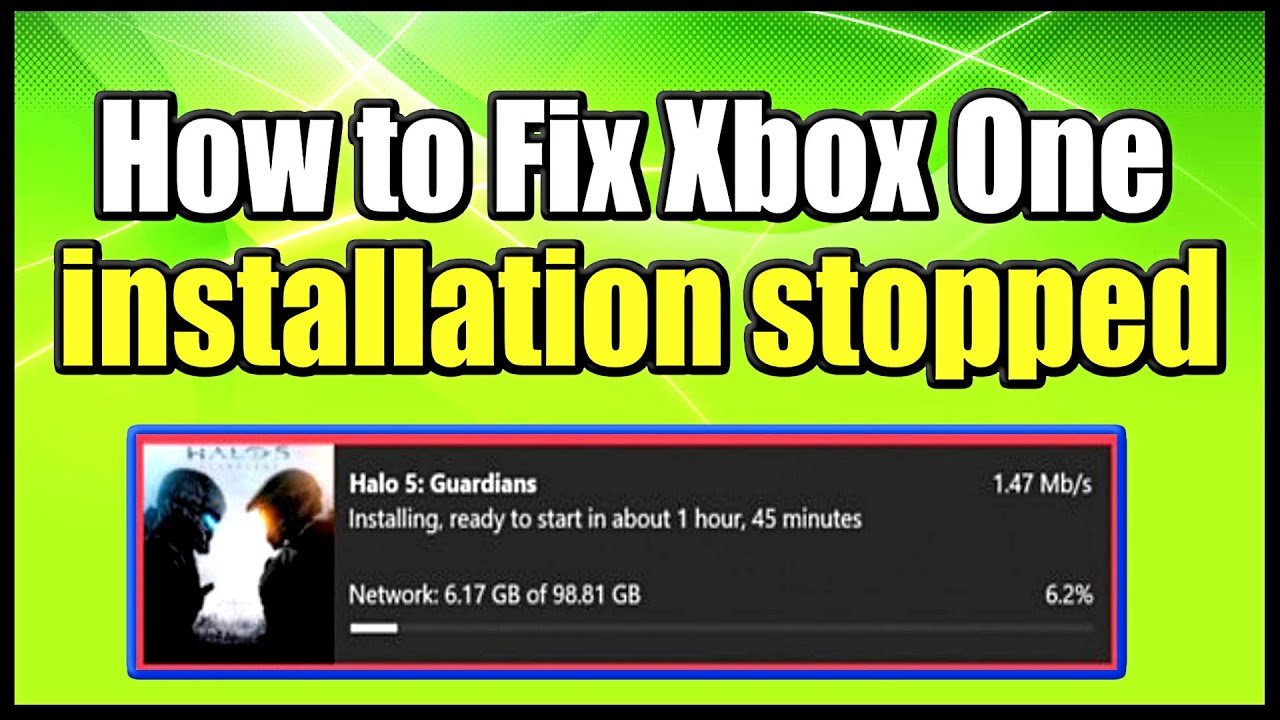
Your Xbox One game installation might be stopping due to a poor internet connection, insufficient storage space, or issues with the game disc or Xbox system software.
Frustrating, isn’t it? You’re ready to dive into a new game, but the installation keeps halting. This article tackles the common question, ‘why does my game installation keep stopping xbox one’. We’ll explore the potential culprits, from simple fixes to more complex issues.
Let’s figure out the reasons your Xbox One is giving you trouble and get you back to gaming in no time. This guide aims to provide easy solutions you can try at home.

Why Does My Game Installation Keep Stopping on Xbox One?
It’s super annoying, right? You’re all excited to play a new game on your Xbox One, and then…bam! The installation just stops. It can feel like your Xbox is playing a cruel joke on you. You are not alone, this is a common problem many Xbox One owners face. Let’s explore the reasons behind this issue and what you can do to fix it.
Common Culprits Behind Installation Stoppages
There are several reasons why your game installation might be getting interrupted. It could be something simple like a scratched disc or a more complex issue with your console’s storage. Let’s dive into the most likely suspects.
The Game Disc Is the Problem
If you are installing a game from a physical disc, the disc itself is often the first place to check. A damaged disc can cause your Xbox to have trouble reading the data it needs for the installation. Here’s what to look for:
- Scratches: Even small scratches can make it difficult for your Xbox to read the disc. Hold the disc up to the light and look for any visible marks.
- Smudges or Dirt: Fingerprints, dust, or other dirt on the disc can also cause read errors. Try cleaning the disc carefully using a soft, lint-free cloth. Wipe from the center outward in a straight line. Don’t wipe in circles.
- Manufacturing Defects: Sometimes, there are problems with how the disc was made. Although rare, a faulty disc is possible, and you might need to get a replacement.
If you think the problem is with the game disc, try these steps:
- Clean the Disc: Carefully clean the disc as explained above.
- Try Another Disc: If you have another game disc, try installing that one. If it installs fine, you know the problem lies with the original disc.
- Check in Another Xbox: If possible, try installing the disc on a friend’s Xbox One. If it still doesn’t work, it definitely indicates the problem is with the disc.
Insufficient Storage Space
Another common reason for stopped installations is not having enough space on your Xbox One’s hard drive. Games these days are very big, they take up a lot of storage. If you don’t have enough free space, the installation will not complete.
- Check your storage: Go to Settings > System > Storage on your Xbox One to see how much space you have left.
- Free up space: Delete any old games, apps, or captured videos that you no longer need.
Here’s how to check and manage your Xbox One storage:
- Press the Xbox button on your controller.
- Navigate to the Settings option, usually indicated by a gear icon.
- Select System.
- Select Storage.
- Here you’ll see a breakdown of how much space is used and available.
- To delete something, choose the storage device then select what you wish to delete and press the Menu button to see deletion options.
It’s also good to know that even if you have some space, if it’s very close to the required amount, the installation might fail. It’s better to have a little extra space to avoid any problems.
Internet Connection Problems
Even for physical disc installations, a stable internet connection is essential. Your Xbox One sometimes needs to download updates or extra files during the installation process. If your internet connection is slow or unreliable, the installation can stop or stall. Additionally, if you are installing digital games, you need a good internet connection.
- Check your internet speed: Use an online speed test to make sure your internet is working correctly. Make sure you have a good enough download and upload speed.
- Restart your modem and router: Sometimes, just restarting your internet equipment can fix the issue.
- Try a wired connection: If you are using Wi-Fi, try connecting your Xbox One directly to your router with an ethernet cable for a more stable connection.
Here are a few internet troubleshooting steps you can try:
- Restart Your Router/Modem: Unplug your modem and router from their power outlets. Wait for 30 seconds, then plug them back in. Wait for them to power back up fully before testing your connection.
- Move Closer to the Router: If you’re using Wi-Fi, try moving your Xbox closer to the router to see if it improves the connection. Walls and distance can weaken the signal.
- Forget and Reconnect to Wi-Fi: On your Xbox, go to Settings > Network > Network settings > Manage wireless networks. Find your network, choose “Forget,” and then try connecting to it again. This can help if there’s a problem with your saved Wi-Fi information.
- Check for Xbox Network Outages: Sometimes, the problem isn’t your internet but rather an issue with the Xbox network itself. You can check the Xbox status page online or through the Xbox app on your phone or computer. If there’s an outage, you’ll need to wait until it’s resolved.
Xbox One System Software Issues
Sometimes, the issue isn’t with the game or your internet, but with the Xbox One’s own software. If your console’s software is outdated, it can lead to errors during game installation. It is good to keep your console updated all the time.
- Check for updates: Go to Settings > System > Updates to see if any updates are available. Download and install any updates.
- Restart your Xbox: Sometimes, just restarting your Xbox can fix minor software glitches. Press and hold the power button on your Xbox for about 10 seconds until it shuts down completely. Then, press the power button again to turn it back on.
Here are the steps to update your console:
- Press the Xbox button to open the guide.
- Go to Profile & system, then select Settings.
- Select System.
- Choose Updates.
- If an update is available, select “Update Console”.
Sometimes the update may fail or not be installing, in this case, the console will not work properly. This might cause problems with your game install as well. if this is the case, try offline update.
Problems With External Storage
If you’re using an external hard drive to store your games, it might be causing installation issues. The external drive could have connection problems, be faulty, or have the wrong format.
- Check the connections: Make sure the external hard drive is properly connected to your Xbox One. Unplug it and plug it back in.
- Try a different USB port: The USB port might be faulty, so try a different port on your console.
- Test with Another Drive: Try installing to a different external drive, or to the Xbox’s internal drive if it has space.
- Format the Drive: As a last resort, you might have to format the drive but note that this will delete everything on the drive.
Keep these things in mind while using external storage:
- Make sure the drive is using USB 3.0 or higher to achieve good speeds.
- Do not unplug the external storage while you are in the middle of a game install.
- Make sure your drive is compatible with Xbox.
Overheating Problems
If your Xbox One is getting too hot, it can cause installation problems, along with other performance issues. If your Xbox has to work hard to complete the install of a big game, it may overheat. Good ventilation is key for a smooth operation.
- Check Ventilation: Make sure your Xbox has enough space around it for air to circulate. Don’t put it in a closed cabinet.
- Clean the Vents: Dust can build up in the vents, blocking airflow. Use a can of compressed air to clean them.
- Turn it Off: Let your Xbox rest for a while and allow it to cool. Don’t just turn it off, unplug it so it can cool down properly.
Here are some tips to help prevent overheating:
- Avoid direct sunlight on the console.
- Don’t place items on top of the Xbox One.
- Try to keep the room your Xbox is in cool.
Xbox Live Service Issues
Sometimes, problems with Xbox Live servers themselves can cause install failures, especially with digital games. This doesn’t happen too often, but you can be impacted when the servers are down.
- Check Xbox Live Status: You can check the Xbox status page on the Xbox website or app to see if there are any reported issues.
- Wait and Try Again: If there is a server issue, you just need to be patient and try to install your game later.
The Xbox service status can be checked on their official website or from their app.
Damaged Console Hardware
In rare cases, a hardware issue within your Xbox One itself might be the reason for the stopped installations. If nothing else works, this may be the case. This is the least desirable outcome and may require a repair.
- Contact Xbox Support: If you’ve tried all of the above steps and still have problems, it might be time to contact Xbox support. They can help you diagnose any hardware problems.
If you suspect a hardware problem you should go through the basic troubleshooting steps first such as:
- Power cycle your Xbox by unplugging it for 30 seconds.
- Trying the install with another game or using external storage.
If the issue persists after all of that, then contacting the support is your best course of action.
Steps to Take When Your Installation Stops
Now that we’ve gone over the most common reasons for interrupted installations, let’s talk about what you can do when it happens. Here’s a step-by-step approach:
Step 1: Restart Your Xbox One
The first and easiest step is to restart your Xbox One. This can sometimes fix minor software problems that might be interfering with the install.
- Press the Xbox button on your controller to open the guide.
- Select Profile & system.
- Go to Settings.
- Select Power.
- Choose Restart Console.
If you still experience the issue, try a hard restart. Press and hold the power button on the console for about 10 seconds until it completely shuts down. Then, power it back on.
Step 2: Check for Game Updates
Sometimes, the installation stops because your game is missing an update. Usually, you will be prompted to download it but not always.
- Go to My games & apps.
- Select See all.
- Select Updates.
- Download any updates for the game.
Step 3: Clear the Local Saved Games
Corrupted saved games can also cause install errors. Clearing your local saved games might help.
- Press the Xbox button to open the guide.
- Select Settings.
- Select System.
- Choose Storage.
- Select Clear local saved games.
- Follow the prompts, the console will restart.
Step 4: Try Installing in Offline Mode
Sometimes your internet connection is interfering with your install. Trying offline mode can help.
- Go to Settings.
- Go to Network Settings.
- Select Go Offline.
- Try installing your game.
After the install you can turn on the internet again.
Step 5: Check Your Disc for Damage
As discussed earlier, a damaged or dirty disc can cause a lot of issues. Clean your disc and inspect it thoroughly.
Step 6: Make Sure You Have Enough Storage Space
Free up some space on your Xbox hard drive and try the installation again.
Step 7: Contact Xbox Support if Nothing Works
If you have tried all the above steps and the installation still stops, it is best to contact the Xbox support for further assistance. There may be a hidden problem that you cannot fix by yourself.
Dealing with a game installation that keeps stopping can be frustrating, but by working through the steps above you should be able to find a solution and finally play your new game. Remember to be patient and methodical while trying out the different solutions. Most of the time, the problem is something simple that can be fixed at home. However, if your console has a major hardware issue, seeking professional assistance is always the best course of action.
How to Fix Xbox One installation stopped for Digital or Disc Installs (Easy Method)
Final Thoughts
In summary, many factors can cause game installation to halt. Network issues, insufficient storage, or corrupted game data are common culprits. Problems with your Xbox One console itself, such as a full cache, can also contribute.
Addressing these aspects will often fix the problem. If you still face issues with ‘why does my game installation keep stopping xbox one’, you might need to consider a factory reset as a last resort. Make sure to back up your data before doing so.

