
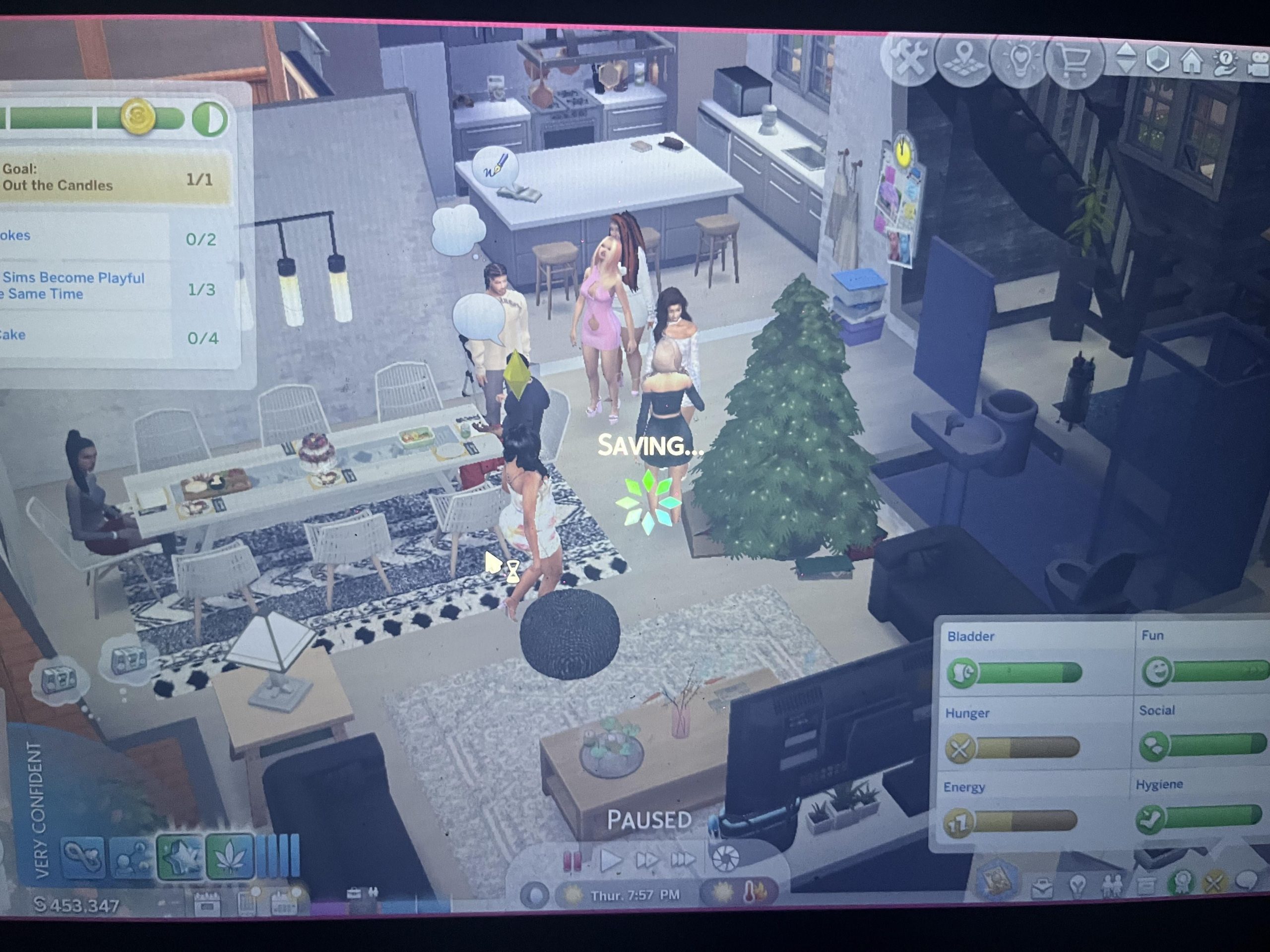
Your game likely keeps freezing due to insufficient system resources like RAM or graphics processing power, outdated drivers, or overheating issues.
Is your gaming experience constantly interrupted by frustrating freezes? It’s incredibly annoying when the action suddenly stops, leaving you staring at a frozen screen. The question, “why does my game keep freezing?” is one many gamers grapple with. This often stems from a variety of technical factors.
These factors can include hardware limitations, software conflicts, or even environmental issues like poor ventilation causing your system to overheat. Identifying the root cause is the first step to getting back into the game smoothly.

Why Does My Game Keep Freezing?
Okay, let’s talk about something super annoying: your game freezing. You’re in the middle of a great level, about to win, and then BAM! The screen turns into a still picture, your character is stuck, and you’re left staring at a frozen moment in time. It’s like the game decided to take a nap right when you were having fun. So, why does this happen? There are many reasons why your game might freeze, and we’re going to go through them all, step by step. It’s like being a detective, looking for clues to solve the mystery of the frozen game. Let’s get started!
Your Computer is Getting Too Hot
Imagine running a race without water or rest. That’s kind of what it’s like for your computer when it gets too hot. The parts inside your computer work really hard when you play games. All that work makes heat. If the heat can’t escape, your computer can get too hot, and this can cause your game to freeze. Think of it like a traffic jam – when too many cars are on the road, things get stuck and slow down.
Checking Your Computer’s Temperature
How can you tell if your computer is overheating? Sometimes, the fans get really loud, trying to blow the hot air out. Other times, you might feel the computer is hot to the touch. You can use special software to check the exact temperature inside your computer. If the temperature gets too high, it’s time to cool things down. Don’t worry; we’ll talk about how to do that soon.
Cooling Down Your Computer
There are different ways to keep your computer from getting too hot:
- Give it Space: Make sure your computer has space around it for air to flow. Don’t put it in a small, enclosed area.
- Clean the Fans: Dust can block the fans and prevent them from working correctly. Use a can of compressed air to clean out the dust.
- Use a Cooling Pad: If you have a laptop, a cooling pad can help get rid of heat.
- Take a Break: Don’t play games for hours without stopping. Give your computer a chance to rest and cool down.
By keeping your computer cool, you’re helping it work its best, so your games run smoothly.
Not Enough Memory (RAM)
Memory, or RAM, is like your computer’s short-term memory. It’s where the computer keeps all the information it needs right now. When you play a game, your computer uses RAM to keep track of where your character is, how the level looks, and everything else that is going on in the game. If you don’t have enough RAM, the game doesn’t have enough space to store all this information. This causes the game to slow down and sometimes freeze, it’s like trying to cram all of your toys in a small box, there is just no enough space.
How Much RAM Do You Need?
The amount of RAM your computer needs depends on the game you play. Some games use a lot of memory, and others use a little less. Here is a general idea:
- Simple Games: Simple games might only need 4GB of RAM.
- Normal Games: Most games today need at least 8 GB of RAM to play properly.
- Big Games: Big, new games can need 16GB or even 32GB of RAM!
You can check how much RAM your computer has in the system settings. If you need more, you might have to add more RAM to your computer. Don’t worry, it’s like adding more pages to your notebook so you can write down more ideas!
Old or Outdated Graphics Drivers
Think of graphics drivers as the translator between your game and your graphics card. Your graphics card is the part of your computer that makes the pictures you see on the screen. If the drivers are old or have issues, the game might not understand how to show the graphics correctly and this can cause your game to freeze, it’s like trying to speak a different language than your friend – the words don’t match up!
Keeping Your Graphics Drivers Updated
You need to make sure you have the newest drivers so your games can run well. Here is how to check for updates:
- Find Your Graphics Card: Check your computer’s settings to find out what type of graphics card you have.
- Go to the Website: Visit the website for your graphics card company. These are usually NVIDIA, AMD, or Intel.
- Look for Updates: Find the driver download page and check for new driver updates.
- Download and Install: Download the new driver and follow the instructions to install it.
Keeping your drivers updated is like giving your translator a new dictionary to make sure that the graphics and game communicate properly and your game won’t have any problems.
Your Hard Drive is Too Full
Your hard drive is like your computer’s storage room, where it keeps all your files, games, and other stuff. If your hard drive is almost full, your computer has a hard time finding space for the game. The game can slow down or freeze because it doesn’t have enough space to work, its like trying to play a game of soccer in a small room.
Checking Your Hard Drive Space
It’s important to keep your hard drive from getting too full. Here is how to check:
- Check in Computer Settings: Look at the computer settings to see how much space you have left on your hard drive.
- Delete Unused Files: Get rid of any old files, pictures, or games you don’t use.
- Move Files to External Drive: You can move your big files to a flash drive or external hard drive.
By keeping your hard drive clean and having enough space, your computer has room to work and makes your game run as it should.
Internet Problems
Many games need the internet to work properly, particularly if you are playing online games, the internet helps to connect with other players and keep the game running smoothly. If your internet is slow or unstable, the game can freeze or disconnect, it’s like your game is trying to talk with other players, but their voice is breaking up!.
Checking Your Internet Connection
Here’s what you can do to check your internet connection:
- Check Your Router: Make sure your router is plugged in and working correctly.
- Restart the Router: Turn your router off, wait a few seconds, and then turn it back on.
- Check Your Internet Speed: You can test your internet speed using online speed tests.
- Connect with Cable: If you can, use an ethernet cable to connect your computer to the router instead of Wi-Fi.
Having a strong and stable internet connection is important for a smooth gaming experience.
Game Settings Are Too High
Your games usually have settings that can change how good the pictures look. If your game settings are too high, they might be too much for your computer to handle. This can cause your game to freeze or slow down, it’s like telling your computer to make all the graphics look amazing and it will take all of the energy to make it.
Lowering Game Settings
If you have problems with your game freezing, you should try lowering the game settings:
- Open Game Settings: Go to the game settings menu.
- Lower Graphics Quality: Try setting the graphics quality to a lower setting.
- Turn Off Unnecessary Features: Turn off extra graphics options you don’t need.
- Check Each Option Separately: See which setting is causing the freezing if you don’t know which one to turn off.
Lowering your game settings can make your game run much smoother. Your game might not look as fancy, but it will run without problems.
Old or Corrupted Game Files
Sometimes, the files that make up your game can get old or messed up. These old or corrupt game files can create problems, including freezing, it’s like a puzzle with some missing or broken pieces – the picture doesn’t look right!.
Fixing Game Files
Here are the ways to fix old or corrupted game files:
- Check for Updates: See if there are any updates for your game. Updates usually fix these kinds of problems.
- Verify Game Files: Many game platforms let you check if the game files are working correctly.
- Reinstall the Game: If everything else fails, try deleting the game and installing it again.
Making sure your game files are in good condition can help your game run smoothly.
Software Conflicts
Sometimes, other software or programs running on your computer can cause conflicts with your game. These software conflicts can slow down your game or cause it to freeze, it’s like two friends trying to talk at the same time – no one can hear what anyone is saying clearly!.
Closing Unnecessary Programs
Closing extra programs can help you figure out what is causing problems:
- Close Background Programs: Close the programs you are not using.
- Check your startup Programs: Check the program that start automatically when you turn on your computer and disable them if they are causing problems.
- Antivirus software: Sometimes antivirus program can cause problem with the games, try to disable antivirus for a while to check if it is causing problems.
Closing extra programs before you start your game can make sure that there is nothing to cause any software conflict.
Hardware Problems
Sometimes, the problem might be with the parts inside your computer. If one part is not working properly, it can cause your game to freeze. This means one of your computer’s parts isn’t working as well as it should. If a part is broken or old, it can create problems with the game and cause freezes, it’s like a car with a broken tire – it can’t move correctly!
Checking for Hardware Issues
Hardware issues can be tricky to find, but here is what you can do:
- Check Connections: Make sure all cables are correctly connected inside your computer, if you are comfortable doing that.
- Check the Hard Drive: Check if the hard drive is working correctly, if the hard drive has problem, it can create problem when you are playing games.
- Check Graphics Card: See if the graphics card is properly installed and working.
- Get Professional Help: If you can’t find the problem, bring your computer to a professional for help.
Fixing hardware issues can take some time, but it will help your game to work properly.
The Game Itself is Buggy
Sometimes, the problem isn’t your computer at all—it’s the game itself! If there are problems in the game’s program, the game can freeze or have other issues. This is more likely with new games that have just come out. It’s like a new toy with a few parts that don’t work perfectly yet.
Ways to Solve Game Issues
If the game has bugs, there is nothing much you can do about it other than:
- Check for Updates: See if there are any updates for the game, usually the update will contain bug fixes.
- Report the Problem: If you find a bug, you can report the problem to the game developers, so they can fix it.
- Wait for Fix: Be patient, game developers usually work hard to fix any bugs in the game.
Sometimes, all we need is to wait for the game developers to fix the problems, and your game will start working fine.
So, there you have it. There are many reasons why your game might freeze. Remember, if your game is freezing, try each of the things we talked about. You are like a detective trying to solve the mystery of the frozen game. Be patient and take your time. And soon enough, you will be able to play games without any problems!
PC Keeps Freezing In Game?! 😤 #pc #freezing #pcrepair #techvideo #gamingpc #pcgaming
Final Thoughts
In summary, numerous factors cause game freezes, from outdated drivers and hardware limitations to background processes and corrupted files. Addressing these issues systematically often resolves the problem. Poor cooling can also lead to unexpected halts during gameplay.
Therefore, troubleshooting becomes essential. Checking your system’s specifications against the game requirements is crucial. If you’re wondering, ‘why does my game keep freezing,’ this systematic approach is the best way to find the source.

