
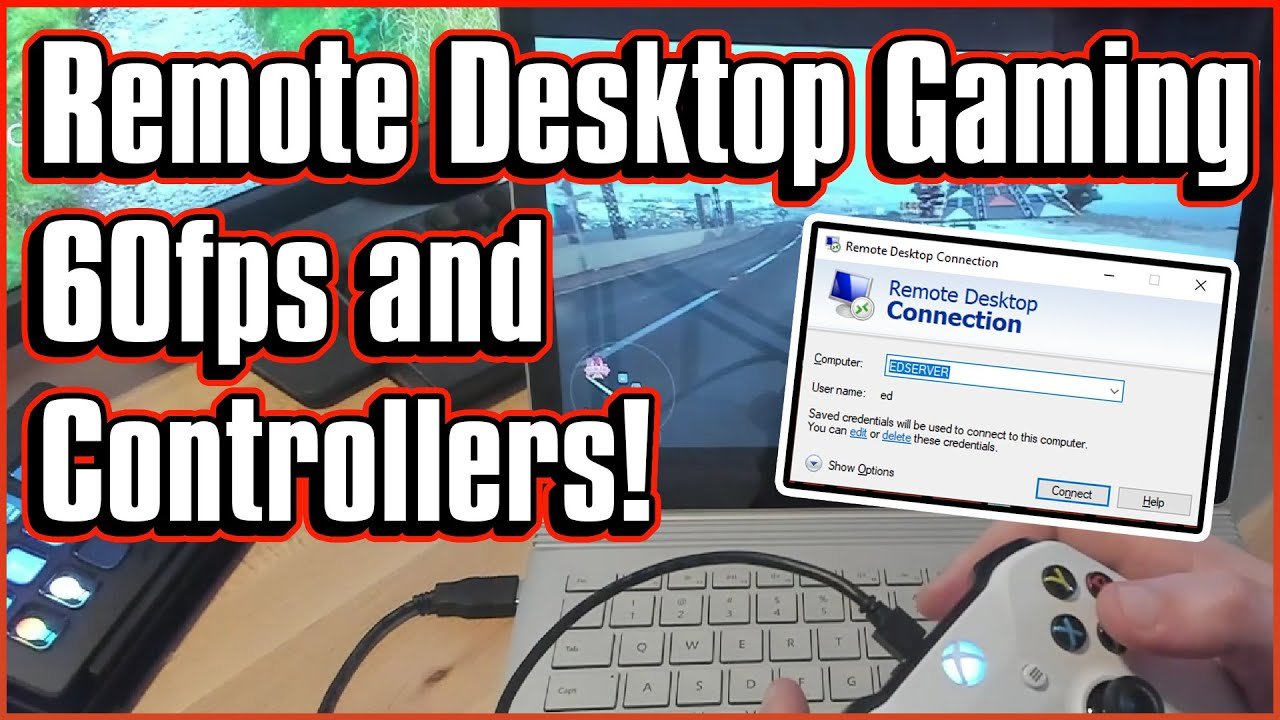
Yes, you can game through remote desktop, but performance depends heavily on your network connection and the remote computer’s capabilities.
Ever wondered if you could ditch your gaming rig and play demanding titles from anywhere? The question, “can you game through remote desktop,” pops up for many gamers. It’s a tempting idea to access powerful hardware remotely.
Imagine playing your favorite high-end games on a basic laptop. Well, it’s certainly a possibility with remote desktop applications. However, things like latency and graphical fidelity require careful consideration before you jump in.

Can You Game Through Remote Desktop?
Okay, let’s dive into the big question: Can you really play games using a remote desktop? The simple answer is: yes, you can! But, like most things, it’s not quite that simple. There are some things you need to know to make sure your gaming experience is actually fun and not a frustrating mess. Think of it like trying to play catch with a friend across a big field. You need a good connection, a clear path, and everyone has to be ready. Remote desktop gaming has similar requirements.
Understanding Remote Desktop Basics
Before we jump into gaming, let’s understand what remote desktop actually means. It’s like looking at your computer from another place. You use a program that shows you the screen of your computer on another device, like a different computer, a tablet, or even your phone. You use your keyboard and mouse (or your finger on a screen) as if you were sitting right in front of your computer, even if you’re miles away. Remote desktop software takes your input from the remote device and sends them to your computer, then it sends a video stream of the game back to the remote device. The challenge lies in doing all of this smoothly, quickly, and reliably.
How Remote Desktop Works
Here’s a simplified explanation of how it works:
- The Host Computer: This is the computer that is actually running the game. It’s the powerhouse doing all the heavy lifting. It has all the processing power, the graphics card, and everything else needed for gaming.
- The Client Computer (or Device): This is the device you are using to view and control the game remotely. It could be a laptop, tablet, another desktop computer, or even a smartphone. It’s receiving the game data (video and audio) from the host and sending your inputs back.
- The Connection: This is the pathway for all the information to travel. The better the pathway (your internet), the better the gaming experience will be. It’s usually your internet network (Wi-Fi or Ethernet) at both ends.
- Remote Desktop Software: This is the program that helps connect the two devices, stream the video and audio, and sends control data back and forth. Popular examples of remote desktop software include TeamViewer, Microsoft Remote Desktop, Chrome Remote Desktop, and Parsec.
The Good, the Bad, and the Latency
Now, let’s get to the heart of the matter. While remote gaming is possible, it’s not without its issues.
The Perks of Remote Gaming
- Access Your Powerful PC Anywhere: Have a really good gaming computer at home? You can use it to play demanding games even on your old laptop when you are away from home or even on holiday.
- Play Games on Lower-End Devices: You might not need an expensive gaming setup to play the latest games. Your weak laptop can act as a screen for powerful pc.
- Flexible Gaming Location: No need to sit in the same spot all the time. You can play games in different rooms or locations (if the connection supports that), even outside the home.
- Play Games Not Supported on the Client: Maybe a game only works on Windows, but you want to play it on your Mac or tablet. Remote desktop can make that happen.
The Challenges of Remote Gaming
Here’s where it can get a bit tricky. The most common issue is something we call “latency.”
- Latency (Lag): Latency is the time it takes for your actions (like pressing a button) to travel to the host computer and for the result to come back to your device. High latency feels like your game is running slowly, with a delay in every action. It’s like pressing the jump button in a game and your character jumps a few seconds later – not a fun way to play!
- Internet Connection: A stable and fast internet connection is absolutely crucial. If your internet is slow or unreliable, your game will likely lag, freeze, or even disconnect. Both your host computer and client computer must have good internet.
- Bandwidth Requirements: Streaming video, especially gaming video which has lots of movement, takes up a lot of bandwidth. If your internet doesn’t have enough bandwidth, you’ll experience lag and stuttering.
- Software Compatibility: Not all remote desktop programs are created equal, and some perform better for gaming than others. You need to choose software that is designed for remote gaming. Also, some games don’t always play well through remote desktop.
- Input Delays: Sometimes, even with a good internet connection, you might experience input delay. This means that when you press a key or move the mouse, it takes a little while for the action to register in the game. This can make fast-paced games very difficult to play.
Key Factors for Good Remote Gaming
Okay, so you want to play games remotely, but you don’t want it to be a laggy mess. Here are some key things you should think about:
Internet Speed
This is super important. You need a fast and stable internet connection.
- Download Speed: This is how fast your computer receives data. It affects how smoothly the game video appears on your screen.
- Upload Speed: This is how fast your computer sends data. It affects how quickly your keyboard and mouse inputs are sent to the host computer.
- Ping (Latency): This measures the round-trip time for a data packet to go from your computer to the server and back. Lower ping is better, you want this number as small as possible (in milliseconds – ms).
To test your internet speeds you can visit websites like speedtest.net. Generally, an upload and download speed of 20Mbps or higher with a low ping (less than 50ms) is a good place to start for basic gaming. The higher the speeds, and the lower the ping, the better your gaming experience will be.
Choosing the Right Remote Desktop Software
Not all remote desktop programs are the same. Some are better for gaming than others. Here are a few popular options:
- Parsec: This is a popular option built specifically for gaming. It is known for its low latency and great performance for most games, especially fast-paced games.
- Steam Remote Play: If you use Steam, this is a free option that allows you to stream games from your main computer to other devices on the same network, and even over the internet. It can perform well for less intense games.
- Nvidia GeForce Now: This is not exactly a remote desktop solution, but rather a cloud gaming service. But it works in a similar way by streaming the game video to your device. It is a paid option and has very good performance for gaming.
- Google Chrome Remote Desktop: This is a simple and free remote desktop software but might not be the best option for demanding games. Good for non-intensive games or desktop tasks.
- Microsoft Remote Desktop: This one is included with Windows and is also good for basic remote work, but it might not work very well for graphically intense games.
When choosing the right program, it is best to test out a few different ones and see which works the best for you and your specific game requirements. Consider the game types you’ll be playing (fast paced or turn-based games), and test different options with a friend if possible to get different perspectives.
Hardware Matters
The hardware on both your host and client computer matter too:
- The Host Computer: This is where the game is actually being played. You need a powerful computer with a good processor, plenty of RAM, and a strong graphics card (GPU). The better the computer, the better it can run the game and stream it smoothly. Make sure your host computer meets or exceeds the game’s system requirements.
- The Client Device: While your client device doesn’t need to be as powerful as your host, it still needs enough power to play the video. You may need a decent amount of RAM, a good screen, and the ability to run the remote desktop software without any problems.
Network Setup
Your network setup is as important as your internet connection:
- Wired vs Wireless: A wired connection (Ethernet cable) is always better than a wireless connection (Wi-Fi) for gaming. A wired connection offers lower latency and a more stable connection. If Wi-Fi is your only option, try to have a strong Wi-Fi signal (connect to your router at 5Ghz rather than the slower 2.4Ghz).
- Router Placement: Make sure your router is in a good location and not blocked by other electronics or walls. A good router will improve your network speeds.
Different Types of Games and Remote Desktop
Not all games are created equal when it comes to remote play. Some games work better than others, here’s why:
Fast-Paced Action Games
Games like first-person shooters (FPS), fighting games, and racing games demand low latency and fast responses. Because of this, they can be a bit more challenging to play through remote desktop. Even a tiny bit of latency can mess up your timing and make the game feel unresponsive. If you want to play these games, you need the best possible connection with as little latency as possible.
Turn-Based Strategy Games
Turn-based games, like some strategy or card games, are much more forgiving with latency. A small delay won’t hurt as much in these types of games since your actions don’t need to happen super quickly. Games like this are usually easier to play through remote desktop than action games.
Other Games
Other games are somewhere in the middle. Adventure games, RPGs, and puzzle games usually work fine through remote desktop. They are not usually as fast paced or demanding as action games but they do require reasonably fast responses. It’s best to test these games to see how well they work with your setup.
Tips for Optimizing Your Remote Gaming Experience
Here are some extra tips to help improve your experience:
- Close Unnecessary Programs: Before you start gaming, close any programs you don’t need on both your host and client computer. These programs use up valuable processing power and bandwidth.
- Lower Game Graphics: If you are having lag issues, try lowering the graphics settings in your game. Less demanding graphics mean less work for your computer and less bandwidth needed to send the video stream.
- Use Headphones: Using headphones can help reduce distractions and give you more clear sound while playing.
- Update Your Drivers: Keep your graphics card drivers up to date to help get the best performance for your PC.
- Test Your Setup: Before you try to play a competitive game remotely, test your setup with a game that is not that important. That way, you can make sure everything is set up correctly without messing up a competitive match.
In short, gaming through remote desktop is achievable, and with the right setup and expectations, it can be a great way to play your favorite games from almost anywhere. While latency and connection issues are something you need to consider, with careful planning, you can definitely have a good time!
Low-Latency Remote Desktop for Gaming and Work …
Final Thoughts
Gaming via remote desktop presents a mixed bag. Input lag and visual fidelity often suffer. Some games work better than others depending on network conditions.
The experience varies significantly based on your setup. High-speed internet and capable hardware are essential for smooth play. Can you game through remote desktop? It’s possible, but not always ideal.

