
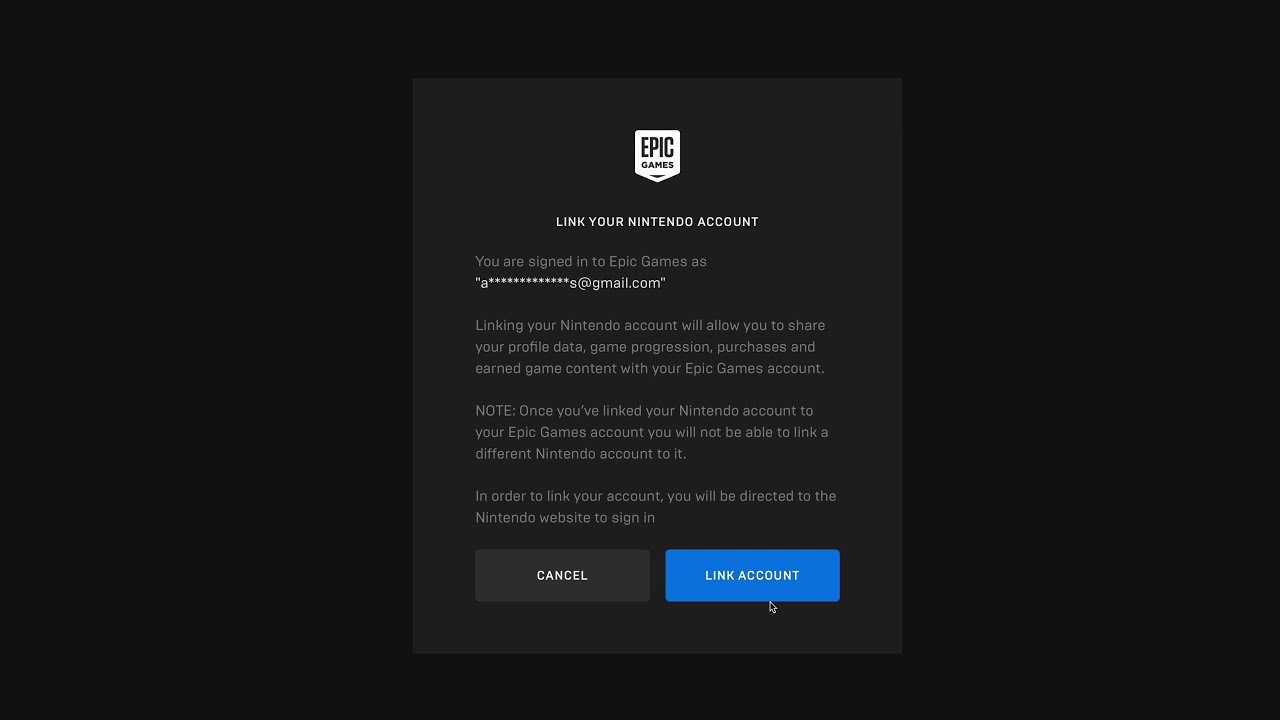
To link a Nintendo Account to Epic Games, you must visit the Epic Games website, sign in, go to ‘Connections’ within your account settings, and choose the Nintendo Account option to follow the on-screen steps.
Want to use your favorite skins across multiple platforms? The process of how to link a nintendo account to epic games is easier than you think. It allows for cross-progression and shared purchases, letting you enjoy your items wherever you play.
This simple guide will walk you through the steps required to connect both accounts. Get ready to experience all your content in one place.

How to Link a Nintendo Account to Epic Games
Linking your Nintendo Account to your Epic Games account lets you share your game progress and purchases between your Nintendo Switch and other platforms like your PC, PlayStation, or Xbox. It’s super handy if you play Fortnite, Rocket League, or any other Epic Games title across different devices. You can start playing on your Switch, then continue right where you left off on your computer or console! This guide will walk you through the entire process, making it simple and clear, even if you’re new to this kind of thing. Let’s jump right in!
Why Link Your Accounts?
Think of linking your accounts like creating a bridge between two islands. One island is your Nintendo Switch, and the other is your Epic Games universe where all the cool stuff you’ve earned and bought lives. Here’s why building that bridge is such a good idea:
Carry Over Progress: You don’t have to start from scratch every time you switch devices. Your game progress, levels, and achievements stay with you. This is really great for games that have a lot of grinding or special rewards. Imagine finally reaching level 100 in Fortnite, then being able to continue from that same spot on your PC!
Shared Purchases: If you buy a skin, a vehicle, or anything else in an Epic Games title, it’s yours across all linked platforms. No more having to rebuy the same cool item for different devices. This saves you money and keeps your game experience consistent.
Access Cross-Play: Many Epic Games support cross-play, meaning you can play with friends who are on different devices. Linking your accounts ensures that you can connect with everyone without any hiccups. You could be on your Switch, your friend might be on their Playstation, and another friend could be on PC, all playing together.
Simplified Experience: You get one central account to manage everything across different platforms, making it a lot easier to keep track of your digital stuff. It’s like having a single key that opens all the doors in your gaming world.
Before You Begin: What You Need
Before we get started, there are a couple of things you need to have ready. This makes the linking process easier and faster.
A Nintendo Account: You need to have a Nintendo Account already set up. This is the account you use to access the Nintendo eShop and play online on your Switch. If you don’t have one, you’ll need to create one on Nintendo’s website first.
An Epic Games Account: You will also need an Epic Games Account, which can be created on the Epic Games website.
Internet Access: Make sure your Nintendo Switch is connected to the internet. You’ll need a stable connection to perform the linking.
A device with a web browser: You can use a smartphone, tablet, or computer for this process.
Some Patience: Sometimes, the internet isn’t the speediest, so having some patience is helpful while you’re completing the process.
Step-by-Step Guide to Linking Your Accounts
Okay, let’s dive into the actual process. It’s not as scary as it sounds. Follow these steps, and you’ll have your accounts linked in no time.
Step 1: Go to the Epic Games Website
Using your web browser, head over to the Epic Games website. This is where all the linking will take place.
Make sure it’s the official Epic Games website to keep your information safe.
Step 2: Sign In to Your Epic Games Account
Now, sign in to the Epic Games account you want to link to your Nintendo Account.
If you’re already signed in, that’s one less step for you!
If you don’t have an Epic Account, sign up for one. It’s free and easy to do!
Step 3: Go to Your Account Settings
After signing in, find your account settings. They are usually somewhere near the top of the page or in a drop-down menu under your username.
Look for the “Account” section. It might be labeled something like “Account Settings” or just “Account”.
Click on it to go to your account details.
Step 4: Find the Connections Option
Once in your account settings, look for an option that says something like “Connections,” or “Connected Accounts.” This is where you can link different gaming platforms to your Epic Games account.
This section might also be under a heading like “Apps and Accounts” or something similar.
Take your time to find it. The website layout can change a little bit, sometimes.
Step 5: Choose Nintendo
You should now see a list of different platform options. Select the Nintendo option, usually with the Nintendo logo next to it.
When you click on Nintendo, you will be prompted to sign in with your Nintendo account.
Step 6: Sign In to Your Nintendo Account
You will now be taken to the Nintendo website to sign in to your Nintendo Account. Use your normal Nintendo Account username (email or Nintendo ID) and password.
This is super important – make sure to sign in to the correct Nintendo account, especially if you have multiple.
Nintendo will ask for your permission to let Epic Games access your account information. This is normal, and you should click “Allow” or “Grant Access”.
Step 7: Confirm the Linking
Once you’ve signed into your Nintendo Account and given permission, you’ll be taken back to the Epic Games website. You should see a message that says your Nintendo Account is now linked to your Epic Games Account.
If you don’t see this message, it is okay! check again or repeat the process. It will work for you.
It’s always a good idea to double check your connected accounts in the settings to make sure the Nintendo logo is listed.
Step 8: Play Away!
Congratulations! You have successfully linked your Nintendo Account to your Epic Games Account. You can now start playing your favorite Epic Games titles on your Switch and keep all your progress, items, and achievements with you.
Try launching a game on both your Switch and another linked device to test it out.
Troubleshooting Common Issues
Sometimes, things don’t go exactly as planned. Here are some common issues and what you can do to fix them:
Error: “This Nintendo Account is Already Linked to Another Epic Account”
This means that the Nintendo Account you are trying to link is already connected to a different Epic Games Account.
Solution: Make sure you are using the correct Epic Games Account. If you are not sure which Epic Games account is connected, you might need to log in to the Epic Games account, and check in connected accounts under Account Setting to find that account first, then you can unlink the Nintendo account from old account.
If you’ve linked your Nintendo Account to another account you no longer use, you might need to try to sign back into that older Epic account and disconnect it first.
If you can’t access your older account, you might need to reach out to Epic Games support for help.
Error: “Connection Failed” or “Unable to Link Accounts”
This usually means there’s a temporary issue with the Epic Games or Nintendo servers or your Internet connection.
Solution: Try again in a few minutes. Sometimes, there’s a temporary problem that will be solved quickly. Make sure that your internet connection is stable.
Restart your browser, or try using a different browser to see if that helps.
If the problem continues, check the official Twitter pages of Epic Games and Nintendo to see if they have any service outages.
If still not working try connecting with different internet.
Error: “The Epic Games Account is already Linked to Another Nintendo Account”
This error indicates that the Epic Games Account you are trying to link is connected to a different Nintendo Account.
Solution: Make sure you’re logging into the correct Nintendo Account. If you’ve linked your Epic account to a different Nintendo account in the past, you would need to unlink that account. If you can’t remember or no longer have access to that Nintendo Account, contact Epic Games support for assistance.
The Game Progress is Not Carrying Over
Even though you’ve linked your accounts, sometimes the progress doesn’t carry over right away.
Solution: Make sure you’ve properly closed the game on all your devices. It’s like closing a door behind you. If the game is still running on one device, the progress might not sync.
Check that your Nintendo Account and Epic Games account are linked properly.
Try to restart all your devices. A simple restart can fix minor sync problems.
If you still have issues, you can reach out to Epic Games support for more specific help.
Tips for a Smooth Linking Experience
To make the linking process as easy as possible, here are some extra tips:
Use the Same Email: If possible, use the same email address for both your Nintendo Account and your Epic Games account. This helps avoid any confusion.
Keep Your Passwords Safe: Make sure you use strong and unique passwords for all your gaming accounts. This is the best way to protect your account.
Check Before Clicking: When granting permissions, take a moment to double-check what you’re allowing access to. This makes sure you understand the connection you’re creating.
Update Your Software: Make sure your Nintendo Switch and the game you are playing have the latest software updates installed. This keeps everything running smoothly and minimizes conflicts.
Be Patient: Sometimes, things just take a little while to sync. If you don’t see your progress immediately, wait a few minutes and try again.
A Few Words on Account Security
Now that you’re using one account across multiple platforms, it’s more important than ever to keep your accounts safe. Always be cautious with your account information.
Strong Passwords: Use complex passwords that are not easy to guess, and avoid reusing the same passwords on different accounts. You can use a password manager tool to help you create and remember them.
Two-Factor Authentication: Use 2FA (also called two-step verification). This adds an extra layer of security by requiring a code from your phone or email, along with your password.
Be Careful of Phishing Scams: Be wary of emails or messages that ask for your account information. Scammers sometimes send emails that look like they are from Epic Games or Nintendo to try to steal your info. Always check the sender’s address before clicking on links or providing any personal information.
Log Out When Done: Make sure you log out of your accounts when you’re done using them, especially on shared devices or in public places.
In summary, linking your Nintendo Account to your Epic Games Account is a great way to share your game progress and purchases across platforms. This process can be completed on a web browser through the official Epic games website. Following the guide provided here, you will get a clear understanding on how to connect your accounts, it is usually straightforward and will help you get the most out of the Epic game experience. Just remember to double-check your account information and be patient during the process. If you ever run into issues, Epic Games support is always available to help. Now go on, enjoy playing games on all your devices!
How To Connect Nintendo Account To Epic Games – Full Guide
Final Thoughts
Connecting your Nintendo and Epic Games accounts is simple. First, go to the Epic Games website and sign in. Next, navigate to your account settings, find the ‘Connections’ tab, and select the Nintendo icon.
You must then sign into your Nintendo account to finalize the linking. This process enables cross-platform play and progress sharing. Now, you understand how to link a nintendo account to epic games.

