
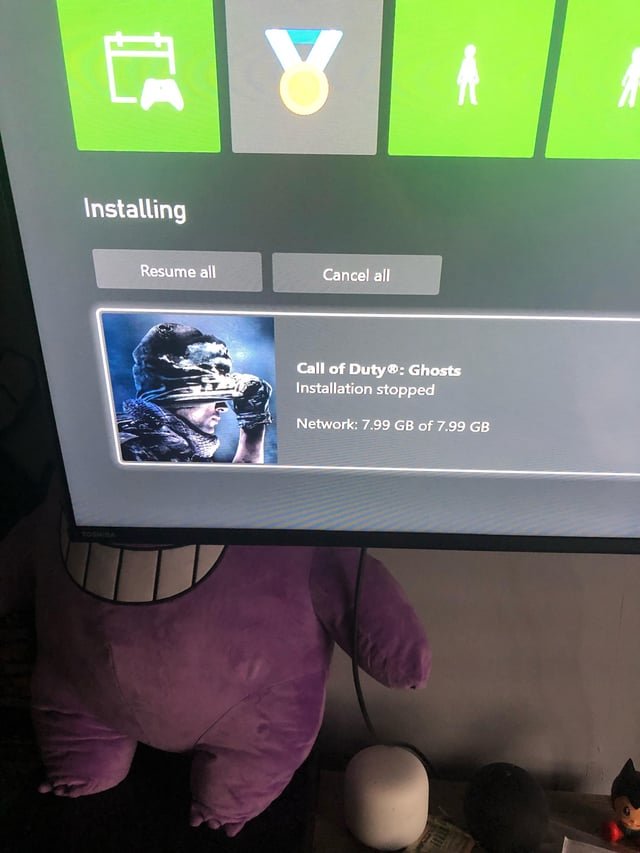
Your game installation likely stopped due to insufficient storage space, a corrupted download file, or network connection issues interrupting the process.
Frustrating, isn’t it? You are all set to dive into that new game, but then the dreaded message appears: “Installation stopped.” Why does my game keep saying installation stopped? It’s a common problem, and the good news is, it often has simple solutions.
These interruptions can stem from various causes, mostly relating to storage limitations or internet glitches. A partial or damaged game file can also halt the installation. Let’s explore the usual suspects so you can get back to playing.

Why Does My Game Keep Saying Installation Stopped?
Okay, so you’re super excited to play a new game, or maybe just get back into an old favorite. You’ve got it downloaded, you’re ready to go, and then… bam! The dreaded “Installation Stopped” message pops up. It’s like the game is saying, “Nope, not today!” This can be so frustrating, and it happens to almost everyone at some point. But don’t worry; we’re going to figure out why this is happening and what you can do about it. Let’s jump into all the possible reasons your game might be having trouble installing.
The Basics: Internet Issues
Let’s start with the most common culprit: your internet connection. A shaky internet can cause major problems during downloads and installations. Think of it like trying to fill a bucket with a leaky hose. If the water isn’t flowing steadily, you’re not going to get much done. When you’re downloading a large game, you need a solid, consistent internet flow. Here’s what to think about:
Speed and Stability
- Slow Connection: Is your internet speed really slow? If you have a bunch of people using the same connection at once, it can slow things down. This can make the game’s download take way too long and eventually fail. It’s like trying to squeeze everyone through a single small door.
- Unstable Connection: Sometimes your internet might go up and down like a rollercoaster. When your connection cuts out, even for a second, it can stop the download and cause the install to fail.
- Wi-Fi vs. Wired: Wi-Fi is convenient, but it’s not always the most reliable. Try connecting your computer or console directly to your router using an ethernet cable. A wired connection tends to be faster and more stable.
How to Check and Fix Your Connection
- Test Your Speed: Visit websites that test internet speed. If it is lower than what you expect, contact your internet provider for assistance.
- Restart Your Router: Turn off your router and modem, wait for about 30 seconds, and then turn them back on. This can often fix temporary glitches.
- Move Closer to Router: If you’re using Wi-Fi, try moving your device closer to the router to improve the signal.
- Limit Other Devices: Have everyone else get off the internet for a bit. This will help you use all the internet for yourself.
Storage Space Problems
Another super common reason for installation issues is a lack of space on your device. Games these days take up a LOT of room! You need to ensure you have enough free space on your hard drive to store the game itself and also extra space to use during the installation process. Imagine trying to put a giant toy in a tiny box – it just won’t fit. Here’s the breakdown:
Checking Your Storage
It’s important to know how much space you have left. Here’s how to do it:
- On Windows: Go to “This PC” and see how much space is used on your hard drives.
- On Mac: Click the Apple menu, go to “About This Mac,” and click “Storage.”
- On Consoles: Look in the system settings for storage information. Each console is different, so you might need to check your device’s instructions.
Freeing up space
- Delete Unnecessary Files: Get rid of old pictures, videos, and files you don’t need anymore. You’d be surprised how much space they can take up.
- Uninstall Old Games: Games you’re no longer playing are just taking up space. Delete the old games you no longer play.
- Use an External Drive: If you’re always running out of space, get a portable drive to store extra games and files.
Problems with Your Device
Sometimes, the issue isn’t the game or the internet but something going on with your computer, console, or phone. These can be a bit trickier to pinpoint, but let’s explore some of the usual suspects.
Operating System Issues
- Outdated OS: If you’re running an old version of Windows, macOS, or your console’s operating system, it can cause problems. Games are designed to work with the latest versions. Always make sure your operating system is up-to-date.
- Corrupted System Files: Sometimes your system files might get damaged. This can prevent games from installing correctly. Don’t worry, there are ways to fix them. You can run a scan that can fix your system files.
Hardware Problems
While less common, hardware problems can also interfere with the installation process.
- Overheating: If your device is getting too hot, it might slow down or stop the installation. Make sure the vents on your device are not blocked and that your device has good airflow.
- RAM Issues: Random Access Memory (RAM) is where your computer stores data it is currently using. If your RAM is faulty or not enough, it can lead to installation errors.
- Hard Drive Failure: While not super common, your hard drive could be starting to fail, leading to errors. It’s a good idea to check the health of your hard drive.
Game-Specific Issues
Now, let’s talk about problems that are directly related to the game you’re trying to install. Sometimes, the issue isn’t with you but with the game itself.
Game Files are Corrupted
- Incomplete Download: Sometimes, the game files you downloaded are not completely downloaded. This can be due to connection issues while downloading the game. You can try re-downloading the files again to ensure that you have the full files.
- Corrupted Game Files: Sometimes, the game files might get damaged during the download. This is similar to a scratch on a CD; the game might not be able to install properly. It’s best to re-download the files from official sites.
Problems With the Platform or Store
- Server Issues: Sometimes, the servers of the platform you’re downloading from (like Steam, Xbox Live, or PlayStation Network) might be having problems. This is often out of your control. You can check if these platforms are having any issues from their official websites.
- Game Updates: Sometimes the game you are installing may have a mandatory update, before it lets you play. It is best to allow the game to update to the latest version and then retry the install.
Security Software Interference
Your security software, like antivirus programs and firewalls, are designed to keep your device safe. Sometimes, though, they can be a little too protective. They can mistakenly see game files as threats and block the installation. This means that software can prevent you from installing the game. Here’s what to do:
Temporarily Disable Antivirus Software
Sometimes temporarily turning off your antivirus can be the solution you need. Please be sure to re-enable your antivirus software once you have finished installing your game. You can also try to add the game to the exception list of your security software, which will prevent it from interfering in the future.
- How to Disable: This process is different for each antivirus program. Usually, you can find a setting to disable it, at least temporarily. You can check your antivirus program’s official website for step-by-step instructions.
Check Your Firewall Settings
Your firewall is another part of your security system. If the firewall is blocking certain game processes, it can prevent installation. To fix this, you can add the game to your firewall’s allowed apps list. Look up your firewall’s settings and allow the game.
Installation Location Problems
Where you choose to install a game can also cause problems. This might seem like a small detail, but it can have a big impact.
Permissions and Access
- Incorrect Permissions: Sometimes your computer might not let the game install in certain folders due to permissions. Make sure you have the right settings and permissions to make changes to the drive you are trying to install into.
- Protected Folders: Sometimes, Windows folders like “Program Files” are protected. It might be better to install the game in a separate folder.
Hard Drive Issues
- Bad Sectors: Sometimes your hard drive might have bad spots (sectors) that make it hard to read or write data. This can cause issues when installing a game.
- File System Errors: Sometimes your file system is damaged. This can also cause errors when trying to install a game. There are tools available that check your hard drive for errors.
Troubleshooting Steps
Okay, so we’ve talked about all the possible reasons why your game might be having problems installing. Now, let’s go through some general steps you can take to fix the problem.
Restart Your Device
Sometimes, a simple restart is all you need. Turning your device off and then back on can fix minor problems. It’s like giving your device a chance to catch its breath.
Run the Installer as Administrator
Right-click the game installer file and choose “Run as administrator.” This gives the installer the permissions it needs to do its job properly.
Check for Game Updates
Make sure there are no mandatory updates for the game you are trying to install. Sometimes, games require these to install properly.
Reinstall the Game
If nothing else works, try deleting the game and reinstalling it from scratch. This can fix problems that might have happened during the first install attempt.
Contact Support
If all else fails, don’t hesitate to contact the game’s support team or the platform you got the game from. They might be able to provide more specific help for your situation.
It can be really annoying when a game installation gets stopped, but with a little patience and effort, you will get back to playing. Remember to check your internet, your device, the game itself, and even your security software. By working through these different things, you can get your game up and running in no time. Happy gaming!