
Frequent tabbing out usually happens because another program is demanding focus, such as a notification or an update process, pulling your game into the background.
It’s incredibly frustrating, isn’t it? You’re deep into a game, totally immersed, and suddenly, poof, you’re looking at your desktop. You ask yourself, “why does my game keep tabbing out?” Well, you’re not alone; many players experience this annoying interruption.
This constant switching can ruin the flow of gameplay. It could happen at the worst times. We’ll explore the common causes behind this issue. Knowing why will help you find a fix.

Why Does My Game Keep Tabbing Out?
Okay, so you’re gaming, you’re totally in the zone, and BAM! Your game suddenly minimizes to the taskbar. It’s like getting a digital face-slap. Annoying, right? It happens to everyone. This article breaks down all the reasons why your game might be misbehaving and keeps tabbing out. We’ll go through common culprits, explain how to troubleshoot them, and, most importantly, help you get back to gaming without interruptions.
Background Programs Stealing Focus
One of the most frequent reasons for games tabbing out is other programs trying to take center stage. Your computer is constantly doing things in the background, and sometimes, those processes need your attention, even if you’re knee-deep in an epic battle.
Notification Overload
Think of all the notifications you get: email alerts, messaging app pop-ups, software update reminders, even your antivirus trying to tell you something. Each of these can try to grab focus from your game, causing that frustrating tab out. It is like they all want to be the lead character in a play, while your game is trying to hold its ground.
How to manage notifications:
- Windows Notification Settings: Go to your Windows settings, click on ‘System’, then ‘Notifications & actions’. Here you can turn off notifications for specific apps or disable them altogether while you are in the game. Try to turn off the notifications when you are in game or try to set a quiet time in your notification setting so that you won’t be interrupted.
- App-Specific Settings: Many apps let you control their notifications within their own settings. Dig into your email client, messaging apps, and other program settings to adjust or turn off pop-up alerts.
Automatic Updates
Software updates are good for security and performance, but they can be a huge interruption during a gaming session. Windows, game launchers, and other software often schedule automatic updates. When an update is ready, it might try to install itself and force its way to the front.
How to manage automatic updates:
- Windows Updates: In Windows settings under ‘Update & Security’, you can adjust your active hours, and so that Windows doesn’t reboot or update at inappropriate time, you can also choose to pause the update for a certain period of time, so you won’t have any disturbance.
- Game Launchers: Game launchers like Steam, Epic Games, and others have settings for when and how they update games. Look for an option to limit or disable updates while you’re actively playing a game, or set them to only download on your schedule.
System Processes
Sometimes, the issue isn’t even a specific app, but an important system process needing your attention. Think of things like the search indexing service, which helps you find files on your computer faster, or antivirus scans that run in the background for your safety, that might cause your game to tab out. They’re important, but they don’t need to interrupt your gameplay.
How to manage system processes:
- Task Manager: Press Ctrl+Shift+Esc to open the Task Manager. Go to the “Details” tab. Identify processes that consume a lot of resources while you’re gaming. Research them if you’re not sure, as ending critical system processes can harm your computer. Once you’re certain it’s not critical, and if it is the main culprit of tabbing out the game, you can try to stop them temporarily.
- Scheduled Tasks: Type “Task Scheduler” into the Windows search bar and open the app. Look through the scheduled tasks. If you see any that you think might interfere with your games, either disable or reschedule them to a time that is not a gaming time.
Driver Issues
Your graphics card (GPU) and other hardware need special software called drivers to work correctly with your games. Outdated or broken drivers are another big reason why your games might be tabbing out. Think of drivers as the translators between your hardware and your games. If the translator is speaking the wrong language, it creates problems.
Outdated Graphics Drivers
Graphics card manufacturers like NVIDIA, AMD, and Intel release new drivers frequently that are made to optimize performance for games or to fix bugs. Old drivers can cause compatibility issues with newer games and make them unstable. They might make your game crash or tab out unexpectedly.
How to fix outdated graphics drivers:
- Automatic Update Software: NVIDIA and AMD have their own software (GeForce Experience and AMD Radeon Software, respectively) that makes it easy to check for and install new drivers. If you have an Intel graphics card, use the Intel Driver & Support Assistant.
- Manual Download: Visit the official website of your graphics card manufacturer (NVIDIA, AMD, Intel) and find the support or downloads section. Find and download the latest driver for your specific graphics card and operating system.
Conflicting Drivers
Sometimes, other driver problems such as sound card drivers or even motherboard drivers, may interfere with your graphics card driver’s functioning, causing the game to tab out, or sometimes lead to some other unusual problems. This is rare but can happen.
How to fix conflicting drivers:
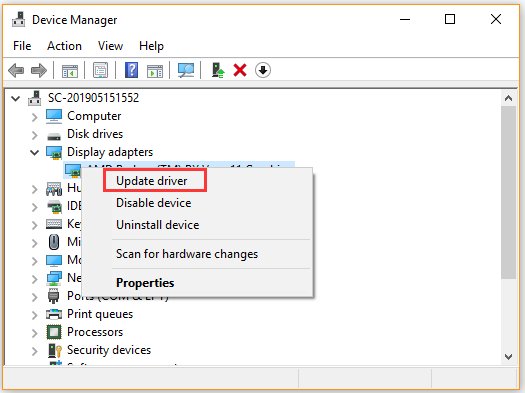
- Device Manager: Search “Device Manager” in the Windows search bar and open the app. Here, look for any yellow exclamation marks or error symbols on the devices. If found, it means the driver is not working or is in error. Right-click on the device, choose “Update Driver” and follow the prompts, or choose “Uninstall Device” and then restart your computer to reinstall the device’s driver.
- Clean Install: When updating your graphics card driver, choose the “Clean Install” option if available. This removes all the old driver files before installing the new ones, which prevents conflicts between old and new versions.
Game Settings Conflicts
Sometimes, the problem lies within the game itself. Incorrect settings can make a game unstable and prone to minimizing.
Full-Screen Mode Issues
Playing a game in full-screen mode can sometimes lead to issues if other programs or processes try to take over the display. Full-screen mode has some of its own quirks because it gives exclusive control over the display to the game. If any other process wants control, it can force your game to tab out.
How to solve full-screen issues:
- Windowed Fullscreen or Borderless Windowed Mode: Most games have options for windowed fullscreen or borderless windowed modes. These modes give the game the look of full screen without the exclusive display control, making it easier for other programs to share the screen without tabbing out your game. You can find this setting in most of the games in their settings menu under ‘Graphics’, ‘Display’ or ‘Video’.
- Check Game Resolution: If the resolution set in the game is not the same as your monitor resolution, then it can cause tab outs. Ensure that the resolution you set in game is the same as your desktop resolution.
Game Overlay Issues
Game overlays, such as the ones from Discord, Steam, or NVIDIA’s GeForce Experience, can sometimes clash with the game and cause it to minimize. These overlays sometimes are meant to help you with the game, but often cause the problem by conflicting with the game.
How to resolve game overlay issues:
- Disable Overlays: Try disabling overlays one by one to find which one is causing problem. For instance, in Discord, you can find overlay option under the Settings, then under ‘Overlay’ tab you will find disable option. You will find similar settings in all the applications with overlay functionality.
- Update Overlays: Make sure that the overlay apps are up to date. Just like the game driver, update game overlay software will also help solve the issues.
Hardware Problems
Although less common, some hardware issues might cause your game to tab out. These issues are mostly related to overheating or issues with RAM.
Overheating
If your computer components are getting too hot, they can cause all sorts of problems, including game crashes and minimizing. Your computer has temperature limits to protect them, and if these limits are crossed, your computer might try to take some action that might cause the tab out.
How to check for overheating:
- Monitor Temperatures: You can monitor your computer’s temperatures using software like HWMonitor or the one provided by your motherboard manufacturer. Check the temperatures of your CPU and GPU while gaming and ensure that they are not exceeding the recommended temperature.
- Improve Airflow: Ensure your computer has good airflow. Clean the dust from the fans and heatsinks, and make sure the computer is not in a place where there is little air circulation.
RAM Issues
Problems with your RAM (Random Access Memory) can also cause game problems. If the RAM is failing, it might cause a sudden tab out or a complete crash.
How to check for RAM Issues:
- Windows Memory Diagnostic Tool: Type “Windows Memory Diagnostic” into the Windows search bar and open the tool. Run the memory test, this test will check your computer RAM for any issue.
- Check RAM Compatibility: Make sure that your RAM is compatible with your motherboard. If not, replace it with the correct and appropriate RAM.
External Factors
Sometimes, the issue might come from something external to your computer, like the keyboard or some other software or application.
Keyboard Issues
A sticky or malfunctioning key might be causing the tabbing out. The Windows key, alt key, tab key, or any other combination shortcut keys can inadvertently trigger minimizing the game. Sometimes, due to dust, dirt or any other things, these keys can get stuck and may be causing unwanted tab outs in your game.
How to check for keyboard issues:
- Clean your Keyboard: Take your keyboard and clean it properly, or try another keyboard to check if the old keyboard is the cause of tab out.
- Check Keyboard Shortcuts: Try to see if there is any keyboard shortcut in Windows settings that is causing the minimizing of the game.
Other Software Conflicts
Sometimes, some uncommon third-party software can also cause the game to tab out. These are very uncommon, and you might have some less common or obscure software installed on your computer.
How to resolve other software conflicts:
- Clean Boot: Perform a clean boot on your computer, this will load only the necessary system drivers and services. If the issue disappears in clean boot, then it means some software or driver is the main culprit.
- System Restore: You can also use the system restore option in Windows to restore your computer back to a state where the game did not tab out.
Tabbing out can be a total headache when you’re trying to enjoy a game, but usually it can be solved by trying a few things from above. By systematically going through these steps, you can often track down what’s causing the problem. Remember to keep your drivers updated, manage your background apps, and adjust your game settings as needed. With a bit of patience and troubleshooting, you’ll be back in the game without any annoying interruptions.
How to Fix | Alt + Tabbing Out Of Games Screen Turns Black For 2-3 Seconds
Final Thoughts
In summary, your game frequently tabbing out usually stems from conflicting applications, driver issues, or even accidental key presses. Background programs vying for focus often force the game window to minimize. Outdated or corrupted graphics drivers frequently disrupt smooth gameplay, causing instability. These are main culprits which can lead to ‘why does my game keep tabbing out’.

