
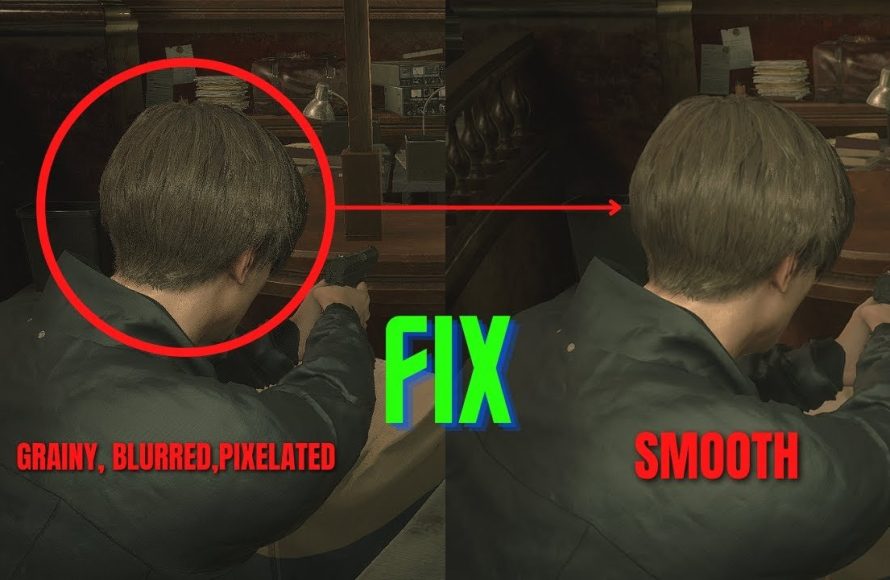
Your game likely appears grainy due to insufficient anti-aliasing, low resolution, or post-processing effects.
Ever found yourself squinting at your screen, wondering why does my game look grainy? It’s a common frustration for gamers. The jagged edges and pixelated textures can really detract from the immersive experience that developers strive to create.
This isn’t just about having a “bad” game; several technical factors can contribute to this visual issue. Let’s explore some of the common culprits and how to potentially fix them.

Why Does My Game Look Grainy?
Ever started up your favorite video game, excited to jump into the action, only to be met with a screen that looks… grainy? Like someone sprinkled tiny salt crystals all over the graphics? It’s a frustrating experience, and you’re not alone! That “grainy” look, often called noise or pixelation, can ruin the immersion and make even the most beautiful game look less appealing. Let’s dive deep into the reasons why this happens and what you can do to fix it.
Understanding the Basics: What Causes Graininess?
Before we tackle the specific reasons, it’s useful to understand that “grain” in video games is usually the result of how a game renders (draws) the images that you see. Imagine a digital painting. Instead of paint, games use pixels (tiny colored dots) to create the picture. When there are not enough pixels, or when the pixels are not handled correctly, the image can appear rough and grainy.
- Pixelation: This is the most basic form of graininess, often seen when the game resolution is too low. Imagine making a picture out of very large LEGO bricks instead of tiny, smooth ones. You would see a more blocky picture.
- Noise: This can be caused by various rendering techniques or graphical effects and it makes your game look like it has static or random speckles all over the screen.
These effects are often related and can happen together, resulting in a particularly unpleasant grainy image.
Resolution: The Foundation of Clarity
The single biggest reason why your game may look grainy is the game’s resolution. Resolution refers to the number of pixels your screen displays, expressed in a width x height format (e.g., 1920×1080, also called 1080p). Think of it as the amount of detail your screen can show. Higher resolution means more pixels and therefore a sharper, clearer image. A low resolution means fewer pixels to work with which will make each pixel much larger and more noticeable, causing that grainy, blocky effect.
Mismatch Between Game and Monitor Resolution
Here’s a common scenario: Your game is set to run at a lower resolution than your monitor’s native resolution. For example, you might have a 1920×1080 monitor (a very common size), but the game is only set to 1280×720. In this case, your computer has to “stretch” the smaller image to fit your larger screen. This is similar to taking a small image and making it larger in a image editor. The result will be blurry and often also grainy. You should always try to set the game’s resolution to match the native resolution of your monitor for the best possible image clarity.
- Monitor’s Native Resolution: This is the specific resolution for which your monitor is designed to display the clearest picture. It is usually found on the packaging or specifications of your monitor, and can usually be found in your monitor settings or system display settings.
- Game’s Resolution Settings: Check the game’s graphics settings menu for resolution options. You should see a variety of resolutions to choose from.
Upscaling and Downscaling
Sometimes you will see the terms upscaling and downscaling. Upscaling is when the game draws at a lower resolution and then increases the size to fit your monitor, and downscaling is when the game is drawn at a higher resolution than your monitor then it makes the game smaller to fit the monitor. Both can create some graininess, especially if not done correctly. Modern games and graphics drivers often use advanced upscaling techniques to try and minimize this graininess such as Nvidia DLSS or AMD FSR.
Graphics Settings: Fine-Tuning Image Quality
Beyond resolution, the specific graphics settings that you select in game have a significant effect on how your game looks. Turning the settings up is generally better, but it requires more from your computer.
Texture Quality
Textures are the image files that are wrapped around 3D models in a game to give them detail and make them look realistic. Lower texture quality settings use lower-resolution texture files, which can lead to blurry or pixelated textures, especially when viewed up close, this creates a form of graininess. Increasing the texture quality will load higher quality textures which require more VRAM (Video Memory), which is memory on your graphics card.
Anti-Aliasing: Smoothing the Edges
Aliasing is a visual effect that causes edges of objects to appear jagged or “stair-stepped.” Anti-aliasing is a technique that softens or removes those jagged edges, making objects look more smooth and natural. Without anti-aliasing, the edges of in-game objects can look extremely grainy and rough. There are many types of anti-aliasing such as MSAA, FXAA, TAA, and DLAA. Using a good anti-aliasing technique can often reduce graininess a great deal.
Post-Processing Effects
Post-processing effects are special visual effects applied after the scene has already been rendered. Some post-processing effects such as sharpening can actually introduce graininess if they are set too high. Other effects such as depth of field and motion blur might also contribute to how grainy a scene feels, although sometimes it’s a specific kind of graininess that is intentional for artistic effect and not necessarily a flaw in how the game is being rendered.
Ambient Occlusion
Ambient occlusion is a rendering technique that adds shadows to the scene to make it look more realistic. Some less precise ambient occlusion settings, such as SSAO (Screen Space Ambient Occlusion) can add graininess to shadows. Other, more advanced methods of ambient occlusion are much less grainy.
Shadow Quality
Shadows that are rendered at lower resolutions or low bit depth can appear grainy and blocky. Increasing the shadow quality can reduce this but it also requires more processing power. A low quality shadow might look like it has very blocky edges, and this can result in grainy shadow effects.
Hardware Limitations: The Role of Your System
Your computer’s hardware plays a significant role in how well a game can run and how good it can look. If your PC doesn’t have enough processing power, then the game will often try to lower the graphics quality automatically, which will increase graininess and pixelation.
Graphics Card (GPU)
The graphics card is responsible for drawing images on your screen. A weak or outdated GPU may not have the processing power to render the game at high resolutions and high settings, which may result in poor image quality. If your GPU struggles to keep up, the game could become grainy and pixelated.
CPU and RAM
While the GPU is most important for graphics, your CPU (Central Processing Unit) and RAM (Random Access Memory) also contribute to the performance of your games. A weak CPU can bottleneck your GPU, preventing it from performing at its full potential. Not having enough RAM can cause the game to rely more on your hard drive which is much slower and will often result in very bad performance and graphics quality. If your CPU and RAM are struggling, then the game will lower graphics quality to attempt to maintain a playable frame rate which in turns results in a grainy image.
Monitor’s Capabilities
Even with a powerful PC, your monitor can also limit image quality. Make sure that your monitor’s resolution and refresh rate are also compatible with your game settings. A monitor that has a low resolution will not allow the game to display at higher resolutions, no matter how powerful your PC is. Some monitors may also have settings that introduce graininess or blurring.
Game-Specific Issues: Not All Games Are Created Equal
Sometimes, the graininess isn’t due to your settings, but rather to specific characteristics of the game itself.
Game Engine Limitations
Different game engines render images in different ways. Older game engines, or games developed with less precise rendering, might have limitations that can introduce graininess. Sometimes there’s no way to fully remove the graininess if it’s inherent to the engine used by the game.
Artistic Choices
Some games may intentionally use grainy visual effects for artistic purposes, to create a specific mood or style. This isn’t a technical issue, but an intentional choice by the developers. If you see grain in a specific game, research whether it’s a planned artistic decision.
Motion Blur Implementation
Some games implement motion blur in ways that appear to be more grainy or blurry. The way in which motion blur is implemented can cause visual artifacts or effects that may appear as noise or grain. Disabling motion blur can sometime help reduce graininess, although the game may look less realistic in motion.
Other Potential Causes of Graininess
Sometimes the cause of graininess may not be obvious.
Driver Issues
Outdated or corrupted graphics card drivers can cause rendering problems, which can manifest as graininess. Keeping your graphics drivers up to date is important for overall performance and image quality.
Cable Issues
Believe it or not, a bad or damaged video cable can also cause visual issues, including graininess or pixelation. Sometimes using a low quality cable or a cable that is not designed for a resolution can cause noise in the image. Try using a higher quality cable to rule this out.
Hardware Malfunctions
In some cases, graininess can be caused by an underlying hardware issue. For example, an overheating GPU or failing video memory can lead to visual errors that appear as graininess or other display issues. If you suspect a hardware problem, try to see if your temperatures are too high, or test with a different GPU if possible.
Overclocking Issues
If you are overclocking your GPU or other hardware, the overclock may be unstable and causing visual artifacts. Try using your system at the default speeds to rule out overclocking as a cause of your grainy image.
Troubleshooting Steps to Fix Graininess
Now that we’ve gone over why your game might look grainy, let’s discuss what you can do to fix the issue.
Check Your Resolution
First, make sure that your game is set to the correct resolution. This should usually match your monitor’s native resolution. Go to the game’s graphics settings and select a resolution that matches your monitor’s native resolution.
Adjust Graphics Settings
Experiment with different in-game settings. Try adjusting texture quality, anti-aliasing, and post-processing effects. Try changing these settings one at a time so that you can see what each effect is doing. Make sure that you are not increasing one setting to high and lowering another too much, as these settings may have an interaction. Sometimes using a good default preset will help if you are uncertain which settings you should change.
Update Your Drivers
Make sure your graphics card drivers are up to date. This helps with general performance and stability of your graphics card, and may fix issues with how a game is being rendered. Visit your GPU manufacturer’s website (Nvidia, AMD, or Intel) and download the latest drivers.
Monitor Cables
Check that your monitor cables are in good condition and are correctly connected. If possible, try using a different cable to rule this out.
System Temperatures
Use an application such as MSI Afterburner to monitor the temperature of your GPU and CPU. Overheating components may cause instability and visual artifacts. Make sure your system’s cooling is working correctly.
Game Settings
Some games may have particular settings for sharpening, upscaling, or post-processing that could increase graininess. Check the game’s specific graphics options for any settings that might help.
Test Different Games
Try playing different games. If the graininess occurs in only one game, then the problem is likely in the game itself. If it happens in most or all games, then you should suspect a hardware or driver problem.
Try Different Monitors/Screens
If possible, test the game with different monitors or screens. This helps to identify if the monitor could be the issue. You may find that you have a monitor with some kind of incompatibility with the game or your PC.
By systematically checking these different potential causes, you can figure out exactly why your game looks grainy and get back to enjoying a crystal clear visual experience. It often requires patience, but in the end it can make a huge difference to the enjoyment of your games.
Dealing with grainy games can be frustrating, but with a little investigation and adjustment, you can often get your game looking as sharp and clear as it should be. Remember to work through the potential causes one step at a time, and you will likely find the root of the problem and be able to enjoy your games much more.
Why do modern games look so blurry?
Final Thoughts
Grainy visuals often stem from low rendering resolution or insufficient anti-aliasing. These settings directly affect the clarity of the image displayed on the screen. Texture filtering also plays a crucial part.
If you encounter the problem of “why does my game look grainy”, examine your graphics settings. Increasing resolution and anti-aliasing usually helps improve image quality. Remember proper filtering settings is key to sharper texture and less grain.

