
To link your PlayStation account to Epic Games, visit the Epic Games website, log in, go to ‘Connections’ in your account settings, and then select ‘PlayStation’ to begin the linking process.
Want to play your favorite games across platforms? It’s very easy to do once you learn how to link your PlayStation account to Epic Games. This connection lets you carry progress and purchases between your PlayStation and Epic Games accounts.
You’ll be able to use the same items on different devices. Having this connection means fewer hurdles in the gaming world. Let’s get into it!

How to Link My PlayStation Account to Epic Games
Have you ever wanted to use your awesome PlayStation skins and progress in Fortnite or other Epic Games games on a different device? Or maybe you want to play with your friends who are on different gaming systems? The good news is, it’s totally possible to connect your PlayStation account with your Epic Games account. This way, your stuff moves with you wherever you play! Let’s get into the details on how to do it.
Why Link Your Accounts?
Before we jump into the how-to, let’s talk about why linking your PlayStation and Epic Games accounts is such a great idea. Think about it like having a digital backpack that holds all your gaming goodies. When you link your accounts, this backpack becomes accessible wherever you play games that use Epic Games services. Here’s why this matters:
- Share Your Progress: Any progress you make in a game like Fortnite, Rocket League, or Fall Guys on your PlayStation will be saved to your Epic Games account. This means you won’t have to start from scratch when you play on a PC, Nintendo Switch, or Xbox.
- Keep Your Items: All those cool outfits, dances, and other virtual items you’ve earned or bought on your PlayStation will be available on other devices where you play Epic Games titles after you connect your accounts. It’s like having your whole collection with you!
- Play With Friends: Linking your accounts makes it much easier to play with your friends who might be using different gaming systems. You’ll all be able to join the same games and have fun together. It breaks down the walls between consoles and computers.
- Epic Games Rewards: Sometimes, Epic Games gives out special rewards to players who link their accounts. You could receive free in-game items or other fun bonuses!
What You Need Before You Start
Before you begin, make sure you have a few things ready. This will make the process go much more smoothly:
- A PlayStation Account: You need a valid PlayStation Network account. This is the account you use to log in on your PlayStation console.
- An Epic Games Account: You’ll need an Epic Games account. If you don’t have one already, you can create one for free on the Epic Games website.
- A Device with Internet Access: You can use a computer, smartphone, or tablet for this step, as you’ll need to visit the Epic Games website.
- Your PlayStation Login Info: Have your PlayStation Network login ID (usually your email address) and password handy.
- Your Epic Games Login Info: Be ready with the email address and password you use for your Epic Games account.
Step-by-Step Guide to Linking Your Accounts
Okay, let’s dive into the actual steps. The process is pretty simple and takes just a few minutes. Follow along, and you’ll be linked up in no time!
Step 1: Go to the Epic Games Website
First, you need to head over to the official Epic Games website. You can do this on any device with an internet browser. Type epicgames.com into the address bar and press enter. Once the website loads, look for the “Sign In” button. Usually, it’s in the top right corner of the page.
Step 2: Sign In to Your Epic Games Account
Click on the “Sign In” button. You will be taken to a page where you can sign in to your Epic Games account. If you have multiple methods of signing in, choose the option you use for your Epic account (like email/password). Enter your email address or username, then type your password, and click “Sign In”.
Step 3: Access Your Account Settings
After logging in, you’ll be on the main Epic Games website page. To get to your account settings, hover your mouse over your username which will be located on the top right, and from the drop down menu select “Account.” This should take you to your account overview page, where you see all the important info about your Epic Games account.
Step 4: Navigate to “Connections”
On the left side of your account overview page, you’ll find a list of options. Look for the word “Connections” and click on it. This will take you to a section where you can see all the accounts you can link with your Epic Games account.
Step 5: Select “Accounts”
Within the “Connections” page, you will find different connection categories. Click on the “Accounts” tab within the connections page.
Step 6: Choose PlayStation
Now, you’ll see a list of icons of the different platforms you can link to your Epic Games account. Look for the PlayStation logo. It’s usually a blue square with the PlayStation logo inside. Click on the “Connect” button next to the PlayStation icon.
Step 7: Sign In to Your PlayStation Account
After you click “Connect”, a new window or tab should open, asking you to sign in to your PlayStation Network account. Enter your PlayStation Network sign-in ID, which is usually your email address and your password. Click “Sign In”. This action lets Epic Games know that you are giving it permission to connect to your PlayStation account.
Step 8: Review and Confirm
Once you have signed into your PlayStation account, Epic Games will ask you to review and confirm the connection. Carefully read what the confirmation screen says. It might mention sharing your game progress, purchases, and other data between the two accounts. If you agree to the terms, click the “Confirm” or “Allow” button.
Step 9: You’re Connected!
After you confirm the connection, you should see a message confirming that your PlayStation account is linked with your Epic Games account. You’ll usually be redirected back to your Epic Games account settings page, where you’ll see that the PlayStation icon now shows “Connected.” Congratulations, you’ve successfully linked your PlayStation and Epic Games accounts!
What if Something Goes Wrong?
Sometimes, things don’t go exactly as planned. If you have trouble linking your accounts, don’t worry! Here are a few things to check:
- Double-Check Your Login Information: Make sure you’re entering the correct email addresses and passwords for both your PlayStation and Epic Games accounts. It’s easy to make a typo!
- Try a Different Browser: Sometimes, certain web browsers can cause issues. If you are using one, try using a different browser or clearing your current browser cache.
- Check Your Internet Connection: A weak or unstable internet connection could interrupt the process. Make sure you have a good connection, and try again.
- Disable VPN (if you use one): Sometimes, a VPN can cause connectivity issues. If you are using a VPN, try to disable it and retry the process.
- Contact Epic Games Support: If none of these troubleshooting steps work, don’t hesitate to contact Epic Games support. They have a great support team that can help resolve issues linking your accounts. You can find their help section on the Epic Games website.
Troubleshooting Specific Issues
Let’s dive into some common questions that people have when linking these accounts and specific problems they may face.
“I Have Multiple Epic Games Accounts”
If you have multiple Epic Games accounts, you need to be careful to link your PlayStation account to the one you want to use. Linking it to the wrong account could cause progress and item loss. Make sure you sign in to the correct Epic Games account before following the steps to link to your PlayStation account.
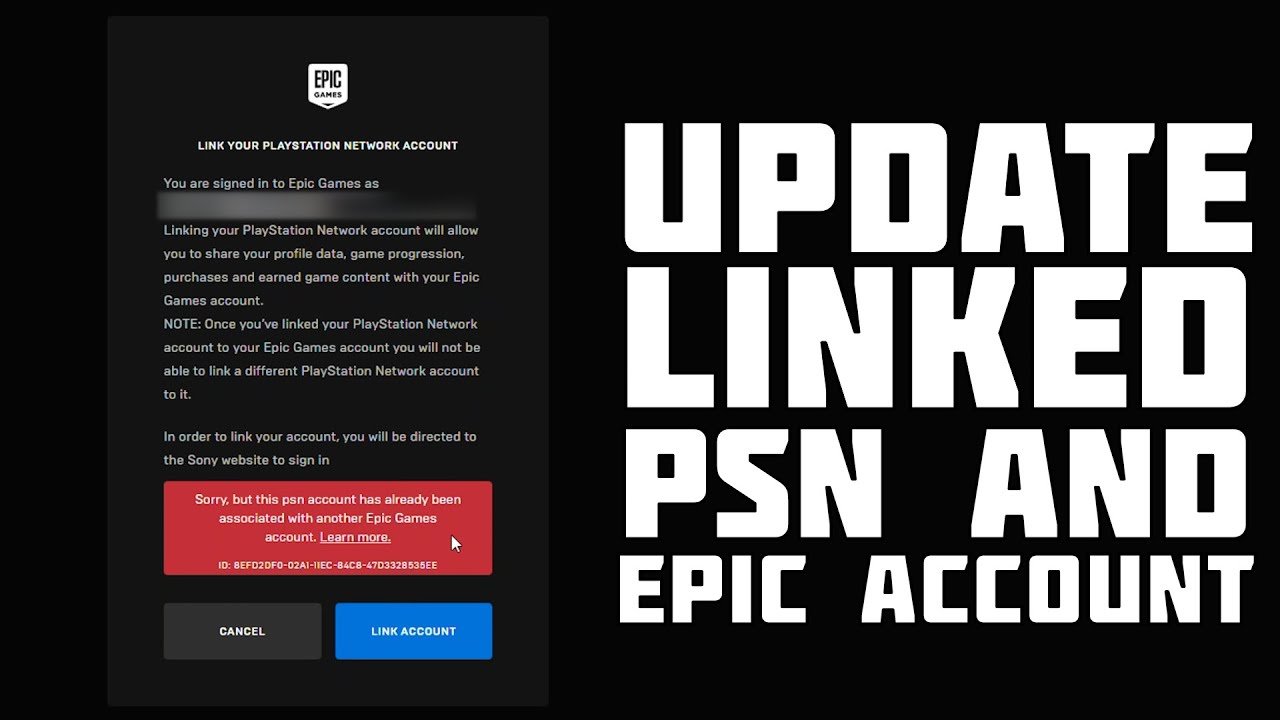
“I Already Linked My PlayStation Account to Another Epic Account”
If you previously linked your PlayStation account to a different Epic Games account, you will need to unlink it first before linking it to your new or preferred Epic Account. Here’s how you can unlink an account from your Epic account:
- Sign in to the Epic Games account that is currently linked to your PlayStation account.
- Go to the “Connections” section of your account settings.
- Under “Accounts”, find your PlayStation account.
- Click on “Remove”.
- Confirm the account removal.
- Now you can link your PlayStation account to the correct Epic Games account.
“My Game Progress Isn’t Transferring”
If you have linked your accounts but don’t see your game progress transferring, there are a few things you should check. First, make sure you are using the same Epic Games account to play the game on all platforms. If you have multiple Epic accounts, your progress won’t transfer to a different account. If you have confirmed that you’re on the correct account, try closing the game on all platforms and relaunching to see if your progress will sync.
“My Items Are Missing”
Sometimes, it might seem like some of your items are missing after linking your accounts. This is usually a display issue, and they will appear soon. Try restarting the game and make sure to check the game’s inventory very carefully. If the items are still missing, contact Epic Games support so that they can help you with this issue.
Tips for a Smooth Linking Experience
To make sure the linking process goes as smoothly as possible, here are some useful tips.
- Use a Strong and Secure Internet Connection: A good internet connection is necessary for a smooth linking process. Weak connections may cause interruptions.
- Clear your browser cache before you start: Sometimes, clearing your browser cache or using a different web browser can prevent any issues during the process.
- Be Patient: Sometimes the linking process may take a little bit. Be patient and make sure you follow each step carefully.
- Double check your account selection: Make sure you are linking your accounts to the correct one. Double check the emails or the usernames to make sure you are logged in correctly before continuing.
Linking your PlayStation account to your Epic Games account opens up a world of possibilities. You can keep your progress, use your items, and play with your friends more easily. Just follow these simple steps, and you’ll be all set to enjoy your favorite Epic Games on all of your devices. Remember to double-check your details and be patient, and the linking process should be a breeze. So go ahead, connect your accounts and level up your gaming experience!
How To Link Epic Games Account To PlayStation Account – Easy Guide
Final Thoughts
Linking your accounts grants access to cross-progression and shared items. You must complete this process on Epic Games website, not your PlayStation. Navigate to your account settings and select ‘connections’.
Choose the PlayStation logo to start linking process, it will redirect you to Playstation login. Successfully logged in, both accounts will be linked.
Therefore, to summarize, how to link my playstation account to epic games, you must go through Epic’s site and connect your PlayStation account.

