
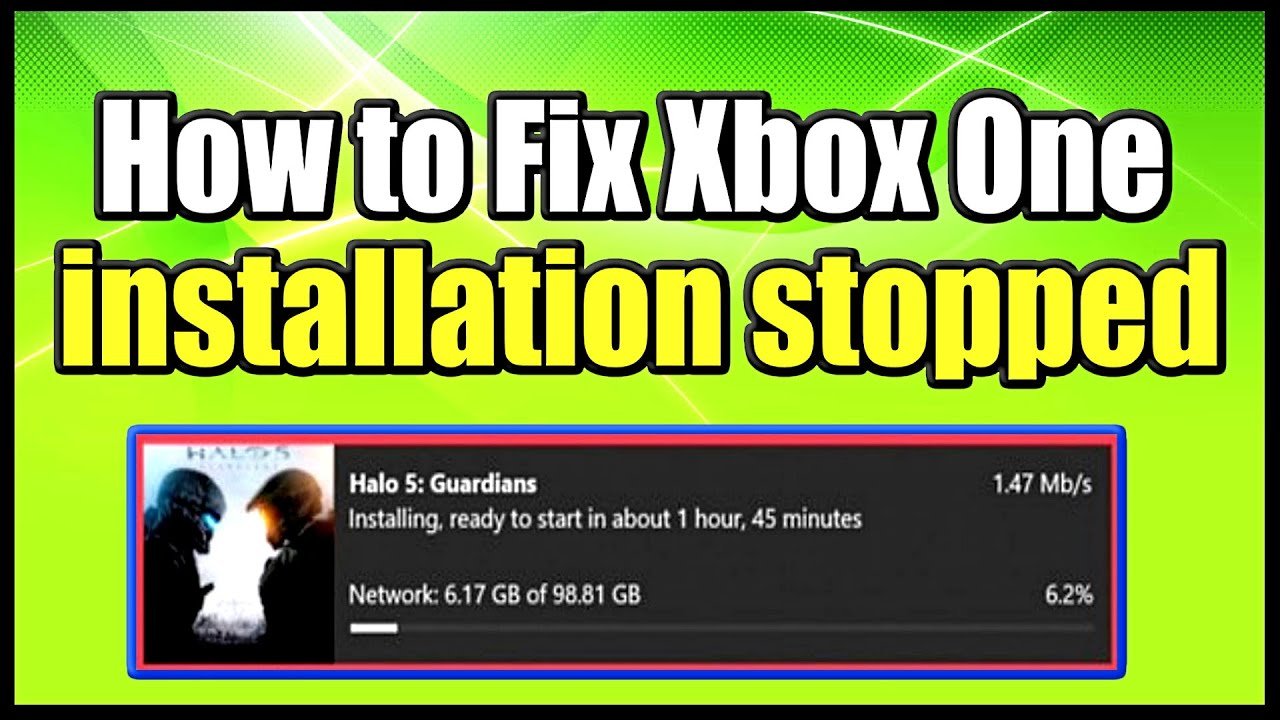
Your Xbox One game might stop installing due to insufficient storage space, a poor internet connection, or issues with the game disc or Xbox system software.
Frustration hits when you’re eagerly awaiting a new game, but the installation halts mid-progress. It’s a common issue, and you might be wondering, “why does my game stop installing on xbox one?”. Various factors can contribute to this interruption.
The causes range from simple storage limitations on your console to more complex issues with your network or the game itself. Addressing these problems can get you back to gaming quickly. We’ll help you identify the reasons.

Why Does My Game Stop Installing on Xbox One?
Okay, so you’re super excited to play that new game on your Xbox One, but then BAM! The installation just stops. It’s like the game decided to take a break halfway through. Super frustrating, right? You’re not alone! Many Xbox One users face this issue, and thankfully, there are several reasons why this happens. Let’s dive into the common culprits and, most importantly, how to fix them.
Internet Connection Problems
One of the biggest reasons why your game might stop installing is your internet connection. Xbox One needs a solid internet connection to download game files. If your connection is spotty or slow, the download can get interrupted. Here’s what to look out for:
Slow Internet Speeds
Is your internet acting like a sleepy snail? When your download speed is too low, the Xbox can’t get the game files quickly enough. This can cause the download to stall or stop altogether. You can check your internet speed by running a speed test on your computer or phone, compare the download speed with your internet service provider and see if you are getting as much speed you are paying for.
You can consider these to check on your slow internet connection.
- Check Your Plan: See what download speeds your internet plan promises. If it’s way below what you’re getting, call your provider.
- Move Closer: If you’re using Wi-Fi, try moving your Xbox closer to your router. The closer, the better the signal.
- Use a Cable: For the best connection, use an Ethernet cable to connect your Xbox directly to your router. This is much more stable than Wi-Fi.
Unstable Connection
Sometimes, your internet might be fast but still drop out every now and then. This inconsistency can also stop the game installation. You might be trying to download a game, and your internet connection just goes poof. The Xbox will stop the download and try to pick it back up, but it might give up if the issue is not solved, and this will stop the installation of your game.
Consider the following points to improve your unstable connection:
- Restart Your Router: Like rebooting a computer, restarting your router can fix a lot of connection problems. Turn it off, wait a minute, and turn it back on.
- Check for Interference: Microwaves, cordless phones, and even Bluetooth devices can mess with your Wi-Fi signal. Try moving these away from your router.
- Update Router Firmware: Keep your router’s firmware updated because the update might come with bug fixes, security patches or improved performance
Storage Space Issues
Another biggie is not having enough space on your Xbox One. Games take up a lot of room, and if your hard drive is full, your game can’t install. Think of it like trying to fit too much stuff into a backpack, it just won’t close!
Checking Your Available Space
You need to check how much space is available on your Xbox One. You can check that by going to settings, then system, then storage.
To fix storage space issue:
- Delete Games or Apps: If your hard drive is full, remove games or apps you don’t use to create some space.
- Use an External Hard Drive: If you have a lot of games you want to keep, consider getting an external hard drive. It’s like adding more shelves to your gaming library.
- Manage Your Content: Go through your games and apps, and delete any that are not being used or old gameplays and clips you no longer need.
Hidden System Files
Sometimes, even if you think you have enough space, the Xbox might be using space for other things. These hidden system files can sometimes get a bit chunky. So, it can stop your games from installing.
Xbox System Glitches and Bugs
Like any technology, Xbox One can have glitches or bugs. These can sometimes make game installations fail. Don’t worry, there are simple fixes for most of these.
Restart Your Xbox
Sometimes, your Xbox just needs a good nap. It’s like turning it off and back on again for a computer. A simple restart fixes a lot of hiccups. To do this:
- Press and hold the Xbox button on the console or on your controller to open the Power Center.
- Select “Restart Console”.
- Wait for the Xbox to restart completely.
Power Cycling Your Xbox
If a normal restart doesn’t work, you can try power cycling. It’s like a deeper restart and can clear more system errors. Here’s how:
- Turn off your Xbox completely.
- Unplug the power cord from the back of the Xbox.
- Wait for about 30 seconds.
- Plug the power cord back in and turn your Xbox back on.
System Updates
Keep your Xbox One system updated. Microsoft regularly releases updates that fix bugs and improve performance. If your system is not updated, some features of your game won’t work properly, which will result in problems with installation.
Game Disc Issues
If you’re using a game disc, the problem might be with the disc itself. Scratches, smudges, or even just a bad disc can stop the installation.
Check Your Disc
Give your disc a good look. Is it clean and free of scratches? A dirty or scratched disc can cause the Xbox to have problems with reading game data, which will result in game installation problems.
Things to do:
- Clean Your Disc: Use a soft, lint-free cloth to wipe the disc from the center out. Don’t use water or any cleaning products.
- Try a Different Disc: If possible, borrow the same game disc from a friend or try a different game disc to see if the problem is the disc or the Xbox.
Disc Drive Problems
Sometimes, the problem is not the disc, but the Xbox’s disc drive itself. If the drive is having problems reading data from the disc, then it will stop the game from installing. This can be more serious and may require help from the Xbox support team.
Xbox Live and Server Issues
Sometimes, the problem isn’t on your end at all. Xbox Live servers might be having trouble, which can stop game installations.
Server Status
Check the Xbox Live status page. This page tells you if there are any problems with Xbox servers. It’s like getting a weather report for Xbox games. You can also check this page through your xbox one to see whether there are server issues, just navigate to setting, then system then console info and then finally click on server status.
Traffic Issues
When lots of people are trying to download games at the same time, the servers might slow down or get overloaded. This can cause your download to stop or be slower than usual.
Software Conflicts
Sometimes, other apps or games running in the background might conflict with your installation. It’s like having too many cooks in the kitchen—things can get messy.
Close Background Apps
Make sure you close any games or apps that are running. This can free up system resources and help your game install properly.
Restarting Your Download
If you have taken the steps to resolve the conflicts, then restart your game download and let it install.
Game File Corruption
Sometimes, the files of the game you are trying to download may have a small part of data corrupted. This can lead to game installation issues.
Try to Re-Download
If the file has been corrupted, then try downloading your game again. If the problem still persists, then try some of the other steps.
Console Overheating
Sometimes, if the console is overheating, it may not perform the task of installation properly.
Cool Down Your Console
Make sure that the console is in a well-ventilated area and is not in a confined or tightly packed place, this will help to cool down your console.
Hard Drive Issues
Your hard drive might be having problems. This can stop your game from installing. If your hard drive is starting to fail then that can lead to problems with the installation of the game.
Test Your Hard Drive
If all the previous steps didn’t help, then you may try to test your hard drive to see whether there is any issue. You can use xbox built-in tools to test your hard drive or do some troubleshooting using microsoft support. If the hard drive is the issue, then you need to replace the hard drive.
Parental Controls and Restrictions
In some cases, the parental controls and restrictions may be preventing the game from downloading. These controls might block the download based on content or ratings.
Check Your Parental Control Setting
If this is the case, you should adjust the parental control setting to allow the game to install. You can also check if other restrictions are in place for the game.
Having your game installation stop on your Xbox One can be really annoying. However, by following these steps, you should be able to get back to gaming in no time. Remember to check your internet, storage, and console health first. If none of these fix the issue, then there might be some other problem. In that case, don’t hesitate to reach out to Xbox support for more help. Happy gaming!
How to Fix Xbox One installation stopped for Digital or Disc Installs (Easy Method)
Final Thoughts
Several factors can halt your Xbox One game installs. Insufficient storage space is a primary culprit; check your hard drive capacity. A weak or unstable network connection also interrupts downloads. Sometimes, corrupted game data requires a fresh install.
These common issues address why does my game stop installing on xbox one. Addressing each step will likely resolve the problem.

