
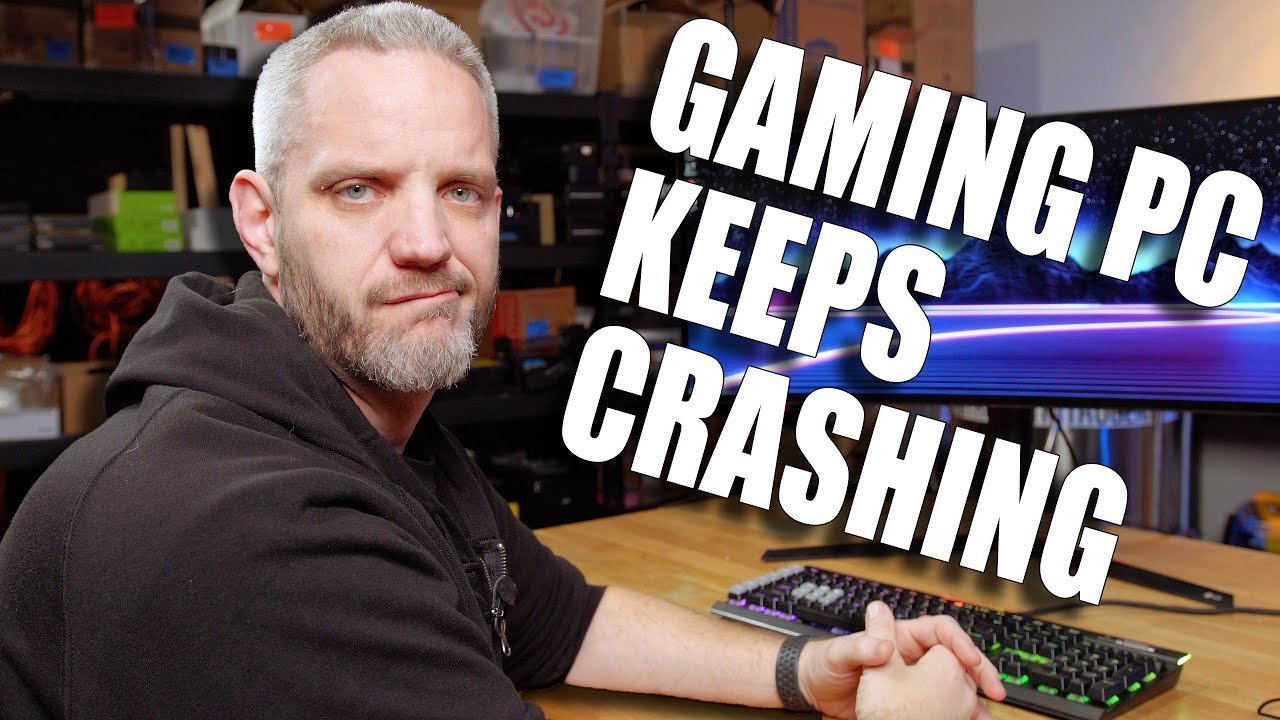
My games keep crashing on my pc due to issues like outdated drivers, insufficient system resources, or hardware problems.
Frustration mounts when your favorite game repeatedly crashes. You’re not alone; many gamers experience this irritating problem. The question, ‘why does my games keep crashing on my pc’, echoes in countless forums.
Several factors can cause these crashes. It could be your graphics card driver needing an update or perhaps your computer struggling with the game’s demands. Identifying the root cause is crucial to getting back to gaming.

Why Does My Games Keep Crashing on My PC?
Okay, let’s be real. There’s nothing more frustrating than getting super into a game, finally about to beat that boss or win the race, and then BAM! The game crashes. Your screen freezes, goes black, or maybe throws up some confusing error message. It’s like the computer is saying, “Nope, not today!” So, why does this happen? Why do your games keep crashing on your PC? Well, there isn’t one simple answer. It can be a whole bunch of things working together, or just one sneaky problem causing all the trouble. Let’s dive in and figure out the common culprits.
The Usual Suspects: Hardware Issues
Your computer is like a team of players, all working together to make games run. When one player isn’t pulling their weight, the whole team can fall apart, leading to crashes. Let’s look at some of the hardware problems that can cause your games to go splat.
Overheating: Too Hot to Handle
Imagine your computer is like a car engine. If it runs too hard for too long, it gets really hot. That heat can mess with its performance and make things crash. Overheating is a big reason why games crash on PCs. The main components that get hot are the CPU (central processing unit) and GPU (graphics processing unit). These are the “brains” and “picture maker” of your computer, and they work hard when you’re gaming.
Here’s how overheating can happen:
- Not enough airflow: Your computer case might not have enough fans or good ventilation to get rid of hot air.
- Dust bunnies: Dust can build up inside your computer, especially on fans and heatsinks, making them less efficient at cooling.
- Ambient temperature: If your room is super hot, your computer will also struggle to stay cool.
- Old or failing cooling components: The fans in your pc might be old and not functioning well, the heat-sink may not be making good contact, or your liquid cooler may have failed.
How to check for overheating:
- You can download software that monitors your CPU and GPU temperatures, or your pc might have some software already pre-installed. If they are hitting really high temperatures (especially above 80-90°C), your computer is most likely overheating.
- Feel the computer, is it very hot?
- Check if the fans in your pc are running well.
RAM Problems: Memory Loss
RAM, or Random Access Memory, is like the short-term memory for your computer. It stores the data your games need to use while they are running. If your RAM is having trouble, your games can crash.
RAM issues can include:
- Faulty RAM sticks: Sometimes, the memory sticks can go bad.
- Insufficient RAM: If your game requires more RAM than you have, your system might become unstable, leading to crashes.
- Incorrect RAM configuration: If your RAM sticks are not installed correctly or are not running at the correct speed for your motherboard, that can also cause crashes.
How to check for RAM problems:
- You can run a memory test using a built-in tool like Windows Memory Diagnostic or a third-party program. These tests check your memory for errors.
- Make sure that your RAM configuration is appropriate for your motherboard and CPU.
Graphics Card Troubles: The Picture Puzzle
The graphics card (GPU) is responsible for making the images you see in games. If your GPU is having a bad day, your games are likely to crash.
GPU problems can include:
- Outdated drivers: Graphics card drivers are the software that allows your computer to talk to the GPU. Outdated or corrupted drivers can lead to game crashes.
- Overclocking issues: Overclocking means making your GPU run faster than it was designed to. This can make your computer unstable and lead to crashes if not done properly.
- Faulty GPU: Sometimes, the GPU itself can have hardware issues that cause crashes.
- GPU getting too hot: Just like the CPU, the GPU can overheat as well.
How to check for GPU problems:
- Update your graphics drivers to the latest version from the GPU manufacturer’s website.
- If you overclocked your GPU, try resetting it to its default settings.
- Monitor your GPU temperature to make sure it isn’t getting too hot.
- Try running benchmark tools to see how stable your GPU is.
Power Supply Problems: Not Enough Juice
Your power supply unit (PSU) gives power to all the parts of your computer. If it’s not powerful enough or having some issues, it can cause crashes.
Power supply issues can include:
- Insufficient wattage: If your PSU isn’t powerful enough for your system, especially when running demanding games, it can cause instability and crashes.
- Failing PSU: As they get older, power supplies can start to fail or have issues.
How to check for power supply problems:
- Calculate how much power your components need and compare that to the wattage of your PSU.
- If you are getting frequent crashes and your system is shutting down without warning, your power supply may need to be checked.
Hard Drive/SSD Issues: Data Trouble
Your hard drive or SSD stores your games and other files. If these are having problems, they can also cause game crashes.
Storage issues can include:
- Disk errors: Damaged or corrupted sectors on the drive can prevent games from running correctly.
- Drive is full: If your drive is almost full, your computer can run slowly, and that can lead to game crashes.
- Failing Hard drive or SSD: They can start to fail over time, which causes instability issues.
How to check for Hard drive/SSD problems:
- Use the built-in error checking tool on Windows, or third-party drive testing tools to see if your storage has any issues.
- Make sure you have enough space on your storage drive.
- Monitor the drive health through software and see if it is showing some errors.
Software Shenanigans: When Things Get Messy
Sometimes, the problem isn’t with the hardware itself, but with the software you’re using. Let’s look at some common software issues that can cause game crashes.
Driver Dilemmas: The Language Barrier
We already talked a bit about graphics drivers, but it’s important to remember that other hardware pieces need drivers too. Outdated, corrupted, or incompatible drivers can cause conflicts and lead to crashes. This includes drivers for your:
- Motherboard chipset
- Sound card
- Network adapter
- Other peripherals (mouse, keyboard, etc.)
How to check for driver issues:
- Make sure you update all the drivers for your hardware.
- You can usually get the latest drivers from your hardware manufacturer’s website.
- If updating doesn’t work, you could also try rolling back to an older driver.
Operating System Issues: The Foundation is Cracking
Your operating system (like Windows) is the base on which everything else runs. If there are problems with your OS, it can lead to game crashes.
Operating system issues can include:
- Outdated OS: Using an older version of Windows that’s not compatible with newer games can cause problems.
- Corrupted system files: Problems with important system files can make games unstable.
How to check for operating system issues:
- Make sure your operating system is up to date with all the latest updates.
- Try running a system file check using Windows built in tool.
- You can also look into reinstalling windows as a last resort.
Conflicting Software: Too Much Competition
Sometimes, other programs you have installed can interfere with your games, causing them to crash. This is especially true for:
- Antivirus programs: These programs might mistakenly flag game files as threats, which can cause the game to crash.
- Overlay programs: Programs like Discord or other voice chat apps can sometimes cause issues if they’re running in the background and trying to interact with your games.
- Background apps: Too many apps running in the background can use up resources your game needs.
How to check for software conflicts:
- Temporarily disable or uninstall background apps and see if that makes a difference.
- Try adding an exception for your games in your antivirus program.
Game Bugs and Glitches: The Game’s Fault
Sometimes, it’s not your computer, it’s the game itself. Games can have bugs or glitches that cause them to crash, particularly right after they are released or after a big update.
- Look online to see if other players are having the same crashing issues and see if there is a solution that can be done.
- Make sure your game is up to date.
Troubleshooting Steps: Becoming a Detective
Alright, now that we’ve gone through all the potential causes, let’s talk about what you can do to fix things.
The Basic Fixes
- Restart your computer: It sounds simple, but sometimes just restarting can fix a lot of problems.
- Update everything: Make sure your drivers, operating system, and games are all updated.
- Close unnecessary programs: Close any programs you don’t need before you start playing games.
Monitoring your Computer
- Check Temperatures: Use monitoring software to keep an eye on your CPU and GPU temperatures.
- Track Resources: Use task manager or other programs to see how much RAM, CPU, and GPU your games are using.
Specific Fixes
- Reinstall Games: If a game keeps crashing, try uninstalling and reinstalling it.
- Verify Game Files: Some game launchers (like Steam) have a function that can check if your game files are intact.
- Lower Graphics Settings: Turn down the graphics settings in your game. Sometimes games demand too much from your hardware.
- Clean Your Computer: Make sure there is no dust inside your computer.
If All Else Fails
- Ask for Help: If you’ve tried everything, you might want to ask a friend who knows about computers or contact a tech support professional.
- Reinstall Windows: This can be a last resort if the problem is really bad and you’re unable to find the issue.
- Check for Faulty Hardware: If you suspect a specific piece of hardware is causing the issue, you might have to look into replacing it, this can be a costly solution and should only be done after all else fails.
It can be annoying when your games crash, but with a little investigation and some troubleshooting, you can usually figure out what’s going on and get back to gaming. Remember, be patient and don’t give up. You’ll figure out what’s making your games crash!
How To Fix Pc Crashing When Playing Games/Rendering
Final Thoughts
Game crashes often stem from outdated drivers, insufficient system specs, or overheating components. Software conflicts and corrupted game files can also be major culprits. These are all potential causes for ‘why does my games keep crashing on my pc’.
Remember to always keep your drivers updated and check your hardware against game requirements. Sometimes, a clean install of the game is also necessary. Fixing these fundamental issues is key to improving gameplay.

