
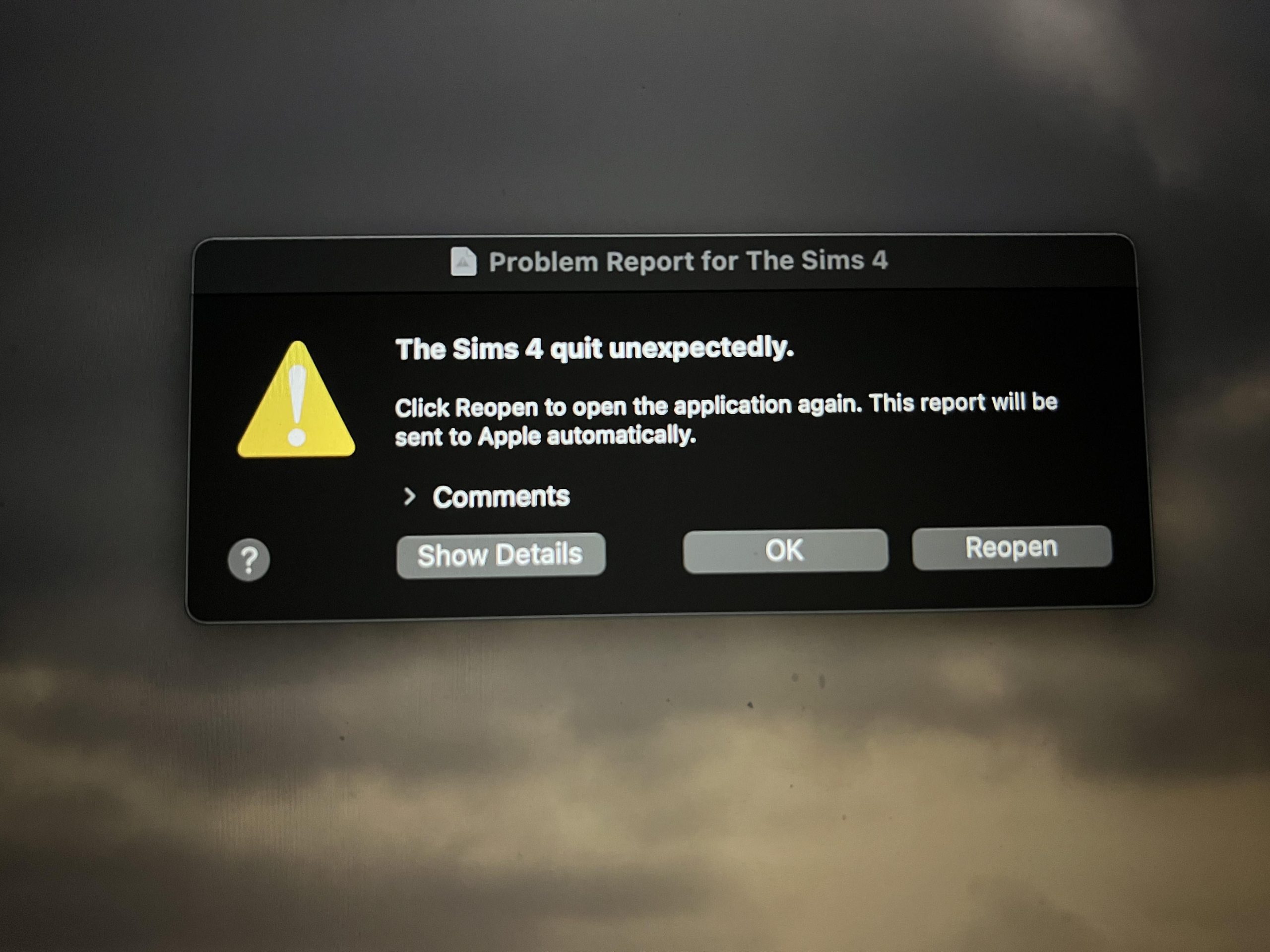
The Sims 4 game keeps crashing due to various reasons like outdated graphics drivers, mods conflicts, insufficient system resources, or corrupted game files.
Is your Sims 4 world constantly interrupted by frustrating crashes? It’s incredibly annoying when your carefully built virtual lives suddenly disappear. We understand how disheartening it is when your game repeatedly malfunctions, causing you to wonder “why does my sims 4 game keep crashing”.
This problem occurs for many players. We’ll explore the main reasons behind these crashes and provide simple steps for troubleshooting. Let’s get your Sims back to their normal routines without these annoying interruptions.

Why Does My Sims 4 Game Keep Crashing?
It’s super frustrating when you’re building your dream house or about to have a Sim wedding, and suddenly, the game crashes! The Sims 4 is a lot of fun, but sometimes it can be a bit temperamental. Let’s explore why your game might be acting up and, most importantly, how to fix it so you can get back to playing without any interruptions. Crashing is a common problem, and it usually happens for a reason. Don’t worry, we’ll help you figure it out.
Computer Specs: Are They Enough?
Imagine trying to run a super-fast race car with a tiny engine – it just wouldn’t work very well, right? The same idea applies to your computer and The Sims 4. If your computer doesn’t have the right “parts,” the game can struggle, which can cause it to crash.
Minimum and Recommended Specs
The Sims 4 has both minimum and recommended system requirements. Minimum is the very basic stuff you need just to run the game at all, often with the graphics set to low. Recommended is what you should have for a smoother, better experience. Let’s look at both:
Minimum System Requirements
- Operating System: Windows 7 (SP1), Windows 8, Windows 8.1, or Windows 10 (64-bit versions) or macOS X 10.11 (El Capitan) or later.
- Processor: 1.8 GHz Intel Core 2 Duo, AMD Athlon 64 Dual-Core 4000+ or equivalent
- Memory: At least 4 GB RAM
- Graphics Card: NVIDIA GeForce 6600, ATI Radeon X1300, Intel GMA X4500 or better
- Hard Drive Space: At least 15 GB of free space
Recommended System Requirements
- Operating System: Windows 10 (64-bit)
- Processor: Intel core i5 or faster, AMD Ryzen 5 or faster
- Memory: 8 GB RAM or more
- Graphics Card: NVIDIA GTX 650 or better, AMD Radeon HD 7750 or better
- Hard Drive Space: At least 18 GB of free space
If your computer doesn’t meet the minimum specs, that’s a major reason why your game might be crashing. If it only meets the minimum, the game might work, but not as smoothly, and still crash sometimes. You may need to turn the graphics to their lowest setting.
How to Check Your Computer Specs
Not sure what kind of “parts” your computer has? It’s easy to find out:
- On Windows: Press the Windows key, type “System Information” and press Enter. Look for things like “Processor,” “Installed RAM,” and “Graphics Card”.
- On macOS: Click the Apple menu () in the top-left corner, then choose “About This Mac.” You’ll see information about your processor, memory, and graphics card.
Compare what you find with the requirements listed above. If your computer falls short, you might need to upgrade some parts or play on a different computer.
Graphics Card Issues
Your graphics card is super important for playing games. It helps the computer show all the characters, buildings, and other cool things in the game. If your graphics card isn’t working well, the game can crash.
Outdated Graphics Drivers
Think of drivers like instructions that tell your computer how to use its parts. If the driver for your graphics card is old, it might not know how to handle the latest games, which can lead to crashes. It’s important to keep these up to date.
To update your drivers:
- NVIDIA: Go to the NVIDIA website, find the “Drivers” section, and enter your card details or download their GeForce Experience application.
- AMD: Go to the AMD website, find the “Drivers & Support” section, and enter your card details. You can also download their Auto-Detect tool.
- Intel: Go to the Intel website, find the “Support” or “Drivers” section and look for the latest driver for your integrated graphics chip.
Once you’ve downloaded the driver, follow the instructions to install it. Restart your computer after the installation to ensure the new driver is working.
Overheating Graphics Card
Just like you get hot when you run around a lot, your graphics card can get too hot if it’s working really hard. Overheating can cause crashes and can even damage your computer. Here’s what you can do:
- Check for Dust: Open up your computer case (if you know how and feel comfortable doing it) and look for dust buildup on the fans and the graphics card. Use a can of compressed air to clean them gently.
- Improve Airflow: Make sure there’s enough space around your computer for air to flow. Don’t block any vents. You might even consider getting a laptop cooling pad or case fans if it keeps overheating.
- Lower Graphics Settings: If your card is getting too hot even when it’s clean and has good airflow, try turning the game graphics down to “Medium” or “Low” in the settings to reduce the load.
Mods and Custom Content: The Good and the Bad
Mods and custom content (CC) can add new stuff and cool features to your game. But sometimes, these can cause crashes if they’re not made correctly or conflict with something else in the game.
Conflicts with Game Updates
When The Sims 4 gets a new update, it can break older mods and CC. This is because updates might change how the game works, which might not work with outdated custom content. You’ll need to go through each mod or custom content again and check if there is a new update available for that specific custom content. The creators of the custom content may need to update their content.
How to Troubleshoot Mods and CC
If you think your mods or CC might be causing problems, you can try the following steps:
- Remove All Mods and CC: Move your “Mods” folder (found in your Sims 4 game folder) to your desktop. Then start the game. If the game works fine without mods, you know one or more of them are causing a problem.
- Add Mods Back One by One: Put the mods and CC back into your folder, but do it one or two at a time. Test the game each time to see if it crashes. When the game crashes, you know the mod or CC you just added is the problem. You can find updated versions of the mods from their creator and try again.
- Look for Updates: Always check for updates to your mods and CC. The creators often fix things that cause crashes. Check the websites or places where you got the mods or CC for any new versions.
Game Files: Are They Messed Up?
Sometimes, the game files themselves can get damaged or messed up. This can cause crashes. You might need to fix the game files to get it working properly again.
Repairing Game Files
You can repair your game through the EA app. Here’s how:
- Open the EA app.
- Find The Sims 4 in your game library.
- Click the three dots on the game and then select the “Repair” option.
The app will check the files and fix them if anything is wrong. After it’s done, try playing the game again.
Reinstalling the Game
If repairing the game files doesn’t work, you may need to uninstall and reinstall the game. This is like starting from scratch with a brand new game. Here’s what you do:
- Open the EA app and find The Sims 4 in your library.
- Click the three dots on the game, and select the “Uninstall” option.
- Once it’s uninstalled, you can download and install it again from the library.
Reinstalling can fix some major issues that repairing might not be able to fix. Make sure you back up your saved games first!
Other Software and Background Programs
Sometimes, other programs running on your computer can interfere with The Sims 4. Things like anti-virus programs or screen recording software can cause problems.
Closing Background Programs
Before you start playing The Sims 4, close any programs you don’t need. This frees up your computer’s resources and reduces the chance of a conflict. Here’s how:
- Windows: Open Task Manager (press Ctrl+Shift+Esc), go to the “Processes” tab, and end any programs you’re not using.
- macOS: Open Activity Monitor (found in the Utilities folder), select the programs you don’t need and click the stop icon.
Be careful when closing programs that you don’t know about. You don’t want to accidentally end something important.
Anti-virus and Firewall Interference
Sometimes, anti-virus programs might mistake The Sims 4 for a dangerous program and block it, which can cause crashes. To fix this:
- Add an Exception: In your anti-virus settings, look for a place to add exceptions or trusted programs. Add The Sims 4 to the list of allowed programs.
- Temporarily Disable Anti-virus: You can also try turning your anti-virus off for a few minutes, just when you are playing The Sims 4, to see if this solves the problem. But make sure to turn it back on when you are done, to keep your computer safe.
- Check Firewall: Your firewall can also block certain programs. Make sure that The Sims 4 is allowed through the firewall. You should be able to change this in your firewall settings.
Overclocking
Overclocking is when you try to make your computer parts work faster than they were designed to. While it can make games run a bit faster, it can also cause crashes if your computer can’t handle it.
Reverting to Default Settings
If you’ve overclocked any of your computer components like your CPU or GPU, try going back to their default settings. You can often find these settings in your computer’s BIOS or through the software you used to overclock. Return the settings to normal and then try playing The Sims 4 to see if it’s more stable.
Corrupted Game Saves
Sometimes, the saves you use to keep track of your game’s progress can be corrupted, meaning they are messed up and can cause crashes. You should try removing the corrupted saves and restore from older saves.
Using Previous Saves
The Sims 4 makes backups of your saves. If your latest save is causing problems, you can try loading an older save. To access your save games:
- Go to your Sims 4 documents folder.
- Open the “saves” folder, you will see a list of save files, named like “Slot_0000000X.save” and “Slot_0000000X.save.verX” where “X” is number.
- The “Slot_0000000X.save” file is the latest version of your save and the “Slot_0000000X.save.verX” are backup saves of that particular slot.
- Rename the latest version to like “Slot_0000000X.save.backup” and the “Slot_0000000X.save.ver0” to “Slot_0000000X.save”. If the problem still exist try to load even older saves.
If an older save works, your latest save may be the problem.
Game Cache
The game creates a kind of storage called cache to keep some game information for quicker access. But sometimes this cache can get messed up and cause problems. You can clear this.
Clearing Game Cache
To clear game cache files:
- Go to your Sims 4 documents folder.
- Delete the “cache” and “lotcachedData” folder and also all the files starting with “cache” in the main folder.
The game will create new cache files when you play. This might help get rid of any problems caused by the old cache files.
Troubleshooting crashes in The Sims 4 can seem like a big task, but by following these steps, you can usually find the cause and fix it. Remember to be patient and try each step one at a time. And don’t forget to save your game often, to minimize losing progress if a crash does happen. If none of these steps resolve the crashes, it may be worth reaching out to the EA support for further technical help. Happy Simming!
How To Fix Sims 4 Keeps Crashing/Freezing (Full 2024 Guide)
Final Thoughts
So, why does my sims 4 game keep crashing? It often stems from outdated mods, corrupted game files, or your computer’s hardware struggling. Ensure your drivers are updated. Consider removing any recently added custom content. Finally, repair the game via the Origin or EA app, which sometimes fixes the problem.

