
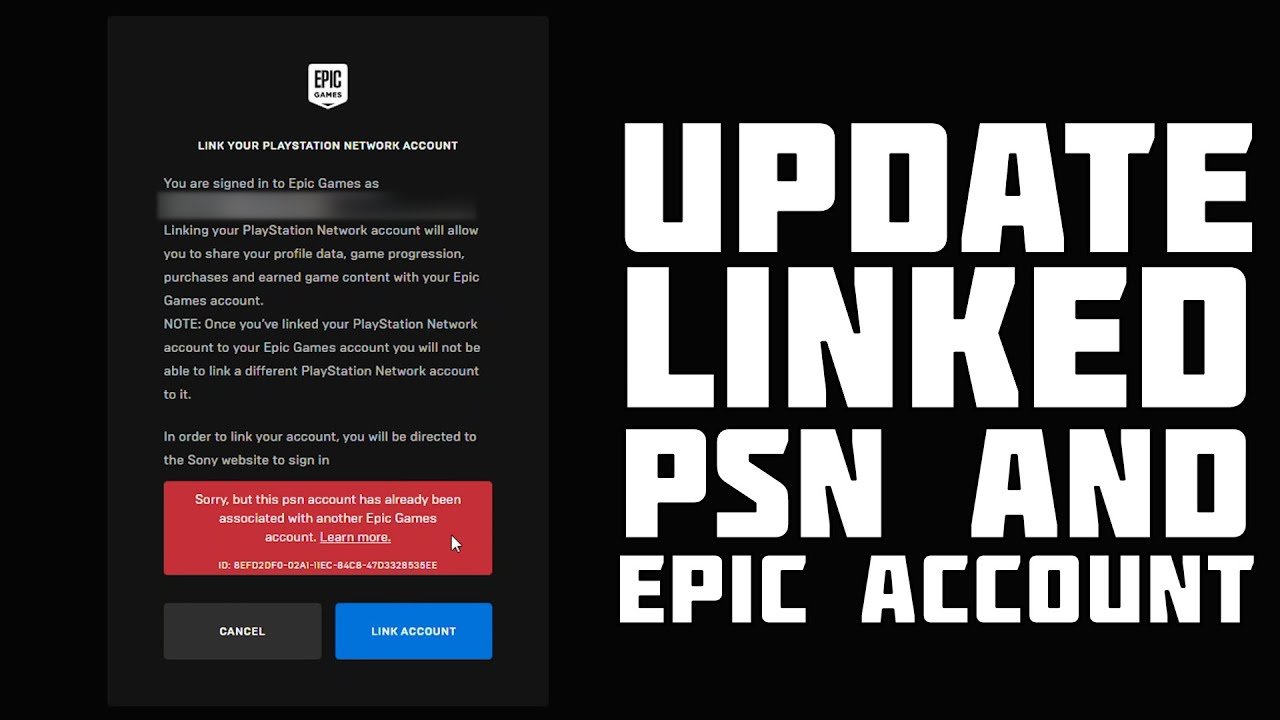
To link your Playstation account to Epic Games, you’ll need to visit the Epic Games website, sign in, go to “Accounts,” and then connect your PlayStation Network account.
Want to access your games and progress across multiple platforms? Many gamers ask how to link your Playstation account to Epic Games, and the process is actually quite simple. This connection allows you to keep your progress, cosmetics, and items when switching between playing on your Playstation and your PC or other devices.
It’s a great way to enjoy your favorite titles whenever and wherever you want. This integration opens a whole new world of possibilities for cross-platform gameplay, so let’s dive into the steps.

How to Link Your PlayStation Account to Epic Games
Have you ever wanted to play your favorite Epic Games titles, like Fortnite or Rocket League, across different devices? Maybe you started building an awesome base on your PlayStation and now you want to continue the adventure on your PC or even your phone! Well, linking your PlayStation Network account to your Epic Games account is the key. It lets you carry your progress, your cool skins, and everything you’ve worked for, wherever you go. This process is pretty easy, and we are going to walk through every single step in this article. So, let’s jump into it!
Why Link Your Accounts? The Benefits
Before we get into the ‘how,’ let’s talk about the ‘why.’ Linking your PlayStation and Epic Games accounts brings many awesome advantages. Think of it as creating a super highway for your gaming progress and goodies. Here’s a breakdown of the main reasons why this is a great idea:
- Cross-Platform Progression: This is the big one! When you link your accounts, your game progress, purchases, and even your battle passes transfer across all platforms. Start a Fortnite match on your PlayStation, jump to your PC, and continue right where you left off. Your hard-earned wins will travel with you.
- Shared Purchases: That awesome skin or that cool car you bought in Rocket League? It’s yours across all platforms you play on. No more having to buy the same thing twice! This makes sure your money is spent wisely and lets you enjoy your collection on every device.
- Play with Friends Everywhere: Linking your accounts makes it easier to find and play with your friends, no matter what system they are using. This makes it way more convenient to get your gaming squad together.
- Access Exclusive Content: Sometimes Epic Games offers special items, rewards, or events only for players who have linked their accounts. You wouldn’t want to miss out on those cool things, would you?
- Easy Account Management: By having a single Epic Games account that’s linked to your other platform accounts, you can manage your profile, security settings, and purchase history in one place. It makes things much simpler.
Step-by-Step Guide to Linking Your Accounts
Okay, ready to get your accounts linked? Let’s go through the process step by step. You can do this on your computer or on your phone through a web browser. Here’s how it’s done:
Using a Web Browser:
This is the method we will mainly focus on because it is the most reliable and works on any device with a web browser.
- Head to the Epic Games Website: Open a web browser, like Chrome, Firefox, Safari, or Microsoft Edge. Go to the official Epic Games website. The URL is usually epicgames.com. Make sure it’s the real website, so you stay safe.
- Sign In to Your Epic Games Account: Look for the “Sign In” button on the top right of the screen. Click it. You will have several options, including signing in with your Epic Games account or logging in using another service like Google, Facebook, or your Xbox Account. If you already have an Epic Games account, sign in with your email and password. If you don’t have one yet, no problem! Just click on “Sign Up” and follow the instructions. The sign-up is straightforward; they’ll ask you for basic details such as your email, a username, and a password.
- Go to Your Account Settings: After you have signed in, click on your username (it’s usually your display name) in the top right corner of the website. This will open a menu. Select “Account.” This is where all of your settings are located.
- Navigate to “Connections”: On the left side of the account settings page, you’ll see a list of options. Find and click on “Connections.” This is where you manage all the links to different services.
- Choose “Accounts”: Under “Connections,” click on “Accounts.” This will show you all the services that you can link to your Epic Games account.
- Find PlayStation: Look for the “PlayStation Network” logo. It will probably have a “Connect” button next to it.
- Click “Connect”: Click the “Connect” button. This will start the process of linking your PlayStation account.
- Sign In to Your PlayStation Account: A new window will pop up asking you to sign in to your PlayStation account. Enter the email address and password you use for your PlayStation Network account.
- Authorize the Link: After you sign in, PlayStation will ask if you want to allow Epic Games to access your account. Click “Allow” or “Accept.” This gives Epic Games permission to link to your PlayStation account.
- Success!: If everything goes well, you’ll get a confirmation message on the Epic Games website that says your PlayStation account is now linked. You are all done!
Linking Directly From Your PlayStation Console
Sometimes, while you are playing a game on your PlayStation that uses an Epic Games account, it might prompt you to link your account. Here’s what this process usually looks like:
- Start the Epic Games Game: Boot up your PlayStation and start the game that uses Epic Games, such as Fortnite or Rocket League.
- Follow the On-Screen Instructions: The game might show you a message on the screen asking you to link your accounts. Read the message and click the button to start the linking process.
- Sign In to Your Epic Games Account: The game will open a web browser on your PlayStation where you can sign in with your Epic Games account email and password. If you don’t have one, you can create it through the browser.
- Authorize the Link: PlayStation will ask if you want to give Epic Games access. Click “Accept” or “Allow” to let your accounts link together.
- Confirmation: The game will then confirm that your accounts are linked. Now you’re good to go.
Troubleshooting Common Issues
Sometimes, things don’t go perfectly. Here are some common problems you might encounter and how to fix them:
“Already Linked” Error
You might see an error that says, “This account is already linked to another Epic Games account.” This usually means that the PlayStation Network account you’re trying to link has already been connected to a different Epic Games account. This can happen if you have multiple accounts or if someone else may have linked it. Here’s how to handle it:
- Identify the Existing Account: Try to remember any other Epic Games accounts you might have made. Check your email addresses; perhaps you made one with an old or a different email.
- Try to Sign In to the Other Epic Account: Sign into your epic games account that you think you might have already used for linking your playstation.
- Unlink the Account (If Needed): Log into your epic games account that is already linked to your playstation account, follow the steps we mentioned above to go to “Connections” -> “Accounts”, then find the playstation logo and select “Unlink”. Once you unlink, you can try to link the intended epic account.
- If You Can’t Recover the Existing Account: If you have no way to access the previous epic games account, contact the Epic Games Support team. They can help you recover the old account or unlink your PlayStation account. Be prepared to provide proof that you own the PlayStation account.
Login Problems
Sometimes, it can be hard to sign into either your Epic Games or PlayStation accounts. Here are a couple of things you can try:
- Double-Check Your Credentials: Make sure that you are using the correct email address and password. Passwords can be tricky, so make sure there are no spelling mistakes and that caps lock is turned off.
- Reset Your Password: If you’ve forgotten your password, there is no shame in it. Click the “Forgot Password” link on either the Epic Games or PlayStation sign-in page and follow the instructions for password reset. Usually, you’ll receive an email with a link to reset it.
- Check for Network Issues: Make sure you have a stable internet connection, as it can affect the login process. Restart your router or try connecting with a different internet source.
Connection Errors
If you see a connection error, it means your PlayStation network or the Epic Games service may be experiencing issues.
- Check Server Status: See if the Epic Games server or the PlayStation network is down. You can usually do a quick Google search or check their official social media pages.
- Wait and Try Again Later: If the servers are down, try again later. It may simply be temporary maintenance.
- Restart Your Devices: Sometimes, just restarting your PlayStation or your device running the browser can fix temporary issues.
Authorization Issues
If you encounter a problem with authorization, here’s how you might handle it:
- Ensure Permissions Are Granted: Double-check that when you were linking the accounts, you clicked the “Accept” or “Allow” button. If you accidentally rejected the link, you might have to unlink and redo the process.
- Clear Browser Cache and Cookies: Sometimes, stored browser data can cause conflicts. Try clearing your browser cache and cookies and then try linking the accounts again.
- Try a Different Browser: If you still experience issues, try using a different web browser to link the accounts.
Things to Keep in Mind
- One-to-One Linking: It’s important to know that you can only link one PlayStation Network account to one Epic Games account, and vice versa. This means that each account is unique and cannot be used on different accounts. If you unlink the current account, you can link it to another, but once that link is done, you cannot go back again and link it to your previous account.
- Careful When Unlinking: Make sure that you want to unlink your accounts before you do it. It can cause some problems for some users, like losing progress. If you have any issues after unlinking, contact customer support right away.
- Security is Key: Make sure that you keep your passwords secure, and enable two-factor authentication on your accounts to protect them.
- Use Official Websites: Always use the official Epic Games and PlayStation websites when linking your accounts to protect yourself from phishing scams.
Following these steps and troubleshooting tips should make linking your PlayStation and Epic Games accounts a breeze. Remember, linking your accounts makes playing games way more fun and more accessible. With all your hard-earned progress and cool purchases accessible across platforms, you can continue your gaming adventure no matter what device you are using. So, go ahead and get those accounts linked and have fun!
By linking your PlayStation account to your Epic Games account, you create a better gaming experience. You get to bring your progress and achievements with you, no matter what device you choose to play on. So, jump in, link your accounts, and get ready for cross-platform fun!
How To Link Epic Games Account To PlayStation Account – Easy Guide
Final Thoughts
Linking your Playstation and Epic Games accounts enables cross-progression. This connection lets you use your game progress across different devices. This simple process expands your gaming experience.
To link accounts, visit the Epic Games website and sign in. Then, navigate to “Connected Accounts” and choose the Playstation icon. You must follow the onscreen instructions to complete the process.
Linking your Playstation account to Epic Games enhances your gameplay. This crucial step merges your gaming data across platforms. Enjoy your favorite games on both platforms now.

