
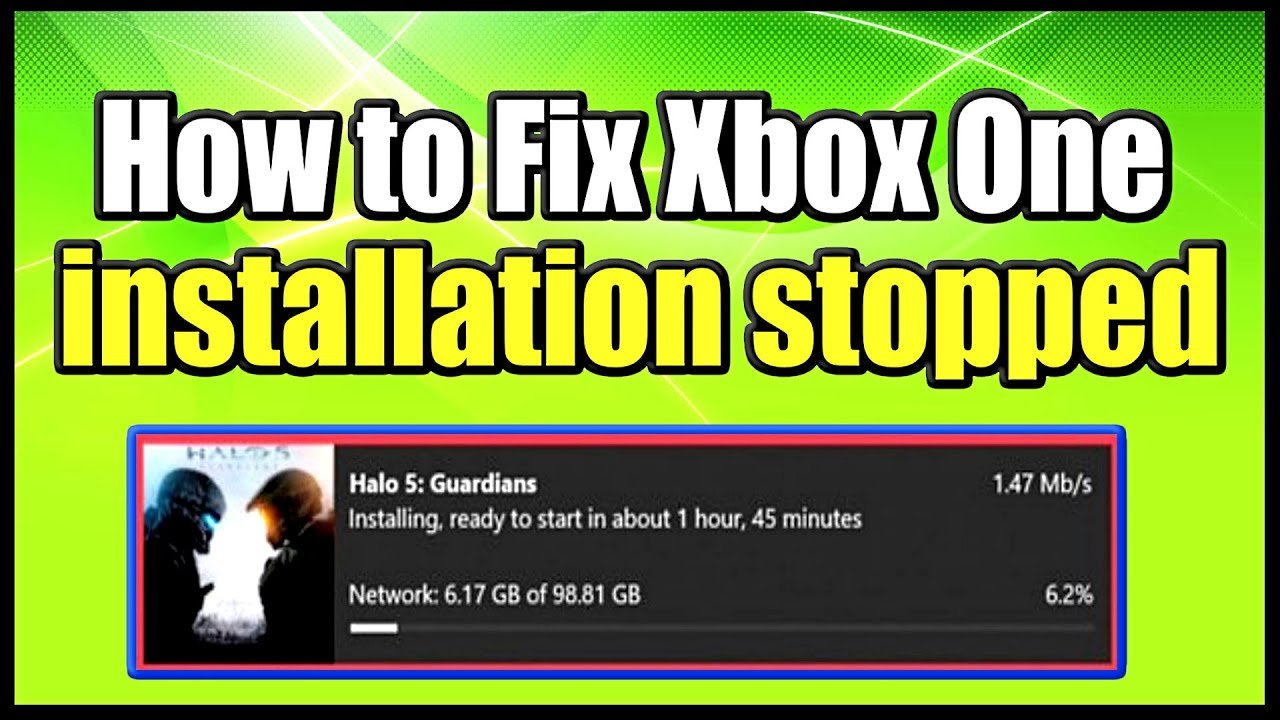
Your Xbox One game likely stops installing due to a poor internet connection, insufficient storage space, or a problem with the game disc or data.
Ever been in the middle of installing a new game on your Xbox One, only to have the progress bar freeze? Frustration sets in as you wonder, why does my xbox one game stop installing? It’s a common issue, and thankfully, it often has a straightforward cause.
These interruptions can stem from various factors, with internet speed and hard drive limitations being prime suspects. A weak connection or a full drive will absolutely halt installation.
Sometimes, the game media itself is the issue; check the disc for scratches or if the data is corrupt. Troubleshooting these areas will usually get you back on track.

Why Does My Xbox One Game Stop Installing?
Having your Xbox One game installation grind to a halt can be super frustrating, especially when you’re itching to jump into a new adventure or compete with friends. It’s like waiting for your favorite toy to come in the mail, only for the delivery truck to suddenly break down! There are many reasons why this might happen, ranging from simple glitches to more complex hardware issues. Let’s take a closer look at the different culprits so you can get back to gaming as soon as possible. We’ll cover everything from internet connection problems to storage space limitations, helping you troubleshoot the situation like a pro. This article will explain each reason in detail so you understand what’s happening behind the scenes and how to fix it.
Internet Connection Issues
One of the most common reasons an Xbox One game stops installing is problems with your internet connection. Think of it like trying to fill a pool with a leaky hose. If the water isn’t flowing steadily, the pool will take a long, long time to fill, or maybe never even fill at all!
Weak Wi-Fi Signal
Distance Matters: If your Xbox One is far from your Wi-Fi router, the signal might be weak. Walls and furniture can also interfere with the signal. Try moving your Xbox closer to the router temporarily to see if it helps.
Interference: Other devices using the Wi-Fi can slow down your connection. This includes phones, tablets, laptops, and even smart TVs. The more devices using the Wi-Fi, the less bandwidth is available for your Xbox.
Old Router: An older router might not be able to handle the data flow required for downloading large games. If your router is a few years old, you might want to consider upgrading to a newer one.
Slow Internet Speed
Bandwidth Limitations: Your internet plan might not provide enough bandwidth for large downloads. Check with your internet provider to see if you’re getting the speeds you are paying for.
Too Many Users: If several people are using the same internet connection at once, the speed available to your Xbox can slow down. This often happens in homes with multiple gamers or people streaming videos.
Intermittent Connection
Connection Drops: Sometimes, your internet connection can drop out or become unstable for a brief moment. This can interrupt your download, causing it to get stuck.
Router Issues: Occasionally, your router might need to be restarted to resolve connection problems. Just like your Xbox, routers can have temporary glitches. Turn the router off, wait for about a minute, then turn it back on.
To check your network speed on Xbox, go to Settings > Network > Network Settings > Detailed Network Statistics. This will give you details about the download speed and network latency (delay). If the speed is slow or you see high packet loss, it’s likely your network is the issue.
Insufficient Storage Space
Another frequent reason for stalled game installations is that you simply do not have enough room on your Xbox hard drive. Think of it like trying to pack too many clothes into a suitcase; if it’s overflowing, the zipper won’t close.
Game Size
Large Files: Modern games can be huge, sometimes exceeding 100 gigabytes! You will need more space than you expect, so always double-check the game size before you start the download.
Updates and DLC: It’s not only the main game that takes up space. Game updates and downloadable content (DLC) also require storage space. These updates can sometimes be quite large, so always check your space.
How to Check Your Xbox Storage
To check how much storage you have left on your Xbox:
1. Press the Xbox button on your controller to open the guide.
2. Go to “Profile & system,” then select “Settings.”
3. Choose “System,” then select “Storage.”
4. You’ll see a breakdown of all the drives connected to your Xbox and how much space is used/free.
Managing Storage Space
Deleting Old Games: If your hard drive is full, delete games you no longer play. This will free up space for new installations.
Moving Games to External Drive: You can buy an external hard drive to add storage space to your Xbox One. This is a great way to expand storage without removing your favorite games. It’s important that the external drive meets the Xbox’s requirements.
Moving Game Contents: You can move the contents of installed games from internal hard drive to external hard drive and vise versa.
External Drive Requirements
If you choose to use an external drive for your games, here are a few things to look for:
USB 3.0 Connection: A USB 3.0 connection is needed for fast data transfer. Older USB types are too slow and will cause problems.
Minimum Storage Size: The external drive needs to have at least 256 GB of space.
Formatted Correctly: The drive needs to be formatted to work with the Xbox. When you connect the drive for the first time, the Xbox will ask you to format it.
| External Drive Attribute | Requirements |
|---|---|
| Connection Type | USB 3.0 or faster |
| Minimum Storage Size | 256GB |
| Formatting | Formatted to Xbox |
Xbox System Issues
Sometimes, the problem isn’t your internet or storage; it’s something on the Xbox itself. Just like a computer, your Xbox can experience glitches.
Software Glitches
Temporary Issues: Your Xbox software can sometimes have hiccups. These are usually fixed by restarting the console.
Outdated Software: Make sure your Xbox has the latest system software updates installed. Software updates often contain fixes for known bugs and glitches that may interfere with downloads.
Corrupted Software: In rare cases, system software can become corrupted, causing installation issues. You might need to perform a factory reset if that’s the case.
Cache Issues
Cache Data: Your Xbox stores temporary files (cache) that can sometimes cause problems. Clearing the cache can resolve installation issues.
Clearing the Cache: To clear the cache, power off your Xbox. Then, unplug the power cord from the back of the console for at least 2 minutes. Then, plug it back in and turn the console on.
Hardware Problems
Hard Drive Failure: In very rare cases, the hard drive itself can fail, leading to installation errors. If the problem persists even after trying all other fixes, you should consider that there could be a hardware problem.
Other Hardware Issues: Other hardware components can cause problems. If you think there’s a hardware problem, you might need to send your Xbox in for repair.
Game-Specific Problems
Sometimes, the issue isn’t with your console or network; it is related to the specific game itself that you are trying to install.
Corrupted Game Files
Download Issues: If the game files are downloaded incorrectly or damaged during download, it can cause installation problems. This can happen because of intermittent connection issues or problems on the server.
Re-download: Try uninstalling the game completely, then try downloading and installing it again. This usually resolves most problems related to corrupted files.
Game Updates
Incompatible Updates: Sometimes, an update for a game can have glitches that interfere with the installation process. Check online forums to see if other players are experiencing the same issue with updates, this can help you determine if it is a problem of the game.
Forced Restart: If the game forces a restart during update, try not to switch to another app or game when a game is being updated, let the update process complete without interference.
Game Server Issues
Server Overload: Sometimes, the game servers are busy or overloaded with too many users trying to download at the same time, this can interrupt installation. Try to download the game during off peak times.
Maintenance: Game servers can go offline for maintenance or updates, so the downloads may not happen during that time. Always check the status of the servers to see if the game is available for download.
Disc Installation Issues
If you are installing your game from a disc, some issues can be specific to the disc or the disc drive.
Damaged Disc
Scratches and Smudges: Scratches, smudges, or dirt on the disc can prevent the Xbox from reading the data. Always handle your game discs with care and clean them with a soft cloth if they get dirty.
Incorrect Disc: Make sure you have the correct disc. Always cross-check the disc’s product code with the game you are trying to install.
Disc Drive Problems
Drive Issues: Sometimes, the disc drive itself might have issues reading the disc, this can be due to wear and tear over time.
Dust: Dust can also get inside the disc drive and affect its performance. Use a compressed air duster to clean the disc drive.
Hardware Failure Hardware failure can result to an inoperable disc drive, a failing disc drive will not read any of the discs you put inside the console.
Background Processes
Your Xbox runs various background tasks which, although important, can also affect game installations.
Game Updates
Automatic Updates: Your Xbox might automatically be installing or updating other games while you’re trying to download a new one. This can slow down the overall process.
Pausing Updates: You can pause the automatic updates to free up more network resources for your new game. Go to “My games & apps” and select the game or update you want to pause.
System Updates
Pending Updates: Sometimes, a pending system update can interfere with game installations. Make sure that system updates are installed before beginning a new download.
Interruptions: Avoid interruptions when the system is updating, don’t switch to other apps or games until the update is complete.
App Usage
Multiple Apps: If multiple apps are running in the background, this can take away from resources needed for the game installation. Close all apps that you’re not using to free up resources.
Resource Intensive Apps: Streaming apps and game recording apps can take up significant system resources and network bandwidth that can interfere with game installation.
Xbox Live Service Outages
Sometimes, the problem isn’t with you or your Xbox but with the Xbox Live service itself.
Server Downtime
Scheduled Maintenance: Microsoft sometimes takes Xbox Live offline for maintenance. During these times, downloads might not work. Always check the Xbox Live Status page for planned maintenance.
Unplanned Outages: Unexpected outages can also occur on Xbox Live servers, preventing you from downloading games.
Check Xbox Live Status
Xbox Support Page: You can check the official Xbox Support page to see if there are any known issues with the service.
Social Media: Sometimes, other users on social media will report Xbox Live problems before the official announcement.
Troubleshooting Steps
If you are still having problems installing a game, here are some troubleshooting steps that you can take:
1. Restart Your Xbox: First, restart your Xbox One. This can often resolve temporary glitches. Press and hold the power button on the console for 10 seconds to force a restart.
2. Check Internet Connection: Make sure your Xbox is connected to the internet. Verify your speed and stability by going to Settings > Network > Network Settings > Test network connection.
3. Clear Cache: Clear the system cache, as previously mentioned.
4. Check Storage: See how much storage you have left and delete any games you’re not using.
5. Pause Background Downloads: Make sure no other games or apps are updating in the background.
6. Check Disc (if applicable): If you’re installing from a disc, make sure the disc is clean and in good condition.
7. Try wired connection: if you are using wireless connection try wired connection with ethernet cable.
8. Try again later: Sometimes the server is the problem, so try downloading the game at a later time or day.
9. Contact Xbox Support: If all else fails, contact Microsoft Xbox Support for assistance.
Having your game installation stop can be frustrating, but by going through the troubleshooting steps listed here, you can identify the problem and get back to playing your favorite games. Remember, it is often one of the reasons listed in this article, such as connection issues, storage problems, or game-related issues. Take it one step at a time, and you’ll solve this soon enough.
How to Fix Xbox One installation stopped for Digital or Disc Installs (Easy Method)
Final Thoughts
Ultimately, several factors can cause your Xbox One game installation to halt. These include insufficient storage space, a poor internet connection, or problems with the game disc itself. Network issues and console updates also can interrupt installations.
These common obstacles can frustrate gamers. Addressing each potential issue is important. You must methodically check each factor.
By understanding these points, you can troubleshoot ‘why does my xbox one game stop installing’ and get back to playing quickly.

