
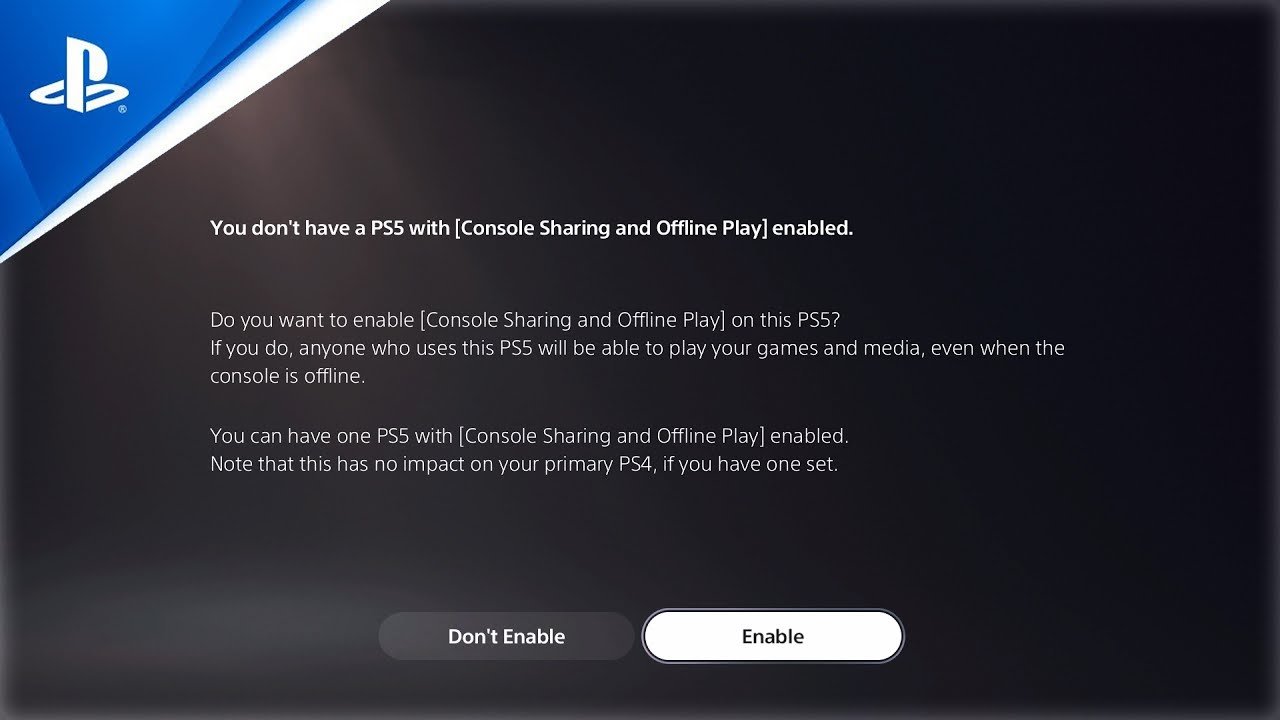
Game share on PS5 isn’t working because either the console is not activated as the primary console, there is an account login issue, or a licensing conflict exists between the accounts involved.
Frustration hits when you can’t access games you expect to play. So, you’re asking “why is game share not working ps5”? It’s a common problem, and the reasons are usually simple to address.
Often, it boils down to incorrect console settings or problems with the accounts. This article will help you troubleshoot the issue. We will get you back into gaming with friends soon.

Why is Game Share Not Working on PS5?
Hey there, fellow gamers! So, you’re trying to share your awesome PS5 games with a friend or family member, but it’s just not working? Frustrating, right? You’re not alone. Game Share, also known as Console Sharing and Offline Play, is a super handy feature on the PlayStation 5, but sometimes it throws a curveball. Let’s dig into all the reasons why your game sharing might be acting up and what you can do about it.
Understanding How Game Share Works on PS5
Before we jump into the troubleshooting, it’s helpful to know the basics. Think of game sharing like letting a friend borrow a physical game, but digitally. Here’s how it’s supposed to work:
- Primary Console: Your account needs to designate one PS5 as your “primary console.” This tells PlayStation that, hey, this is your main console where you mostly play your games.
- Sharing Account: On your primary console, anyone who has a profile on that PS5 can play your digitally purchased games. They don’t need to sign in with your account every time.
- Secondary Console: You can also sign in with your account on a different PS5 (a friend’s, maybe). On this secondary console, only your profile can access your games. Other profiles on the secondary console can not use your games unless they log into your profile.
- Offline Play: On your primary console, games can be played offline by any account on the console. On a secondary console, the account needs to be connected to the internet to play the games.
The main idea is that you get access to games on all consoles, and your friends get access on one console. If these settings aren’t correct, you can run into issues with game share. Now that we have covered how it works, let’s get into possible errors and solutions.
Common Reasons Why Game Share Isn’t Working
Okay, so things aren’t going as planned. Let’s explore the most common roadblocks that can stop your game sharing in its tracks.
Incorrect Primary Console Settings
This is the number one culprit. If your PS5 isn’t correctly set as your primary console, game sharing will just not work properly. Here’s how to check and fix this:
- Go to Settings on your PS5’s home screen (the little gear icon).
- Navigate to Users and Accounts.
- Select Other.
- Choose Console Sharing and Offline Play.
- If the option says “Disable,” then your console is currently set as your primary. If it says “Enable,” select it to make this console your primary PS5.
Important Note: You can only have one primary console at a time. If you have another PS5 set as your primary, you will need to deactivate it before making the current one your primary. You can do this from the console itself, but if you don’t have access to it, you might have to deactivate remotely through the PlayStation website. We will touch more on this, shortly.
Internet Connection Problems
Even if your PS5 is correctly set up, a shaky or intermittent internet connection can throw a wrench into the works. This is mostly applicable to your secondary console. Check these things:
- Check your Wi-Fi or Ethernet Connection: Make sure your console has a stable connection to the internet. Try restarting your router if you are having connection problems.
- PSN Server Status: Sometimes, the PlayStation Network (PSN) servers experience issues. Check the PSN status page on the PlayStation website to see if there are any outages.
Account Issues and Licensing
Sometimes, the problem lies within the account itself. Here are a few things to look out for:
- Signed in on multiple consoles: If you’re logged into multiple PS5s at the same time, it might confuse the system. Make sure you are only logged into one secondary console and your primary console, at most.
- Game Licenses: If you’re having trouble, make sure you’re logged in with the account that actually purchased the games. Licenses might not carry over if it is being used from another account.
- Family Management Settings: Parental controls or family settings could be interfering. If restrictions are set up on an account, this can limit access to the game. If the account is a child account, the content is determined by the parent account.
Software Glitches and System Errors
As with any tech, sometimes things go wrong even when you’ve done everything correctly. Check for these software errors:
- System Software Updates: Make sure your PS5 has the latest system software. Outdated software can cause problems. Go to Settings > System > System Software > System Software Update to check for updates.
- Game Updates: It is also important to check if your game has updates available. Outdated games might have problems working correctly with the PSN software.
Deactivating a Primary Console Remotely
As mentioned earlier, you can only have one primary console. If you no longer have access to a PS5 that is set as your primary, you can deactivate it remotely using the PlayStation website:
- Go to the PlayStation website on your computer or phone and sign into the PSN account that is having issues.
- Go to your profile and click on the “Account Management” button.
- Click on “Device Management” on the left-hand side menu.
- Then, select “Playstation Consoles.”
- You will see a list of the PS5s linked to your account. Next to your listed devices, click “Deactivate All Devices.” You will have to sign out and back in to see the changes.
Advanced Troubleshooting Steps
If the above steps don’t do the trick, it’s time to dig a little deeper.
Restoring Licenses
Sometimes, your game licenses can get a bit confused, especially after switching primary consoles. To fix this:
- Go to Settings on your PS5.
- Navigate to Users and Accounts.
- Select Other.
- Choose Restore Licenses.
- Select the “Restore” button.
This will refresh the licenses on your PS5, and often times this simple step fixes a lot of different issues related to playing games purchased on your account.
Rebuilding the PS5 Database
This is a more advanced step, but it can sometimes resolve persistent game sharing issues. This process will clear the PS5 system cache and rebuild it to make sure everything is working correctly. This can be particularly helpful if you have been noticing that your PS5 is not functioning correctly, overall.
- Completely turn off your PS5. Don’t put it into rest mode.
- Press and hold the power button on the console until you hear two beeps. This will take you to safe mode.
- Connect a controller using a USB cable (Bluetooth doesn’t work in Safe Mode).
- Select Rebuild Database from the options. This process can take a while, so be patient.
- Once it is completed, your console will restart and then your games will be refreshed.
Warning: Rebuilding the database will not delete any of your save files or games, but it might take a long time to complete. This can be especially important if you have an older or slower hard drive installed in your system. Don’t try this step if you do not have time to leave the console idle for an extended period.
Contacting PlayStation Support
If all else fails, the best course of action is to reach out to PlayStation Support. They may be able to assist you with specific account issues or offer additional solutions. Be sure to have your account information ready, as well as any specific details about your PS5 setup.
Specific Scenarios and Solutions
Let’s look at some specific situations you might run into and how to handle them:
Game Sharing Between Two People
If you are trying to play the same game with a friend, there are specific ways you need to set up your consoles. One person must have a game installed and set as a primary console, and the other person should log into their console with the primary account. This means that you can play the game on your console, and your friend can play on their console, using your license for the game.
Let’s use an example. If John has the game, and wants to share with his friend Jane, he needs to set his PS5 as the primary console. Then, Jane needs to log into her console with John’s profile and access the game from that account, while John is playing the game from his account, on his primary console. This way, they can play the same game at the same time with only one copy of the game purchased.
Game Sharing Within a Family
If your children have PSN accounts on your PS5, you can let them play your games on your primary console without any issues. The same account sharing restrictions still apply, but the content of the games will depend on the parental controls set up on each account.
Issues with Digital Games vs. Disc Games
Game sharing only works with digitally purchased games. If you have a game on a disc, it cannot be shared in this manner. Also, some games require you to use the disc while you are playing, and that copy of the game cannot be played from a second console at the same time. If you have an issue with a game you think you should be able to share, be sure to check if it is the disc version or digital version. Digital versions are downloaded directly from the PSN store.
Preventing Future Game Sharing Problems
Now that you’ve gone through the troubleshooting process, let’s consider some ways to avoid future headaches:
- Keep Track of Your Primary Console: If you have more than one PS5, make sure you know which one is set as your primary console. This can prevent a lot of confusion.
- Regularly Check for Software Updates: Keep both your system software and your games up to date.
- Use a Strong and Stable Internet Connection: A reliable internet connection is key for game sharing.
- Be Aware of Family Settings: If you have children’s accounts on your PS5, be aware of the restrictions you have set up.
Game sharing can be a fantastic feature to share your games with friends and family. When the feature is working as intended, you save money by sharing games on multiple systems. But when it has issues, it can become really frustrating. By paying attention to the settings, and troubleshooting common errors, you can keep game share working correctly.
How to Fix Gameshare Locked on PS5
Final Thoughts
Ultimately, several factors can hinder game sharing on the PS5. Account issues, like incorrect primary console settings, are a common culprit. Network connectivity problems also frequently cause glitches.
Game licenses, if not properly registered or active, prevent game sharing functionality. These various issues all contribute to ‘why is game share not working ps5’. It must work correctly with a little troubleshooting.

