
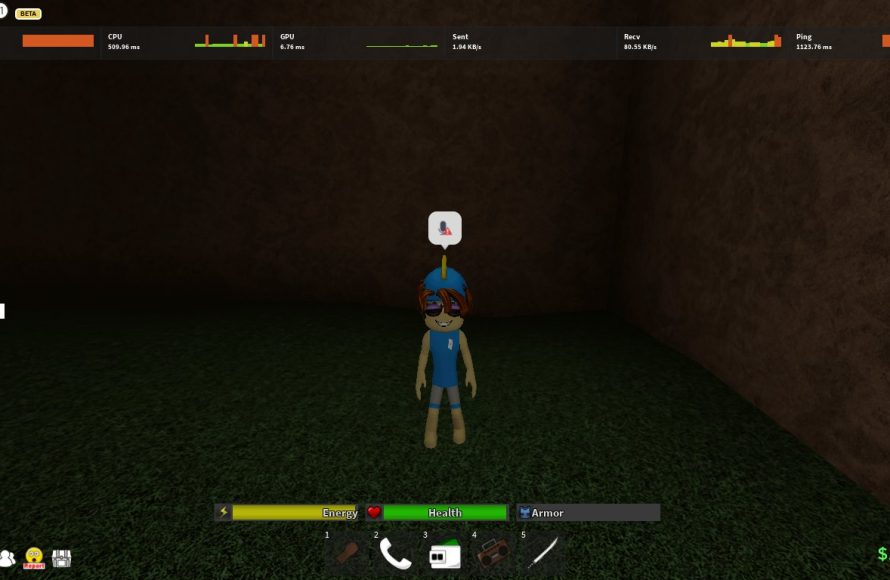
Your game is likely laggy due to a combination of factors such as outdated hardware, poor internet connection, or graphics settings that are too high for your system to handle efficiently.
Is that frustrating question, “why is my game so laggy,” echoing in your mind? We’ve all been there. That awful stutter, the delayed reactions, the overall feeling that your game is moving in slow motion, can absolutely ruin the experience.
It can be incredibly irritating, but understanding the common culprits can really improve your gaming sessions. So let’s explore the reasons, and some fixes, to get you back to smooth gameplay.

Why is My Game So Laggy?
Ever been in the middle of an epic battle, a crucial race, or building the ultimate virtual world, and suddenly… BAM! The game starts stuttering, freezing, or moving like it’s in slow motion? That’s lag, and it’s one of the most frustrating things a gamer can experience. But why does it happen? Let’s dive deep into the reasons behind those annoying lags and what you can do about them.
Understanding the Basics of Lag
Before we get into the nitty-gritty, let’s understand what lag actually is. In simple terms, lag is the delay between your actions (like pressing a button) and the game’s response on your screen. This delay can make your game feel unresponsive and choppy, taking all the fun out of gaming. Lag can be caused by a number of different things, and sometimes it’s a combination of factors.
Think of it like trying to talk to a friend on a bad phone connection. You say something, but it takes a while for your friend to hear it, and sometimes they hear it all broken up. That’s similar to how lag affects your game.
Your Computer’s Performance: The Hardware Culprits
Your computer’s hardware is like the engine that powers your games. If the engine isn’t strong enough, the game won’t run smoothly. Here are some key hardware components to consider:
The Graphics Card (GPU)
The graphics card, or GPU, is what makes the pretty pictures and smooth animations you see in your game. If your GPU is old or not powerful enough for the game you’re playing, it will struggle to keep up. This leads to frame drops and choppy gameplay.
- Insufficient VRAM: Your graphics card needs memory (VRAM) to store all the textures and effects in a game. If your VRAM is full, the game will start using your computer’s regular RAM, which is much slower, causing lag.
- Overheating: When your GPU works hard, it gets hot. If it gets too hot, it will slow down to protect itself. This is called thermal throttling, and it definitely causes lag. Make sure your computer has good ventilation.
- Driver Issues: Like all hardware, the GPU relies on software called drivers to work correctly. Outdated or corrupt drivers can make the GPU not work as well. Always keep your GPU drivers up-to-date.
The Processor (CPU)
The processor, or CPU, is like the brain of your computer. It handles all the calculations and tells the other parts of the computer what to do. If your CPU is too slow or if it’s working hard on other things in the background, it can slow down your game.
- CPU Bottleneck: When your CPU cannot process game information as fast as the GPU needs it, your gaming experiences a bottleneck. This means your game will not perform as expected, leading to performance issues.
- Too many background apps running: Having a lot of programs running while you game will drain your CPU processing power. Closing unused apps frees up resources for the game.
Random Access Memory (RAM)
RAM is where your computer stores data it is actively using. It’s faster than your hard drive or SSD, allowing the CPU to quickly access the information. If you don’t have enough RAM, your computer will struggle. Games may start lagging or even crash if they don’t have enough memory to work with.
- Not enough RAM: If your computer doesn’t have enough RAM, it will try to use storage on your hard drive or SSD, which is much slower. This can make the game very laggy. Check your game’s minimum and recommended RAM requirements and make sure you have enough.
- RAM issues: Sometimes RAM can become faulty. You can use software tools to check for errors.
Storage Devices (HDD/SSD)
Hard Disk Drives (HDD) and Solid State Drives (SSD) are used to store game files. SSDs are much faster than HDDs. When loading the game and during gameplay, accessing information from an HDD can be slower than an SSD, contributing to lag. While storage speed doesn’t directly cause in-game lag (once a level is loaded), it can affect loading times and cause stutters.
- Slow storage speed: Games installed on HDDs tend to have slower loading times and can experience stuttering. Installing your games on an SSD will improve performance.
- Full storage: If your storage is almost full, your computer will slow down, and that will affect the gaming experience. Always keep some free space on your storage.
Your Internet Connection: The Network Problems
If you are playing an online game, your internet connection plays a vital role in keeping it smooth. Lag can be caused by network issues that prevent your game information from reaching the server and back in a timely manner.
Latency (Ping)
Latency, also known as ping, is the time it takes for data to travel between your computer and the game server. The higher the latency, the more lag you will experience. Ideally, you want your ping to be as low as possible.
- Distance to server: If you are playing on a server that is located far away from you, data will take longer to travel, resulting in higher latency. Try to choose servers that are located closer to your location.
- Poor internet connection: An unstable or slow internet connection will lead to high latency. If your internet is not reliable, it will take time for information to reach the game’s server. Use wired connections for gaming if you can, as they are more stable than WiFi.
- Network congestion: If many devices in your home are using the internet at the same time, your game will experience lag. For example, streaming videos, downloading files and other devices connected at the same time may impact your gaming experience, so it is best to reduce the network activity from other devices when gaming.
Packet Loss
Packet loss occurs when data packets traveling between your computer and the game server get lost or corrupted along the way. This can cause your character to teleport, move erratically or for the game to experience interruptions.
- Weak WiFi signal: A weak WiFi signal can increase the chances of packet loss. Make sure your computer is close enough to your router or try a wired connection instead.
- Problems with your ISP: Your internet service provider (ISP) may have issues that cause packet loss. If you suspect this, contact your ISP for support.
Game Settings and Software Conflicts
Sometimes, the problem isn’t your hardware or internet, but how the game is set up or if there are any software issues. Here are some things to check:
Graphics Settings
Most games allow you to adjust the graphics settings. If you have a low-end computer, you may need to lower these settings to make the game run smoothly. Higher graphics settings, like high resolution, shadow quality, and texture detail, demand more from your system.
- Resolution: Lowering the resolution of the game will reduce the load on your GPU.
- Texture quality: Lower texture detail will also reduce the load on your GPU.
- Shadow quality: Shadows can be demanding. Lowering the quality will greatly improve game performance.
- Effects: Special effects like particle density can be lowered to improve performance.
Outdated Game Software
Game developers regularly release patches that fix bugs and optimize performance. Make sure your game is up-to-date. Check for updates using your game launcher or through the game’s website. These updates can often resolve performance problems and lag issues.
Background Apps
As mentioned earlier, having too many applications running in the background can consume resources that your game needs. Close any unnecessary apps before you start your game.
- Unnecessary software: Some programs that run in the background, such as antivirus scans, or unnecessary downloads, can take up valuable resources and slow down your game.
- Overlays: Overlays from apps like Discord can sometimes cause conflicts with games. Try disabling overlays and see if it improves the lag.
Operating System Problems
Problems with your operating system can also affect game performance. Make sure your operating system is up to date with the latest patches. Sometimes, restarting your computer or even reinstalling the operating system can fix software problems that contribute to lag.
- Outdated OS: Make sure your operating system is updated to the latest version.
- Driver Conflicts: Sometimes, various hardware drivers can be in conflict with each other, leading to lag or performance issues.
Game-Specific Issues
Sometimes, the game itself is the problem. It might be poorly optimized or have bugs that cause lag. Check online forums and communities for reports of similar issues. Often, developers will release patches to fix game-related performance problems.
Troubleshooting Steps: How to Fix the Lag
Now that we understand why your game might be lagging, let’s talk about how to fix it. Here’s a systematic approach to resolving lag:
1. Check System Requirements
Compare your computer’s specs with the game’s minimum and recommended system requirements. If your computer barely meets the minimum requirements or does not meet it, it will probably not run well, and you may need to upgrade your hardware or choose to play lower resource games.
Here’s a simple table that shows how this would work for a fictional game called ‘Space Racers’:
| Requirement | Minimum | Recommended |
|---|---|---|
| Operating System | Windows 7 | Windows 10/11 |
| Processor | Intel Core i3 | Intel Core i5 or higher |
| RAM | 8 GB | 16 GB |
| Graphics Card | Nvidia GeForce GTX 750 | Nvidia GeForce GTX 1060 or higher |
2. Update Your Drivers
Visit the manufacturer’s website for your GPU, sound card, and other devices. Download and install the latest drivers. This can often resolve performance and compatibility problems.
3. Monitor Your Computer’s Performance
Use software tools that will show you how hard your CPU, GPU, and RAM are working while playing games. This helps you pinpoint any bottlenecks in your hardware. If they are working on very high loads, you should check the cooling system and game settings.
4. Adjust Game Settings
Start by lowering all the graphics settings to their lowest level. If your game runs better, you can gradually increase them until you find a balance between visual quality and performance.
5. Close Unnecessary Programs
Before starting the game, close all other programs that aren’t essential, such as browsers, music players, and word processors. This will free up resources for your game.
6. Check Your Internet Connection
Make sure your internet is working properly. Run a speed test to check your download and upload speeds. If you are using WiFi, try a wired connection. Check to see if any other device using the internet connection are causing the problem. If you have issues with your internet, contact your internet service provider.
7. Update Your Game
Make sure the game is up to date with the latest patches by visiting the game store or launcher and downloading the available updates.
8. Overheating Check
If you suspect overheating issues are causing the lag, make sure your computer has good ventilation. Clean dust from your fans. If necessary, you can even purchase additional cooling systems.
9. Consider Upgrading
If you have tried all other solutions and you are still having issues, and if your hardware is old, you might need to think about upgrading your graphics card, CPU, or RAM. It is wise to upgrade components that have more trouble meeting the recommended system requirements for a game.
Lag can be a real pain, but by understanding the causes and systematically troubleshooting, you can significantly improve your gaming experience. From making sure your computer is up to spec to having a reliable internet connection, every factor has an important role in the game experience. Don’t give up when lag starts, use the tips we covered and return to your gaming adventures!
Fix Games Stuttering In 15 Seconds
Final Thoughts
Laggy games often stem from several core issues. Your computer may struggle with outdated graphics drivers, insufficient RAM, or an overwhelmed CPU. Internet connection problems can also create lag.
Poor game settings, such as high graphics configurations, can tax your system. Background applications running simultaneously can consume processing power. Ultimately, identifying the specific bottleneck is key.
So, why is my game so laggy? It is a combination of hardware limitations, software conflicts, and network conditions. Troubleshooting each area can improve your gaming experience drastically.

