
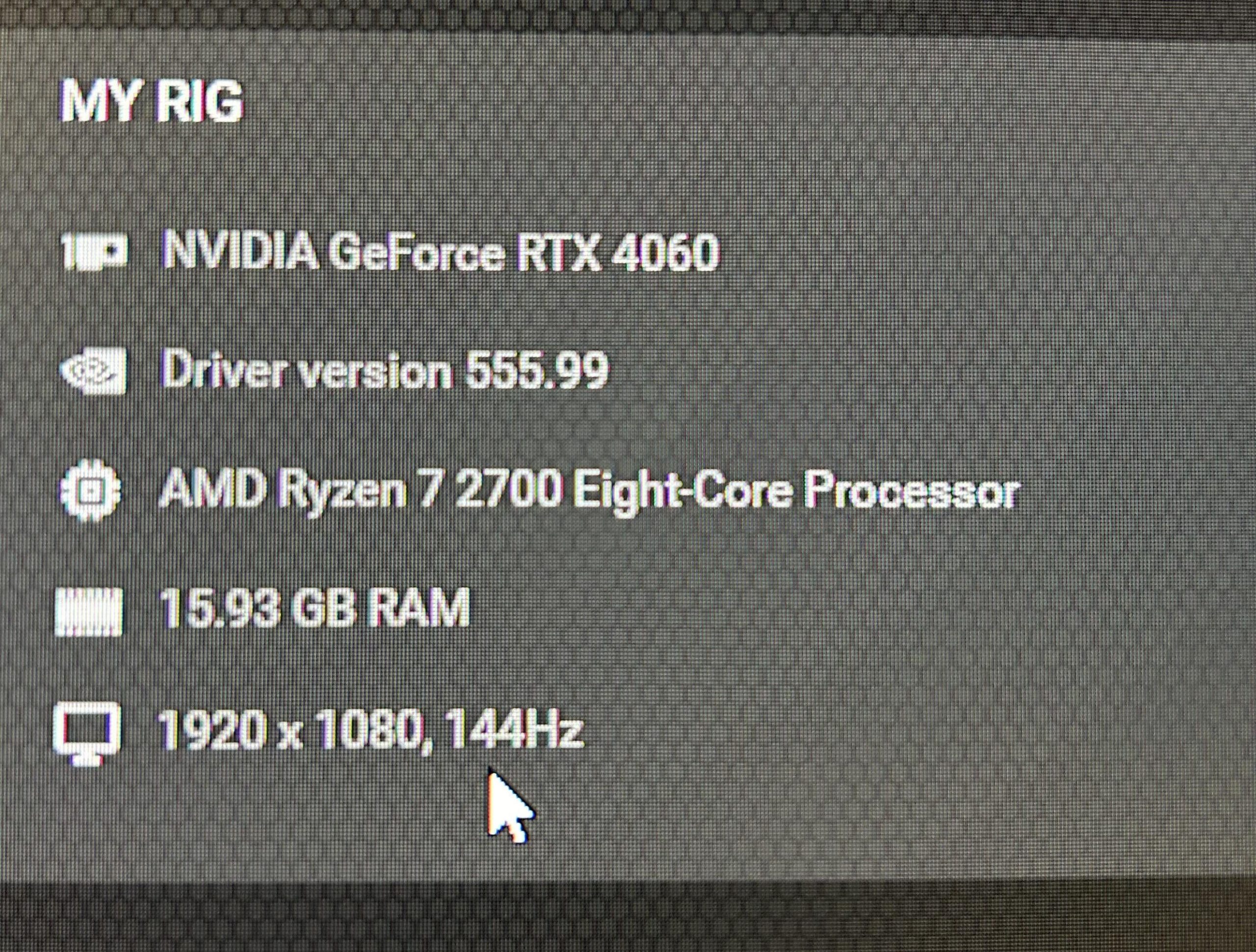
The most common reasons why your PC is stuttering in games include outdated drivers, insufficient hardware, overheating, or background applications consuming resources.
Is your gameplay experience a jerky mess? Do you frequently ask yourself, “why is my pc stuttering in games?” It’s a frustrating problem that many gamers face.
Stuttering can ruin immersion, impacting your performance and enjoyment. Several factors could be at play, from software issues to hardware limitations. We’ll dive into common causes and potential solutions.

Why is My PC Stuttering in Games?
It’s super frustrating when your favorite game starts acting choppy. One minute you’re in the thick of the action, and the next, your character is skipping around like a broken record. This annoying problem is called stuttering, and it can ruin a gaming session fast. But don’t worry! There are many reasons why your PC might be stuttering, and most of them are fixable. Let’s explore the most common culprits and how to get your games running smoothly again.
The Usual Suspects: Hardware Problems
Think of your computer like a team working together to make your games run. If one of the players is struggling, it slows down the whole team. Let’s look at some of the hardware parts that might be causing problems:
Graphics Card (GPU) Overload
Your graphics card is like the artist of your computer, creating all the amazing visuals you see in games. If your GPU is not powerful enough for the game you’re playing, or if it’s too old, it might struggle to keep up. This leads to frame rate drops and, you guessed it, stuttering. Imagine trying to draw a very detailed picture super fast with a crayon – it just won’t work well. Another problem is that if the driver (the software that tells the card what to do) is too old or buggy it could cause problems.
How to Check if Your GPU is the Problem:
- Look at your Game Settings: Lowering settings like shadows, texture quality, and anti-aliasing can help reduce the load on your GPU. If the stuttering improves, your GPU might be the problem.
- Monitor Your GPU Usage: You can use programs like MSI Afterburner or the Task Manager to see how hard your GPU is working while gaming. If it’s constantly maxed out at 100%, that’s a big sign it’s struggling.
- Check the Game Requirements: Make sure your graphics card meets the minimum requirements for the game you’re trying to play. If it’s below the minimum or near it, that’s probably causing the problem.
- Update Your Drivers: Check the website of Nvidia or AMD for the latest GPU drivers. Outdated drivers can cause poor game performance, including stuttering.
Central Processing Unit (CPU) Bottleneck
The CPU is like the brain of your computer, it gives all the commands and makes everything happen. If your CPU is too slow, it can’t keep up with all the instructions needed to run the game, resulting in stutters. It’s like having a very small chef try to cook a huge feast for everyone – they just can’t do it fast enough.
How to Check if Your CPU is the Problem:
- Monitor CPU Usage: Just like with your GPU, you can use Task Manager or other monitoring tools to see how your CPU is doing while gaming. If it’s constantly at or near 100% usage, it is working very hard and may be causing the issue.
- Check Game Requirements: Ensure your CPU meets the minimum and preferably the recommended specifications for the game you are playing.
- Too Many Background Tasks: Close background apps that could be using your CPU unnecessarily.
Not Enough Random Access Memory (RAM)
RAM is like your computer’s short-term memory, it holds the data the computer needs for quick access. If you don’t have enough RAM, your computer has to use your hard drive as extra RAM, which is much slower. This constant switching between RAM and the hard drive can cause noticeable stuttering and slowdowns, especially in big, open-world games. Imagine trying to remember many things at once with limited space in your head – you’ll struggle.
How to Check if Your RAM is the Problem:
- Monitor RAM Usage: Use Task Manager to check how much RAM is being used. If it’s always almost full when you’re gaming, you likely need more RAM.
- Close Unnecessary Programs: Close programs using RAM, to make more RAM available for the game you’re playing.
- Upgrade RAM: If you’re constantly maxing out your RAM, upgrading might be the solution. It’s like giving your brain more space for memory.
Hard Drive Issues
Your hard drive or solid-state drive (SSD) is where all your files, including your games, are stored. If your hard drive is very slow or fragmented, it can’t deliver game data fast enough, causing stuttering. Imagine trying to find a book in a messy library – it takes a long time. In other words, if your hard drive is slow and old or almost full, this can affect your game.
How to Check if Your Hard Drive is the Problem:
- Run Disk Defragmenter: (if using a HDD) Defragmenting your hard drive can help organize the data and make it faster to access.
- Check Disk Space: Make sure your hard drive isn’t nearly full. If it is, free up some space by deleting or moving old files.
- Check Disk Health: Check your hard drive’s health with disk utility programs.
- Consider an SSD: If you’re using a traditional hard drive, upgrading to an SSD can drastically improve loading times and reduce stuttering.
Overheating
When your PC gets too hot, it can slow down as a safety mechanism. This is called thermal throttling. Overheating can be caused by a poorly ventilated case, clogged fans, or a failing cooler, all which can lead to sudden performance drops and stuttering during gaming. Imagine trying to run a marathon in the hot sun without water – you’ll get worn out and slow down.
How to Check if Overheating is the Problem:
- Monitor Temperatures: You can use monitoring software like HWMonitor or Core Temp to check your CPU and GPU temperatures while gaming. If they’re consistently very high, you likely have a heat problem.
- Clean Your Fans: Make sure that the PC case, CPU, and GPU fans are clean from dust. Dust build up is a common reason for overheating.
- Improve Ventilation: Ensure your PC case has good airflow. Try adding more case fans or re-arranging them for better airflow.
- Check Coolers: Check if CPU cooler and GPU cooler working properly. If not, it could lead to overheating and stuttering.
Power Supply Problems
Your power supply (PSU) provides power to all your components. If your PSU isn’t powerful enough, or if it’s failing, it can lead to performance issues, including stuttering. It’s like trying to power a big light bulb with a small battery – it just won’t work well. Check if the power supply provides enough power for all components.
How to Check if Your Power Supply is the Problem:
- Check PSU Specifications: Make sure your PSU meets the requirements for all the components in your PC, especially your graphics card.
- Listen for Unusual Noises: If you hear strange noises from your PSU, that can be a sign of a problem.
- Test with another PSU: If possible, try a different power supply of the same specification, to see if the problem persists.
Software Issues
Sometimes, the problem isn’t with your hardware but with the software on your PC. It is good to keep the software updated for optimal performance. Below are common software related issues you may face:
Outdated or Buggy Game Drivers
Game drivers are like the translators between your game and your hardware, especially your graphics card. If your drivers are outdated or buggy, they might not be communicating properly. This leads to stutters and crashes. Imagine having a translator that speaks an old language that no one understands.
How to Check and Update your Game Drivers:
- Check Driver Status: Go to the device manager and make sure there are no warnings or issues with drivers, especially for the display.
- Update Regularly: Always get the latest drivers from the manufacturer websites, Nvidia or AMD. Usually, you may find new drivers in these websites.
- Roll Back Drivers: If a new driver is causing problems, try going back to the previous version.
Background Applications
Lots of programs running in the background can eat up your computer’s resources, leaving less for your games. These apps can steal precious CPU, RAM, and even GPU resources which can lead to stutters, especially if your PC is not powerful enough. Imagine having too many kids shouting while you’re trying to hear something important – it gets very noisy and difficult.
How to Improve Performance by Disabling Background Applications:
- Close Unnecessary Apps: Before playing, close any programs you don’t need running, like web browsers, music players, and downloaders.
- Use Task Manager: Check Task Manager to see which programs are using the most resources and close them.
- Disable Startup Programs: Disable unnecessary programs from starting up automatically when your computer turns on.
Operating System Issues
Sometimes, your operating system (like Windows) can cause problems. Outdated or buggy operating systems or corrupt system files can cause stuttering. Imagine trying to drive a car with old and damaged engine parts. It will not work properly.
How to Ensure Optimal OS Performance:
- Keep Your OS Updated: Make sure your operating system is updated with the latest patches and security updates. These usually fix bugs that cause performance issues.
- Run System File Checker: Use the system file checker tool to repair corrupted system files.
- Reinstall the OS: As a last resort, try reinstalling your operating system. This can fix problems when all other things don’t work.
In-Game Settings
Many games have settings that allow you to adjust how detailed the graphics are. These settings can have a big impact on how well your games run. If the settings are too high for your system, it will cause stuttering. Imagine trying to run a marathon with very heavy shoes.
How to Optimize In-Game Settings:
- Adjust Graphics Settings: Start by lowering the graphics settings, such as resolution, texture quality, shadows, and anti-aliasing.
- Test Settings Individually: Try lowering each setting one by one to find the one that has the biggest impact on performance.
- Experiment with different settings: Try to find a good balance between visual quality and performance.
Game Optimization Issues
Sometimes the game itself is poorly optimized, which can lead to stuttering on even powerful computers. Poor optimization can mean the game code itself isn’t very efficient, causing the game to take up unnecessary resources. Think of a poorly planned road that slows down all the cars passing through it.
What to do if the Game is Poorly Optimized:
- Check for Patches: Look for game patches that fix performance issues.
- Search for Tips and Tricks: Search online for game-specific optimization guides.
- Wait for Updates: Sometimes, developers release updates to fix optimization problems.
By checking all of these factors, you can more clearly understand why your computer is having issues. You may need to test each of these options to find what’s causing the stuttering in your game.
Stuttering in games is a common issue, but it is also often easily fixed with a little troubleshooting. You should now have a good idea of how to find the cause and get back to smooth gaming again.
Fix Games Stuttering In 15 Seconds
Final Thoughts
Ultimately, the answer to “why is my pc stuttering in games” boils down to several key factors. Outdated drivers, an overwhelmed CPU or GPU, and even insufficient RAM often cause these frustrating hitches. You must check these components.
Background apps also steal resources, contributing to performance issues. Ensure your cooling system works properly because thermal throttling creates stuttering.

