
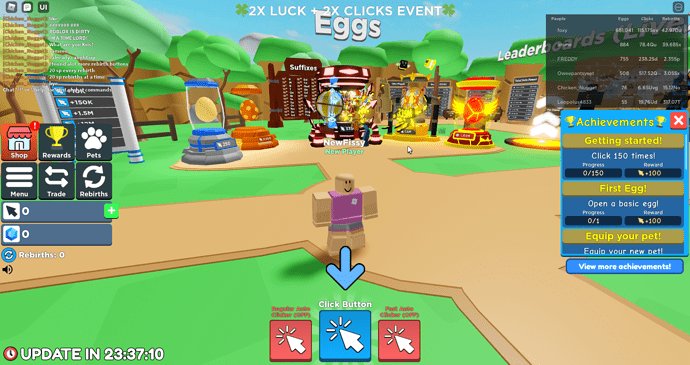
Your Roblox avatar may not be loading in game due to network issues, server problems, or corrupted cache data on your device.
Is your Roblox avatar suddenly invisible in-game? It’s incredibly frustrating when your customized character fails to appear! You’ve spent time perfecting your look, and now it’s just not showing up.
This problem can stem from a few different areas, and we’re going to explore the most common reasons why is my roblox avatar not loading in game. We will go through some quick fixes to get your avatar back in action. Let’s figure this out together and get you back into the game looking your best.

Why is My Roblox Avatar Not Loading in Game?
Ever hopped into a Roblox game, excited to show off your cool avatar, only to find yourself looking like a default noob? It’s frustrating when your carefully crafted character doesn’t appear as it should. You’re not alone! Many players face this issue, and there are several reasons why your Roblox avatar might be failing to load properly. Let’s explore some common culprits and how to fix them.
Internet Connection Issues
A shaky internet connection is often the first thing to blame when your avatar won’t load. Roblox, like most online games, requires a stable and consistent connection to download all the necessary data, including your avatar’s appearance. If your connection is slow or frequently dropping, your avatar might not load correctly or might load partially. This can result in you appearing as a default avatar, having missing body parts, or having your avatar’s clothes and accessories not showing up.
Checking Your Internet Speed
First, check your internet speed. You can do this by using an online speed test. Search “internet speed test” on Google and run one. Compare the results to your internet plan’s advertised speed. If your speeds are significantly lower than expected, you may need to contact your internet service provider (ISP) for help. Make sure your router is working correctly. Try restarting it, wait for a few minutes, then check your connection again. If possible, try using an ethernet cable instead of Wi-Fi. Wired connections are generally more stable and faster.
Reducing Network Congestion
Sometimes, your network can be busy with other devices. If you have many people using the internet at the same time, it can slow down your connection, making it difficult for Roblox to load your avatar. Try to close applications or disconnect devices that are using a lot of bandwidth while you are playing Roblox. This includes things like downloading files, streaming movies, or playing other online games simultaneously on different devices. When this is reduced, your network has more bandwidth and has a better chance to load your avatar correctly.
Roblox Server Problems
Sometimes, the issue isn’t with your internet but with Roblox itself. Roblox servers can sometimes have issues due to high player traffic, scheduled maintenance, or unexpected problems. When servers are down or overloaded, it can cause a range of problems, including avatars not loading correctly.
Checking Server Status
Before you start troubleshooting your device or internet, take a moment to check the Roblox server status. You can do this on the official Roblox website or through third-party sites that monitor server status. If there are widespread server issues, all you can do is wait for Roblox to resolve them. Trying to reconnect repeatedly or changing your game settings when servers are down often will not help.
When to Wait it out
If the Roblox server status shows that everything should be running fine, but you’re still experiencing issues with your avatar, then there could be other problems with your account or device. If the servers are having issues, just wait for some time, and then try again to play. It’s annoying, but patience is key. Keep an eye on official Roblox channels for updates on when servers are back up and running normally.
Device and Browser Issues
The device you use to play Roblox and the web browser you use can also be the reason your avatar isn’t loading properly. Old devices and outdated software can create compatibility issues. Using outdated browsers can also sometimes cause conflicts.
Outdated Operating Systems
If you’re using an older device that has an outdated operating system, it might be struggling to run Roblox correctly. Check if there are any updates available for your operating system like Windows, macOS, iOS, Android. Updated software usually includes bug fixes and performance improvements, which can fix issues with avatar loading.
Browser Cache and Cookies
Your web browser stores temporary files called cache and cookies, which help websites load faster. However, if these files become corrupted or outdated, they might cause problems with how Roblox renders your avatar. Try clearing your browser’s cache and cookies to see if that helps. The steps to do this vary between different browsers, but they are generally located in the settings or history sections. After you clear the cache, restart your browser and then log back into Roblox and see if the problem is solved.
Browser Compatibility
Not all web browsers work perfectly with all websites. If you are using a very old browser or a browser that is not officially supported by Roblox, it may cause issues with loading the avatar. It’s usually better to use popular web browsers like Chrome, Firefox, Safari, or Edge. Consider updating your browser to the newest version. Also, try testing Roblox in a different browser to rule out a browser-related problem. If your avatar works on a different browser, the issue lies within your previous browser.
Roblox Application Problems
If you’re using the Roblox application instead of playing through a browser, there can be some issues with the app itself that may affect avatar loading. These problems might include corrupted game files or the application needing a refresh.
Corrupted Game Files
Sometimes, files within the Roblox app can become corrupted or damaged. This can happen because of errors when installing or updating the app, or during a power outage. The most effective solution is often to uninstall the Roblox app from your computer or phone. Then, reinstall it from the official website or app store. This makes sure you have a fresh copy of the app and can often resolve issues related to corrupted files.
Outdated Roblox Application
If your Roblox application is not up to date, it might have bugs or compatibility issues that can stop avatars from loading. Roblox frequently releases updates to improve game performance and fix problems. Ensure you are using the newest version of the Roblox app. This usually happens automatically, but it’s always a good idea to check the app store for updates.
Avatar Customization Issues
Sometimes, the issue isn’t technical but related to the items you’ve equipped on your avatar. Some clothing, accessories, or character parts may have issues that cause problems when loading in-game.
Conflicting Items
It is possible that some of your avatar items may conflict with each other. This usually happens when items are not compatible, and they may cause some display problems. Try unequipping recently added items, particularly items added from the same set and try entering a game. If your avatar works fine with these items removed, then the problem is caused by the item that you removed.
Item Bugs
Occasionally, an item you purchased might have bugs. These item bugs may stop your avatar from showing up correctly. If you have recently purchased or acquired items, try removing them to see if that fixes the issue. If it does, you may need to try getting a refund or just not equip the faulty item. It’s always a good idea to check for player reviews on items that you buy to see if they have a history of problems.
Roblox Account Settings
While less common, sometimes the problem could be linked to your Roblox account settings. These can influence how your avatar appears in a game.
Privacy Settings
Your Roblox account has privacy settings that can impact who sees your avatar, but these settings are unlikely to cause your avatar not to load at all. However, if you have very restrictive privacy settings, these may cause some minor issues and prevent others from seeing your customized avatar in-game. While this setting might not cause your avatar not loading completely, it might be a good idea to check and adjust these settings. Go to your Roblox settings in the account, navigate to the “Privacy” tab and check the option to allow “everyone” or “friends” to see your avatar.
Avatar Appearance Settings
There might also be an issue with your avatar appearance settings on your account. Double-check that your avatar is set up correctly. Ensure all your desired clothes and accessories are added in the Avatar Editor and you see them on the preview avatar there. If some of your avatar is missing from the editor itself, that’s definitely a problem you need to fix in the Avatar Editor before logging into the game.
Summary Table of Possible Causes and Solutions
| Problem | Possible Solutions |
|---|---|
| Slow or Unstable Internet | Check internet speed, restart router, use ethernet cable |
| Roblox Server Issues | Check server status, wait for Roblox to resolve issues |
| Outdated Operating System | Update your device’s OS |
| Browser Cache and Cookies | Clear browser cache and cookies |
| Incompatible Browser | Use an updated, compatible browser |
| Corrupted Roblox App Files | Uninstall and reinstall the Roblox app |
| Outdated Roblox App | Check for and install Roblox app updates |
| Conflicting Avatar Items | Remove recently added items, remove all items and add one by one |
| Buggy Avatar Items | Remove recently purchased/acquired items |
| Incorrect Privacy Settings | Check and adjust privacy settings |
| Avatar Appearance Settings | Ensure the Avatar Editor is showing all your avatar items |
Sometimes, the issue might involve combinations of different factors. It’s a good idea to check each of the potential causes one by one. Start with the easiest solutions, like checking your internet connection or restarting your browser. Then move on to more in-depth fixes, such as reinstalling the Roblox app, if necessary. Don’t be afraid to try more than one solution at a time to see what works for you.
If you’ve tried all these steps and your avatar still isn’t loading, you may want to contact Roblox support for additional help. They may have more specific solutions for your particular issue. Also, remember that Roblox is an online game, so issues are bound to happen from time to time. Keep an eye on official channels to see when issues are fixed, and use our tips to make sure your avatar is always looking its best when you play!
How To Fix Roblox Avatar Not Loading (2024)
Final Thoughts
To sum it up, avatar loading issues often stem from unstable internet, corrupted game files, or server problems. Sometimes, outdated Roblox versions cause this problem. If you have tried all that, and your avatar still won’t appear, check your device’s settings.
The question of “why is my roblox avatar not loading in game” is often tied to these common culprits. You must check each potential issue methodically to pinpoint and fix the problem effectively.

